As an Amazon Associate & Influencer, we earn from qualifying purchases you might make if you click any of the links or buttons on this page at no expense to you.
For most drivers who want a dedicated navigator, start with the Garmin DriveSmart 76. Choose the Drive 53 for a smaller, simpler map device, or the DriveCam 76 if you also want front dash-cam recording. The DriveSmart 86 is the larger-screen option when your cabin has room for it.
Buy the right map region: these recommendations refer to the US/North America versions for ordinary cars. Offline maps, live traffic and vehicle-specific routing are separate features. These models do not supply height- or weight-aware truck/RV routing.
Quick picks: three ways to choose
Best for most drivers
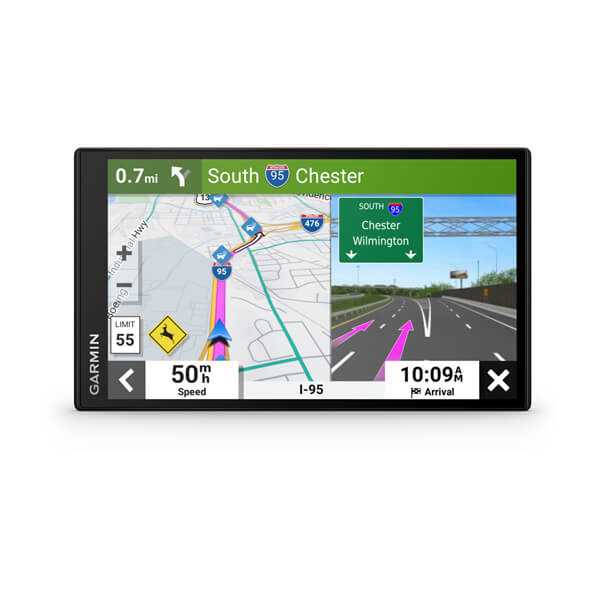
Garmin DriveSmart 76
A 7-inch display, spoken destination requests and phone-linked live services.
Skip it if: you want the simplest small navigator or need vehicle-height-aware truck routing.
Simple navigation
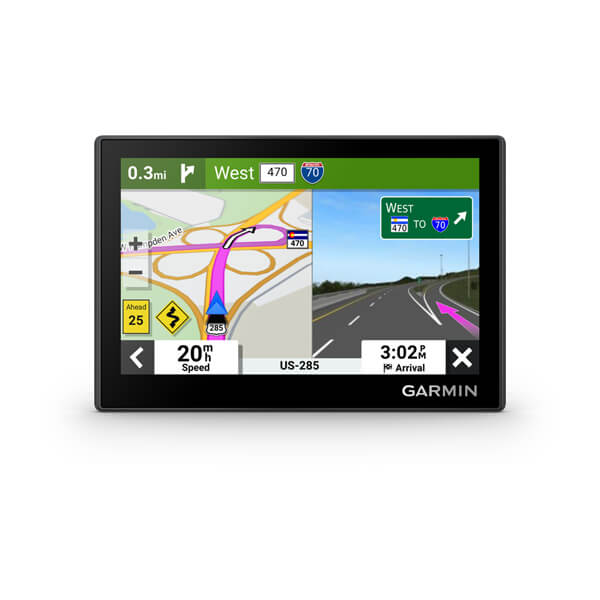
Garmin Drive 53
A compact 5-inch map screen with included North America map updates.
Skip it if: live traffic, Wi-Fi updates or spoken destination entry are essential.
GPS plus dash cam
Garmin DriveCam 76
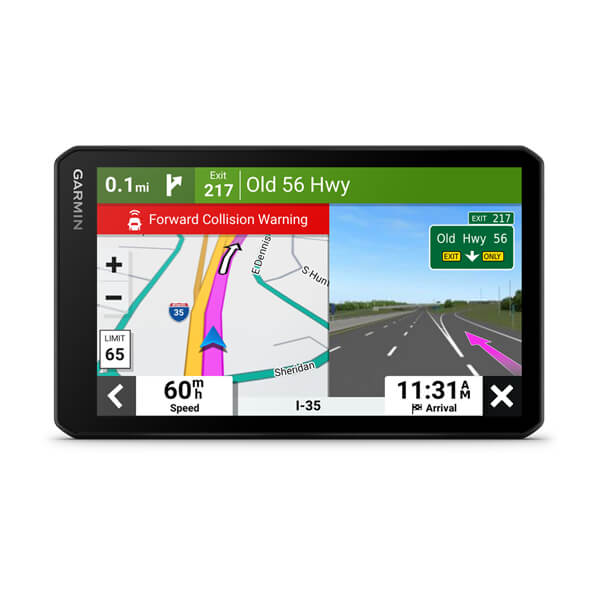
A 7-inch navigator with a built-in 1080p front camera and supplied recording card.
Skip it if: you need front-and-rear recording or want a small camera hidden behind the mirror.
| GPS / best for | Decisive feature | Map region / key limitation | Amazon |
|---|---|---|---|
| Garmin DriveSmart 76 Best for everyday car navigation | 7-inch class, 1024 × 600; Garmin voice assist | North America version; app-linked live traffic needs a compatible phone and data connection. | Check Current Price on Amazon |
| Garmin Drive 53 Best compact basic navigator | 5-inch class, 800 × 480; basic standalone maps | Base Drive 53, US part 010-02858-00; not the separately named Live Traffic model. | Check Current Price on Amazon |
| Garmin DriveCam 76 Best GPS and front-camera combination | 7-inch class; integrated 1080p/30 front dash cam | Camera needs a clear forward view; Vault online video storage requires a paid subscription. | Check Current Price on Amazon |
| Garmin DriveSmart 86 Best larger-screen option | 8-inch, 1280 × 800; dual orientation | Larger footprint than the 76; same ordinary-car navigation role. | Check Current Price on Amazon |
Jump to: Choose by your situation · Head-to-head decisions · Required extras · Purchase worksheet · FAQs
Which car GPS fits your driving situation?
| Your situation | Start with | Why it fits — and when to stop |
|---|---|---|
| You want a dedicated map screen but still use a phone | DriveSmart 76 | Voice destination entry and app-connected services; choose the 53 if you will not use those features. |
| You want stored maps and a simple compact device | Drive 53 | Basic navigation without the DriveSmart feature set; stop if live traffic or voice entry is essential. |
| You want navigation and front recording in one mount | DriveCam 76 | Combines both jobs; choose separate devices if the best map and camera positions differ. |
| You sit farther from the dashboard and have mounting room | DriveSmart 86 | Larger, higher-resolution screen; first verify that its body and mount do not block your view. |
| You mainly want maps from your existing phone | Check your current phone/head unit first | A dedicated GPS may add little if phone navigation already solves your needs. |
| You need routing for a tall RV or commercial vehicle | A documented vehicle-profile navigator | The ordinary-car picks here do not establish clearance-safe routing for that vehicle. |
For regular commuting, live traffic may matter more than an extra inch of screen. For rural trips, the useful question is whether your destination region is already on the device and whether you can read the map from the mounting position. For a driver who dislikes phone pairing, simplicity can be a better purchase than a connected model with features left unused.
Choose it if: you want a larger dedicated map screen with voice commands and can pair a compatible phone for live services.
Skip it if: you want the simplest small navigator or need vehicle-height-aware truck routing.
The DriveSmart 76 is the starting point for a driver who wants dedicated navigation without giving up a comfortable map display. Its roughly 7-inch screen provides more viewing area than the Drive 53, and Garmin voice assist lets you request a destination without entering every letter on the touchscreen.
Key features
- Screen: 6.95-inch diagonal, marketed as 7 inches; 1024 × 600 resolution.
- Maps: preloaded North America street maps with included map updates.
- Controls: Garmin voice assist and Bluetooth hands-free calling with a compatible phone.
- Updates and services: Wi-Fi map/software updates; live traffic and weather through the Garmin Drive app.
Choose it for the combination of screen size and voice entry. Ordinary navigation uses the maps on the device; a phone is needed for the connected features rather than for every turn. Its route shaping is useful when you want to travel through a particular town, but it does not create truck or RV clearance routing.
Where the extra features earn their place
If your current phone navigation works but you dislike handling the phone for addresses and calls, decide which of the 76’s connected functions you will use before buying. Pairing should be part of setup rather than a surprise on your first trip. If you simply want stored maps and turn prompts, compare the Drive 53 instead; if only readability is the issue, compare the 86 using a mounting template.
Installation and limitations
The standard package lists a suction-cup mount and vehicle power equipment. Mount it where the screen is readable without obstructing your view, then check cable routing and the outlet’s behavior when the ignition turns off. For app-based traffic, pair a supported phone and keep Garmin Drive running with the required connection. Service coverage varies by area.
This is a map navigator, rather than a CarPlay receiver or a dash cam. The larger screen needs more mounting space than the Drive 53. Keep it on vehicle power for a journey; its short internal-battery specification is not a full-day portable-use promise.
See Garmin’s DriveSmart 76 specifications and the manual’s traffic requirements.
Buying the Garmin DriveSmart 76? Check the selected model, package, seller and condition before ordering.
Choose it if: you want straightforward offline directions in a smaller device and can update it through a computer.
Skip it if: live traffic, Wi-Fi updates or spoken destination entry are essential.
The Drive 53 suits a driver who wants a small, dedicated route display and does not need the connected features of the DriveSmart models. It keeps the purchase focused on directions, route information and a compact mounting footprint.
Key features
- Screen: 5-inch class glass touchscreen with 800 × 480 resolution.
- Maps: preloaded North America maps and included map updates on the US model.
- Guidance: spoken turn instructions, lane assistance with junction views and driver alerts.
- Updates: Garmin Express on a compatible computer, using the USB connection.
Spoken turn directions are different from voice-controlled destination entry. The base Drive 53 tells you where to turn; it is not the DriveSmart voice-assist experience. Its smaller screen also makes it easier to position in a compact cabin, provided it remains readable from your normal seating position.
The purchase check that matters most
Look for the base model number 010-02858-00 on the selected offer. Regional “Live Traffic” variants and DriveSmart models have different feature sets. This basic model is most useful to someone who values a compact map display and will maintain it through a computer. Check a familiar destination and update method before buying one for a driver who cannot perform that maintenance.
Installation and limitations
Garmin lists a vehicle suction-cup mount, vehicle power cable and USB cable in the box. Update the maps with Garmin Express before the first important trip, then test the route display and spoken prompts while parked. The linked listing identifies the US base Drive 53 as 010-02858-00; check that part number and map region when choosing an offer.
The base model’s specification does not provide the app-linked live traffic, Bluetooth calls or Wi-Fi updates found on the DriveSmart picks. “Drive 53 & Live Traffic” is a separate variant in some markets. Do not order the base model expecting those extra functions.
See Garmin’s US Drive 53 page and Garmin Express update guidance.
Buying the Garmin Drive 53? Check the selected model, package, seller and condition before ordering.
3. Garmin DriveCam 76 — Best GPS and front-camera combination
Choose it if: you want a dedicated navigator and front dash cam in one mounted device.
Skip it if: you need front-and-rear recording or want a small camera hidden behind the mirror.
The DriveCam 76 combines two jobs: displaying your route and recording the road ahead. It is the logical choice when you would otherwise buy a dedicated navigator plus a front-only dash cam and are comfortable with one larger device on the windshield.
Key features
- Screen: 6.95-inch diagonal with 1024 × 600 resolution.
- Camera: 1080p recording at up to 30fps, a 140-degree field of view and incident detection.
- Storage: pre-installed 16GB microSD card for the dash camera.
- Navigation: North America maps with updates, Garmin voice assist, Wi-Fi updates and phone-linked live services.
The supplied camera card makes the base package more complete than a camera listing that requires a separate card. However, the installation has to satisfy both jobs: a screen you can read and a camera with an unobstructed forward view. A low dashboard position that works for maps may be unsuitable for the camera.
Decide the mount before deciding the package
While parked, identify a location with a readable screen and a forward camera view through a suitable windscreen area. If those requirements point to different places, a separate navigator and dash cam can be the better system. Also decide how you will retrieve and retain clips. The combined purchase is worthwhile when the shared mounting and management arrangement is an advantage for you.
Installation and limitations
The standard package includes its suction-cup mount, vehicle power cable and camera card. Adjust and check the recording view before driving. Garmin Drive supports video review and connected navigation functions; saved clips in Garmin’s online Vault require the applicable paid subscription and Wi-Fi connection. Local recording and map navigation are separate from that optional online service.
The built-in camera records the front view. Backup-camera compatibility does not mean an optional reversing camera becomes a second continuously recorded dash-cam channel. Its camera-assisted warnings also depend on conditions and positioning; they do not replace the vehicle’s safety systems or attentive driving.
See Garmin’s DriveCam 76 specifications and package contents for the integrated camera and current Vault conditions.
Buying the Garmin DriveCam 76? Check the selected model, package, seller and condition before ordering.
4. Garmin DriveSmart 86 — Best larger-screen option
Choose it if: a larger display is the priority and your cabin has a suitable mounting position.
Skip it if: an 8-inch screen would block your view or you expect different truck-routing capability.
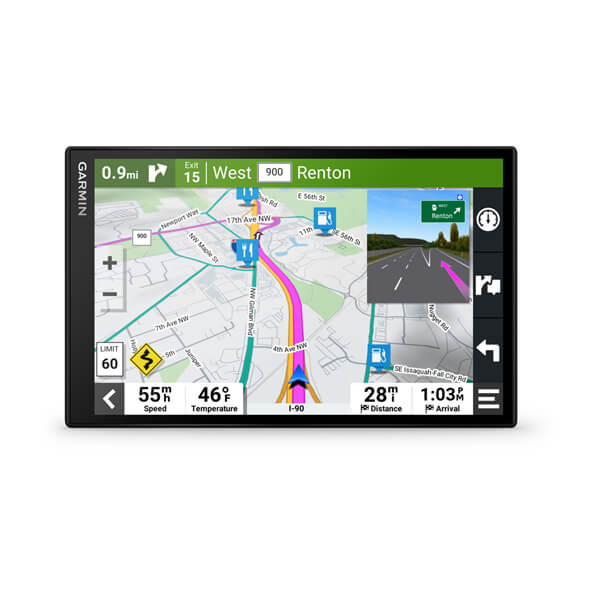
The DriveSmart 86 is the larger-screen alternative to the DriveSmart 76. Its 8-inch display and 1280 × 800 resolution are the reason to move up; it should not be treated as a different class of navigation system simply because its model number is higher.
Key features
- Screen: 8-inch diagonal, 1280 × 800 resolution.
- Orientation: portrait or landscape display.
- Navigation: North America map updates, Garmin voice assist and landmark-based directions.
- Connectivity: Bluetooth phone pairing, Wi-Fi updates and live services through Garmin Drive.
A larger map may be easier to read at your chosen mounting distance, especially in a roomier cabin. Portrait orientation gives another placement option. Decide from the physical screen position, rather than assuming that an 8-inch navigator belongs in every car.
A larger screen deserves a physical trial
Make a 192 × 119mm paper body template and test it from the normal driving seat while stationary. Leave space for the mount, connector and cable. If the position blocks a sightline or covers controls, the 76 may be the better choice even when the larger display looks appealing in a product photo. Treat the upgrade as a readability purchase rather than a new routing category.
Installation and limitations
The supplied mount and vehicle power equipment still need a suitable position and secure cable routing. Check that the screen clears sightlines, vents and other controls in both orientations. App-based live traffic and weather need a compatible paired phone and connectivity, as on the DriveSmart 76.
This guide treats the 86 as a size option within the same DriveSmart family. The 76 remains the more balanced starting point when space matters. Neither model adds routing based on truck height, weight or hazardous loads, and neither has the DriveCam’s built-in recording camera.
See Garmin’s DriveSmart 86 specifications and the DriveSmart family manual.
Buying the Garmin DriveSmart 86? Check the selected model, package, seller and condition before ordering.
What else you need
The normal navigator package supplies basic mounting and vehicle power. The following extras depend on the way you will use it; an accessory is not automatically compatible just because it carries the Garmin name.
| Item | When it is needed | Included or separate? |
|---|---|---|
| Vehicle power and mount | Required during normal driving; choose a secure position that leaves visibility and controls clear. | Listed in the standard packages. Check that the seller supplies them, particularly for used or renewed offers. |
| Compatible phone and mobile data | Needed for Garmin Drive app-based live traffic/weather on DriveSmart and DriveCam models. | Your phone and service plan; not supplied. Base Drive 53 does not offer this connected feature set. |
| Computer and USB connection | Needed for Drive 53 updates using Garmin Express. | USB cable listed in its package; compatible computer and internet access are yours. |
| Camera recording storage | Required for DriveCam’s front recording; distinct from map storage. | DriveCam 76 includes a pre-installed 16GB camera card. Follow its manual for replacements. |
| Vault subscription | Optional online saved-video service for DriveCam; not required for ordinary map navigation. | Separate paid service and the required Wi-Fi/app connection. |
| Backup camera and installation | Optional only on models and camera combinations explicitly supported by Garmin. | Camera and any required power/wiring equipment separate; not a universal RCA camera input. |
| Maps for another region | Needed if the purchased map region does not cover the trip. Confirm the exact available map product first. | Do not assume extra world maps are included. Compare a region-appropriate navigator before buying. |
Drive 53 vs DriveSmart 76 vs DriveCam 76 vs DriveSmart 86
Drive 53 or DriveSmart 76: simplicity versus connected convenience
Choose the Drive 53 when you want to enter a destination on the screen and follow stored-map directions. It avoids paying for a feature set you do not intend to connect. Choose the 76 when voice destination entry and phone-linked traffic are part of your routine, and when its larger map is easier to read from your seat. A spoken turn prompt on the 53 is not the same feature as entering an address by voice.
Compare the setup burden as well as the device price. The 53 uses a computer and Garmin Express for updates; the DriveSmart models support Wi-Fi updates. If you will not maintain a computer connection but can use home Wi-Fi, that difference can matter more over ownership than a cosmetic screen preference. Connected traffic still needs the appropriate smartphone connection and data access.
DriveSmart 76 or 86: decide from the body, not just the diagonal
| Model | Display and resolution | Body dimensions, W × H × D |
|---|---|---|
| Drive 53 | 5-inch class; 800 × 480 | Use the exact-model drawing when planning the mount. |
| DriveSmart 76 | 6.95-inch diagonal; 1024 × 600 | 173 × 99 × 19mm |
| DriveSmart 86 | 8-inch diagonal; 1280 × 800 | 192 × 119 × 18mm |
| DriveCam 76 | 6.95-inch diagonal; 1024 × 600 | 177 × 106 × 35mm |
The 86 is 19mm wider and 20mm taller than the 76, before accounting for its mounting position. Cut a paper rectangle to the body dimensions and hold it where the mount would place the screen while the car is stationary. Check the sightline, vents and controls from your normal seat. The 86’s extra resolution is useful only if the resulting screen placement works for you; portrait capability is another option, not a cure for an obstructed position.
DriveCam 76 or a navigator plus a separate dash cam?
The combined device saves one main device mount and integrates front recording into the navigator. It also couples the viewing position of the screen to the camera angle. A separate dash cam can sit close to the mirror while a navigator sits in a different readable position. Choose the combined unit when one location works for both jobs; choose separate devices when discreet recording, rear coverage or independent upgrading matters more.
Do not buy the DriveCam solely to obtain a larger screen than the DriveSmart 76: both have the same stated diagonal and resolution. The extra purchase is primarily the recording function and associated camera features. Its preinstalled camera card is useful, but clips still need checking, saving and transferring; a built-in camera does not remove that routine.
What about the newer ultrawide Garmin Drive models?
Garmin announced a redesigned Drive family with 7.1- and 8.8-inch ultrawide displays in September 2026. If a low-profile screen is your main reason for upgrading, compare that newer family before ordering an older model. The new design adds a different screen shape and interface, with connected services still dependent on the required phone connection. It is not the same product as the basic Drive 53.
Compare the newer family’s actual body shape, map region, voice functions and connected-service requirements with the older model you are considering. A new screen shape can solve a mounting problem, but it is still worth paying for only when it improves your setup. See the official Drive 7.1 product page and Garmin’s new-family announcement.
| Option | Useful when | Cost or dependency to consider |
|---|---|---|
| Dedicated stored-map navigator | You want a separate, consistently placed map device | Separate mount, power cable and map maintenance; live services may need a phone. |
| Phone navigation | Your existing phone and app already meet your route needs | Phone mount, charging, app-specific offline coverage and data-dependent services. |
| CarPlay or Android Auto head unit | You want supported phone navigation on the dashboard display | Compatible receiver, phone, wiring and vehicle integration; projection does not prove built-in offline maps. |
| GPS tracker | You need to locate or monitor a vehicle | Tracking service and installation; it is a different job from displaying turn-by-turn directions. |
Test the solution you already own before buying another screen. If the problem is only an unstable phone mount or a charging cable, fixing that may solve it. If you want a family member to navigate without lending them your phone, or you prefer separating calls and messages from the map device, a dedicated unit has a clearer purpose. Check an app’s exact offline behavior before relying on it beyond reception.
Build your car GPS purchase plan
Compare two complete baskets using the same trip requirements. Write down the device price today, any mount needed for your chosen location, map-region additions, a replacement or extra power cable, and any camera storage or optional service. Included accessories have value only if they fit the way you will use the unit.
| Write this down | What to verify | Decision it controls |
|---|---|---|
| Countries and roads on the next trip | Exact map region and update entitlement of the chosen regional SKU | Whether the listing can navigate where you need it. |
| Phone connection: yes or no | Base navigation versus app-linked traffic/weather/calling | Drive 53 simplicity versus connected DriveSmart features. |
| Available screen position | Body template plus mount depth and cable access | 76 versus 86, or whether a combined camera unit works. |
| Available power socket | Included vehicle adapter and other devices already using the socket | Whether another power arrangement is needed. |
| Update routine | Computer/USB for the 53 or supported Wi-Fi on connected picks | Whether you can keep the device maintained. |
| Recording requirement | Front only, front/rear, local storage or optional online access | DriveCam versus independent dash-cam system. |
Example: a driver with no interest in phone pairing, access to a home computer and a small cabin should compare the Drive 53 first. A driver taking long trips who will pair a phone for traffic should compare the DriveSmart 76, then pay more for the 86 only if the paper-template check shows a useful display advantage. These are decision examples, not claims about current prices.
Before travel: a route and update check that catches avoidable problems
- Update maps and software at home, with suitable power and enough time to finish. Confirm completion on the device rather than assuming a started download installed successfully.
- Search for a known address in the destination region, then inspect the planned route and any selected avoidances. A route appearing on screen is more useful evidence of coverage than a vague “worldwide GPS” retailer phrase.
- Review any planned stops and the route type. Ordinary-car routing does not certify bridge clearances or restricted roads for an oversized vehicle.
- Test navigation without the phone connection while stationary, then reconnect and verify the live features you intend to use. This separates stored-map functionality from phone-linked extras.
- Check guidance volume, day/night display settings and power from the chosen socket. Keep the vehicle cable connected for sustained use.
How to choose a GPS for your car
Start with the reason you need a separate device
Choose a dedicated GPS when a separate route screen or onboard map system solves a specific problem for you. A phone can also navigate offline after downloading suitable maps, so lack of cellular coverage alone does not establish that every driver needs another device. Consider where your phone sits, how you charge it and whether you already use in-dash phone projection.
Separate offline maps from live services
These navigators store their road maps on the device and receive positioning signals from navigation satellites. That is different from a live traffic feed. On the DriveSmart and DriveCam picks, the Garmin Drive app provides connected traffic and weather with a compatible paired phone. Coverage and the phone’s connection affect those features; an offline route does not become a live traffic report.
The base Drive 53 is the simpler choice. Buy it for stored maps and spoken turn instructions, and use Garmin Express for updates. Do not confuse it with a similarly named “& Live Traffic” version sold in another region. Match the full model, regional part number and supplied map coverage on the selected listing.
Choose a screen you can place properly
A larger display helps only if it fits a good viewing position. The DriveSmart 76 balances a roughly 7-inch screen with a smaller body than the 8-inch 86. The Drive 53 occupies less space. Try the intended mounting area from your driving seat, including the reflection of the screen in bright light and the reach needed to operate it while parked.
The DriveCam adds another placement condition: its front camera must see the road clearly. A mount behind a trim edge, wiper-obstructed area or tinted strip may be poor for recording even if the map screen remains easy to read. Do not cover the vehicle’s own sensors or cameras.
Check map coverage and update method
Buy the map region for the journey you actually plan. A US/North America SKU is not an automatic Europe or worldwide-map purchase. The DriveSmart and DriveCam support Wi-Fi updates; the Drive 53 uses Garmin Express. Connect and update before departure, then confirm the destination can be found on the installed maps.
Included map updates do not guarantee that every temporary closure, new road or private entrance is represented immediately. Check the destination’s own arrival instructions for a complex site. Follow posted restrictions and current road conditions when they conflict with a suggested route.
Use the right category for a truck or RV
An 8-inch screen does not add vehicle-height routing. If you need a route calculated for truck dimensions, weight, trailers or hazardous loads, compare a dedicated navigator designed for that vehicle type and verify the exact regional coverage. Likewise, an RV-specific device serves a different requirement from these ordinary-car picks.
Before your first trip
- Verify the selected map region and install available map/software updates.
- Secure the mount, route the power cable and check that it does not interfere with controls or safety equipment.
- Enter a familiar destination while parked and check the spoken prompts and display position.
- For a connected model, test phone pairing and the live service you intend to use.
- For DriveCam, play back a short recording and confirm the lens view and card operation.
- Keep the supplied vehicle power connected during a long journey; internal battery backup is limited.
Frequently asked questions
Does a car GPS need a SIM card?
These picks do not need a SIM card in the navigator for basic map routing. The connected DriveSmart and DriveCam features use the compatible phone and Garmin Drive app. Your phone’s data and service conditions still apply to those live features.
Which is best without a smartphone?
For straightforward stored-map navigation, choose the Drive 53. The DriveSmart 76 and 86 can also navigate with their onboard maps, but their app-based live services will not be available without the required phone connection. Choose based on the functions you will actually use.
Will the DriveCam record the rear of my car?
Its integrated dash camera records the front view. Optional backup-camera support is for viewing behind the vehicle and should not be treated as proof of rear dash-cam recording. Buy a documented front-and-rear recording package if two-channel evidence is the goal.
Should I pay more for the DriveSmart 86?
Only if its 8-inch, higher-resolution display and orientation options solve a real viewing need. It is the larger size option in the DriveSmart family. The DriveSmart 76 is the starting point when you want the connected navigation features in a more manageable footprint.
If you prefer maps in the dash, compare the double-DIN head unit options. For a separate front-and-rear recording system, see the affordable dash-cam guide.
Can I use a US car GPS on an overseas trip?
Only after checking the exact unit’s installed region and whether compatible maps for that destination can be added under its terms. A North America package should not be assumed to include Europe or other regions. Check the regional SKU, map product, available storage and update method before booking the device into your travel plan.
Will a GPS work all day on its internal battery?
These picks are vehicle-powered navigators with short backup-style battery runtimes. Garmin lists up to one hour for the DriveSmart 76 and up to 30 minutes for the DriveCam 76; actual use varies. Plan continuous vehicle power rather than choosing one as an all-day handheld navigation device.
The final choice
Choose the DriveSmart 76 for the everyday balance of screen size, voice entry and connected features. Choose the Drive 53 for simplicity, the DriveCam 76 for navigation plus front recording, or the DriveSmart 86 for its larger display. Confirm map region and mounting position before ordering.