As an Amazon Associate & Influencer, we earn from qualifying purchases you might make if you click any of the links or buttons on this page at no expense to you.
To get dash cam footage, power off your dash cam, remove the SD card, and insert it into a computer or card reader. Navigate to the video files (usually in MP4 format) and copy the relevant footage to your computer. Alternatively, connect your dash cam directly to a computer via USB cable or use the manufacturer’s mobile app if available.
Whether you’ve been in an accident, witnessed an incident, or need footage for insurance purposes, knowing how to retrieve dash cam footage is essential for any driver. This guide walks you through the entire process, from accessing your recordings to sharing them with the right parties.
You’ll learn the step-by-step methods for retrieving footage from different dash cam types, understand file formats and storage options, and discover the best practices for preserving important recordings for legal or insurance use.
Understanding Dash Cam Storage Systems
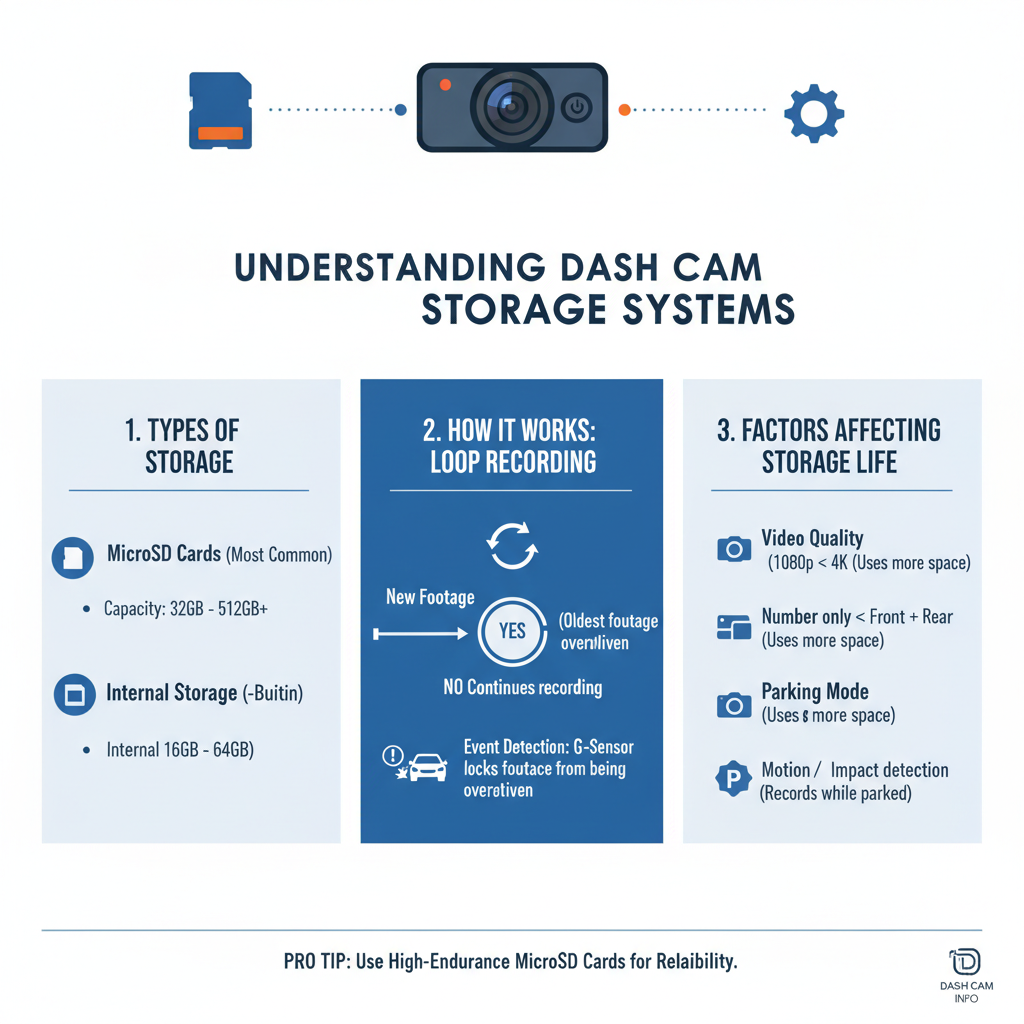
Most dash cameras use microSD cards as their primary storage method. These cards typically range from 32GB to 256GB and store video files in folders organized by date and time. The footage is usually saved in MP4 format, making it compatible with most devices and video players.
Some newer models include built-in storage or cloud connectivity. Built-in storage works similarly to SD cards but cannot be removed. Cloud-connected cameras automatically upload footage to online servers, allowing remote access through mobile apps.
Loop recording is a standard feature that overwrites the oldest files when storage becomes full. However, most cameras protect important footage through G-sensor activation, which locks files during sudden movements or impacts.
Method 1: Using SD Card Removal
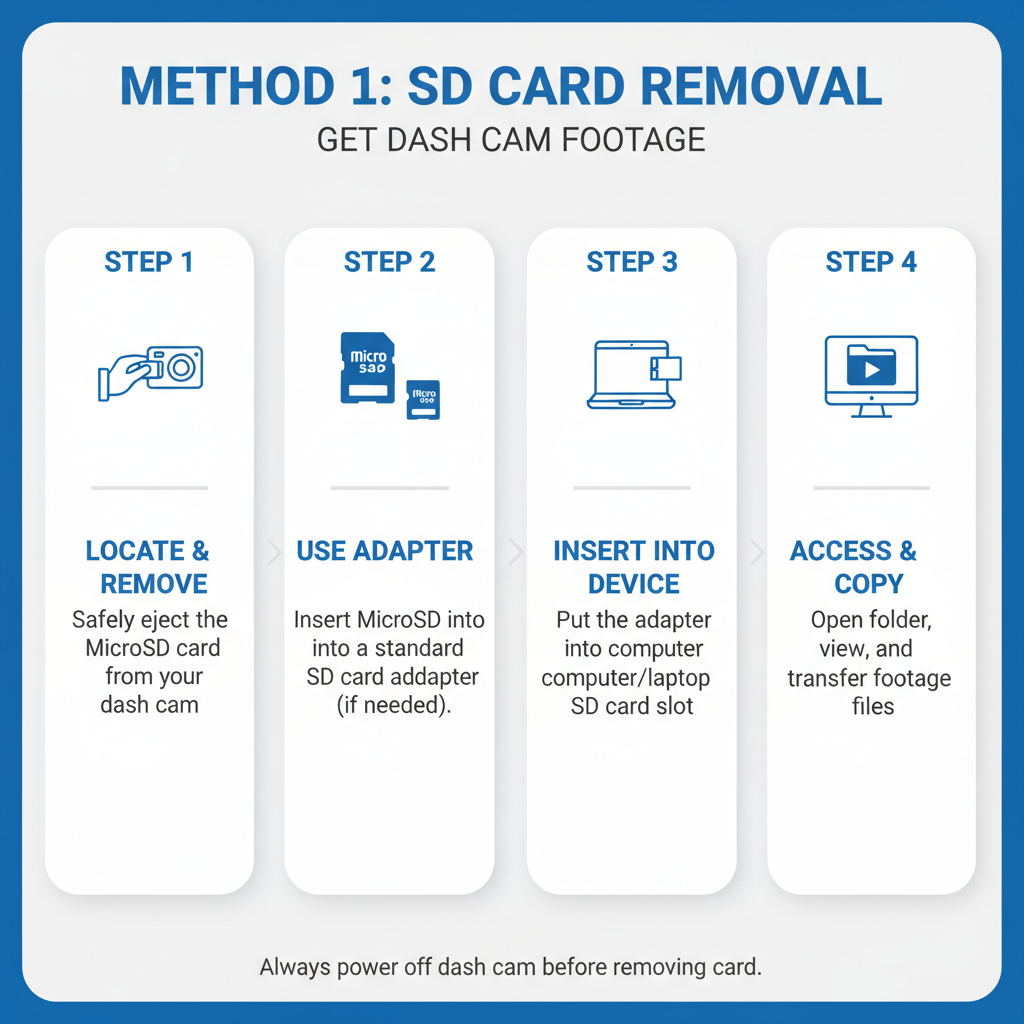
The most reliable way to access dash cam footage involves removing the SD card directly. Start by turning off your dash cam completely to prevent file corruption. Most cameras have a small slot on the side or back where the microSD card sits.
Carefully remove the SD card using your fingernail or a small tool. Insert the card into a computer’s SD card slot or use a USB card reader if your computer lacks built-in slots. The card will appear as a removable drive on your system.
Navigate to the video folders, which are typically organized by date. Files are usually named with timestamps, making it easy to locate specific recordings. Copy the desired files to your computer’s hard drive for safekeeping.
Method 2: Direct USB Connection
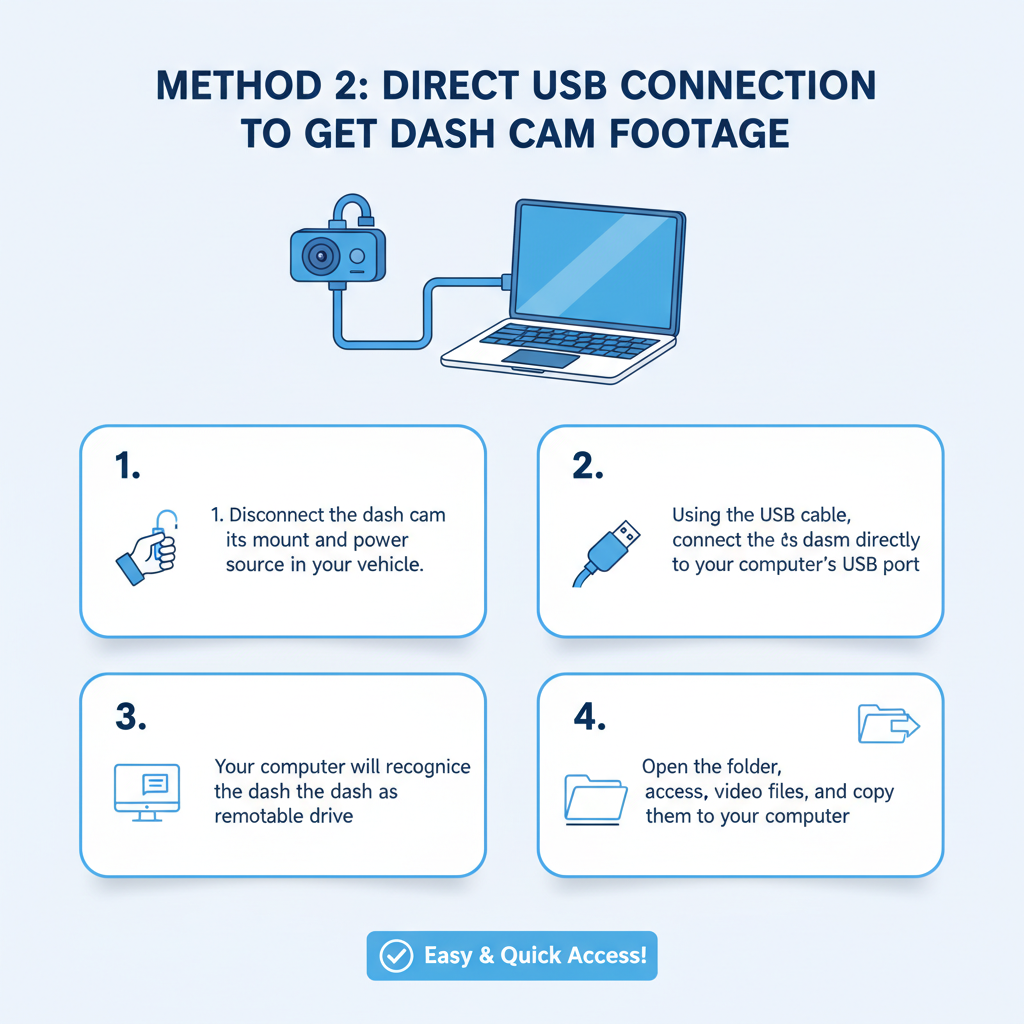
Many dash cameras support direct USB connection to computers. Use the cable provided with your camera to connect it to your computer while the camera is powered on. The device should appear as a removable storage device.
Some cameras require you to switch to “USB mode” or “PC mode” through their menu system. Check your camera’s manual for specific instructions, as the process varies between manufacturers.
Once connected, browse the camera’s file structure just like you would with an SD card. This method is convenient when you don’t want to remove the SD card, but transfer speeds may be slower than direct card reading.
Mobile App Access
Modern dash cameras often include companion mobile apps that connect via Wi-Fi or Bluetooth. Download the manufacturer’s app and follow the pairing instructions in your camera’s manual. These apps typically allow you to view, download, and share footage directly from your smartphone.
The app method is particularly useful for quick access to recent footage. You can preview videos on your phone and download only the clips you need. However, transferring large files over Wi-Fi can be time-consuming compared to direct SD card access.
Some apps also provide cloud storage integration, automatically backing up important footage to online services. This feature ensures you won’t lose critical recordings even if your SD card fails or gets damaged.
File Organization and Formats
Dash cam footage is typically organized into three categories: normal recording, event recording, and parking mode recording. Normal recordings are continuous loops during regular driving. Event recordings are triggered by G-sensor activation during impacts or sudden movements.
Parking mode recordings activate when the camera detects motion or impacts while parked. These files are usually stored in separate folders to prevent accidental deletion during loop recording.
Most cameras save files in MP4 format with H.264 compression. File sizes vary based on resolution settings, with 1080p footage typically using 100-200MB per minute. Higher resolution cameras like 4K models can produce files exceeding 400MB per minute.
Preserving Important Footage
When you discover footage you need to preserve, act quickly to prevent it from being overwritten. Most cameras allow you to protect files by pressing a button during recording or through menu settings after the fact.
Create multiple copies of important footage on different storage devices. Save one copy on your computer’s hard drive, another on an external drive, and consider cloud storage for additional backup. This redundancy protects against hardware failures or accidental deletion.
Avoid editing original files directly. Instead, work with copies to maintain the integrity of the original footage. Courts and insurance companies prefer unedited, original files as evidence.
Sharing Footage with Authorities and Insurance
When sharing dash cam footage with police or insurance companies, provide the original files whenever possible. Many organizations prefer receiving footage on physical media like USB drives or SD cards rather than email attachments.
Include relevant information such as the date, time, location, and circumstances surrounding the incident. Some dash cameras embed GPS coordinates and speed data in the video files, which can be valuable for investigations.
Be prepared to provide technical details about your camera, including the make, model, and firmware version. This information helps establish the authenticity and reliability of the footage.
Troubleshooting Common Access Issues
SD card corruption is a common problem that can prevent footage access. Try inserting the card into different devices or using disk repair utilities on your computer. Professional data recovery services can sometimes retrieve footage from severely damaged cards.
If your camera won’t connect to your computer, check that you’re using the correct USB cable and that the camera is in the proper mode. Some cameras require specific drivers to be installed on your computer.
File format compatibility issues can occur with older computers or video players. VLC Media Player is a free, versatile option that plays most dash cam video formats. For stubborn files, try converting them to more common formats using free video conversion software.
Legal Considerations for Footage Use
Dash cam footage can serve as valuable evidence in legal proceedings, but proper handling is crucial. Maintain a clear chain of custody by documenting when and how you accessed the footage. Avoid sharing footage publicly on social media before consulting with legal professionals.
Different jurisdictions have varying laws regarding dash cam use and footage sharing. Some areas require consent from all parties before recording, while others have specific rules about where cameras can be mounted.
When providing footage to authorities, be honest about any editing or processing you’ve performed. Tampering with evidence can have serious legal consequences, even if done unintentionally.
FAQ
How long does dash cam footage typically last before being overwritten?
This depends on your SD card size, video quality settings, and recording duration. A 64GB card recording at 1080p typically stores 6-10 hours of footage before loop recording begins overwriting the oldest files.
Can I access dash cam footage if the camera is damaged?
If the camera is damaged but the SD card is intact, you can still access footage by removing the card and reading it on another device. However, if both the camera and card are damaged, professional data recovery may be necessary.
What video format do most dash cameras use?
Most dash cameras save footage in MP4 format with H.264 compression. This format is widely compatible with computers, smartphones, and video editing software.
Do I need special software to view dash cam footage?
No special software is typically required. Most dash cam footage plays in standard video players like Windows Media Player, QuickTime, or VLC Media Player. Some manufacturers provide proprietary software with additional features.
How can I prevent important footage from being deleted?
Most cameras have a protect or lock function that prevents specific files from being overwritten during loop recording. You can also remove the SD card immediately after an incident to preserve all footage.
Can dash cam footage be used as evidence in court?
Yes, dash cam footage is generally admissible as evidence in court proceedings. However, the footage must be authentic, unedited, and properly documented to be considered reliable evidence.
What should I do if my SD card becomes corrupted?
First, try accessing the card on different devices. If that fails, use disk repair utilities or data recovery software. For critical footage, consider professional data recovery services, though success isn’t guaranteed.
Final Thoughts
Accessing dash cam footage is straightforward once you understand your camera’s storage system and file organization. The key is acting quickly to preserve important recordings and maintaining multiple backups of critical footage. Whether you need footage for insurance claims, legal proceedings, or personal records, following these methods ensures you can retrieve your recordings when needed.
Remember that proper handling and documentation of footage maintains its value as evidence. Keep your dash cam’s SD card in good condition, understand your camera’s features, and don’t hesitate to seek professional help for corrupted or damaged storage devices.