As an Amazon Associate & Influencer, we earn from qualifying purchases you might make if you click any of the links or buttons on this page at no expense to you.
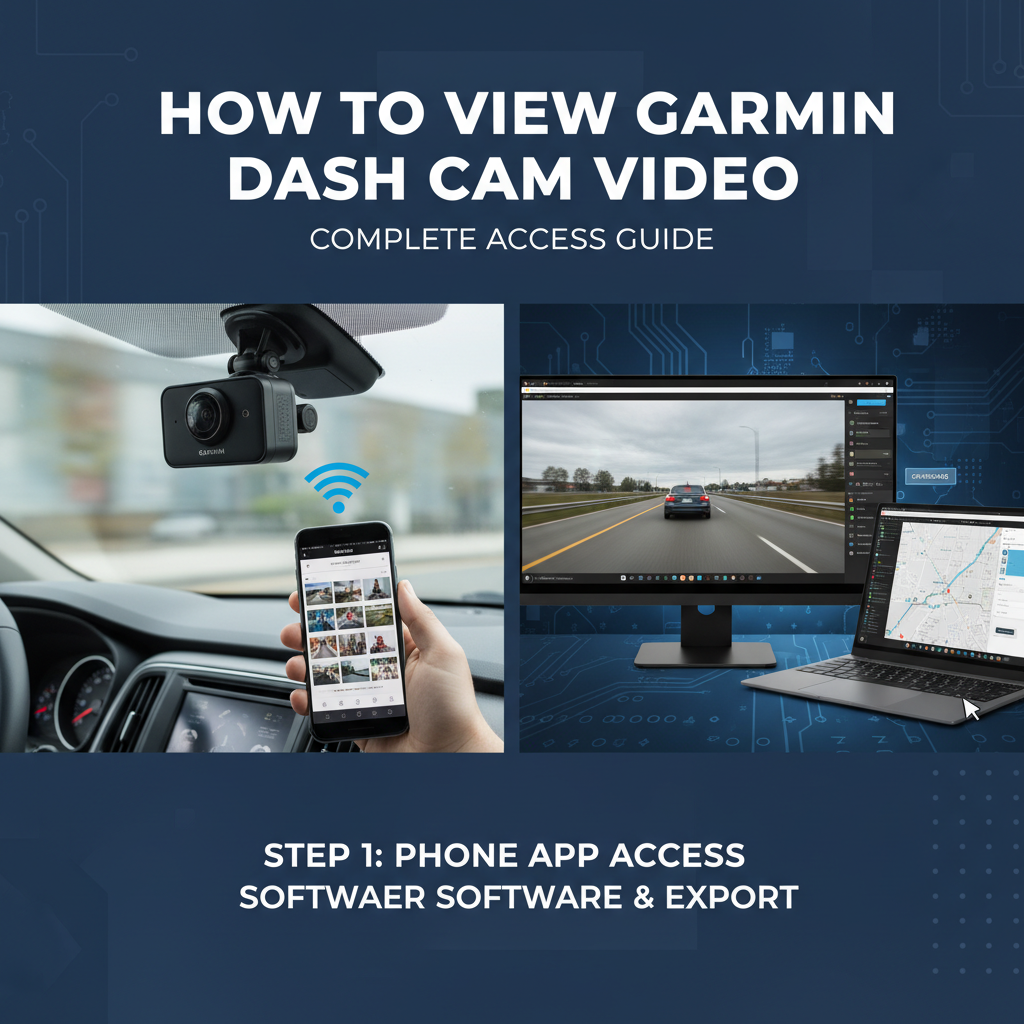
You can view Garmin dash cam videos in three main ways: directly on the dash cam’s LCD screen using the playback menu, by removing the microSD card and inserting it into a computer or card reader, or through the Garmin Drive app on your smartphone. The easiest method for quick review is using the dash cam’s built-in playback feature, while computer viewing offers the best quality and editing options.
Viewing your Garmin dash cam footage is essential for reviewing incidents, checking recording quality, and managing storage space. Whether you need to access videos immediately after an event or review older recordings, understanding the different viewing methods ensures you can always retrieve your footage when needed.
This guide covers all the ways to view your Garmin dash cam videos, from direct playback on the device to computer transfer and mobile app access. You’ll learn the step-by-step process for each method, troubleshooting tips, and best practices for managing your recordings.
Direct Playback on Dash Cam Screen to View Garmin Dash Cam Video
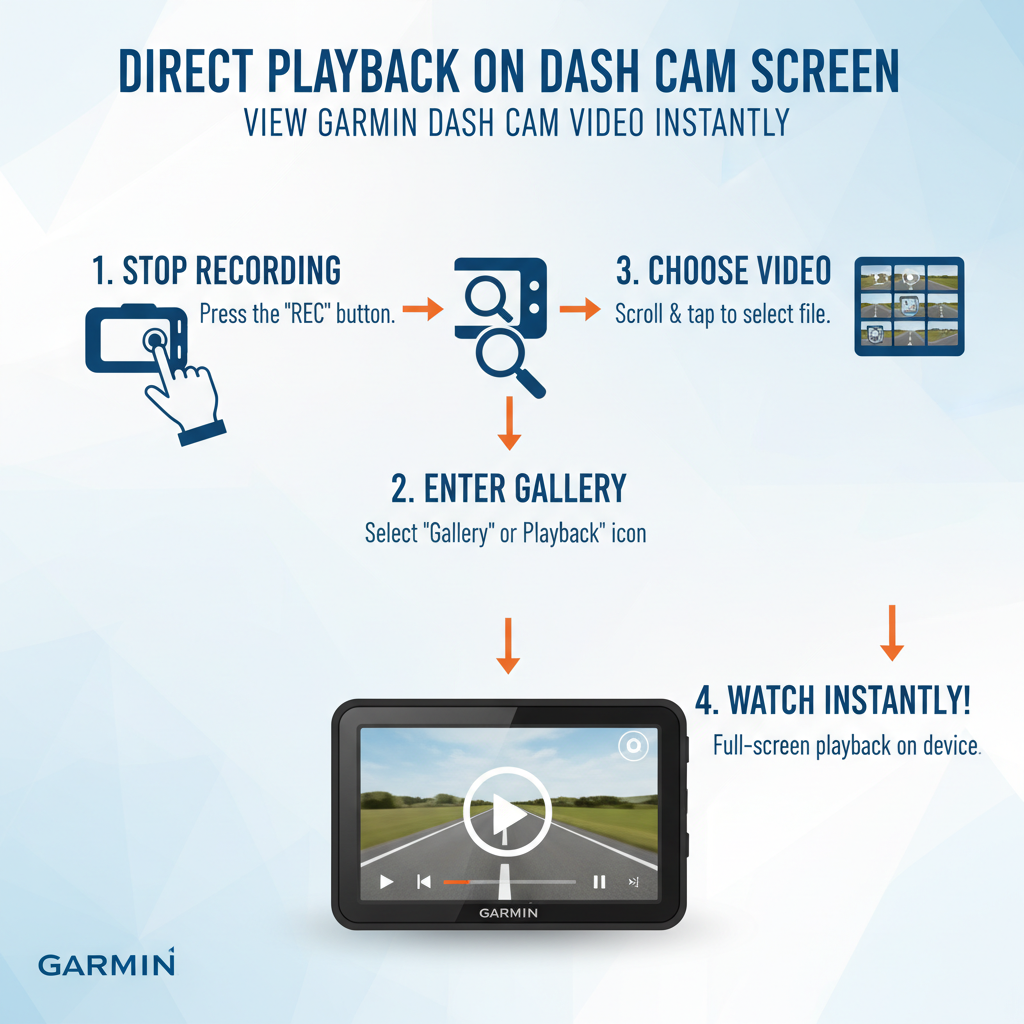
Most Garmin dash cams feature a built-in LCD screen that allows immediate video playback without additional devices. This method works best for quick incident reviews or checking if the camera captured specific events.
To access playback mode, ensure your dash cam is powered on and not currently recording. Press the menu button, typically located on the side or back of the device. Navigate to the “Playback” or “Gallery” option using the directional buttons.
Your recorded videos appear in chronological order, with the most recent files displayed first. Use the navigation buttons to scroll through available recordings. Select a video by pressing the OK or select button to begin playback.
During playback, you can pause, fast-forward, or rewind using the control buttons. The small screen size limits detail visibility, but this method works perfectly for confirming footage exists and reviewing basic incident details.
Computer Access via MicroSD Card to View Garmin Dash Cam Video
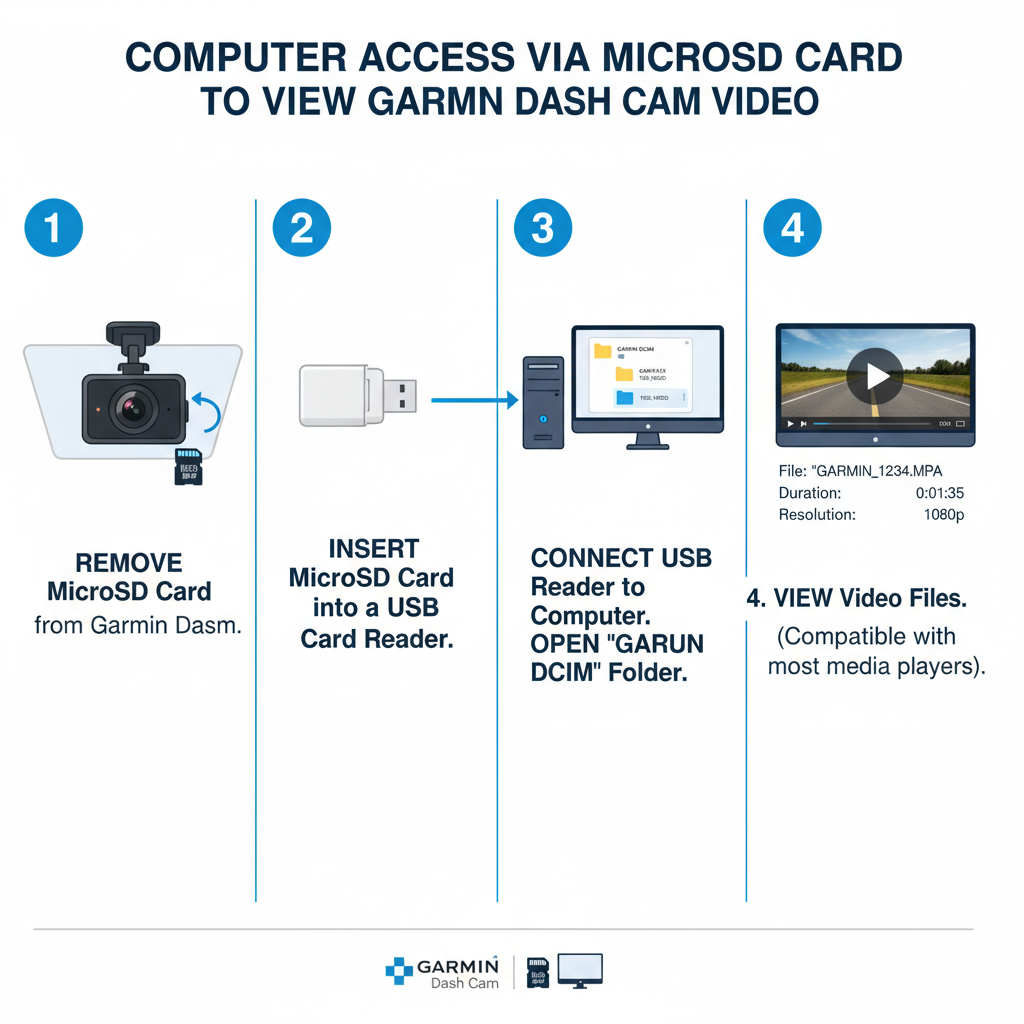
Removing the microSD card provides the most versatile viewing option with full-resolution playback and file management capabilities. This method requires powering off the dash cam completely before card removal to prevent data corruption.
Locate the microSD card slot, usually covered by a small rubber flap or plastic cover. Gently press the card inward until it clicks and springs out slightly. Carefully remove the card using your fingernails or tweezers if needed.
Insert the microSD card into your computer’s card reader or use a USB adapter if your computer lacks a built-in slot. The card appears as a removable drive in your file explorer, typically containing folders labeled by date or camera function.
Garmin dash cams save videos in MP4 format, making them compatible with most media players including VLC, Windows Media Player, and QuickTime. The folder structure usually separates normal recordings, event recordings, and parking mode footage into different directories.
Garmin Drive App Integration to View Garmin Dash Cam Video
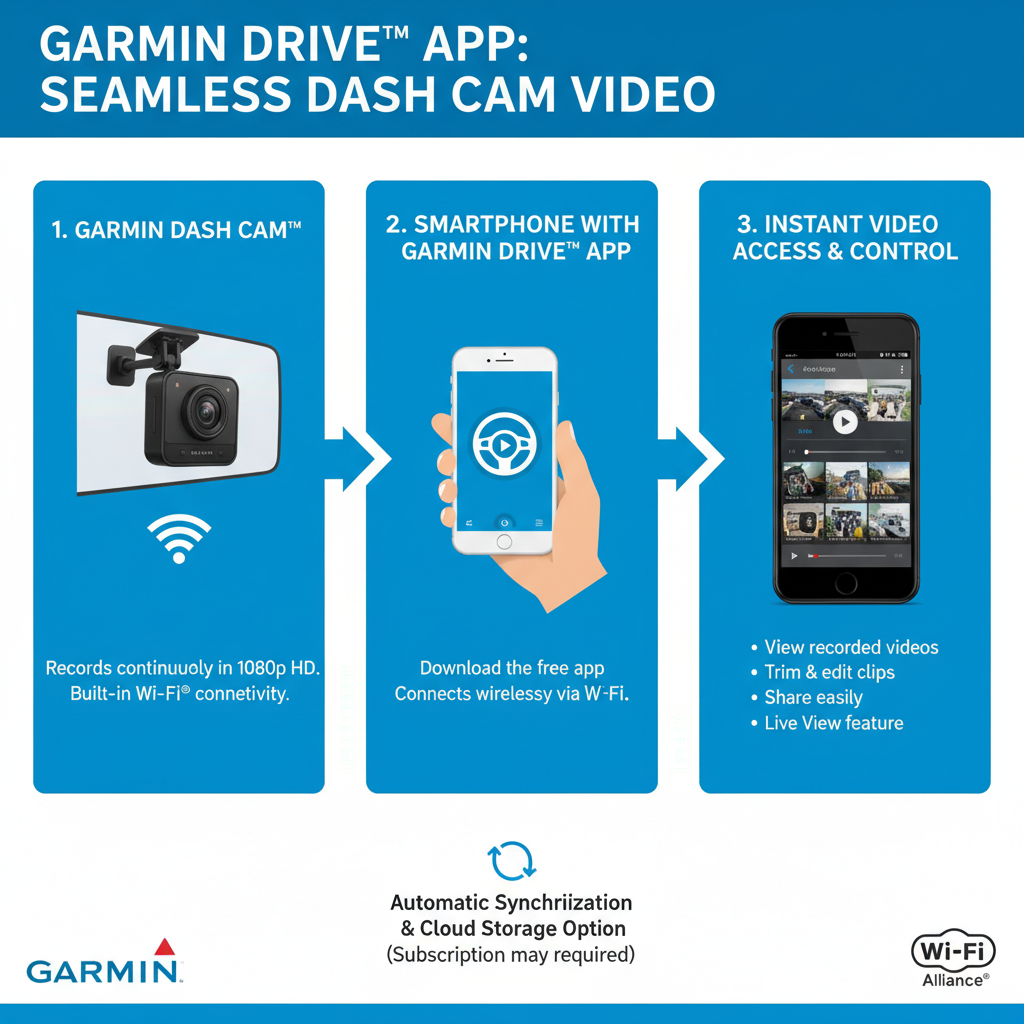
The Garmin Drive mobile app provides wireless access to your dash cam videos when your camera supports Wi-Fi connectivity. This feature varies by model, with newer Garmin dash cams offering more robust wireless capabilities.
Download the Garmin Drive app from your device’s app store and create an account if you don’t have one. Enable Wi-Fi on your dash cam through the settings menu, then connect your smartphone to the camera’s wireless network using the provided password.
Launch the Garmin Drive app and select your dash cam from the device list. The app displays available videos in thumbnail format, making it easy to identify specific recordings. Tap any video to stream it directly to your phone for immediate viewing.
You can also download videos to your phone’s storage for offline viewing or sharing. The app allows basic video management including deletion of unwanted files to free up dash cam storage space.
File Organization and Naming Conventions
Understanding how Garmin organizes video files helps locate specific recordings quickly. Most Garmin dash cams use a systematic naming structure that includes date, time, and recording type information.
Normal continuous recordings typically use names like “GRMN_YYYY_MMDD_HHMMSS.MP4” where the numbers represent the recording start time. Event recordings triggered by G-sensor activation often have “EVENT” or “INCIDENT” prefixes to distinguish them from regular footage.
The folder structure usually separates different recording types into distinct directories. Look for folders named “Normal,” “Event,” “Parking,” or similar designations. Some models create daily folders to organize recordings by date, making it easier to find footage from specific time periods.
Parking mode recordings, if your model supports this feature, typically store in a separate folder since they use different recording parameters and trigger conditions than normal driving footage.
Video Quality and Format Details
Garmin dash cams record in various resolutions depending on your model and settings. Common formats include 1080p Full HD, 1440p, and 4K Ultra HD. Higher resolution videos provide better detail but consume more storage space and may require more powerful computers for smooth playback.
The frame rate typically ranges from 30 to 60 frames per second, affecting video smoothness and file size. Most Garmin models use variable bitrate encoding to balance quality and storage efficiency, adjusting compression based on scene complexity.
Audio recording accompanies video footage when enabled in settings. You can disable audio recording for privacy or to reduce file sizes. Some jurisdictions have specific laws regarding audio recording, so check local regulations before enabling this feature.
GPS data embedding is a valuable feature that overlays speed, location, and timestamp information on your videos. This data proves particularly useful for insurance claims or legal proceedings, providing objective evidence of driving conditions and vehicle behavior.
Troubleshooting Common Viewing Issues
Video playback problems often stem from corrupted files, incompatible software, or storage issues. If videos won’t play on your computer, try different media player software like VLC Media Player, which handles a wide range of file formats and codecs.
Corrupted files may result from improper dash cam shutdown, power interruptions, or failing microSD cards. Always power off the dash cam properly before removing the memory card. Use high-quality, high-speed microSD cards rated for continuous recording to minimize corruption risks.
If the dash cam’s LCD screen shows “No Files” or similar messages, check that recordings are actually being saved by reviewing the storage settings and ensuring adequate free space exists. Format the microSD card periodically using the dash cam’s built-in formatting function to maintain optimal performance.
Wireless connectivity issues with the mobile app often resolve by restarting both the dash cam and smartphone, then reconnecting to the Wi-Fi network. Ensure you’re within range of the dash cam’s wireless signal, typically 10-30 feet depending on environmental conditions.
Storage Management Best Practices
Regular storage maintenance ensures continuous recording and prevents important footage from being overwritten. Most Garmin dash cams use loop recording, automatically deleting the oldest files when storage becomes full.
Protected or locked files won’t be overwritten during loop recording, so manually protect important footage immediately after incidents. Access the playback menu and look for lock or protect options to preserve critical recordings permanently.
Consider using larger capacity microSD cards (64GB or higher) to extend recording time before loop overwriting begins. High-endurance cards designed for surveillance applications last longer under continuous recording conditions than standard cards.
Transfer important videos to permanent storage regularly, either on your computer or cloud storage services. This practice ensures you maintain access to critical footage even if the dash cam or memory card fails.
Advanced Viewing Features
Some Garmin dash cam models offer advanced playback features that enhance the viewing experience. Time-lapse playback allows rapid review of long recordings, helping identify specific events quickly without watching hours of footage at normal speed.
Multi-angle viewing is available on dual-camera models, showing both forward and rear-facing footage simultaneously or allowing switching between views during playback. This feature provides comprehensive incident documentation from multiple perspectives.
GPS tracking integration displays your route on a map alongside video playback, showing exact locations where events occurred. This feature proves valuable for insurance claims, providing precise location data and driving patterns.
Some models support slow-motion playback for detailed incident analysis. This feature helps examine rapid events like collisions or near-misses frame by frame, revealing details not visible at normal playback speeds.
Frequently Asked Questions
Can I view Garmin dash cam videos on my smartphone without removing the SD card?
Yes, if your dash cam model supports Wi-Fi connectivity, you can use the Garmin Drive app to view and download videos wirelessly to your smartphone.
What video format do Garmin dash cams use?
Garmin dash cams typically record in MP4 format, which is compatible with most media players and devices. Some models may use MOV format depending on the specific model and settings.
Why can’t I see some of my recorded videos?
Videos may be stored in different folders based on recording type (normal, event, parking mode). Check all folders on the microSD card, and ensure the files aren’t corrupted or the card isn’t failing.
How long can I store videos on the dash cam?
Storage duration depends on your microSD card capacity, video quality settings, and recording mode. A 32GB card typically stores 3-5 hours of 1080p footage before loop recording begins overwriting older files.
Can I edit Garmin dash cam videos on my computer?
Yes, since Garmin dash cams use standard MP4 format, you can edit the videos using most video editing software like Windows Movie Maker, iMovie, or professional editing suites.
What should I do if my dash cam videos are corrupted?
Try playing the videos with different media players like VLC. If they still won’t play, the files may be corrupted due to power interruptions or card issues. Consider using data recovery software or replacing the microSD card.
How do I protect important videos from being overwritten?
Use the dash cam’s lock or protect function during playback to prevent important videos from being deleted during loop recording. Transfer critical footage to permanent storage as soon as possible.
Managing Your Dash Cam Footage Effectively
Successful dash cam video management requires establishing routines for regular review and storage maintenance. Set aside time weekly to review footage, transfer important recordings, and delete unnecessary files to maintain optimal performance.
Create a filing system on your computer for organizing transferred videos by date, incident type, or importance level. This organization helps locate specific footage quickly when needed for insurance claims or legal proceedings. Consider cloud storage backup for critical recordings to ensure they remain accessible even if local storage fails.
Regular maintenance of your dash cam and storage card prevents many viewing issues before they occur. Keep firmware updated, format the microSD card monthly, and replace aging cards before they fail completely. These simple practices ensure your dash cam continues recording reliably and your footage remains accessible when you need it most.