As an Amazon Associate & Influencer, we earn from qualifying purchases you might make if you click any of the links or buttons on this page at no expense to you.
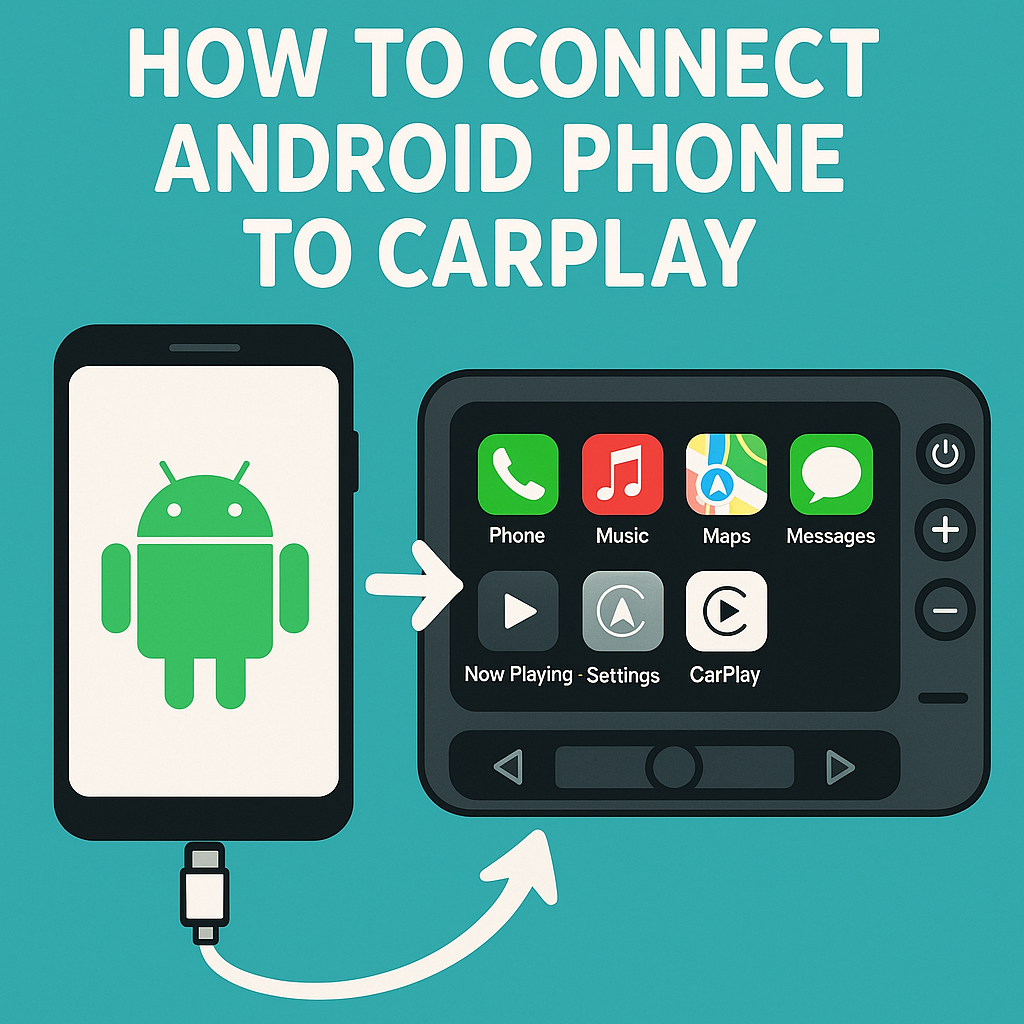
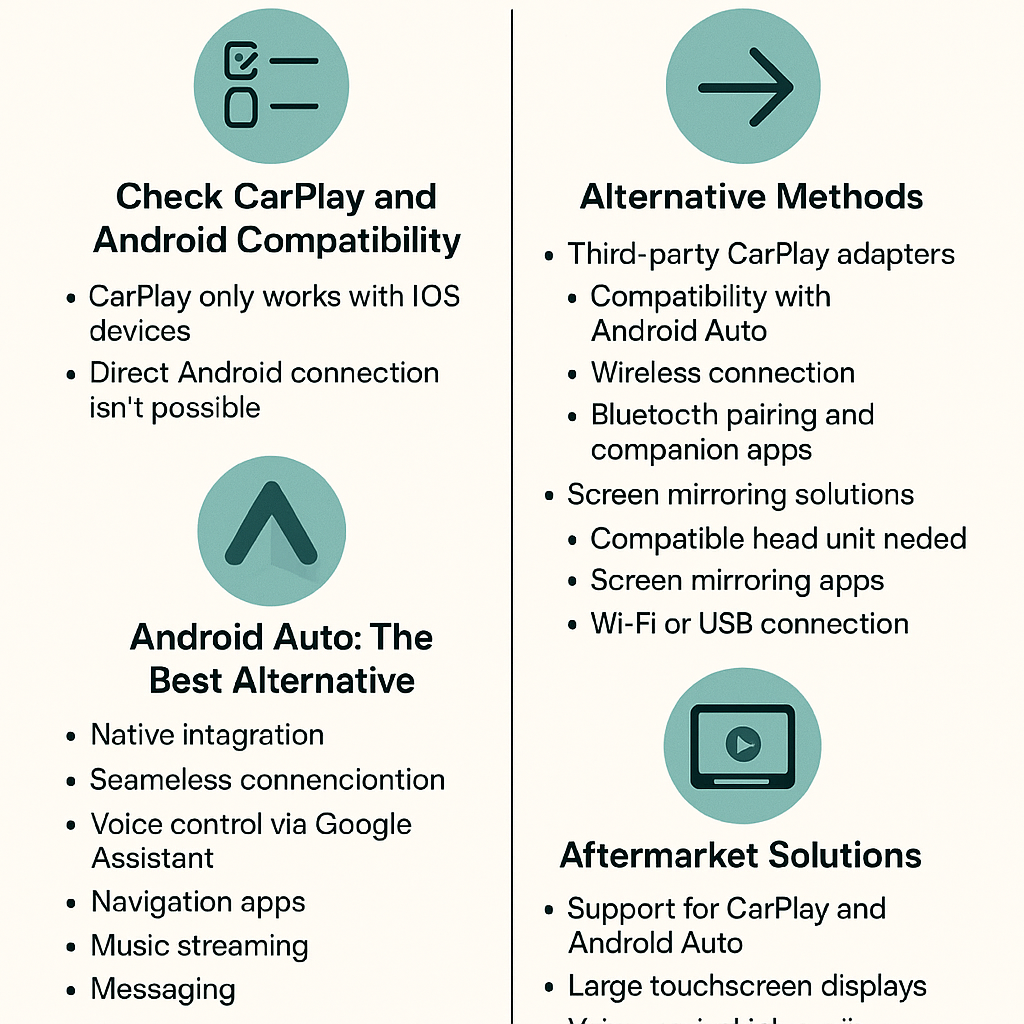
You cannot connect an Android phone directly to Apple CarPlay. The best route is native Android Auto if your car supports it. If the car has factory wired CarPlay but no Android Auto, a specifically compatible CarPlay-to-Android-Auto converter may let you use Android Auto on the existing screen. A generic “wireless CarPlay” dongle is not enough.
My recommendation is to check the car’s existing phone integration before buying anything. Use a cable first if Android Auto is already available. Choose a wireless adapter only to remove that cable, and choose a conversion adapter only when the car actually needs a different phone protocol. Those are separate purchases.
Quick distinction: CarPlay is the iPhone interface. Android Auto is the Android interface. A converter can bridge a supported car connection, but it does not turn a Samsung, Pixel or other Android phone into an iPhone. Bluetooth music, screen mirroring and an Android-powered AI box are also different features.
Jump to: Choose your connection · Android Auto setup · CarPlay-only cars · Product suggestions · Connection fixes · FAQs
Can your Android phone use the car’s screen? Start here
| What the car already supports | Best starting route | What you need | What will not solve it |
|---|---|---|---|
| Wired Android Auto, with or without CarPlay | Connect the Android phone directly by USB. | A compatible phone and a short data cable that matches the car’s port. | An iPhone-only CarPlay adapter. |
| Wireless Android Auto | Use the car’s native wireless setup. | A supported Android phone and the vehicle’s pairing procedure. | An extra dongle bought just because the car also has CarPlay. |
| Factory wired CarPlay, but no Android Auto | Consider an exact-model cross-platform converter. | Confirmed vehicle/infotainment compatibility, Android 11+ for the recommended wireless converter. | A same-platform wireless adapter that requires wired Android Auto. |
| Wireless-only CarPlay, no wired CarPlay or Android Auto | Check a vehicle-specific retrofit or supported replacement receiver. | A documented solution for that exact system. | Assuming a USB converter works because CarPlay is present wirelessly. |
| Neither CarPlay nor Android Auto | Consider an Android Auto receiver or suitable portable display. | A complete, compatible installation and audio path. | A wireless dongle that requires an existing wired projection system. |
Check the car and phone before buying an adapter
- Identify the infotainment system: write down the vehicle year, trim, market and factory screen or aftermarket receiver model. Phone integration can differ within the same model year.
- Look for Android Auto in the manual and menus: it may sit under smartphone integration, device connections or a similar menu rather than the CarPlay tile.
- Find the USB data port: consult the manual. Other sockets may only charge a phone. A console charger or 12V USB adapter does not connect to the screen.
- Confirm the wired baseline: test Android Auto with an Android phone, or wired CarPlay with an iPhone when checking a CarPlay-only conversion route. Charging alone is not a successful test.
- Check the phone: Google’s current Android Auto requirements specify Android 11 or later. Wireless use also needs a compatible phone with 5GHz Wi-Fi support. Android Go edition is excluded.
Android Auto is built into supported phones; you do not need a separate “CarPlay for Android” app. Update the phone and Android Auto component when prompted, and check availability in your country. Use Google’s current requirements to check the phone and Apple’s CarPlay guide to distinguish the iPhone connection.
How to connect through native Android Auto
Wired Android Auto: establish this connection first
- Park the car, keep it stationary and turn on the infotainment system. Allow time to finish setup before driving.
- Unlock the supported Android phone. Connect it directly to the car’s Android Auto USB data port with a short, good-quality data cable.
- Follow the phone and car prompts. Accept the permissions needed for the features you intend to use, and install any requested Android Auto update.
- Choose Android Auto on the car display if it does not open automatically. The name and menu location depend on the vehicle.
- While parked, check navigation, music playback, the microphone and a call. Confirm sound comes through the intended speakers.
Do not begin by resetting every network setting or turning on USB debugging. Neither is a standard step in Google’s Android Auto setup procedure. If the phone only charges, check the port and cable before changing advanced settings. A USB-C charging claim on a cable does not prove it carries data.
Wireless Android Auto: use the built-in feature when available
If both the phone and car support wireless Android Auto, keep Bluetooth, Wi-Fi and Location Services on during initial setup. Start the vehicle’s phone-pairing procedure and follow the prompts on both displays. Google’s setup guide begins with Bluetooth pairing; the exact buttons and menus come from the vehicle manual.
A working Bluetooth call is not the same as a working Android Auto session. If calls and music pair but no driving-app interface appears, confirm wireless Android Auto support rather than repeatedly pairing the same Bluetooth audio connection. Some cars support wired Android Auto and wireless CarPlay, which are different capabilities.
Wireless projection does not charge the phone. For long trips, plan charging separately. If you will plug the phone in on every journey anyway, wired Android Auto may already suit you better than adding another device.
What to do when the car has CarPlay but no Android Auto
First confirm that Android Auto is genuinely absent, rather than disabled or hidden in another menu. If the factory screen supports wired CarPlay only, the relevant purchase is a converter explicitly designed to present Android Auto through that CarPlay connection. This is where the Carlinkit 4.0 CP2A below has a useful role.
The phone runs Android Auto. The adapter bridges it to a supported factory wired-CarPlay system. The car may still label that USB source “CarPlay”; a source label by itself does not tell you which phone-facing interface a matched converter provides. Expect the adapter’s own pairing process, not Apple’s iPhone setup menus.
Check conversion direction, not just “2-in-1” branding
Two adapters can both advertise Android Auto and CarPlay while doing different jobs. One may convert factory wired CarPlay into wireless Android Auto; another may only make each existing wired platform wireless. A higher model number is not proof of the conversion you need.
For example, Carlinkit’s 5.0 / 2air documentation says Android Auto uses an existing factory wired Android Auto connection and explicitly distinguishes it from CP2A cross-protocol conversion. I would not substitute the 5.0 for the 4.0 in a CarPlay-only car just because it sounds newer.
A sensible converter setup and acceptance check
- Confirm support for the exact vehicle, factory screen and phone before ordering. Do not apply a factory-screen compatibility claim to an aftermarket radio.
- Verify that an iPhone can launch CarPlay by cable through the intended port, or obtain clear confirmation from the vehicle documentation. Wireless CarPlay alone is not this test.
- Connect the converter with its correct supplied data cable, then follow that exact model’s Android pairing instructions. Do not copy another adapter’s Bluetooth name, update address or reset sequence.
- While parked, check the functions that matter: map movement, route prompts, music, calls, microphone, steering-wheel buttons and any controller used to select apps.
- Check a cold start, a restart and switching between the household’s phones. Keep the adapter only if its behavior suits the way you use the car.
Conversion adds another link to the connection. Do not buy on a promise of zero delay or assume every original control and display layout will transfer perfectly. If your car already offers native Android Auto, that is the route I would establish before considering conversion.
Three product suggestions for three different connection needs
These are alternative routes, not a three-item kit. Buy the cable for a wired Android Auto connection, the TWO+ for a compatible system that already has wired Android Auto, or the CP2A for a specifically supported factory wired-CarPlay conversion.
CP2A exclusions for this recommendation: do not choose the recommended Carlinkit 4.0 version for BMW, Nissan, Mitsubishi, 2022 Volvo/Polestar, the 2018 Chevrolet Bolt, or an aftermarket head unit. Wireless-only CarPlay is also outside this wired-CarPlay recommendation. For any other car, obtain exact vehicle/infotainment confirmation; a brand name alone does not establish fit.
| Product / role | Why choose it | Required starting point | Current price |
|---|---|---|---|
| Anker PowerLine II USB-A to USB-C, 3ft Wired connection | A direct data-cable route with no adapter setup. | Android Auto-compatible car with a USB-A data port; USB-C phone. | Check Current Price on Amazon |
| AAWireless TWO+ Wireless upgrade | A button for pairing, phone switching and standby. | Working wired Android Auto for the Android route; Android 11+. | Check Current Price on Amazon |
| Carlinkit 4.0 CPC200-CP2A CarPlay-to-Android-Auto conversion | A documented conversion path for supported factory screens. | Factory wired CarPlay, Android 11+ wirelessly, and the compatibility/exclusion checks above. | Check Current Price on Amazon |
Anker PowerLine II USB-A to USB-C: start with a direct connection
Choose it if: the car has wired Android Auto through a USB-A data port and your phone uses USB-C.
Skip it if: the vehicle’s data port is USB-C, or the car has no Android Auto support.
A short data cable is the purchase I would make before a wireless adapter when a wired Android Auto connection has not yet been established. This recommendation is the black 3ft USB-A-to-USB-C PowerLine II cable. Its roughly 0.9m length is useful for a direct console-to-phone connection without a long extension or a USB hub.
The point is to prove that the phone and radio work together. If the original phone cable already does that reliably, keep using it. If the car has a USB-C data port, choose a suitable USB-C-to-USB-C data cable instead; do not add a chain of adapters just to use this particular cable.
Check that the phone case permits the connector to seat fully and route the cable away from controls. A cable cannot add Android Auto to a CarPlay-only radio, and a higher charging-wattage claim cannot fix the wrong port or unsupported infotainment system.
Anker USB-A-to-USB-C cable information · Google’s cable troubleshooting guidance
AAWireless TWO+: for a car that already has wired Android Auto
Choose it if: Android Auto already works by cable and you want wireless connection or easier phone switching.
Skip it if: the car only has CarPlay and you need Android Auto conversion, or your Android phone is below Android 11.
The TWO+ is my choice here for adding wireless convenience to a working wired Android Auto setup. The physical button is the useful difference in a shared car: it supports pairing, switching to another saved phone and standby. That is a more meaningful reason to buy than an unqualified fast-start claim.
For Android use, prove the wired Android Auto connection first. The TWO+ also supports wireless CarPlay for compatible iPhones in a suitable wired-CarPlay system, but that dual support is not evidence that it converts a CarPlay-only car into an Android Auto car. Buy it for the documented existing platform.
The standard kit includes a USB-C-to-USB-A cable. A vehicle with a USB-C data port may need another suitable data cable. Check exact aftermarket-receiver compatibility and keep a charging plan for longer trips. If you mostly plug the phone in to charge anyway, the cable can remain the more sensible setup.
Carlinkit 4.0 CP2A: the conditional option for a wired-CarPlay-only car
Choose it if: a supported factory screen has working wired CarPlay, native Android Auto is absent, and your Android phone meets the Android 11+ wireless requirement.
Skip it if: it is an aftermarket radio, wireless-only CarPlay system, or one of the excluded applications below.
Excluded from this recommendation: BMW, Nissan, Mitsubishi, 2022 Volvo/Polestar, the 2018 Chevrolet Bolt, and aftermarket head units. Confirm the exact factory system even when your vehicle is not on that exclusion list.
This is the pick that addresses the actual CarPlay-only problem. Carlinkit documents the CPC200-CP2A as a way to add wireless Android Auto through a supported factory wired-CarPlay connection. That conversion capability is why it belongs here; its “4.0” name is less important than the job it performs.
The package includes USB-A-to-USB-C and USB-C-to-USB-C vehicle-connection cables. Choose the correct data port, follow the CP2A’s pairing instructions and test calls, audio, navigation prompts and factory controls while parked. Do not assume an adapter is a good fit just because its startup screen appears once.
I would use the CP2A only after ruling out native Android Auto. It introduces conversion and another wireless connection, so it is not a guaranteed improvement over a native system. It also does not add projection to a radio with neither supported wired platform, or turn an Android phone into an Apple CarPlay device.
My recommendation: consider it for a confirmed compatible CarPlay-only factory screen. If the application is excluded or uncertain, investigate a documented vehicle-specific retrofit rather than trying unrelated firmware.
Carlinkit CP2A requirements and package · CP2A manuals and support
If the car supports neither platform
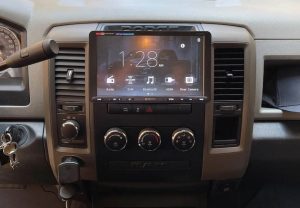
A wireless dongle cannot supply the missing screen, projection software and vehicle integration by itself. Choose a receiver with documented Android Auto support, a suitable portable Android Auto display, or an exact vehicle-specific retrofit. For supported replacement layouts, compare our double-DIN head unit guide and check the exact receiver’s Android Auto capability.
For an installed receiver, include the dash kit, harness or data interface, amplifier integration, steering-wheel controls, microphone and any camera-retention parts in the plan. For a portable display, verify how audio reaches the original stereo: its Bluetooth phone pairing does not automatically prove Bluetooth output to the vehicle.
Why an app, screen mirroring or an AI box may not be the answer
A phone app cannot give every factory CarPlay receiver an Android Auto input. Miracast or another mirroring method requires matching support in the receiver or added hardware. An aftermarket radio’s own connection app also does not establish that the same app works on a factory CarPlay screen.
An Android AI box is a separate computer with its own operating system and connection requirements. Buying one because its name contains “Android” is different from connecting the Android phone you already own. For maps, calls and supported driving apps, establish native Android Auto or a documented conversion route first. Do not sideload an unknown “CarPlay unlock” APK as a substitute for compatibility.
Troubleshooting: Android will not connect to the car screen
| Symptom | First useful check | What to do next |
|---|---|---|
| The Android phone only charges | USB data port, data-capable cable and Android Auto support. | Try a known-good short direct cable; select or enable Android Auto in the car. |
| Bluetooth calls work but no maps appear | Whether the car supports Android Auto, and whether wireless AA is included. | Use the USB setup if AA is wired-only. Pairing Bluetooth audio does not add projection. |
| CarPlay works with an iPhone; Android never starts | Native Android Auto support versus a CarPlay-only system. | Use the correct AA input, or check an exact supported cross-platform converter. |
| An adapter starts but the phone will not pair | Adapter model, required native platform, phone OS and included pairing instructions. | Remove the wrong-platform assumption before changing firmware or resetting the whole phone. |
| Connection drops when the phone moves | Cable seating, phone case and loose connectors. | Repeat with another known-good cable and secure placement. Avoid hubs/extensions. |
| The wrong household phone connects | Saved devices and the adapter’s supported switching routine. | Set up one phone first, then test a deliberate driver-switching routine. |
| Calls or route prompts are missing or delayed | The same task on the native wired setup, if available. | Compare the baseline, check supported settings and contact exact-model support if the fault persists. |
| The problem began after an update | Phone, radio and adapter versions and the exact symptom. | Use applicable manufacturer guidance. Do not flash another adapter’s firmware. |
If it previously worked, restart the phone and infotainment system using their normal documented controls and check whether Android Auto is enabled. Google recommends checking the cable and receiver first. Re-pair only the relevant connection when needed; a full network reset erases other saved connections and should not be the opening move.
When asking for support, provide the car year/trim/market, infotainment or receiver model, phone model, Android version, exact adapter and symptom. Include whether direct wired Android Auto or CarPlay works. That information separates a compatibility mistake from a setup fault.
Android phone and CarPlay FAQs
Can a Samsung Galaxy or Google Pixel use Apple CarPlay?
Not directly. They use Android Auto on compatible car systems. In a supported factory wired-CarPlay-only car, a suitable conversion adapter may provide Android Auto through that existing connection. It does not make the phone run Apple CarPlay.
Is Android Auto the Android version of CarPlay?
It is Google’s separate phone-projection system for supported driving apps. The two serve similar everyday needs, but support for one does not prove support for the other. Check wired and wireless compatibility separately.
Can I connect Android to a CarPlay-only car without an adapter?
If native Android Auto is genuinely absent, there is no generic phone setting or USB cable that adds it to that screen. A documented retrofit, conversion adapter or different supported display may be needed. Bluetooth calls and music remain an option where the existing radio supports them, but they do not put Android Auto maps on the screen.
Does a USB-C port mean the car supports Android Auto?
No. USB-C describes the connector. The port may provide charging, data, projection or a combination. Use the vehicle’s specified smartphone data port and a suitable data cable; neither connector shape nor charging speed establishes screen compatibility.
Do I need to install an Android Auto app or turn on USB debugging?
Google says Android Auto is integrated into supported phones, though updates may be requested. Its standard setup does not require enabling USB debugging. Follow the actual setup prompts and exact equipment instructions instead of treating developer settings as a universal connection fix.
Does wireless Android Auto need Wi-Fi or a SIM in the dongle?
Wireless Android Auto uses compatible Wi-Fi hardware as well as the initial pairing process; keep Bluetooth and Wi-Fi available as directed. The adapters recommended here are phone-connection devices, not cellular modems. The phone’s data plan supplies online services; separate app or streaming subscriptions still apply where required.
Why does the car still show a CarPlay label with a converter?
A supported converter may use the car’s existing wired-CarPlay input while presenting Android Auto to the Android phone. Judge the setup by the converter’s documented function and the interface that actually opens, not that source label alone. This is not proof that any CarPlay adapter can perform the conversion.
Which connection should you choose?
Use native Android Auto first. Keep the direct USB connection if it already suits your journeys. Add the TWO+ when a working wired Android Auto system needs wireless convenience, or consider the CP2A only for a confirmed compatible factory wired-CarPlay conversion. When neither platform is supported, plan a real retrofit or receiver upgrade instead of buying a dongle for the wrong starting point.