As an Amazon Associate & Influencer, we earn from qualifying purchases you might make if you click any of the links or buttons on this page at no expense to you.
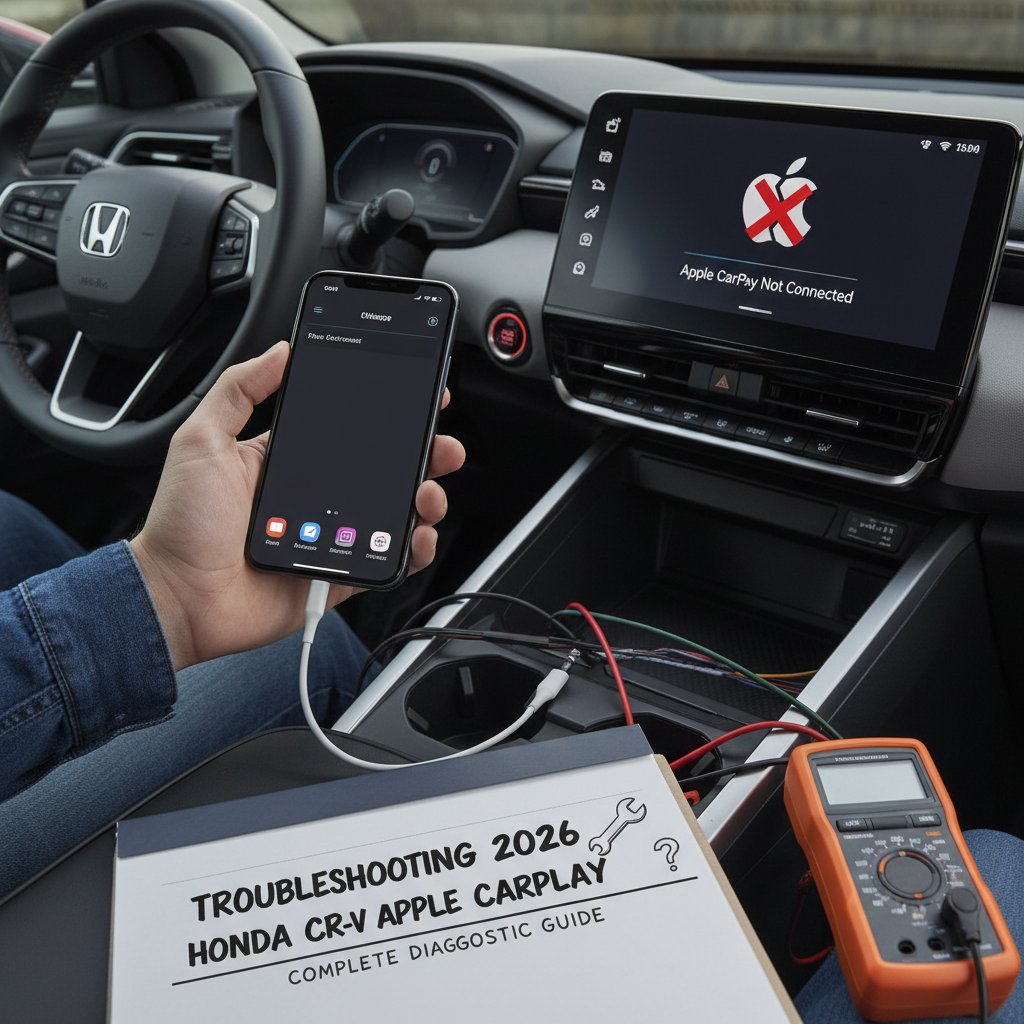
The 2026 Honda CR-V represents Honda’s commitment to cutting-edge infotainment technology, featuring Apple CarPlay as a standard connectivity option. However, like any sophisticated electronic system, users may occasionally experience connectivity problems that can disrupt their driving experience. Understanding how to diagnose and resolve these issues can save time, money, and frustration.
Understanding Apple CarPlay in Your 2026 Honda CR-V
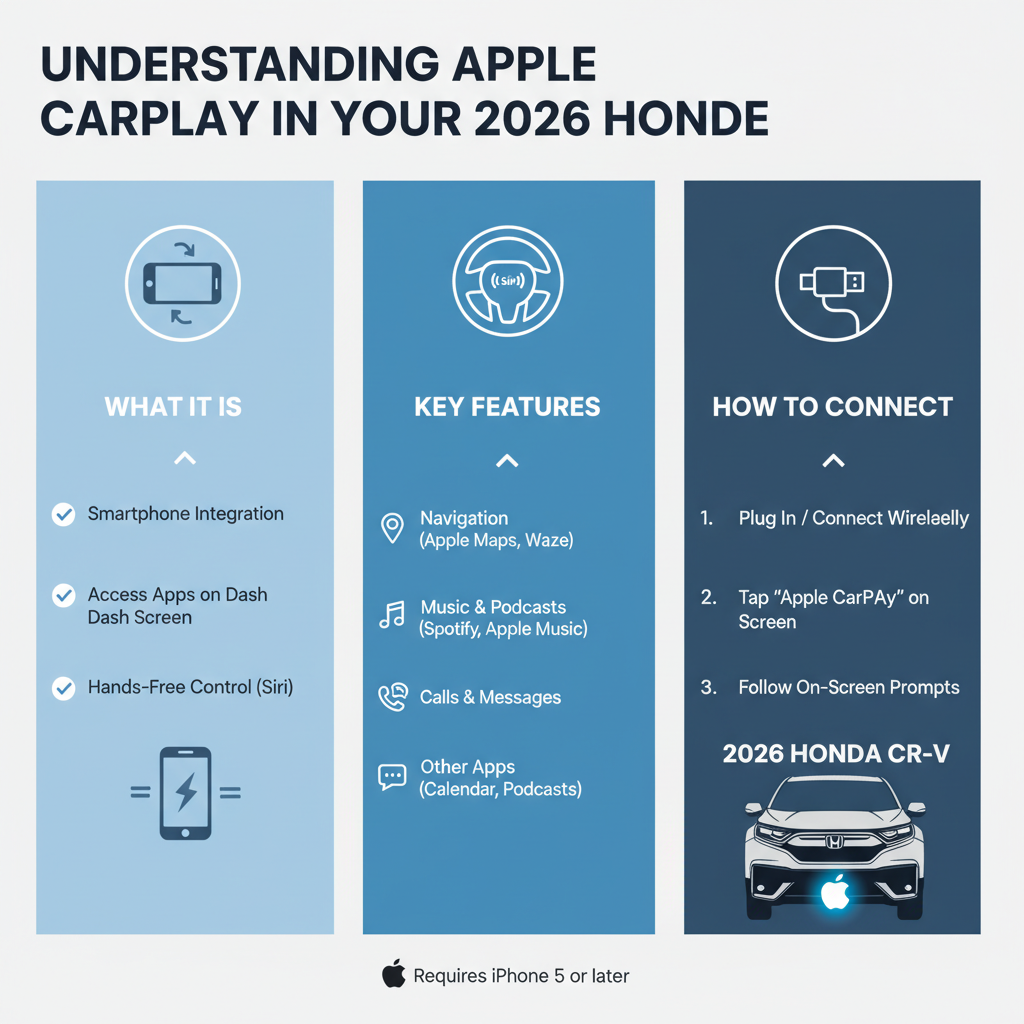
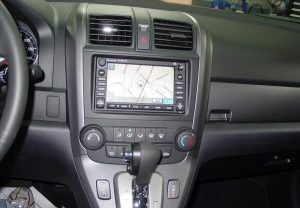
Apple CarPlay transforms your Honda’s infotainment display into a familiar iPhone interface, allowing seamless access to navigation, music, messages, and calls. The 2026 CR-V utilizes both wired and wireless CarPlay connections, depending on your trim level and preferences.
When CarPlay malfunctions, it typically stems from software conflicts, hardware connectivity issues, or compatibility problems between your iPhone and the vehicle’s infotainment system.
Primary Culprits Behind CarPlay Malfunctions
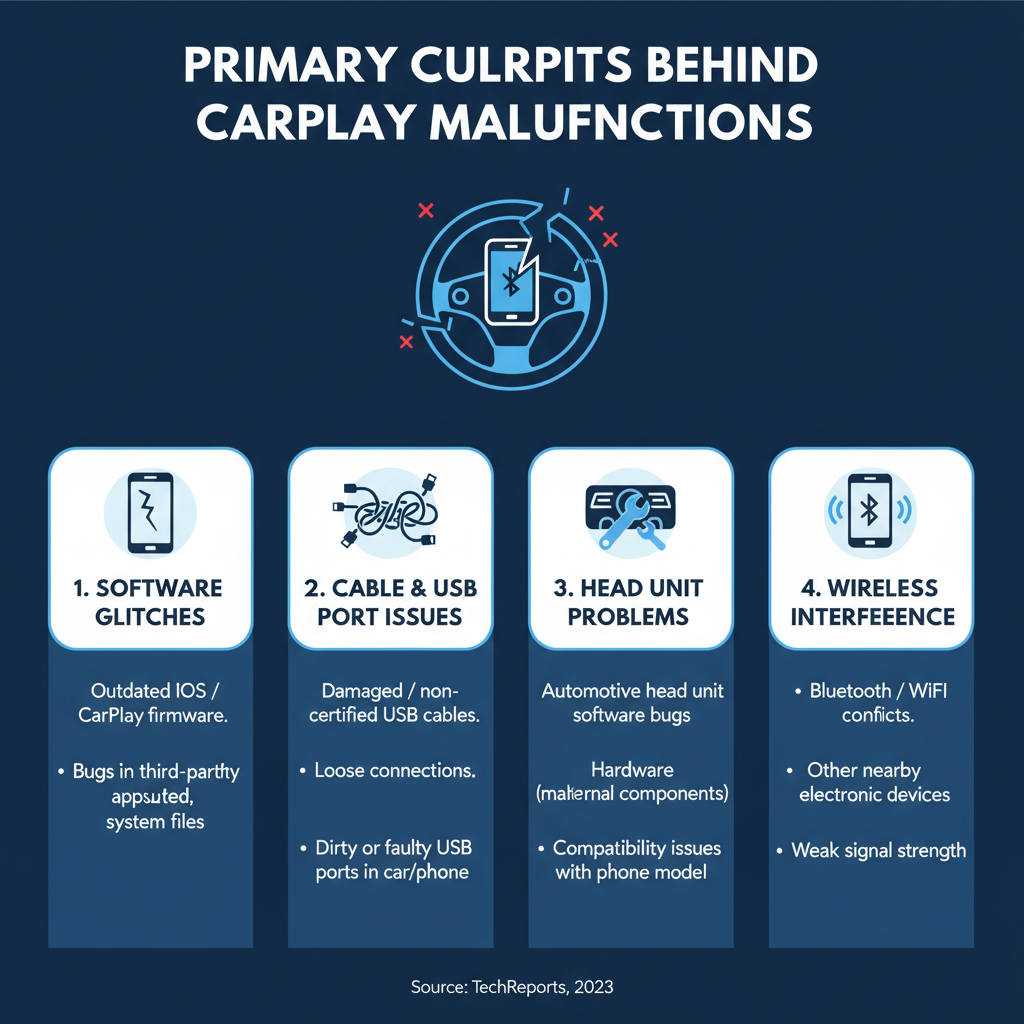
Software Compatibility Conflicts
The most frequent cause involves version mismatches between your iPhone’s iOS and the Honda infotainment system. Apple regularly updates iOS, while automotive manufacturers update their systems less frequently, creating potential compatibility gaps.
USB Connection Problems
Physical connection issues rank as the second most common cause. Damaged cables, dirty ports, or loose connections can prevent proper data transmission between your iPhone and the CR-V’s system.
Infotainment System Glitches
The Honda infotainment system may experience temporary software freezes or memory overloads, particularly after extended use or when running multiple applications simultaneously.
iPhone Settings and Restrictions
Incorrect CarPlay settings, Screen Time restrictions, or privacy settings can block the connection even when hardware functions properly.
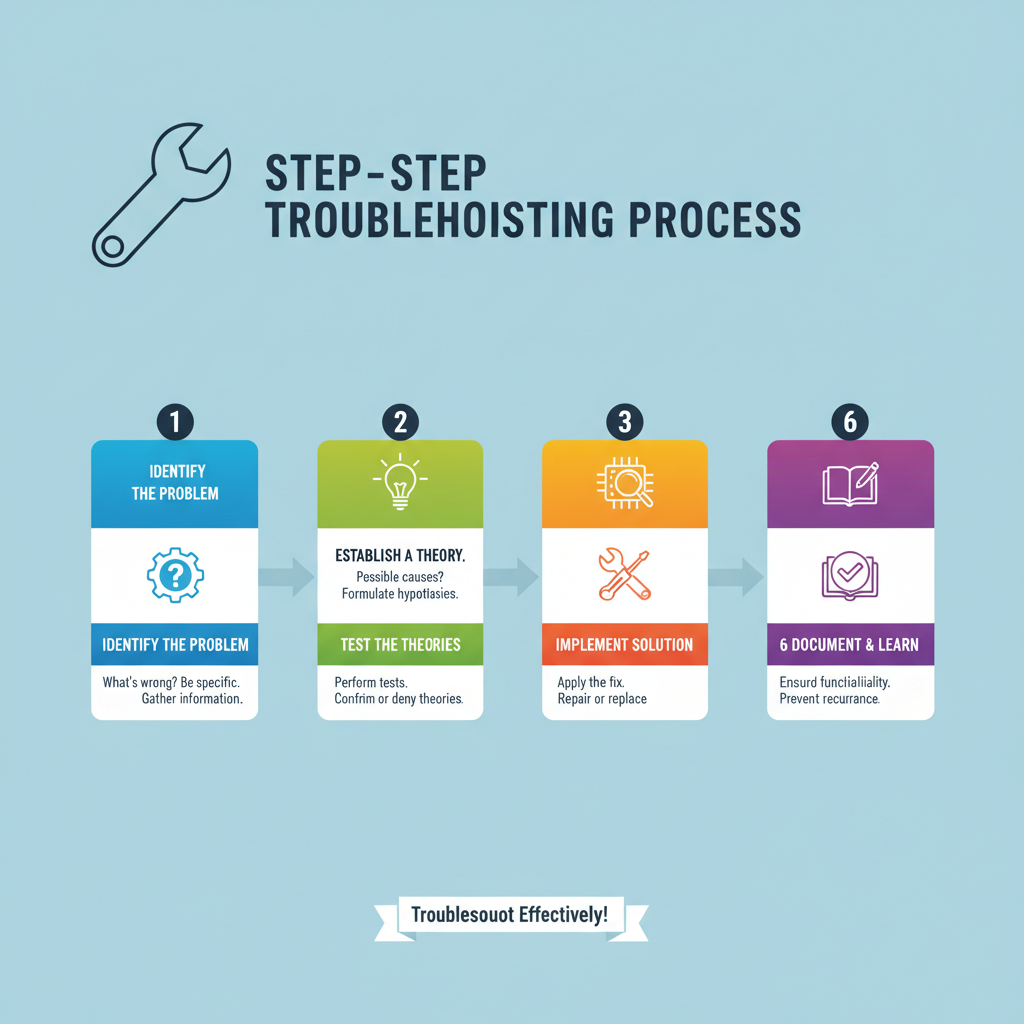
Step-by-Step Troubleshooting Process
Initial Quick Fixes (DIY Level)
1. Restart Your iPhone
Hold the power button and volume down button simultaneously until the Apple logo appears. This clears temporary software glitches that may interfere with CarPlay connectivity.
2. Restart the Infotainment System
Turn off your CR-V completely, wait 30 seconds, then restart. This forces the Honda system to reinitialize and can resolve minor software conflicts.
3. Check Cable Integrity
Inspect your Lightning cable for visible damage, bent connectors, or debris. Try a different Apple-certified cable to eliminate this variable.
4. Clean Connection Points
Use compressed air to remove debris from both the iPhone’s Lightning port and the CR-V’s USB ports. Accumulated lint or dust can prevent proper connections.
Intermediate Diagnostic Steps
5. Verify CarPlay Settings
Navigate to Settings > General > CarPlay on your iPhone. Ensure your Honda CR-V appears in the available cars list. If not, select “Available Cars” to re-establish the connection.
6. Check iOS Compatibility
Confirm your iPhone runs iOS 7.1 or later. While the 2026 CR-V supports newer iOS versions, extremely old iPhone models may experience compatibility issues.
7. Reset Network Settings
Go to Settings > General > Transfer or Reset iPhone > Reset > Reset Network Settings. This clears saved WiFi passwords but often resolves persistent connectivity problems.
8. Try Different USB Ports
The 2026 CR-V features multiple USB ports. Test each port individually, as some may be designated for charging only while others support data transfer.
Advanced Troubleshooting Techniques
9. Update Infotainment Software
Check Honda’s website or contact your dealership for available system updates. The 2026 CR-V may receive over-the-air updates that improve CarPlay compatibility.
10. Factory Reset CarPlay Connection
In your iPhone’s CarPlay settings, select your Honda CR-V and choose “Forget This Car.” Then re-establish the connection from scratch.
11. Check for iPhone Restrictions
Navigate to Settings > Screen Time > Content & Privacy Restrictions > Allowed Apps and ensure CarPlay is enabled.
Wireless CarPlay Specific Solutions
WiFi and Bluetooth Coordination
Wireless CarPlay requires both Bluetooth and WiFi connections. Ensure both are enabled and functioning properly on your iPhone.
Signal Interference Assessment
Electronic devices, phone cases with metal components, or aftermarket accessories can interfere with wireless signals. Remove potential interference sources and test connectivity.
Range and Positioning
Wireless CarPlay works best when your iPhone remains within the vehicle’s cabin. Phones in pockets, purses, or distant locations may experience connection drops.
Professional-Level Diagnostics
When to Seek Professional Help
Persistent Hardware Issues
If multiple cables and iPhones fail to connect, the CR-V’s USB ports or infotainment system may require professional diagnosis.
Warranty Considerations
The 2026 CR-V’s infotainment system falls under Honda’s warranty coverage. Professional diagnosis ensures warranty protection while identifying complex electrical issues.
Software Corruption
Deep system corruption may require specialized diagnostic equipment and software reflashing that only Honda technicians can perform.
DIY vs Professional Approach
✅ DIY-Friendly Tasks
– Cable replacement and testing
– iPhone settings adjustments
– Basic system restarts
– Port cleaning and maintenance
– Software update installations
🧰 Professional Requirements
– Infotainment system hardware replacement
– Deep diagnostic scanning
– Warranty-covered repairs
– Electrical system troubleshooting
– Software reflashing procedures
Essential Safety Considerations
Electrical System Precautions
Always turn off your CR-V’s ignition before connecting or disconnecting devices. This prevents potential electrical surges that could damage sensitive components.
Driving Safety Priority
Never attempt troubleshooting while driving. Pull over safely and engage the parking brake before manipulating infotainment controls or iPhone settings.
Battery Management
Extended troubleshooting sessions can drain your iPhone’s battery. Keep a charger available and monitor battery levels throughout the diagnostic process.
Prevention and Maintenance Tips
Regular Software Updates
Keep both your iPhone and CR-V’s infotainment system updated to the latest available versions. This prevents many compatibility issues before they occur.
Cable Care
Invest in high-quality, Apple-certified Lightning cables and replace them at the first sign of wear. Cheap cables often cause intermittent connection problems.
Port Maintenance
Monthly cleaning of USB ports and Lightning connectors prevents debris accumulation that can interfere with connections.
When All Else Fails
If these troubleshooting steps don’t resolve your CarPlay issues, document the specific symptoms and contact your Honda dealership. The 2026 CR-V’s advanced infotainment system may require specialized diagnostic tools or software updates not available to consumers.
Remember that technology integration between different manufacturers can be complex. Patience and systematic troubleshooting usually identify the root cause, whether it’s a simple cable replacement or a more complex system interaction requiring professional attention.
Your 2026 Honda CR-V’s Apple CarPlay system should provide years of reliable connectivity with proper maintenance and occasional troubleshooting when issues arise.