As an Amazon Associate & Influencer, we earn from qualifying purchases you might make if you click any of the links or buttons on this page at no expense to you.
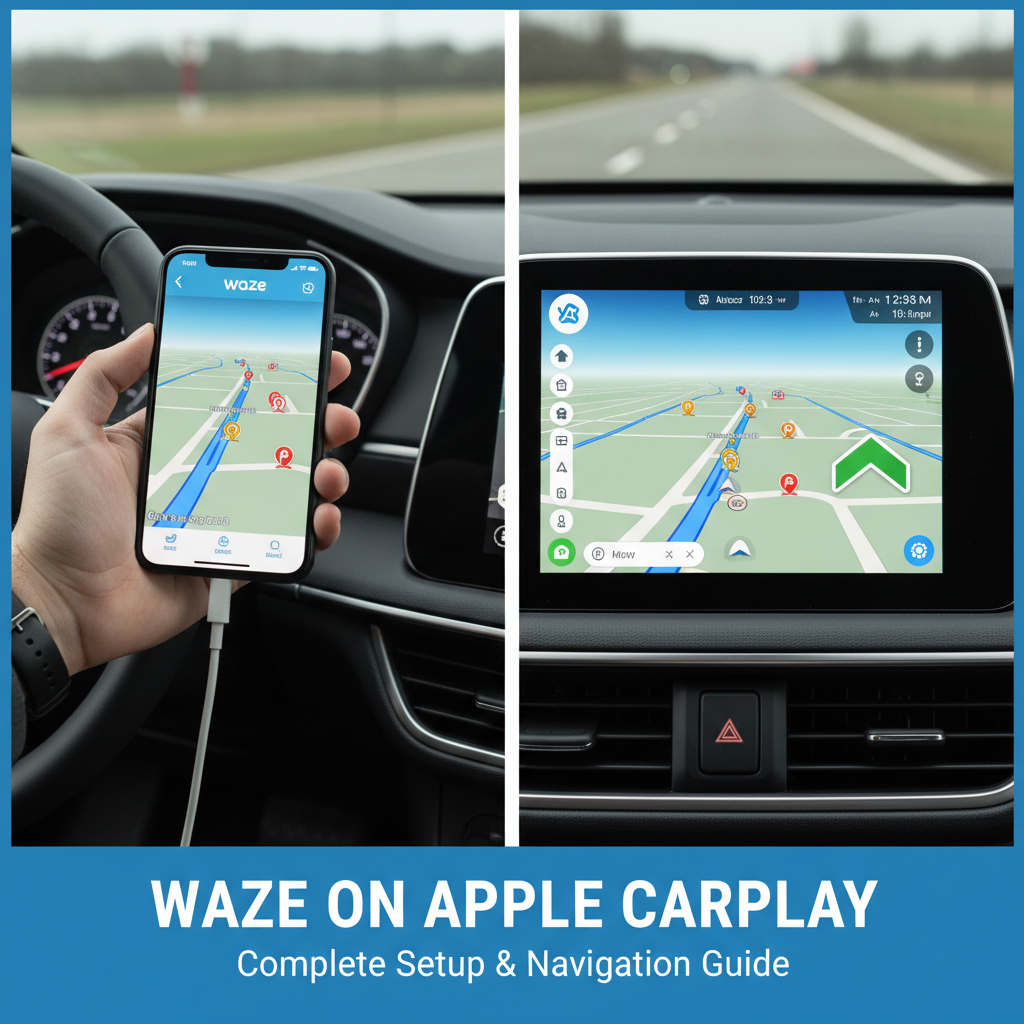
Driving with turn-by-turn directions has never been easier than using Waze on Apple CarPlay. This powerful combination brings real-time traffic updates, community-driven navigation, and hands-free control directly to your car’s dashboard. Whether you’re commuting to work or planning a road trip, learning how to use Waze on Apple CarPlay will transform your driving experience.
Apple CarPlay integration allows you to access your favorite iPhone apps safely while driving. Waze, Google’s popular navigation app, offers unique features like crowd-sourced traffic data, police alerts, and hazard warnings that make it stand out from other GPS navigation systems.
What You Need Before Getting Started
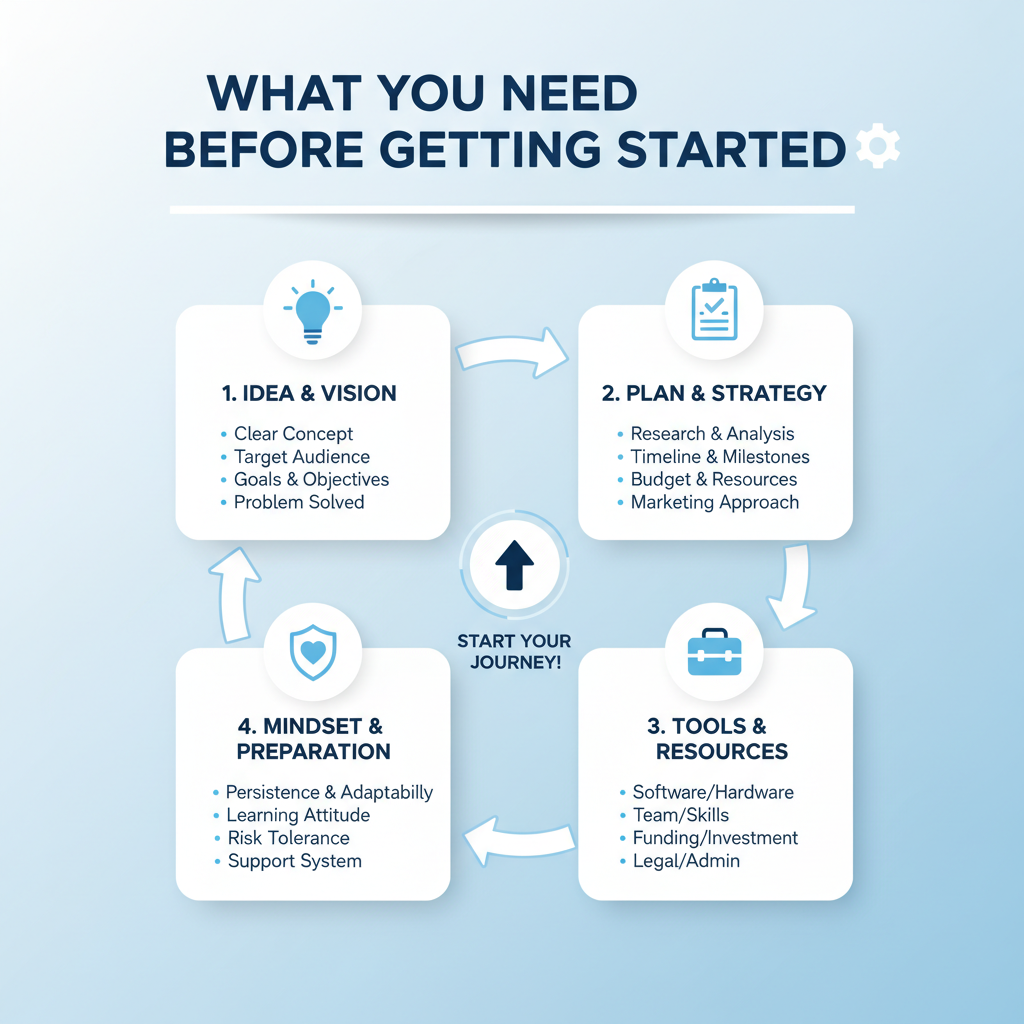
Before diving into how to use Waze on Apple CarPlay, ensure you have the necessary requirements. Your vehicle must support Apple CarPlay functionality, either through a built-in infotainment system or an aftermarket CarPlay-compatible head unit. Most cars manufactured after 2016 include this feature, but you can check Apple’s official compatibility list for your specific vehicle model.
You’ll also need an iPhone running iOS 12 or later with the latest version of the Waze app installed. A Lightning cable or wireless CarPlay connection will link your iPhone to your car’s system. Make sure your phone has a stable cellular data connection, as Waze requires internet access for real-time traffic information and route updates.
Step-by-Step Setup Process
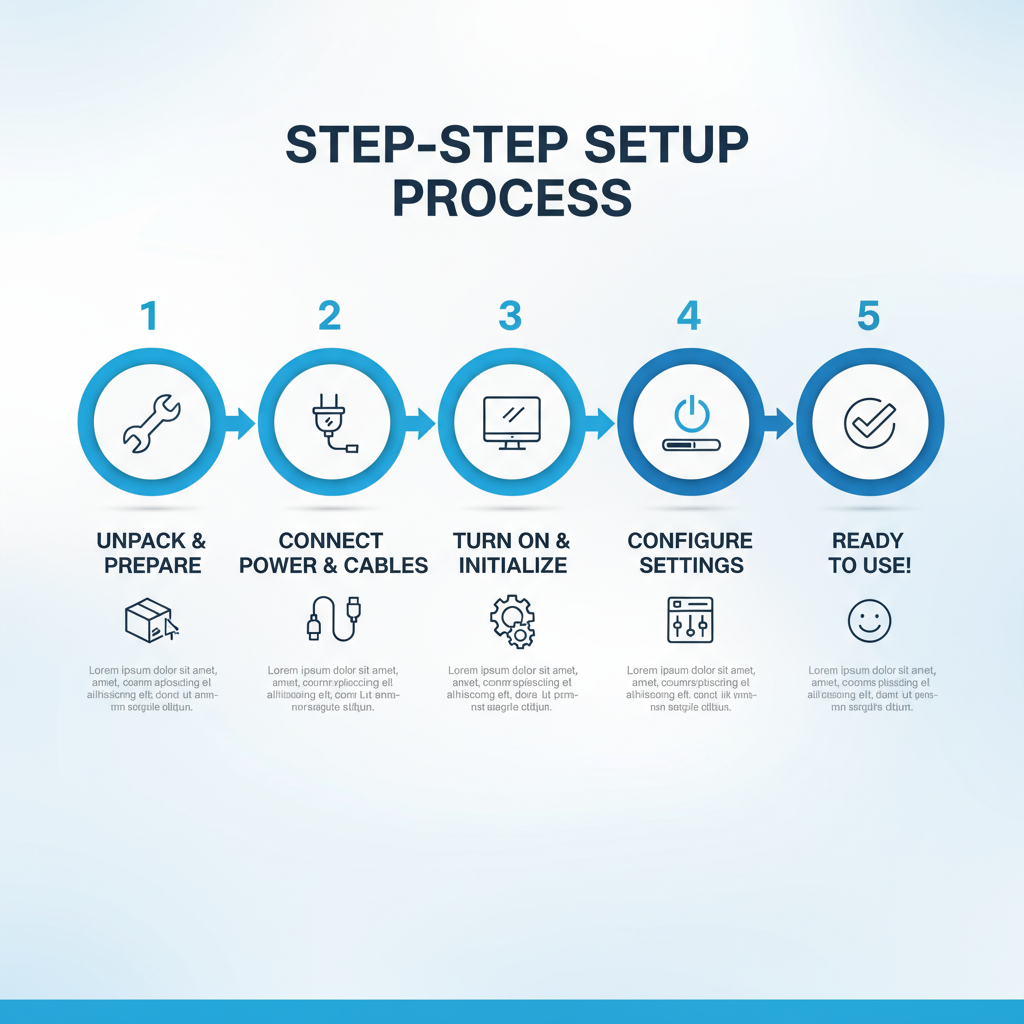
Setting up Waze on your CarPlay system is straightforward. Follow these simple steps to get started:
Step 1: Connect Your iPhone
Plug your iPhone into your car’s USB port using a Lightning cable, or ensure wireless CarPlay is enabled if your vehicle supports it. Your car’s infotainment system should automatically detect your device.
Step 2: Enable CarPlay
If this is your first time using CarPlay, you may need to enable it in your iPhone settings. Go to Settings > General > CarPlay, then select your car from the available options.
Step 3: Access Waze
Once connected, look for the Waze icon on your CarPlay home screen. If you don’t see it immediately, swipe left or right to find it among your available apps.
Step 4: Allow Permissions
The first time you launch Waze through CarPlay, you may need to grant location permissions and other necessary access rights. Follow the on-screen prompts to complete this process.
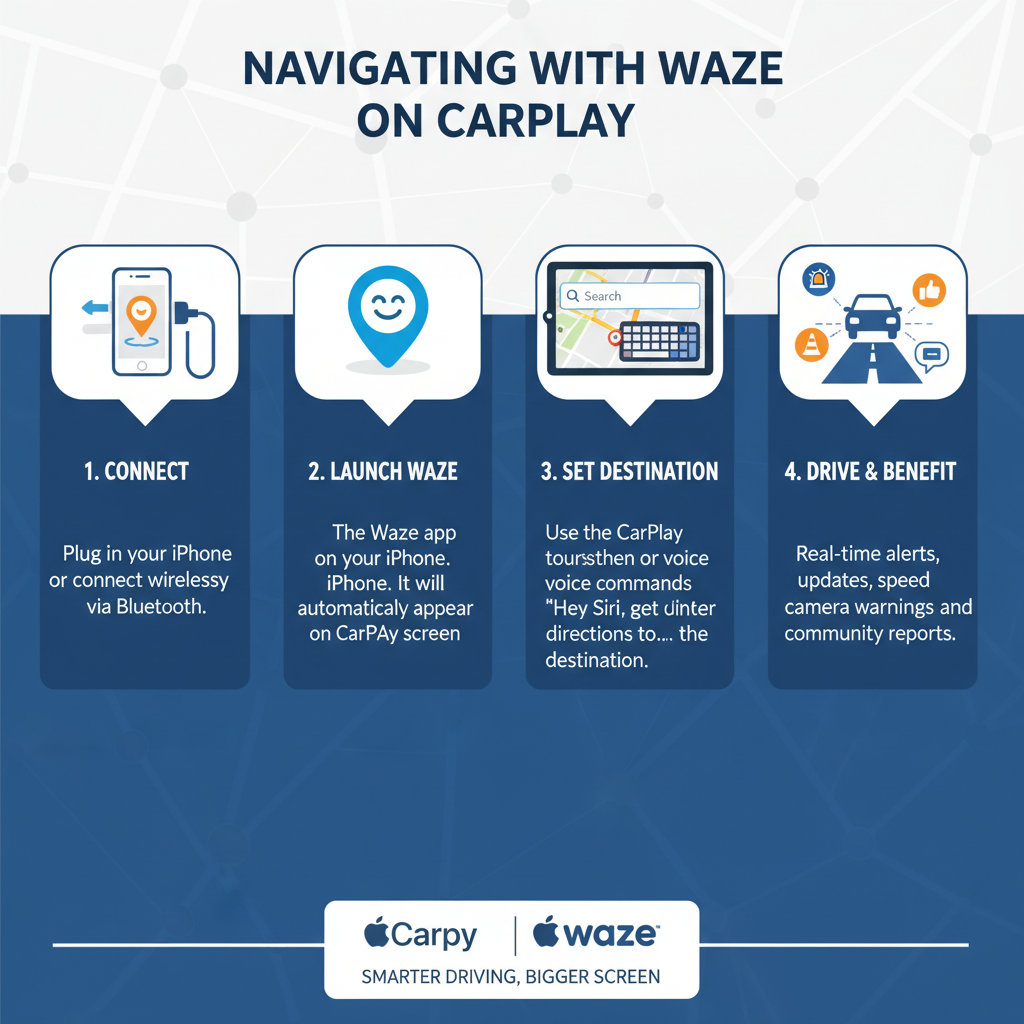
Learning how to use Waze on Apple CarPlay for navigation is intuitive and user-friendly. The interface adapts perfectly to your car’s display, providing clear visual guidance without overwhelming the driver.
Starting a Route
To begin navigation, tap the Waze icon on your CarPlay screen. You can search for destinations using voice commands by pressing and holding the voice control button on your steering wheel, then saying something like “Hey Siri, navigate to [destination] using Waze.” Alternatively, use the on-screen keyboard to type your destination.
Voice Commands and Siri Integration
Voice control is one of the biggest advantages of using Waze through CarPlay. You can ask Siri to find gas stations, restaurants, or specific addresses without taking your hands off the wheel. Say “Hey Siri, find the nearest coffee shop using Waze” or “Navigate home using Waze” for hands-free operation.
Real-Time Traffic Updates
Waze excels at providing live traffic information from its community of users. When using the app through CarPlay, you’ll see color-coded routes indicating traffic conditions. Red sections show heavy traffic, yellow indicates moderate delays, and green represents clear roads. The app automatically suggests alternative routes when faster options become available.
Advanced Features and Customization
Understanding how to use Waze on Apple CarPlay goes beyond basic navigation. The app offers several advanced features that enhance your driving experience.
Community Reports and Alerts
Waze’s community-driven approach sets it apart from other navigation apps. Users report accidents, police presence, road hazards, and construction zones in real-time. When using CarPlay, these alerts appear as icons on your route, and you’ll receive audio notifications about upcoming hazards.
Reporting Incidents While Driving
You can contribute to the Waze community by reporting incidents you encounter. Use voice commands to report police, accidents, or road hazards by saying “Hey Siri, report police using Waze” or similar phrases. This keeps your hands on the wheel while helping other drivers.
Customizing Your Route Preferences
Access Waze settings through your iPhone to customize route preferences before starting your drive. You can avoid toll roads, highways, or ferries based on your preferences. These settings will carry over when you use the app through CarPlay.
Fuel Station Integration
Running low on gas? Waze on CarPlay can help you find nearby fuel stations with current gas prices. The app shows real-time pricing information reported by the community, helping you find the best deals along your route.
Troubleshooting Common Issues
Even with proper setup, you might encounter some challenges when learning how to use Waze on Apple CarPlay. Here are solutions to common problems:
App Not Appearing on CarPlay
If Waze doesn’t show up on your CarPlay screen, check your iPhone’s CarPlay settings. Go to Settings > General > CarPlay, select your car, and ensure Waze is enabled in the app list.
Connection Problems
Intermittent connectivity issues can affect your navigation experience. Try using a different Lightning cable, as damaged cables often cause connection problems. For wireless CarPlay, ensure your iPhone’s Bluetooth and Wi-Fi are enabled.
Audio Issues
If you can’t hear Waze directions through your car speakers, check your iPhone’s volume settings and ensure the app has permission to use audio. Some vehicles require you to select the appropriate audio source for CarPlay apps.
Slow Performance
Laggy performance usually indicates insufficient cellular data or an overloaded system. Close unnecessary apps on your iPhone and ensure you have a strong cellular signal for optimal Waze performance.
Safety Tips and Best Practices
Using any navigation app while driving requires attention to safety. Here are essential tips for using Waze on CarPlay responsibly:
Always set your destination before starting to drive. While CarPlay makes it safer to interact with your phone, it’s still best to minimize distractions while the vehicle is in motion. Use voice commands whenever possible instead of touching the screen.
Keep your iPhone charged during long trips, as GPS navigation can drain battery quickly. Many vehicles provide charging through the USB connection, but consider bringing a car charger as backup.
Familiarize yourself with your car’s CarPlay controls before hitting the road. Practice using voice commands and locating essential functions while parked, so you’re comfortable with the system during actual driving.
Conclusion
Mastering how to use Waze on Apple CarPlay significantly improves your driving experience by combining the convenience of hands-free operation with Waze’s superior navigation features. The seamless integration provides real-time traffic updates, community-driven alerts, and voice-controlled functionality that keeps you focused on the road.
From initial setup to advanced features like incident reporting and fuel station finding, Waze on CarPlay offers comprehensive navigation solutions for modern drivers. The app’s crowd-sourced data and intelligent routing help you avoid traffic jams and reach destinations efficiently.
Remember to prioritize safety by using voice commands, setting destinations before driving, and keeping your device charged for reliable performance. With these tips and techniques, you’ll be navigating confidently using Waze on Apple CarPlay, making every journey smoother and more enjoyable.