As an Amazon Influencer, we earn from qualifying purchases you might make if you click any of the links or buttons on this page at no expense to you.
If you’re experiencing issues with your Chevy Equinox backup camera, you’re not alone. Many drivers encounter problems with their reverse camera system, from black screens to distorted images. Learning how to reset backup camera on Chevy Equinox can save you time and money while restoring this crucial safety feature. This comprehensive guide will walk you through various reset methods and troubleshooting techniques to get your rear view camera working properly again.
Contents
Understanding Your Chevy Equinox Backup Camera System
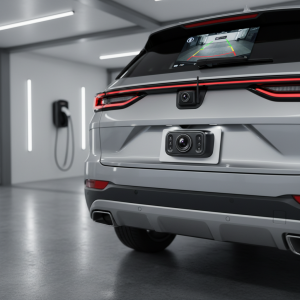
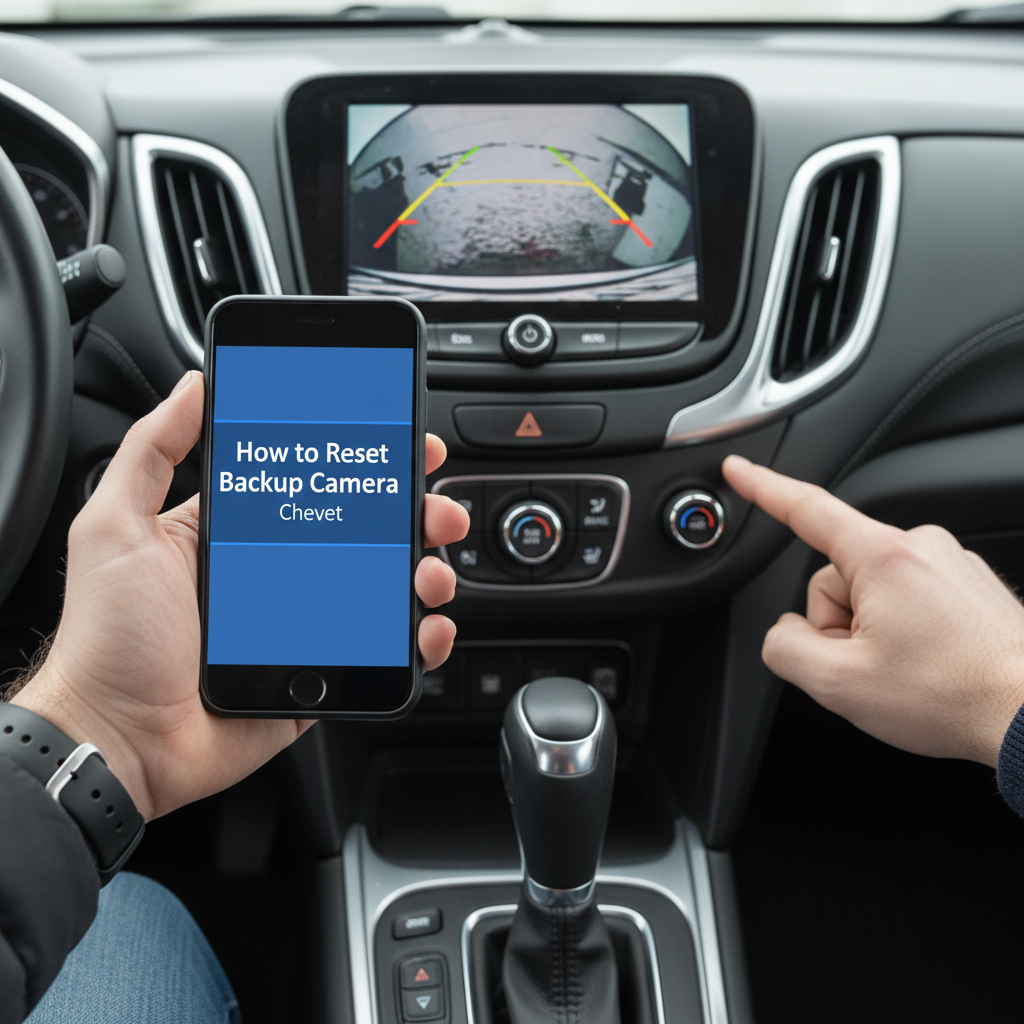
Before diving into how to reset backup camera on Chevy Equinox, it’s important to understand how this safety system works. The backup camera, also known as a reverse camera or rear view camera, activates automatically when you shift into reverse gear. This camera system displays live video feed on your infotainment screen, helping you navigate safely while backing up.
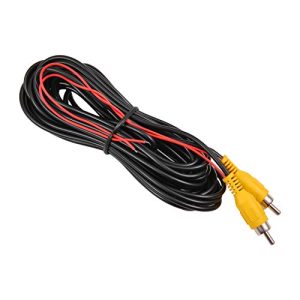
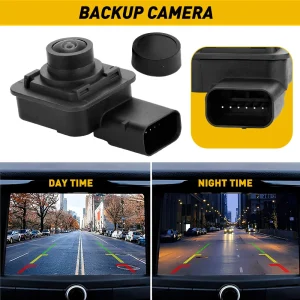
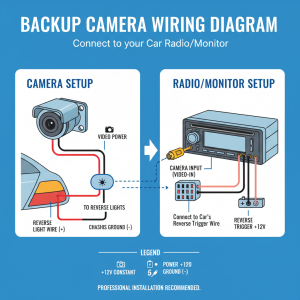
The Chevy Equinox backup camera system consists of several components: the camera unit mounted near the rear license plate, wiring harnesses, the infotainment display screen, and the vehicle’s computer modules. When any of these components experience issues, you may notice symptoms like a blank screen, frozen image, poor video quality, or complete camera failure.
Common problems that require a backup camera reset include software glitches, temporary system freezes, connectivity issues, and minor electrical faults. Understanding these issues helps you determine when a simple reset might solve the problem versus when professional diagnosis is needed.
Step-by-Step Guide: How to Reset Backup Camera on Chevy Equinox
Method 1: Basic Infotainment System Reset
The simplest way to reset your Chevy Equinox backup camera is through the infotainment system reset. This method addresses software-related issues and temporary glitches.
Step 1: Start your Chevy Equinox and ensure the vehicle is in park with the parking brake engaged.
Step 2: Locate the power button on your infotainment screen. Press and hold this button for approximately 10-15 seconds until the screen turns off completely.
Step 3: Wait for about 30 seconds to allow the system to fully shut down and clear temporary memory.
Step 4: Press the power button again to restart the infotainment system. The system will go through its startup sequence.
Step 5: Once the system is fully loaded, shift into reverse to test if your backup camera is functioning properly.
Method 2: Vehicle Battery Disconnect Reset
If the basic reset doesn’t resolve your backup camera issues, a more comprehensive reset involving the vehicle’s battery may be necessary.
Step 1: Turn off your Chevy Equinox completely and remove the keys from the ignition.
Step 2: Open the hood and locate the vehicle’s battery. You’ll need basic tools like a wrench or socket set.
Step 3: Carefully disconnect the negative battery terminal first, followed by the positive terminal. Always remove the negative cable first for safety.
Step 4: Wait for at least 15-20 minutes. This allows all electrical systems to fully discharge and reset.
Step 5: Reconnect the battery terminals, starting with the positive terminal first, then the negative terminal.
Step 6: Start your vehicle and allow all systems to initialize. This may take a few minutes.
Step 7: Test the backup camera by shifting into reverse gear.
Method 3: Factory Reset Through Settings Menu
Some Chevy Equinox models allow you to perform a factory reset through the infotainment system’s settings menu.
Step 1: Access your infotainment system’s main menu while the vehicle is running.
Step 2: Navigate to “Settings” or “System Settings” depending on your model year.
Step 3: Look for options like “Factory Reset,” “System Reset,” or “Restore Defaults.”
Step 4: Follow the on-screen prompts to confirm the reset. Note that this will erase saved settings like radio presets and Bluetooth connections.
Step 5: Allow the system to complete the reset process and restart automatically.
Step 6: Test your backup camera functionality after the system restarts.
Advanced Troubleshooting for Persistent Camera Issues
Checking Camera Connections and Wiring
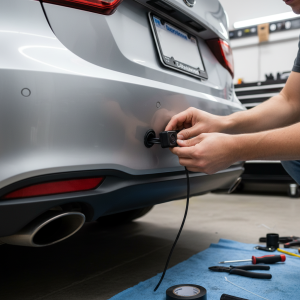
If resetting your backup camera doesn’t solve the problem, the issue might be hardware-related. Inspect the camera unit located near your rear license plate for obvious damage, dirt, or moisture buildup.
Clean the camera lens gently with a soft, damp cloth to remove dirt, snow, or debris that might obstruct the view. Check for any loose connections or damaged wiring around the camera mounting area.
Examine the rear of your vehicle for any signs of impact damage that might have affected the camera or its wiring. Even minor fender benders can disrupt camera connections.
Fuse Box Inspection
A blown fuse can cause backup camera failure. Locate your Chevy Equinox fuse box, typically found under the dashboard or in the engine compartment. Consult your owner’s manual to identify the specific fuse for the backup camera system.
Remove the fuse and inspect it visually. A blown fuse will have a broken filament or appear burned. Replace any damaged fuses with the correct amperage rating.
Software Updates and Recalls
Check if your Chevy Equinox has any pending software updates for the infotainment system. Visit your local Chevrolet dealership or check the manufacturer’s website for available updates.
Research any recalls or technical service bulletins related to backup camera issues for your specific model year. General Motors occasionally releases updates to address known camera system problems.
When to Seek Professional Help
While learning how to reset backup camera on Chevy Equinox can resolve many issues, some problems require professional diagnosis and repair. Consider visiting a qualified technician if you experience persistent problems after trying multiple reset methods.
Signs that indicate professional service is needed include physical damage to the camera unit, corroded wiring connections, repeated system failures, or error messages that persist after resets.
A certified Chevrolet technician has access to specialized diagnostic equipment and can identify complex electrical issues that aren’t apparent during basic troubleshooting. They can also perform software updates and access technical bulletins specific to your vehicle.
Preventing Future Backup Camera Problems
Regular maintenance can help prevent backup camera issues in your Chevy Equinox. Keep the camera lens clean and free from debris, especially during winter months when salt and grime can accumulate.
Avoid using high-pressure water directly on the camera during car washes, as this can force moisture into electrical connections. Instead, use gentle cleaning methods and allow the area to dry completely.
- Be mindful of any aftermarket modifications or accessories that might interfere with the camera system’s operation. Trailer hitches, bike racks, or other rear-mounted equipment can sometimes obstruct the camera view or affect its functionality.
Conclusion
Learning how to reset backup camera on Chevy Equinox is a valuable skill that can save you time and money while maintaining this important safety feature. Whether you’re dealing with a frozen screen, poor image quality, or complete camera failure, the reset methods outlined in this guide provide effective solutions for most common issues.
Start with the basic infotainment system reset, as this resolves many software-related problems quickly and easily. If issues persist, try the battery disconnect method or factory reset through the settings menu. Remember that some problems may require professional diagnosis, especially if hardware components are damaged or if multiple reset attempts don’t resolve the issue.
By understanding your backup camera system and following proper maintenance practices, you can keep this crucial safety feature functioning reliably for years to come. Regular cleaning, careful handling, and prompt attention to problems will help ensure your Chevy Equinox backup camera continues to provide the clear, reliable rear view you need for safe driving.