As an Amazon Associate & Influencer, we earn from qualifying purchases you might make if you click any of the links or buttons on this page at no expense to you.
Pioneer DJ equipment is widely used by professionals and enthusiasts alike, but even the most reliable gear can encounter issues that require a reset. Whether you’re dealing with frozen tracks, corrupted audio files, or software glitches, knowing how to properly reset your Pioneer mix tracks can save your performance and get you back on track quickly.
To reset Pioneer mix tracks, press and hold the Track Search buttons (forward and backward) simultaneously for 3-5 seconds, or use the software’s track reload function. For hardware units, power cycling the device while holding specific button combinations will perform a complete system reset.
This guide covers multiple reset methods for different Pioneer DJ models, troubleshooting common issues, and preventive measures to avoid future problems.
Understanding Pioneer Track Reset Functions
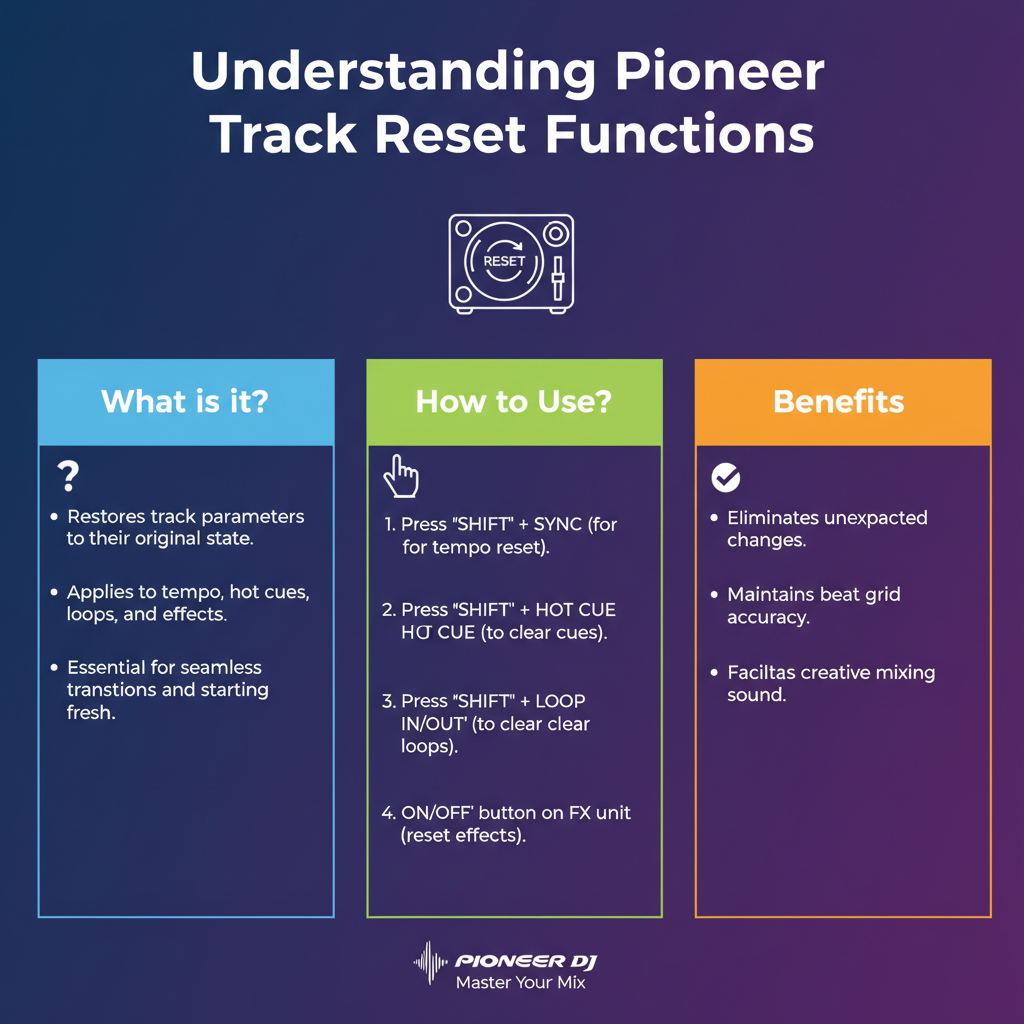
Pioneer DJ equipment includes several built-in reset mechanisms designed to handle different types of track-related problems. These systems work at both hardware and software levels to ensure reliable performance during live sets.
The track reset function clears temporary data, reloads audio files, and refreshes the playback engine. This process typically takes 2-10 seconds depending on your model and the complexity of the loaded tracks.
Most Pioneer units store track information in volatile memory, which means a proper reset will clear this data without affecting your saved cue points, loops, or other permanent settings stored in the device’s internal memory.
Hardware Reset Methods for CDJ Players
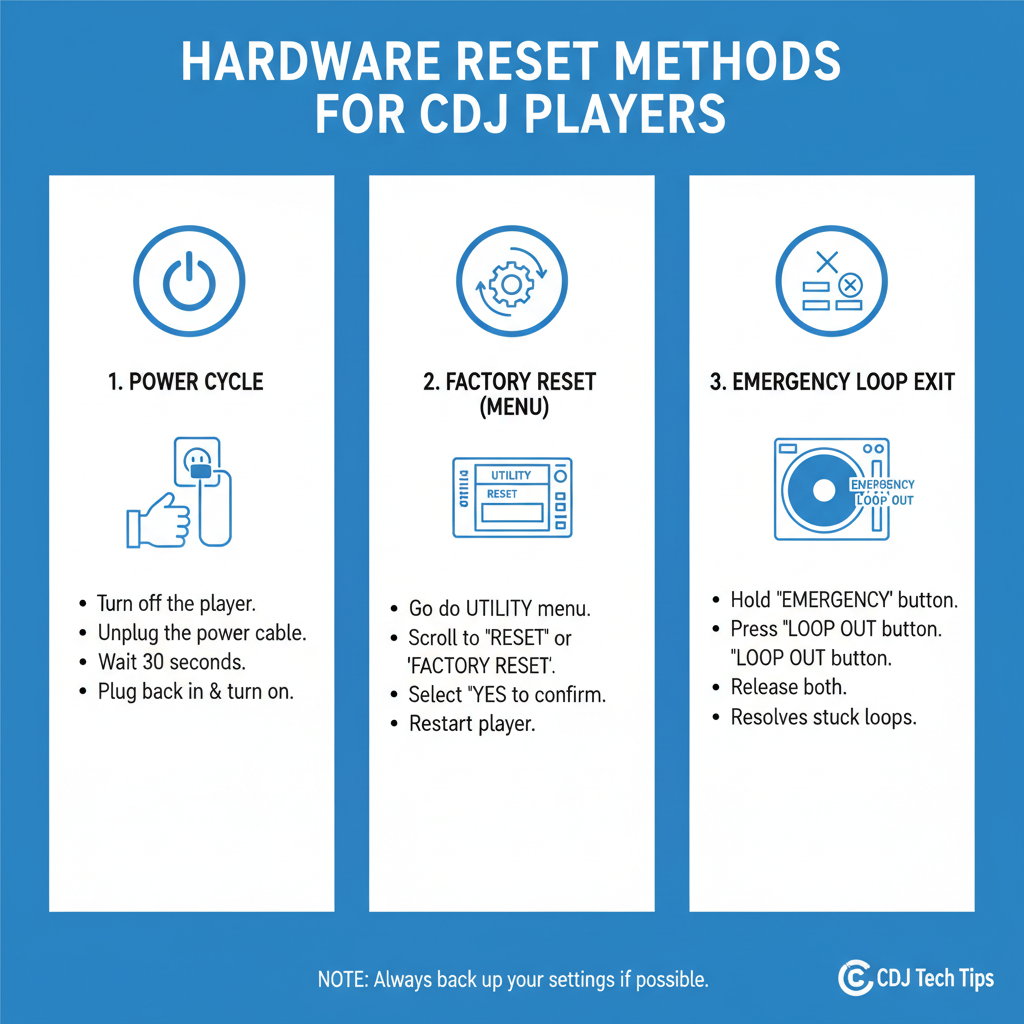
CDJ-2000 Series Reset:
Press and hold both Track Search buttons (< and >) simultaneously for 5 seconds while a track is loaded. The display will show “RESET” briefly, indicating the track has been reloaded from the source.
CDJ-900 and CDJ-850 Reset:
Hold the Time Mode button and press the Track Search forward button three times quickly. This combination forces the unit to reload the current track and clear any temporary glitches.
Older CDJ Models (CDJ-800, CDJ-400):
Power off the unit, then power on while holding the Cue button. Keep the Cue button pressed until the display shows the Pioneer logo, then release.
For USB-connected tracks, removing and reinserting the USB device while the unit is powered on will force a complete track database refresh.
Software-Based Track Resets in Serato DJ and rekordbox
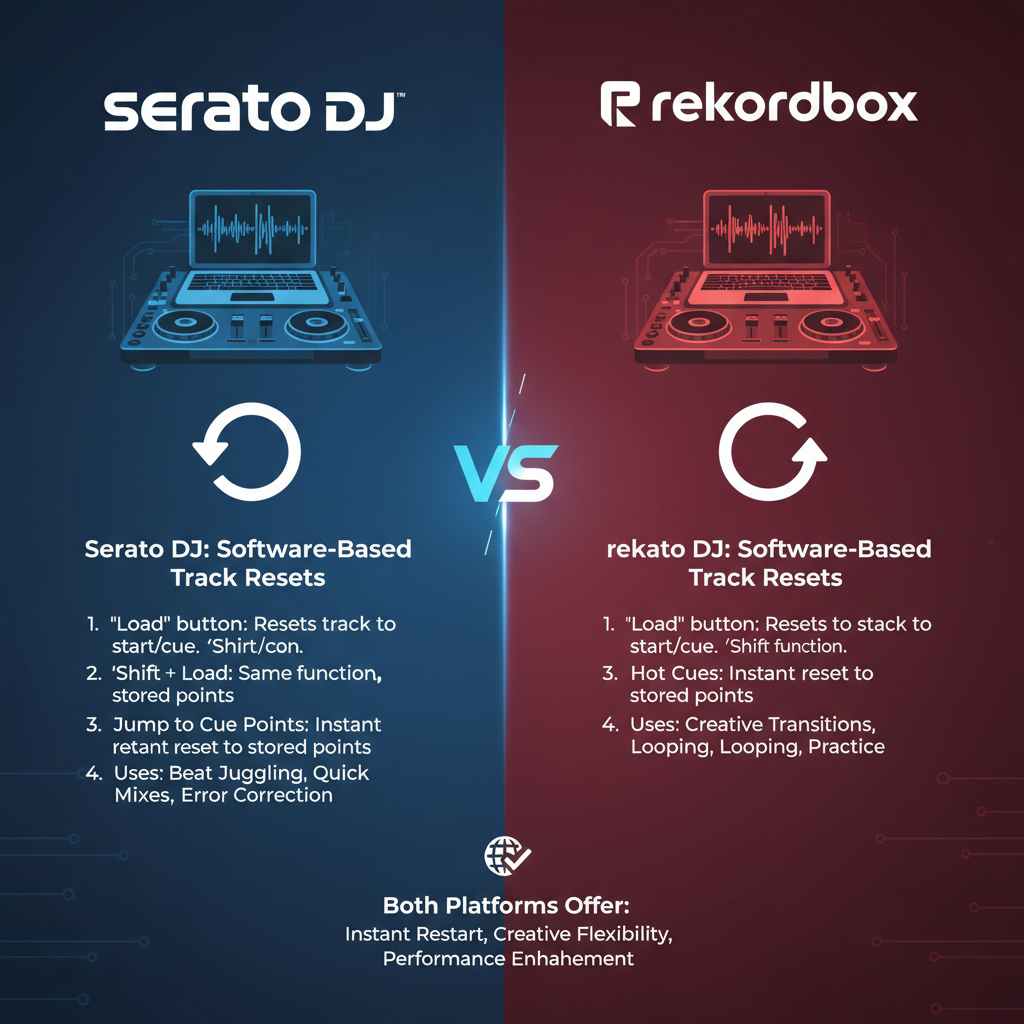
rekordbox DJ Reset Process:
Right-click on the problematic track in your library and select “Reload Track.” Alternatively, use the keyboard shortcut Ctrl+R (Windows) or Cmd+R (Mac) while the track is selected.
For tracks that won’t load properly, navigate to Preferences > DJ > Track Display and enable “Force reload corrupted tracks.” This setting automatically attempts to reload problematic audio files.
Serato DJ Pro Reset:
Access the track’s context menu and choose “Re-analyze file” to force Serato to rebuild the track’s waveform and metadata. This process typically takes 30-60 seconds for standard-length tracks.
If tracks appear grayed out or won’t load, check the Files panel and use the “Relocate Lost Files” function to reestablish the connection between Serato and your audio files.
Troubleshooting Common Track Loading Issues
Corrupted Track Files:
When tracks display error messages or fail to load completely, the audio file itself may be corrupted. Copy the file to a different location and try loading it again. If the problem persists, re-rip or re-download the track from your original source.
USB Device Recognition Problems:
Pioneer units sometimes fail to recognize USB devices after extended use. Format your USB drive using FAT32 file system and ensure it’s not larger than 32GB for maximum compatibility with older CDJ models.
Database Synchronization Errors:
When using rekordbox, export your playlist to the USB device rather than relying on the device’s internal database. This approach reduces synchronization errors and improves loading reliability.
Field experience shows that tracks encoded at variable bitrates (VBR) can cause loading issues on some Pioneer hardware. Converting problematic tracks to constant bitrate (CBR) at 320kbps often resolves these problems.
Emergency Reset Procedures During Live Performance
Quick Track Recovery:
If a track freezes during performance, immediately press the Track Search backward button to jump to the beginning of the track. This often clears minor glitches without requiring a full reset.
Hot Cue Reset Method:
Set a hot cue at the current playback position, then trigger a different hot cue and return to your original position. This technique forces the playback engine to refresh without interrupting your mix flow.
Deck Switching Strategy:
When one deck experiences problems, smoothly transition to your backup deck while performing a reset on the problematic unit. Professional DJs always maintain at least one functional deck ready for immediate use.
For critical situations, keep a backup USB device with identical track selections formatted and ready. This allows for immediate deck switching if your primary storage device fails.
Preventing Future Track Reset Requirements
Proper File Management:
Organize your music library using consistent folder structures and avoid special characters in file names. Pioneer equipment handles standard ASCII characters more reliably than Unicode or extended character sets.
Regularly update your rekordbox software and CDJ firmware to ensure compatibility with newer audio formats and improved error handling.
USB Device Maintenance:
Use high-quality USB devices from reputable manufacturers. Cheap USB drives often develop read errors that cause track loading problems. SanDisk, Kingston, and Lexar devices consistently perform well with Pioneer equipment.
Format USB devices monthly and run disk error checks to prevent file system corruption. This preventive maintenance significantly reduces the likelihood of track reset requirements during performances.
Advanced Reset Techniques for Persistent Problems
Factory Reset for CDJ Units:
Power off the CDJ and hold down the Time Mode, Cue, and Play buttons simultaneously while powering on. Continue holding these buttons until the display shows “FACTORY RESET” then release. This procedure clears all stored settings and returns the unit to original specifications.
rekordbox Database Rebuild:
Navigate to File > Library > Backup Library to save your current settings. Then delete the rekordbox database files located in your user directory and restart the software. rekordbox will rebuild the database from scratch, often resolving persistent track loading issues.
Network Reset for DJ Link Systems:
Disconnect all Ethernet cables from your Pioneer setup for 30 seconds, then reconnect in sequence starting with the mixer. This process reestablishes proper communication between linked devices and often resolves track sharing problems.
In practice, these advanced techniques should only be used when standard reset methods fail, as they require reconfiguration of your personal settings and preferences.
Frequently Asked Questions
Why do my tracks keep freezing on Pioneer CDJs?
Track freezing typically occurs due to corrupted audio files, incompatible file formats, or USB device problems. Try using a different USB drive formatted as FAT32 and ensure your tracks are encoded as MP3 or WAV files at standard bitrates.
How do I reset a Pioneer mixer that won’t recognize tracks?
Power cycle the mixer and connected CDJs in sequence. Turn off all devices, wait 10 seconds, then power on the mixer first, followed by each CDJ. This reestablishes proper DJ Link communication.
Can I reset individual decks without affecting the other deck?
Yes, most reset procedures only affect the specific deck being reset. However, factory resets and some advanced procedures may impact the entire system’s settings.
What should I do if rekordbox won’t load my tracks?
Check that your audio files are in supported formats (MP3, WAV, AIFF, FLAC) and aren’t corrupted. Use the “Relocate Lost Files” function if tracks appear grayed out in your library.
How often should I reset my Pioneer equipment?
Regular resets aren’t necessary for properly functioning equipment. Only perform resets when experiencing specific problems like frozen tracks or loading errors.
Will resetting delete my saved cue points and loops?
Standard track resets preserve saved cue points and loops stored in rekordbox or on your USB device. However, factory resets will clear all stored data from the CDJ’s internal memory.
Why do some tracks work on one CDJ but not another?
This usually indicates a hardware issue with the problematic CDJ or differences in firmware versions. Ensure all your CDJs are running the same firmware version and check for hardware problems.
Final Thoughts
Mastering Pioneer track reset procedures ensures you can handle technical difficulties confidently during live performances. The key is understanding which reset method matches your specific problem and having backup strategies ready when standard approaches don’t work.
Regular maintenance of your music library, USB devices, and software updates prevents most track-related issues before they occur. When problems do arise, systematic troubleshooting using the methods outlined above will get your system back to optimal performance quickly.
Remember that prevention is always better than reaction. Proper file management, quality USB devices, and regular software updates will minimize the need for emergency resets during your most important performances.