As an Amazon Associate & Influencer, we earn from qualifying purchases you might make if you click any of the links or buttons on this page at no expense to you.
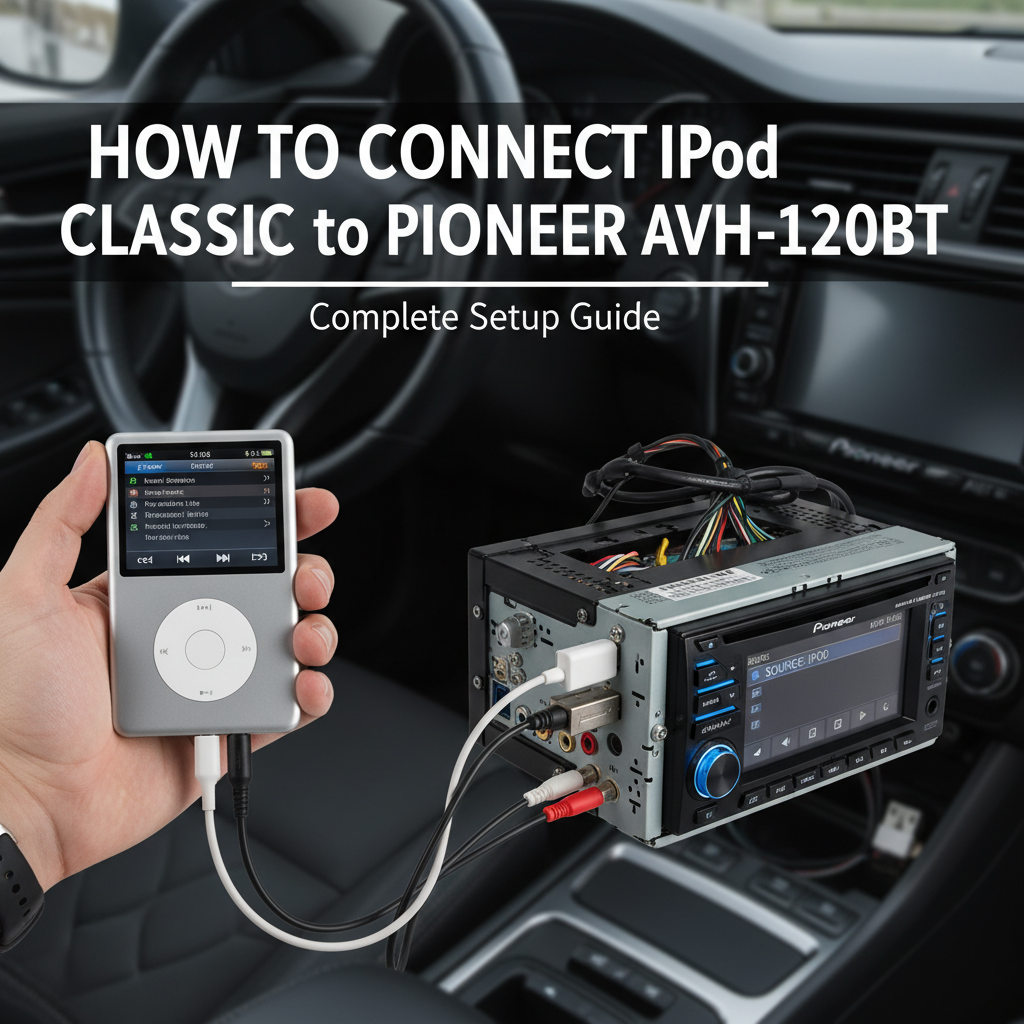
Connecting your iPod Classic to a Pioneer AVH-120BT car stereo system opens up a world of entertainment possibilities during your drives. This comprehensive guide will walk you through the entire process of establishing a connection between these two popular devices, ensuring you can enjoy your music collection seamlessly while on the road.
Understanding Your Pioneer AVH-120BT System
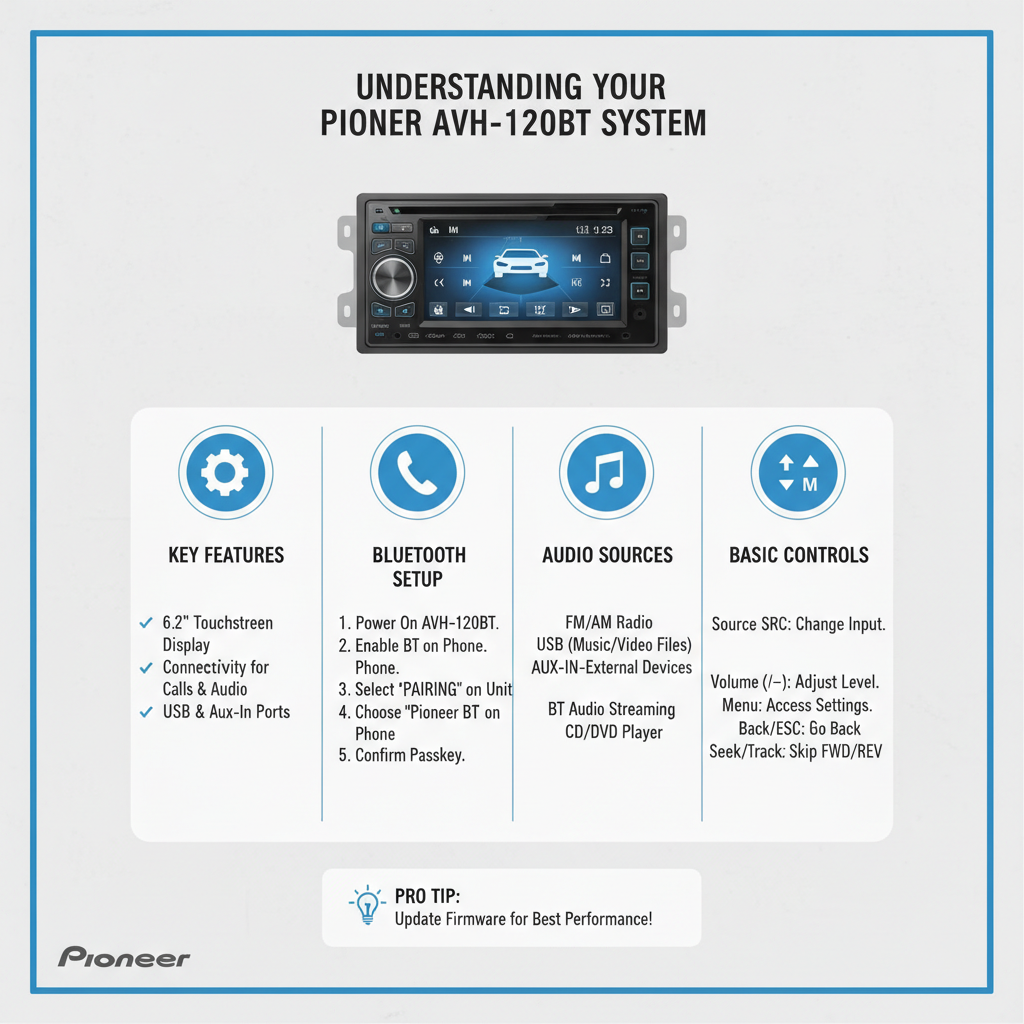
The Pioneer AVH-120BT is a versatile car stereo receiver that offers multiple connectivity options for various audio devices. This multimedia system features Bluetooth wireless technology, USB ports, and auxiliary inputs, making it compatible with numerous music players and smartphones. When you connect iPod Classic to Pioneer AVH-120BT, you’re combining the extensive storage capacity of Apple’s dedicated music player with the advanced audio processing capabilities of Pioneer’s car entertainment system.
The AVH-120BT model stands out for its user-friendly interface and reliable performance with Apple devices. Its built-in compatibility with iPod and iPhone devices makes the connection process straightforward, though understanding the specific steps ensures optimal performance and functionality.
Connection Methods Available
USB Connection Method
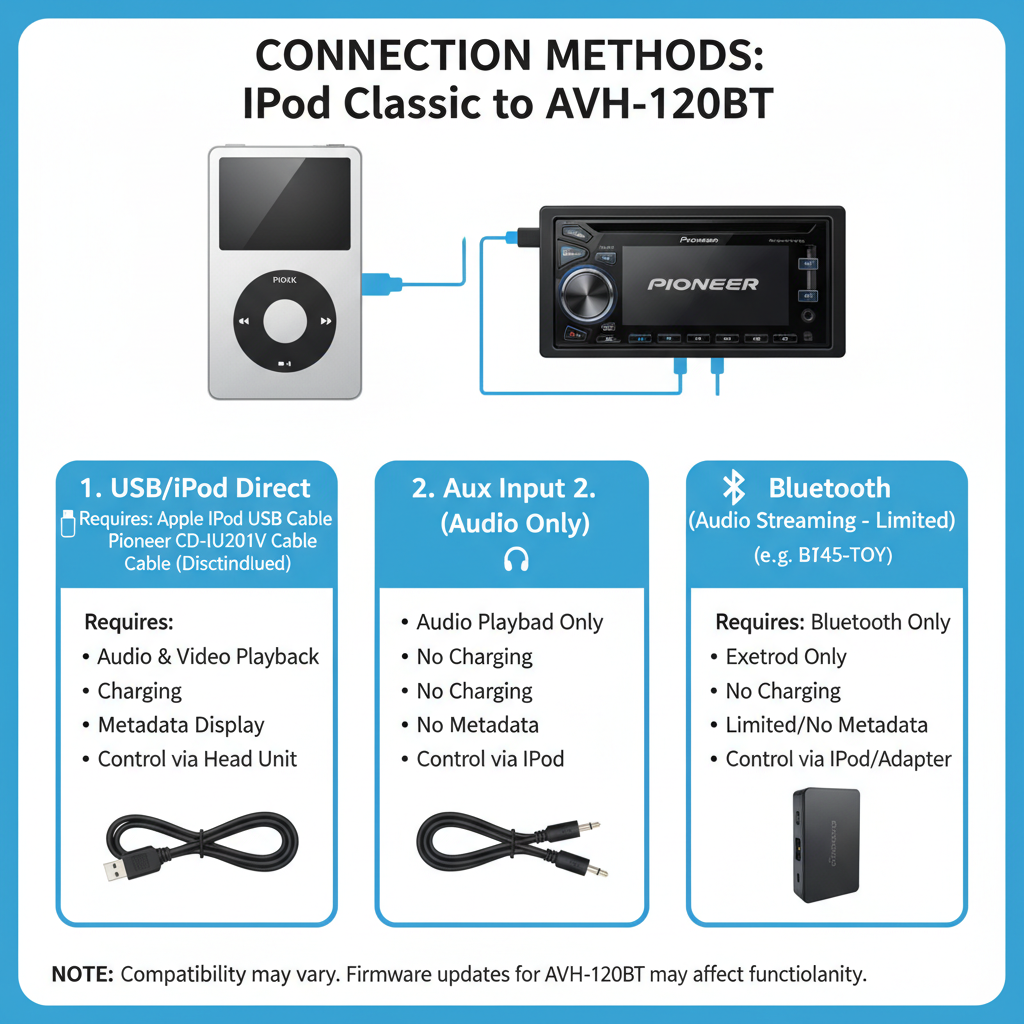
The most reliable way to connect iPod Classic to Pioneer AVH-120BT is through a direct USB cable connection. This method provides the best audio quality and allows for complete control of your iPod through the Pioneer interface.
What You’ll Need:
– Your iPod Classic device
– Original Apple 30-pin to USB cable
– Pioneer AVH-120BT installed in your vehicle
Step-by-Step USB Connection Process:
1. Locate the USB port on your Pioneer AVH-120BT unit. It’s typically found on the front panel or behind a removable cover.
2. Connect the USB cable to your iPod Classic using the 30-pin connector. Ensure the connection is secure and properly seated.
3. Plug the USB end of the cable into the Pioneer AVH-120BT’s USB port.
4. Power on your Pioneer system and wait for it to recognize the connected device.
5. Select the USB source on your Pioneer AVH-120BT by pressing the source button and choosing “USB” from the available options.
6. Wait for device recognition. The system will display “Reading” or similar message while it indexes your iPod’s music library.
7. Navigate your music using the Pioneer’s touchscreen interface or physical controls.
Auxiliary Input Connection
If you prefer using the auxiliary input method to connect iPod Classic to Pioneer AVH-120BT, you’ll need a 3.5mm auxiliary cable. While this method doesn’t provide the same level of integration as USB, it’s a simple alternative.
Auxiliary Connection Steps:
1. Obtain a 3.5mm auxiliary cable with appropriate connectors for both devices.
2. Connect one end to your iPod Classic’s headphone jack.
3. Connect the other end to the AUX input on your Pioneer AVH-120BT.
4. Select AUX mode on your Pioneer system.
5. Control playback directly from your iPod Classic device.
Troubleshooting Common Connection Issues
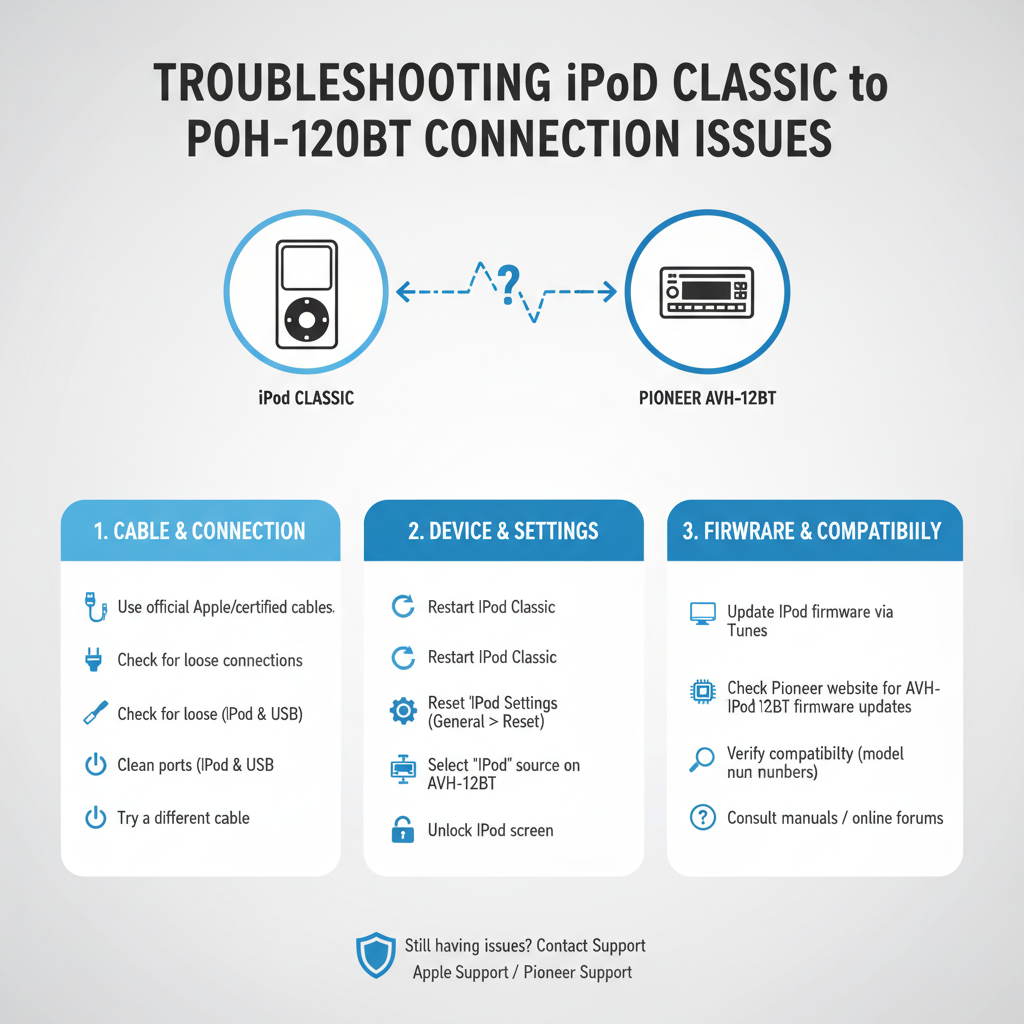
iPod Not Recognized
When your Pioneer AVH-120BT doesn’t recognize your iPod Classic, several factors could be causing the issue:
Check Cable Integrity:
Inspect your USB cable for any visible damage. Frayed wires or bent connectors can prevent proper communication between devices. Try using a different Apple-certified cable to eliminate this possibility.
Verify iPod Compatibility:
Ensure your iPod Classic model is compatible with the Pioneer AVH-120BT. Most iPod Classic generations work well, but very early models might have limited functionality.
Update Pioneer Firmware:
Check if your Pioneer AVH-120BT has the latest firmware installed. Outdated firmware can cause compatibility issues with newer iPod software versions.
Audio Quality Problems
Poor audio quality when you connect iPod Classic to Pioneer AVH-120BT can stem from various sources:
Adjust Audio Settings:
Access your Pioneer’s audio settings menu and adjust the equalizer settings. The iPod Classic’s audio output might require specific EQ adjustments for optimal sound quality in your vehicle’s acoustic environment.
Check Volume Levels:
Ensure both your iPod Classic and Pioneer AVH-120BT volume levels are appropriately balanced. Extremely high or low settings on either device can cause distortion or poor audio quality.
Optimizing Your Connection Experience
Organizing Your Music Library
Before you connect iPod Classic to Pioneer AVH-120BT, organize your music library for the best navigation experience:
Create Meaningful Playlists:
Organize your music into driving-friendly playlists. Create categories like “Highway Driving,” “City Commute,” or “Road Trip Favorites” for easy access while driving.
Update Song Information:
Ensure all your music files have complete metadata including artist names, album titles, and song names. This information displays on your Pioneer AVH-120BT screen, making navigation easier.
Remove Unnecessary Content:
Clean up your iPod Classic by removing podcasts, audiobooks, or other content you don’t want accessible through your car stereo system.
Maximizing Battery Life
When you connect iPod Classic to Pioneer AVH-120BT via USB, the connection typically charges your iPod. However, optimizing battery performance ensures uninterrupted music enjoyment:
Monitor Charging Status:
Keep an eye on your iPod’s charging indicator when connected. If charging seems slow or inconsistent, check your cable connections and consider replacing the USB cable.
Manage Background Processes:
Close any unnecessary applications or features on your iPod Classic that might drain battery power unnecessarily.
Advanced Features and Functions
Steering Wheel Control Integration
Many vehicles with Pioneer AVH-120BT installations include steering wheel control compatibility. When you connect iPod Classic to Pioneer AVH-120BT, these controls often work seamlessly:
Available Controls:
– Track skip forward and backward
– Volume adjustment
– Play/pause functionality
– Source switching
Setup Requirements:
Ensure your Pioneer system is properly configured to recognize your vehicle’s steering wheel controls. This might require additional wiring or programming during installation.
Display Customization
The Pioneer AVH-120BT offers various display options when connected to your iPod Classic:
Information Display:
Choose what information appears on screen, including song titles, artist names, album artwork, and playback progress.
Screen Brightness:
Adjust screen brightness for optimal visibility during day and night driving conditions.
Maintenance and Care Tips
Cable Management
Proper cable management extends the life of your connection setup:
Avoid Sharp Bends:
Route your USB cable carefully to avoid sharp bends or kinks that could damage internal wires.
Secure Connections:
Ensure connections remain secure during vehicle operation. Vibration and movement can loosen connections over time.
Regular System Updates
Keep both devices functioning optimally:
iPod Software:
Regularly sync your iPod Classic with iTunes to ensure it has the latest compatible software version.
Pioneer Firmware:
Check Pioneer’s website periodically for firmware updates that might improve iPod compatibility or add new features.
Alternative Solutions and Workarounds
Bluetooth Adapters
While the iPod Classic doesn’t have built-in Bluetooth, you can use external Bluetooth adapters to create a wireless connection to your Pioneer AVH-120BT:
Bluetooth Transmitter Options:
Several third-party Bluetooth transmitters connect to your iPod’s headphone jack and broadcast audio wirelessly to your Pioneer system.
Setup Considerations:
These adapters require separate charging and pairing processes, but they eliminate cable clutter in your vehicle.
iPod Integration Cables
Specialized iPod integration cables designed for car audio systems can provide enhanced functionality when you connect iPod Classic to Pioneer AVH-120BT:
Enhanced Features:
These cables often provide better charging capabilities and improved audio quality compared to standard USB cables.
Compatibility Verification:
Ensure any specialized cable is specifically compatible with both your iPod Classic model and Pioneer AVH-120BT system.
Conclusion
Successfully connecting your iPod Classic to Pioneer AVH-120BT enhances your driving experience by providing access to your entire music library through your car’s audio system. The USB connection method offers the most reliable performance and functionality, while auxiliary connections provide a simple alternative for basic audio playback.
Remember to maintain your cables