As an Amazon Associate & Influencer, we earn from qualifying purchases you might make if you click any of the links or buttons on this page at no expense to you.
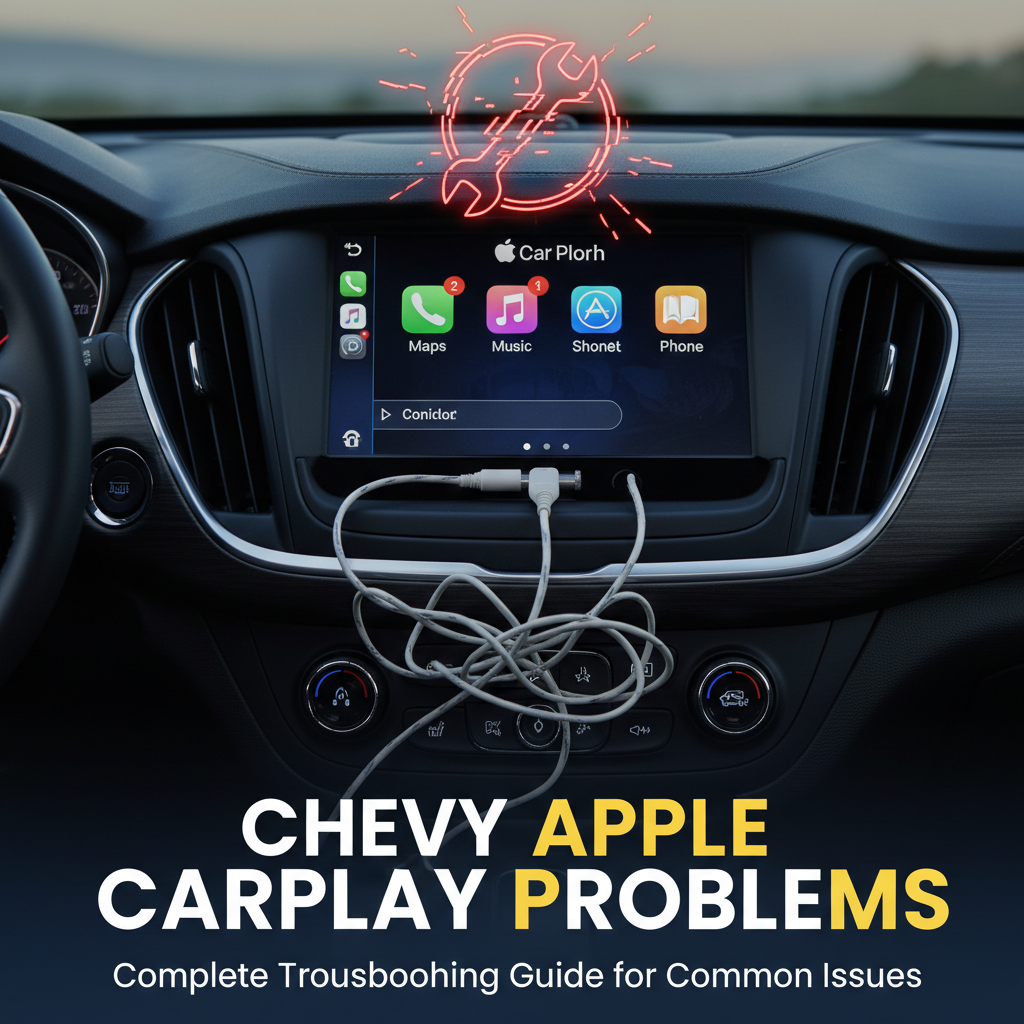
Apple CarPlay has revolutionized how we interact with our vehicles, offering seamless integration between iPhones and car infotainment systems. However, Chevrolet owners frequently encounter various Apple CarPlay connectivity and functionality issues that can be frustrating to resolve. This comprehensive guide will help you diagnose and fix the most common Chevy Apple CarPlay problems.
Apple CarPlay Integration in Chevrolet Vehicles
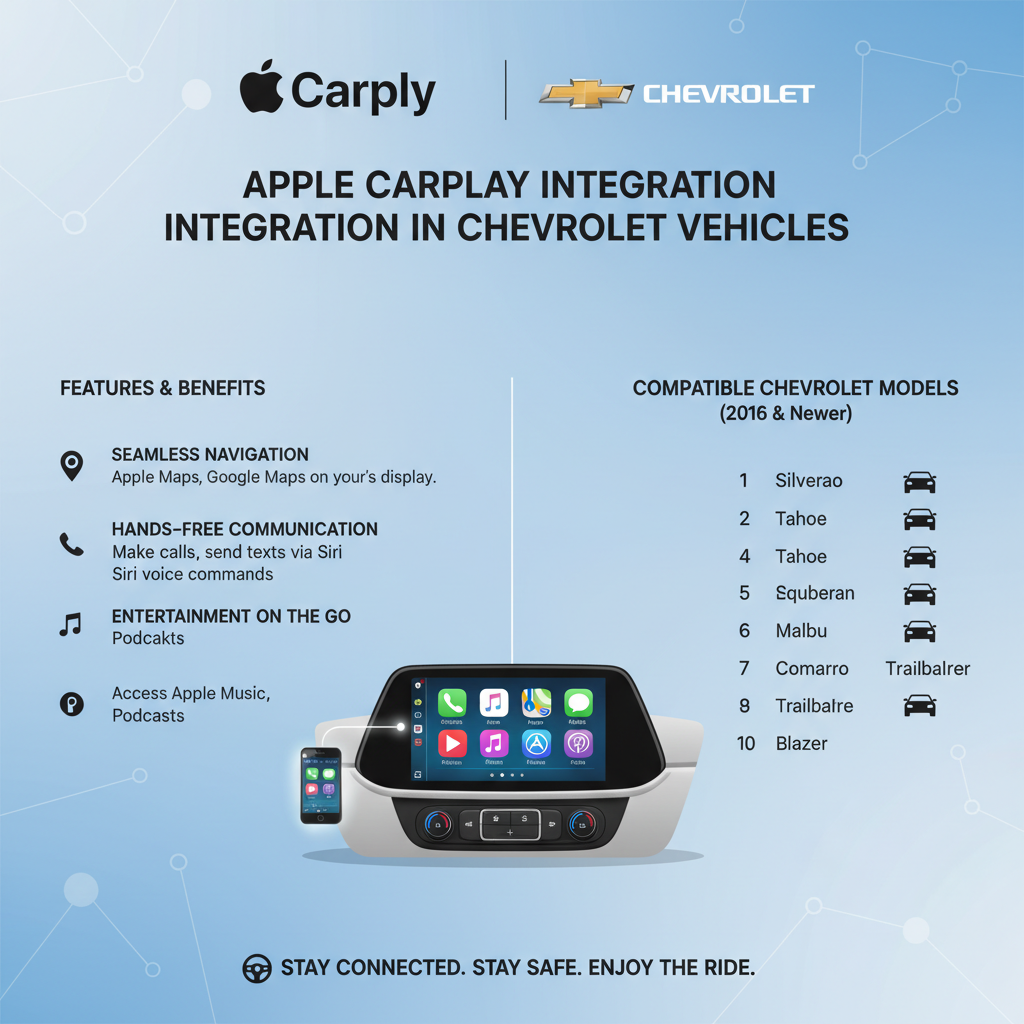
Apple CarPlay in Chevrolet vehicles operates through the MyLink infotainment system, which has evolved significantly over the years. The system allows iPhone users to access apps, make calls, send messages, and navigate using familiar iOS interfaces directly on their vehicle’s touchscreen.
Most Chevrolet models from 2016 onwards include Apple CarPlay compatibility. However, the implementation varies between model years and trim levels, which can lead to different types of connectivity issues.
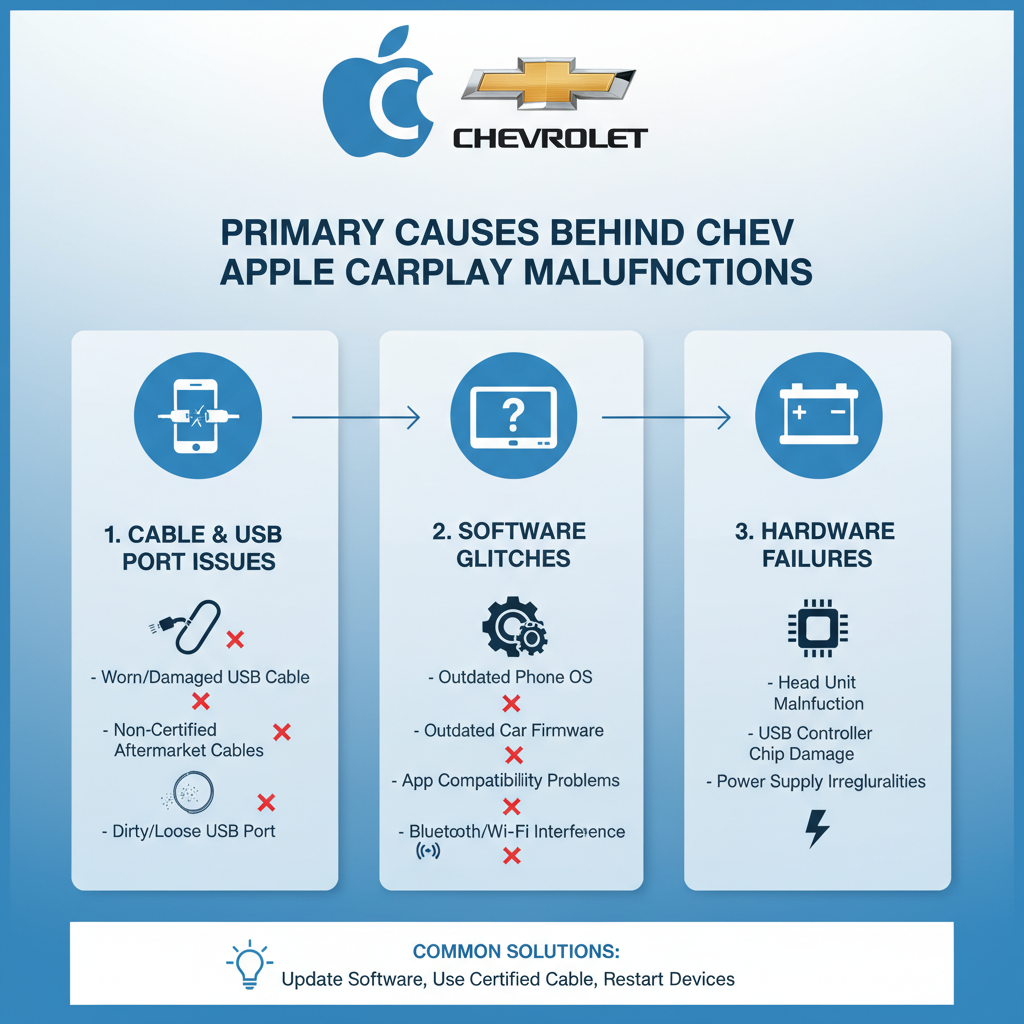
Primary Causes Behind Chevy Apple CarPlay Malfunctions
Connection Establishment Failures
The most frequent issue involves the initial connection between your iPhone and the Chevrolet infotainment system. This problem typically stems from incompatible software versions, faulty USB cables, or corrupted system preferences.
Software Compatibility Conflicts
Chevrolet’s MyLink system requires specific iOS versions to function properly with Apple CarPlay. When either your iPhone’s iOS or the vehicle’s software becomes outdated, communication errors occur frequently.
Hardware Component Deterioration
Physical components like USB ports, wiring harnesses, and the infotainment unit itself can develop problems over time. Wear and tear, moisture exposure, and electrical surges contribute to hardware-related CarPlay failures.
System Configuration Errors
Incorrect settings on either your iPhone or the vehicle’s infotainment system can prevent proper CarPlay functionality. These configuration issues often develop after software updates or system resets.
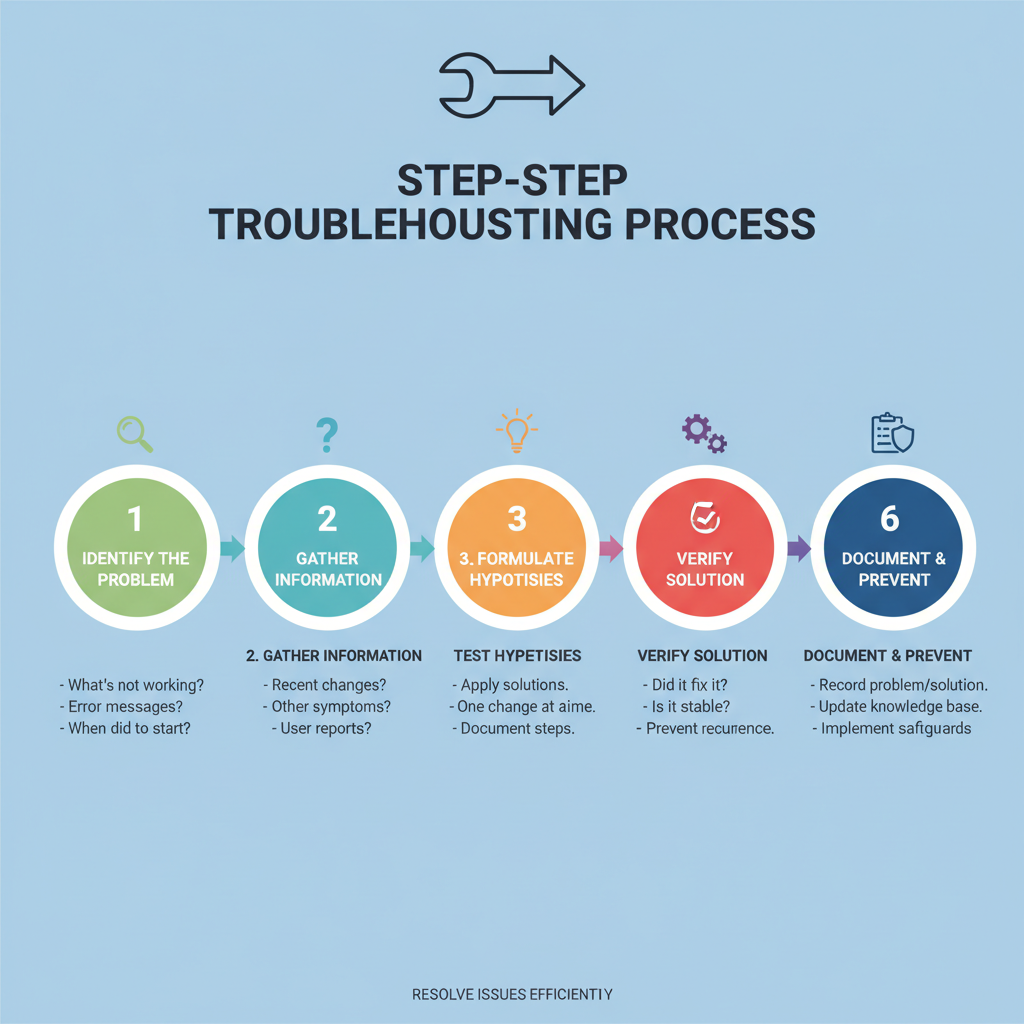
Step-by-Step Troubleshooting Process
Initial Quick Fixes You Can Try Immediately
1. Verify Cable and Connection Quality
Start by examining your Lightning cable for visible damage, fraying, or bent connectors. Try a different Apple-certified Lightning cable to eliminate cable-related issues. Ensure you’re connecting to the correct USB port – many Chevrolet vehicles have multiple USB ports, but only specific ones support CarPlay.
2. Restart Both Devices
Power off your iPhone completely and restart it. While your phone restarts, turn off your Chevrolet’s infotainment system by holding the power button for 10-15 seconds. Turn the ignition off and back on to complete the system restart.
3. Check CarPlay Settings on Your iPhone
Navigate to Settings > General > CarPlay on your iPhone. If your Chevrolet appears in the list, tap it and select “Forget This Car.” This removes any corrupted connection data that might be causing issues.
Intermediate Diagnostic Procedures
4. Update Software on Both Systems
Check for iOS updates on your iPhone by going to Settings > General > Software Update. For your Chevrolet, visit the MyChevrolet website or contact your dealer to check for available infotainment system updates.
5. Reset Network Settings
On your iPhone, go to Settings > General > Reset > Reset Network Settings. This clears all saved Wi-Fi passwords and Bluetooth connections but often resolves CarPlay connectivity issues.
6. Inspect USB Port Functionality
Test the USB port with other devices to ensure it’s providing power and data transfer capabilities. Clean the port gently with compressed air to remove debris that might interfere with connections.
Advanced Troubleshooting Methods
7. Perform Complete System Reset
Some Chevrolet models allow factory resets of the infotainment system. Consult your owner’s manual for the specific button combination or menu sequence. This process typically takes 10-15 minutes and erases all personalized settings.
8. Check for Interference Sources
Remove other connected devices like Android phones, USB drives, or Bluetooth accessories that might conflict with CarPlay operation. Test CarPlay functionality with only your iPhone connected.
9. Verify Siri Functionality
Apple CarPlay requires Siri to be enabled and functional. Check Settings > Siri & Search on your iPhone and ensure “Listen for ‘Hey Siri'” and “Allow Siri When Locked” are enabled.
DIY Solutions vs Professional Service Requirements
Tasks You Can Handle Yourself
✅ Cable replacement and connection testing – Simple and inexpensive first step
✅ Software updates and system resets – Usually free and straightforward
✅ Settings verification and adjustment – No tools required, just patience
✅ Basic cleaning and port maintenance – Minimal risk with proper care
✅ iPhone troubleshooting and configuration – Complete control over your device
When Professional Help Becomes Necessary
🧰 Infotainment system hardware replacement – Requires specialized tools and programming
🧰 Wiring harness diagnosis and repair – Involves dashboard disassembly and electrical expertise
🧰 Software reflashing or module programming – Needs dealer-level diagnostic equipment
🧰 USB port replacement or circuit board repair – Requires electronic repair skills
🧰 Warranty-related issues – Best handled through authorized Chevrolet service centers
Model-Specific Considerations for Different Chevrolet Vehicles
Silverado and Colorado Truck Models
These vehicles often experience CarPlay issues related to the USB port location and cable routing. The ports are sometimes positioned awkwardly, leading to cable stress and connection problems.
Equinox and Traverse SUV Lines
Larger Chevrolet SUVs may have multiple USB ports throughout the cabin. Ensure you’re using the correct port designated for data transfer, not just charging.
Cruze and Malibu Sedan Series
Compact Chevrolet vehicles typically have more reliable CarPlay integration but may experience issues after extreme temperature changes affecting electronic components.
Preventive Measures to Avoid Future Problems
Regular Maintenance Practices
Keep your iPhone’s iOS updated to the latest version compatible with your vehicle. Clean USB ports monthly with compressed air to prevent debris accumulation. Use only Apple-certified Lightning cables to ensure proper data transmission.
Environmental Protection
Avoid exposing your infotainment system to extreme temperatures when possible. Park in shaded areas during hot weather and allow the system to warm up gradually in cold conditions.
Usage Best Practices
Connect your iPhone before starting your journey rather than while driving. Avoid disconnecting and reconnecting repeatedly during short trips, as this can stress both the cable and port connections.
Critical Safety Warnings
Electrical System Precautions
Always turn off your vehicle’s ignition before attempting any hardware inspections or connections. Never work on electrical components with wet hands or in damp conditions.
Driving Safety Considerations
Avoid troubleshooting CarPlay issues while driving. Pull over safely and engage the parking brake before making any system adjustments or connection changes.
Professional Service Requirements
If you smell burning electronics, notice sparks, or experience electrical shocks, discontinue troubleshooting immediately and seek professional assistance. These symptoms indicate serious electrical problems that require expert diagnosis.
When to Contact Chevrolet Customer Support
If you’ve exhausted all troubleshooting steps without success, contact Chevrolet Customer Care or visit your local dealership. Document the specific symptoms, error messages, and steps you’ve already attempted. This information helps technicians diagnose problems more efficiently and may be required for warranty coverage.
Remember that Apple CarPlay problems in Chevrolet vehicles are usually solvable with patience and systematic troubleshooting. Start with the simplest solutions and progress to more complex procedures only when necessary.