As an Amazon Associate & Influencer, we earn from qualifying purchases you might make if you click any of the links or buttons on this page at no expense to you.
Apple CarPlay has revolutionized how we interact with our vehicles, seamlessly integrating our iPhones with our car’s infotainment system. However, like any technology, CarPlay can experience various issues that disrupt your driving experience. Whether you’re dealing with connection problems, audio glitches, or complete system failures, this comprehensive guide will help you diagnose and resolve the most common Apple CarPlay issues.
Most Common Apple CarPlay Problems
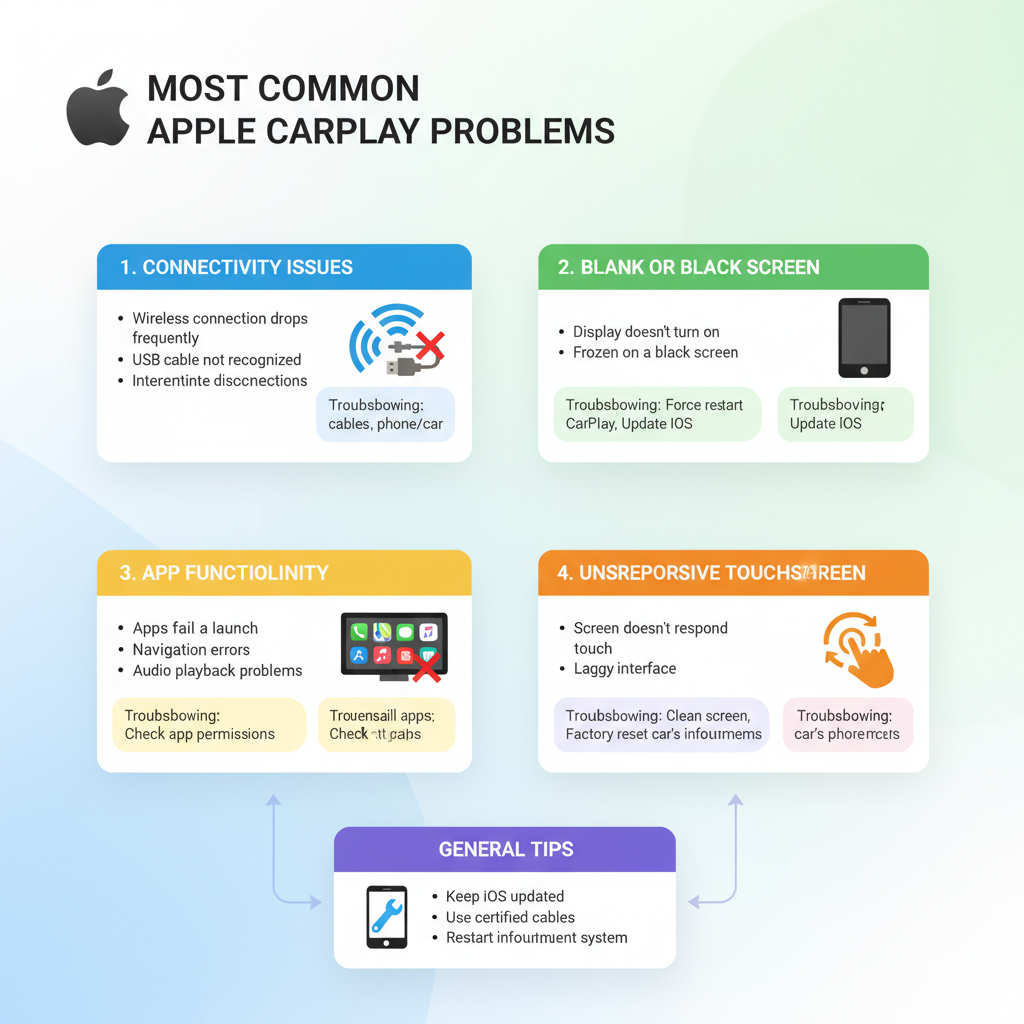
Apple CarPlay issues can range from minor inconveniences to complete system failures. These problems typically stem from software conflicts, hardware malfunctions, or connectivity issues between your iPhone and the vehicle’s infotainment system.
Primary Connection Failures
The most frequent issue users encounter is CarPlay’s inability to establish or maintain a connection with their iPhone. This problem manifests as the system not recognizing your device, frequent disconnections during use, or the CarPlay interface failing to appear on your vehicle’s display.
Connection failures often result from faulty USB cables, outdated software versions, or corrupted system preferences. Sometimes, the issue lies within the vehicle’s USB port or the iPhone’s lightning connector, which may have accumulated debris or suffered physical damage.
Audio and Media Playback Disruptions
Another common category involves audio-related problems where CarPlay connects successfully but fails to deliver proper sound output. Users may experience distorted audio, complete silence, or audio that cuts in and out intermittently.
These audio issues frequently occur due to conflicting audio settings between the iPhone and the car’s system, Bluetooth interference, or problems with the vehicle’s audio processing unit.
Interface and Display Malfunctions
Some users encounter problems with the CarPlay interface itself, including frozen screens, unresponsive touch controls, or apps that fail to load properly. These visual and interactive problems can make CarPlay unusable even when the connection appears stable.
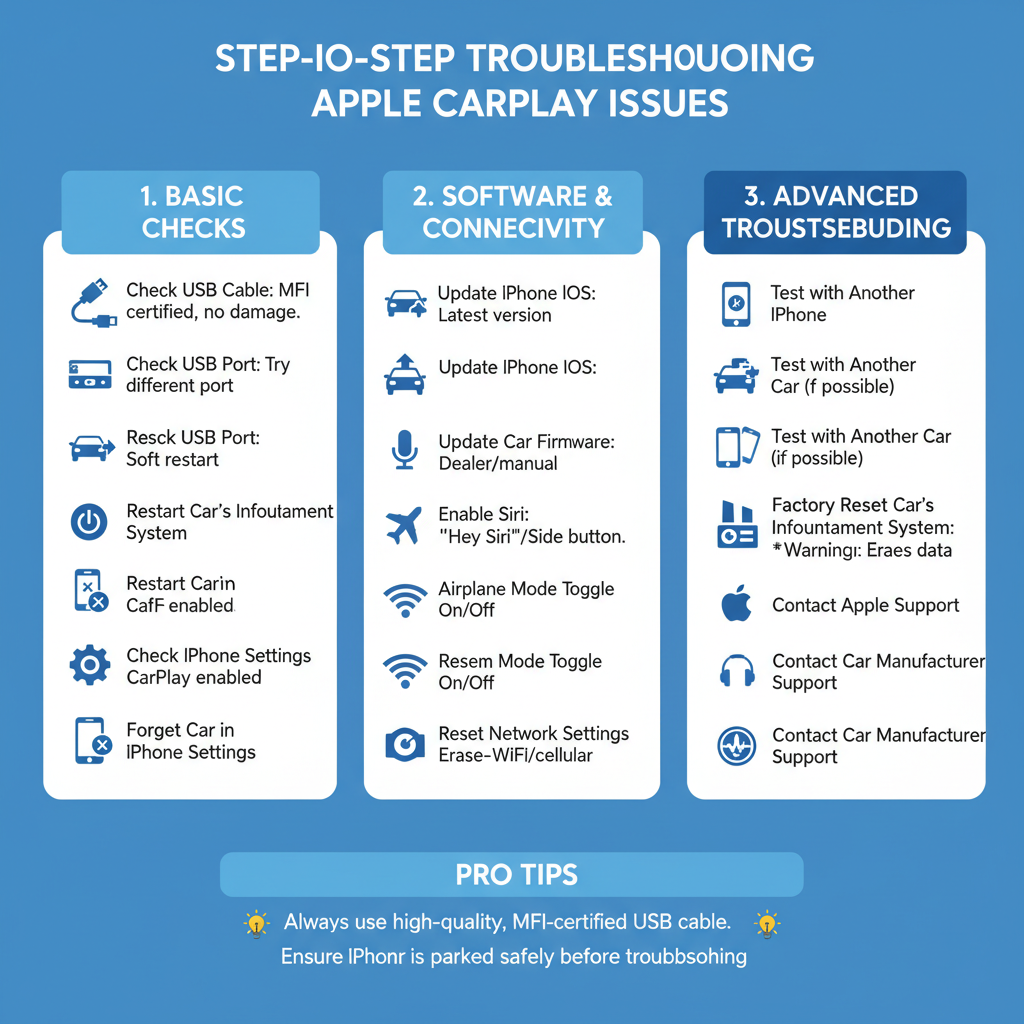
Step-by-Step Troubleshooting Process
Initial Quick Fixes You Can Try Immediately
1. Restart Your iPhone and Vehicle System
Begin with the simplest solution by performing a complete restart of both your iPhone and your vehicle’s infotainment system. Turn off your iPhone completely, then restart it. Similarly, turn off your vehicle, wait for about 30 seconds, then restart the engine to reset the infotainment system.
This basic restart resolves temporary software glitches and clears cached data that might be interfering with the CarPlay connection.
2. Inspect and Replace Your USB Cable
Examine your USB cable carefully for any visible damage, including frayed wires, bent connectors, or loose connections. Even minor damage can cause intermittent connection issues.
Try using a different Apple-certified USB cable, preferably a new one. Many CarPlay problems stem from degraded or counterfeit cables that don’t maintain reliable data transmission.
3. Clean Connection Points
Use a dry, soft brush or compressed air to clean both your iPhone’s lightning port and the vehicle’s USB port. Accumulated lint, dust, or debris can prevent proper electrical contact and data transmission.
Be gentle during cleaning to avoid damaging the delicate connectors inside these ports.
Intermediate Software Solutions
4. Update iOS and CarPlay Settings
Check for iOS updates by going to Settings > General > Software Update on your iPhone. Install any available updates, as Apple frequently releases fixes for CarPlay compatibility issues.
After updating, go to Settings > General > CarPlay and remove your vehicle from the list. Then reconnect to establish a fresh pairing with updated software.
5. Reset Network and Bluetooth Settings
Navigate to Settings > General > Transfer or Reset iPhone > Reset > Reset Network Settings. This action clears all saved Wi-Fi passwords, Bluetooth pairings, and network configurations, which can resolve connectivity conflicts.
You’ll need to re-enter Wi-Fi passwords and re-pair Bluetooth devices after this reset, but it often resolves persistent CarPlay connection issues.
6. Check CarPlay Restrictions and Permissions
Verify that CarPlay isn’t disabled in your iPhone’s restrictions. Go to Settings > Screen Time > Content & Privacy Restrictions > Allowed Apps and ensure CarPlay is enabled.
Also, check individual app permissions for CarPlay access in Settings > General > CarPlay, then select your vehicle and customize which apps appear.
Advanced Diagnostic Procedures
7. Test Different USB Ports and Connection Methods
If your vehicle has multiple USB ports, try connecting to each one individually. Some ports may be designed only for charging and lack data transmission capabilities required for CarPlay.
For vehicles supporting wireless CarPlay, try switching between wired and wireless connections to isolate whether the issue is hardware or software-related.
8. Examine Vehicle-Specific Settings
Access your vehicle’s infotainment settings menu and look for CarPlay or smartphone integration options. Some vehicles have separate enable/disable toggles for CarPlay functionality.
Check if your vehicle’s system has available software updates. Many manufacturers release updates that improve CarPlay compatibility and performance.
9. Perform iPhone Backup and Restore
If other solutions haven’t worked, back up your iPhone completely, then perform a factory reset. Restore your iPhone from the backup and test CarPlay functionality.
This comprehensive reset eliminates deep-seated software conflicts that simpler resets might miss.
Professional vs. DIY Solutions
What You Can Handle Yourself
✅ Basic troubleshooting steps including restarts, cable replacement, and software updates require no special tools or expertise. These solutions address the majority of CarPlay issues and should be your first approach.
✅ Settings adjustments and resets can be performed safely by any iPhone user. These software-based solutions carry no risk of hardware damage and often resolve persistent problems.
✅ Cable and port cleaning requires only basic care and attention. Use appropriate tools and gentle techniques to avoid damage.
When to Seek Professional Help
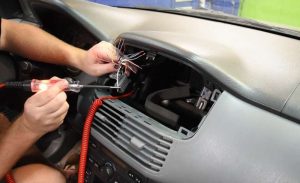
🧰 Vehicle infotainment system problems may require dealer service or automotive electronics specialists. If your car’s display shows error messages or fails to respond entirely, professional diagnosis is necessary.
🧰 Hardware replacement needs including faulty USB ports, damaged infotainment units, or internal wiring problems require professional installation and programming.
🧰 Persistent software conflicts that survive multiple resets might indicate deeper compatibility issues requiring specialized diagnostic tools and expertise.
Important Safety Considerations
Electrical System Precautions
Always turn off your vehicle’s engine before attempting any hardware inspections or connections. Working with the electrical system while running can cause damage to sensitive electronic components.
Never force connectors or cables into ports. If connections don’t fit easily, stop and verify you’re using the correct cable and port combination.
Vehicle Operation Safety
Avoid troubleshooting CarPlay issues while driving. Pull over safely and park before attempting any diagnostic steps or settings changes.
Be aware that some troubleshooting steps may temporarily disable other vehicle functions. Don’t perform resets or updates when you need immediate access to navigation or communication features.
Data and Privacy Protection
Before performing iPhone resets or taking your vehicle for professional service, ensure your personal data is backed up securely. Remove sensitive information from CarPlay-connected apps if others will be handling your device.
Prevention and Maintenance Tips
Regular Software Updates
Keep both your iPhone and vehicle’s infotainment system updated with the latest software versions. Enable automatic updates when possible to prevent compatibility issues.
Cable Care and Replacement
Replace USB cables periodically, especially if you frequently connect and disconnect your device. Quality cables last longer and provide more reliable connections.
Environmental Considerations
Extreme temperatures can affect both iPhone performance and vehicle electronics. Allow systems to reach moderate temperatures before expecting optimal CarPlay performance.
Conclusion
Most Apple CarPlay issues can be resolved through systematic troubleshooting, starting with simple solutions and progressing to more complex procedures as needed. The key is patience and methodical testing of each potential cause.
Remember that technology integration between different manufacturers can be complex, and some issues may require professional intervention. However, the majority of CarPlay problems respond well to the DIY solutions outlined in this guide.
By following these troubleshooting steps and maintaining your equipment properly, you can enjoy reliable CarPlay functionality and seamless integration between your iPhone and vehicle’s infotainment system.