As an Amazon Associate & Influencer, we earn from qualifying purchases you might make if you click any of the links or buttons on this page at no expense to you.
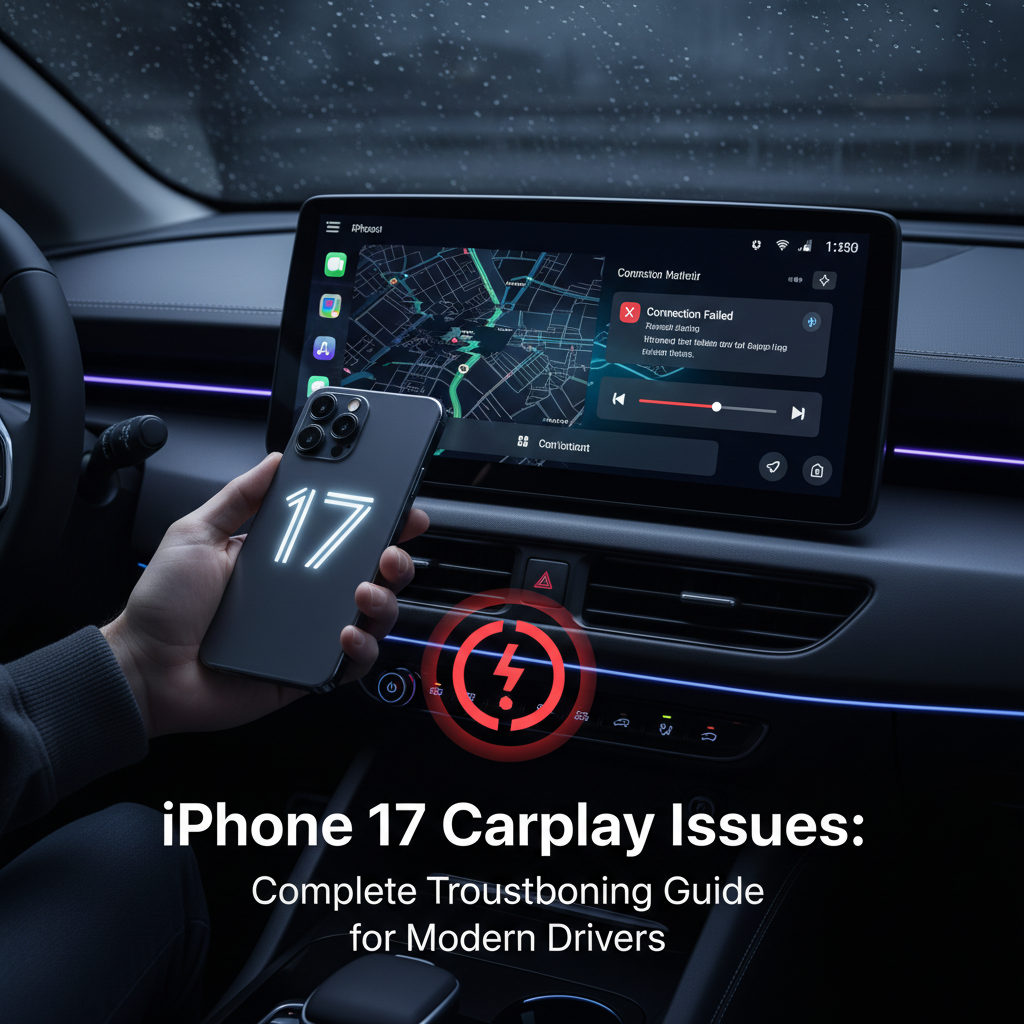
The iPhone 17 represents Apple’s latest advancement in smartphone technology, but even the most cutting-edge devices can experience connectivity problems with your vehicle’s CarPlay system. When your iPhone 17 won’t connect to CarPlay or experiences intermittent issues, it can disrupt your entire driving experience, affecting navigation, music, calls, and other essential functions.
CarPlay integration has become a standard expectation for modern drivers, making these connectivity problems particularly frustrating. Understanding the root causes and knowing how to troubleshoot these issues can save you time, money, and the inconvenience of being without your favorite driving features.
Primary Culprits Behind iPhone 17 CarPlay Malfunctions
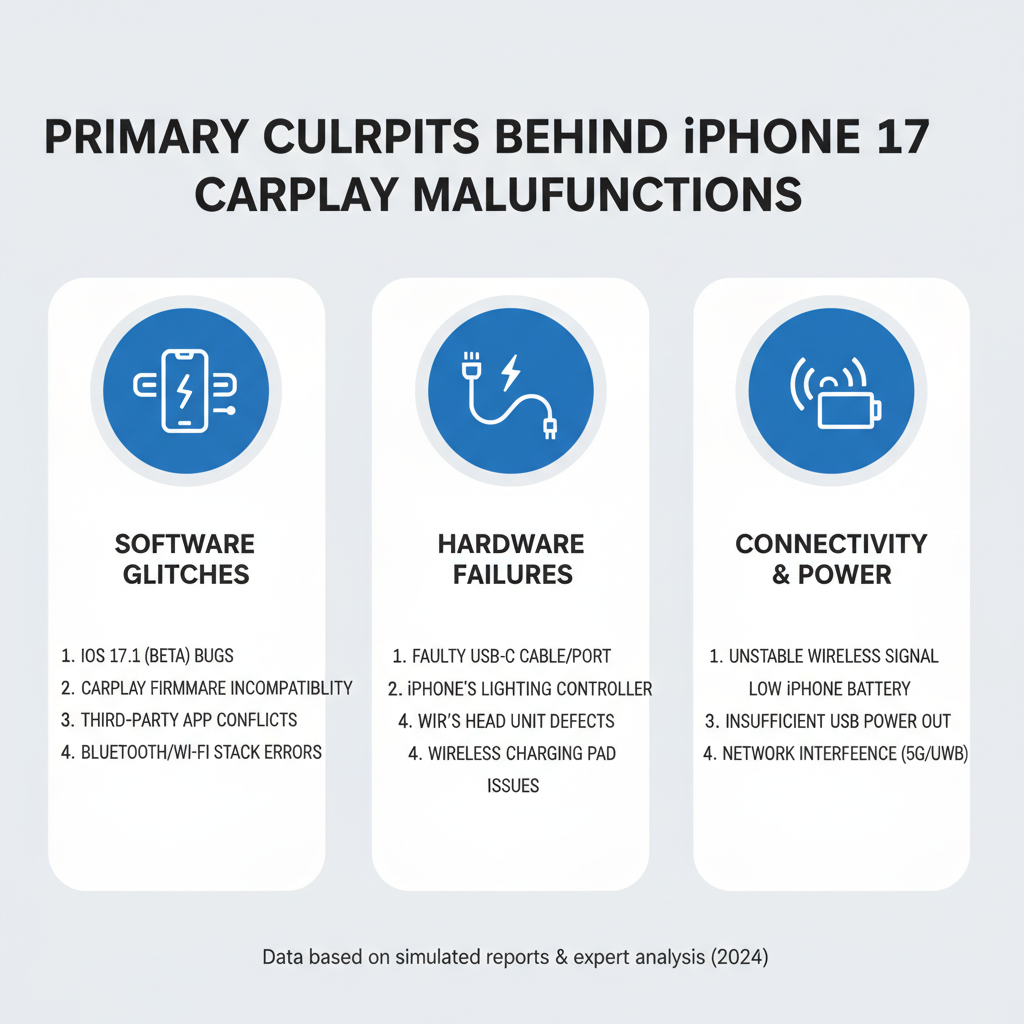
Software Compatibility Conflicts
The iPhone 17 runs on iOS 18, which may have compatibility issues with older CarPlay systems. Some vehicles haven’t received firmware updates to support the latest iOS features, creating communication barriers between your phone and car’s infotainment system.
USB Connection Problems
Physical connection issues remain one of the most common causes of CarPlay failures. Worn-out Lightning or USB-C cables, damaged ports, or debris in charging connections can prevent proper data transmission between your iPhone 17 and the vehicle’s system.
Wireless CarPlay Interference
For vehicles equipped with wireless CarPlay, Bluetooth and Wi-Fi interference can disrupt the connection. Multiple devices competing for the same frequency bands or weak signal strength can cause intermittent connectivity problems.
Vehicle System Overload
Modern infotainment systems run complex software that can become overwhelmed or corrupted. When your car’s system experiences memory issues or software glitches, it may reject or improperly handle CarPlay connections from your iPhone 17.
Step-by-Step Resolution Process about IPhone 17 CarPlay Issues
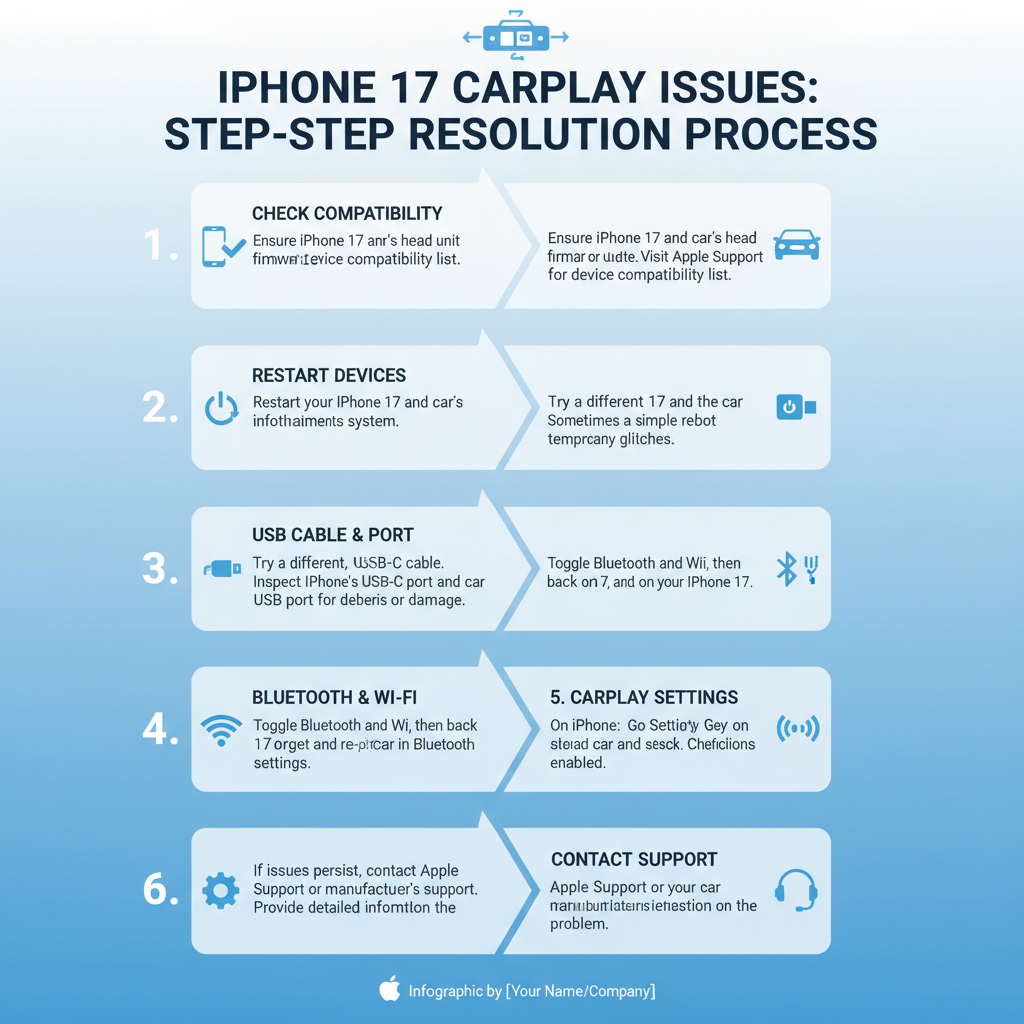
Initial Quick Fixes
1. Restart both devices completely
Power off your iPhone 17 by holding the side button and volume button simultaneously. Turn off your vehicle’s infotainment system using the power button or by turning off the ignition for 30 seconds.
2. Inspect and clean all connection points
Examine your charging cable for fraying, bent connectors, or corrosion. Use compressed air to clear debris from your iPhone’s charging port and your vehicle’s USB ports.
3. Verify CarPlay settings activation
Navigate to Settings > General > CarPlay on your iPhone 17. Ensure your vehicle appears in the available cars list and that CarPlay is enabled.
4. Test with alternative cables
Try a different MFi-certified Lightning or USB-C cable to eliminate cable-related issues. Apple recommends using certified cables to ensure proper data transmission.
Intermediate Troubleshooting Methods
5. Reset network configurations
Go to Settings > General > Transfer or Reset iPhone > Reset > Reset Network Settings. This clears saved Wi-Fi passwords, Bluetooth pairings, and cellular settings that might interfere with CarPlay.
6. Update iOS to latest version
Check Settings > General > Software Update for any available iOS updates. Apple frequently releases patches that improve CarPlay compatibility and performance.
7. Clear CarPlay cache and preferences
Remove your vehicle from the CarPlay settings, then re-add it by connecting your iPhone 17 and following the setup prompts again.
8. Check vehicle firmware status
Consult your vehicle’s manual or contact the manufacturer to determine if infotainment system updates are available for your specific model year.
Advanced Technical Solutions
9. Analyze Bluetooth connectivity patterns
For wireless CarPlay, forget your vehicle in Bluetooth settings, then repair the devices. Ensure no other devices are actively connected to your car’s Bluetooth system.
10. Perform complete iPhone restoration
Back up your iPhone 17 data, then restore the device to factory settings. This eliminates any deep software conflicts that might affect CarPlay functionality.
11. Test CarPlay with different user profiles
If your vehicle supports multiple user profiles, try connecting your iPhone 17 under a fresh profile to isolate user-specific configuration problems.
12. Verify power delivery specifications
Use a USB power meter to ensure your vehicle’s USB ports provide adequate power (typically 2.4A) for iPhone 17 operation during CarPlay use.
DIY Solutions vs Professional Assistance of Resolution of iPhone 17 CarPlay Issues
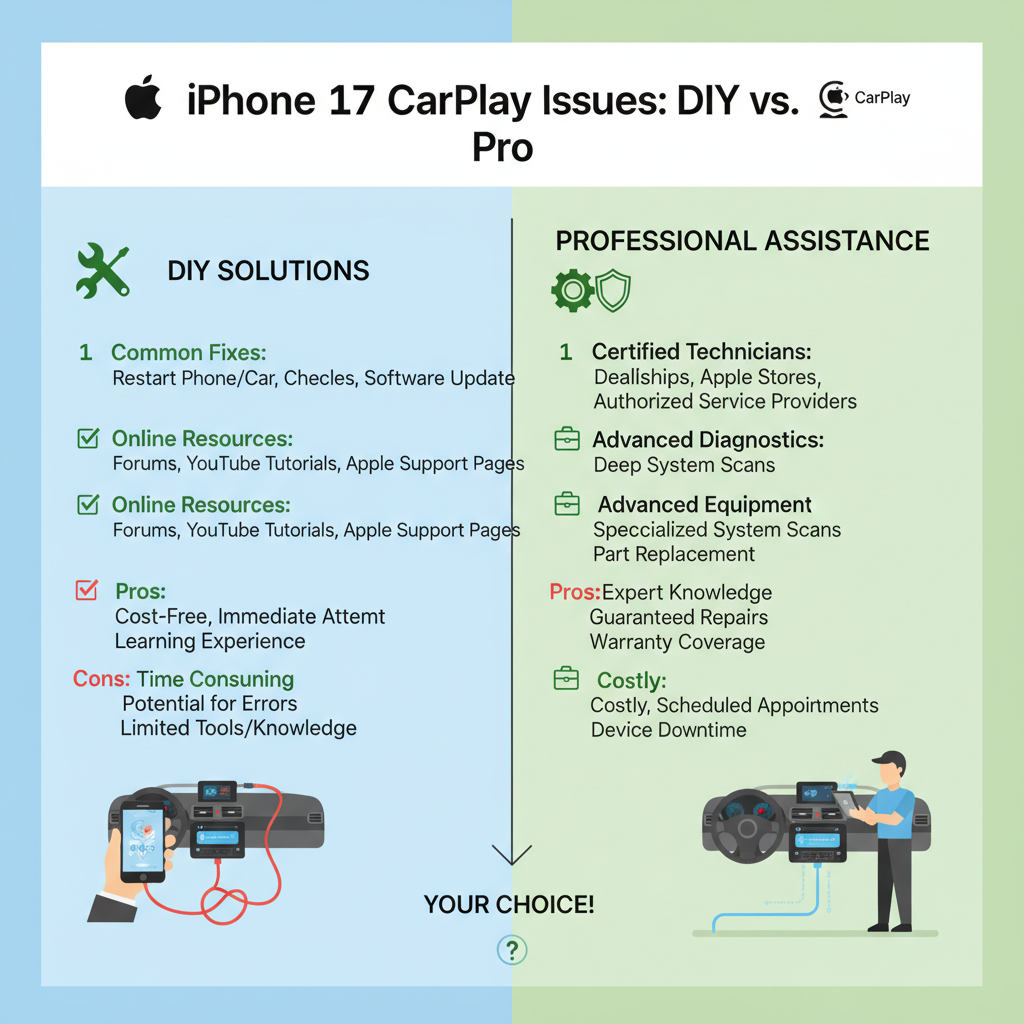
Owner-Manageable Tasks
✅ Software updates and resets – Most iPhone and basic vehicle settings can be managed without technical expertise
✅ Cable replacement and cleaning – Simple hardware maintenance requires only basic tools and replacement parts
✅ Settings configuration – CarPlay preferences and network settings are designed for user adjustment
✅ Basic troubleshooting steps – Restarting devices and checking connections are straightforward procedures
Professional Service Requirements
🧰 Vehicle firmware updates – Dealership or certified technicians have access to proprietary update tools and software
🧰 Infotainment system replacement – Complex electronic components require professional installation and programming
🧰 Wiring harness diagnosis – Advanced electrical testing equipment and automotive expertise are necessary
🧰 Integration module issues – Third-party CarPlay adapters or factory integration problems need specialized knowledge
Critical Safety Considerations
Electrical System Precautions
Always turn off your vehicle’s ignition before disconnecting or reconnecting USB cables to prevent electrical surges that could damage your iPhone 17 or vehicle’s electronics. Avoid forcing connectors into ports, as this can cause permanent damage to delicate charging pins.
Driving Safety Protocols
Never attempt troubleshooting steps while driving or with the vehicle in gear. Park in a safe location with the parking brake engaged before making any adjustments to CarPlay settings or connections.
Battery and Power Management
Extended troubleshooting sessions can drain your iPhone 17’s battery. Keep a backup power source available and avoid letting your phone’s battery drop below 20% during diagnostic procedures, as low power can affect CarPlay performance.
Prevention Strategies for Future Issues
Regular Maintenance Practices
Clean your iPhone 17’s charging port monthly using compressed air and inspect cables for wear every few weeks. Keep your iOS updated and periodically restart both your phone and vehicle’s infotainment system to prevent software conflicts.
Environmental Considerations
Extreme temperatures can affect both your iPhone 17 and your vehicle’s electronics. Allow devices to reach normal operating temperatures before attempting CarPlay connections, especially during winter or summer extremes.
Quality Hardware Investment
Use only MFi-certified cables and avoid cheap aftermarket accessories that might not meet Apple’s specifications for data transmission and power delivery.
When to Seek Professional Help
If you’ve completed all DIY troubleshooting steps and your iPhone 17 still won’t connect reliably to CarPlay, the issue likely involves your vehicle’s infotainment system hardware or requires specialized diagnostic equipment. Contact your vehicle’s dealership or a certified automotive electronics specialist who can access manufacturer-specific diagnostic tools and perform advanced system testing.
Professional diagnosis becomes essential when multiple devices experience similar CarPlay problems with your vehicle, indicating a systemic issue rather than an iPhone 17-specific problem. These situations often require firmware updates, module replacements, or wiring repairs that exceed typical owner capabilities.
Remember that CarPlay functionality depends on seamless communication between two complex systems – your iPhone 17 and your vehicle’s infotainment platform. While many issues can be resolved through systematic troubleshooting, some problems require the expertise and tools that only professional technicians can provide.