As an Amazon Associate & Influencer, we earn from qualifying purchases you might make if you click any of the links or buttons on this page at no expense to you.
Apple CarPlay has revolutionized the way we interact with our vehicles, seamlessly integrating our iPhones with our car’s infotainment system. However, many drivers find themselves frustrated when asking, “why can’t I get Apple CarPlay to work?” This comprehensive guide will walk you through the most common CarPlay connection problems and provide step-by-step solutions to get your system running smoothly.
Whether you’re experiencing wireless CarPlay connectivity issues, USB connection problems, or complete system failures, understanding the root causes and solutions can save you time and frustration. Let’s dive into the most effective troubleshooting methods to resolve your Apple CarPlay problems.
Apple CarPlay Compatibility Requirements
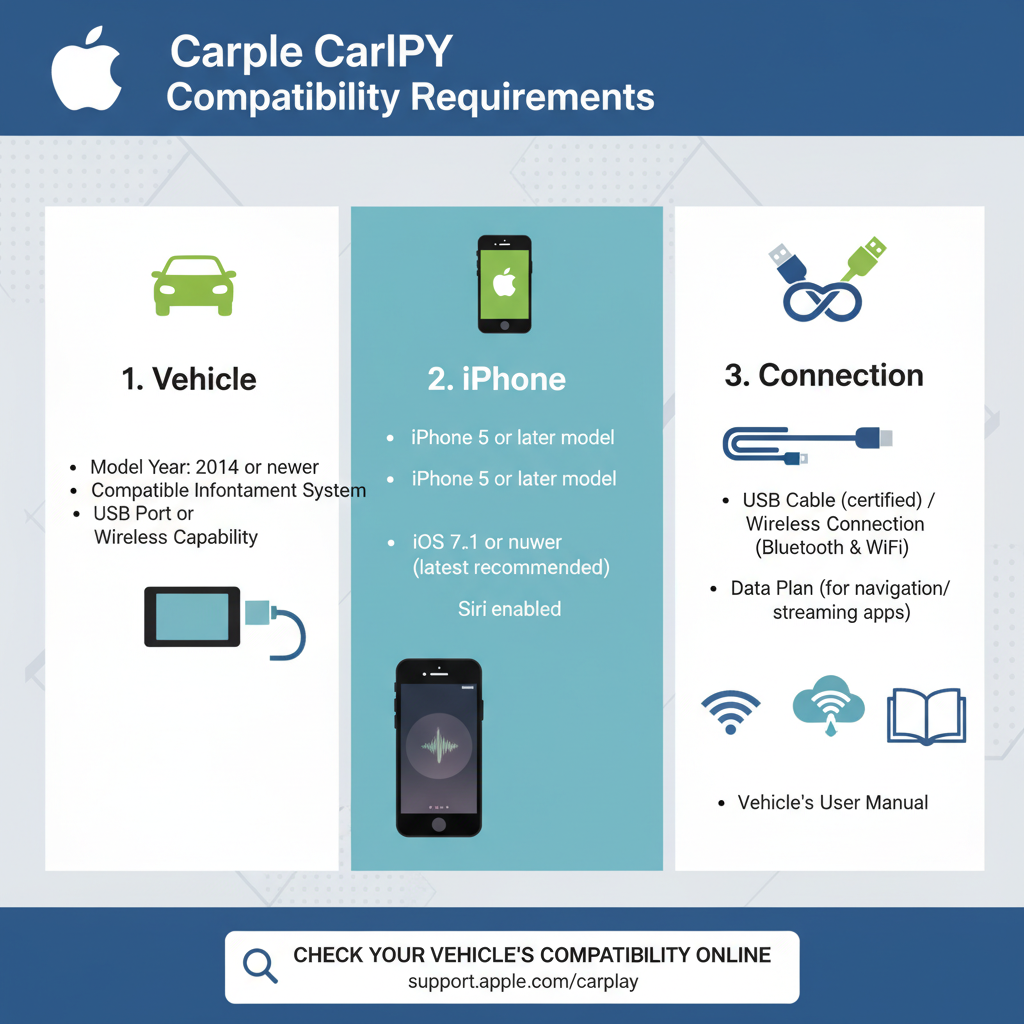
Before troubleshooting connection issues, it’s essential to verify that your setup meets all compatibility requirements. Apple CarPlay isn’t universally available across all vehicles and iPhone models, which often explains why some users can’t get their system working properly.
iPhone Compatibility Check
Your iPhone model plays a crucial role in CarPlay functionality. Apple CarPlay requires iPhone 5 or newer models running iOS 7.1 or later. However, for optimal performance and access to the latest features, iOS 14 or newer is recommended. If you’re using an older iPhone model like the iPhone SE (1st generation) or iPhone 6, ensure your iOS version is updated to the latest supported version.
To check your iPhone compatibility:
– Go to Settings > General > About
– Verify your iPhone model and iOS version
– Update to the latest iOS version if available
– Restart your iPhone after updating
Vehicle Compatibility Verification
Not all vehicles support Apple CarPlay, even those with touchscreen infotainment systems. CarPlay availability depends on your car’s manufacturer, model year, and specific trim level. Many newer vehicles come with built-in CarPlay support, while others may require aftermarket solutions.
Popular aftermarket head units like the Pioneer AVH-W4500NEX offer CarPlay compatibility for older vehicles. These units provide both wired and wireless CarPlay functionality, making them excellent upgrades for cars without factory CarPlay support.
Check your vehicle’s CarPlay compatibility by:
– Consulting your owner’s manual
– Visiting Apple’s official CarPlay availability page
– Contacting your vehicle manufacturer’s customer support
– Checking for software updates for your infotainment system
Common Wired CarPlay Connection Problems
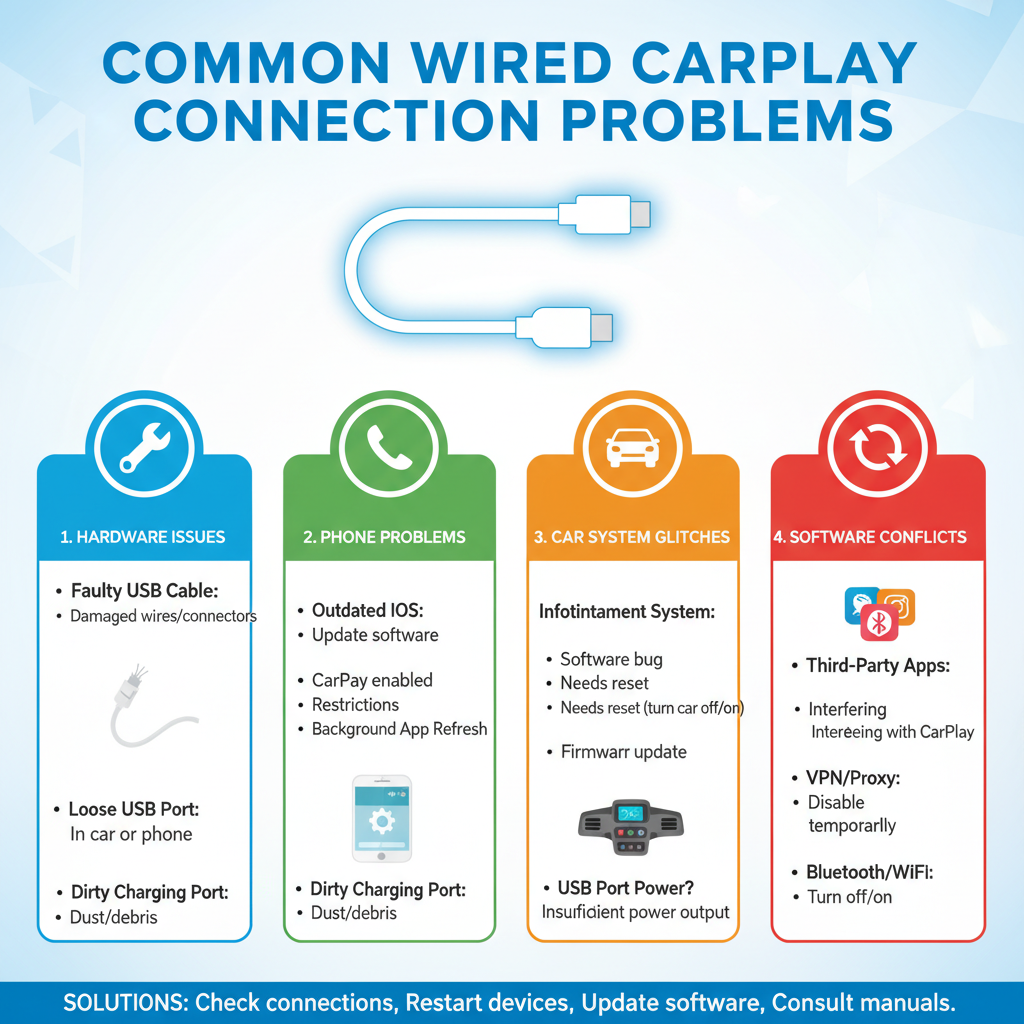
Wired CarPlay connections, while generally more reliable than wireless, can still experience various issues. Understanding these problems and their solutions is crucial for maintaining a stable connection.
USB Cable and Port Issues
The most frequent cause of wired CarPlay problems involves faulty USB cables or ports. Many users don’t realize that not all USB cables support data transfer, which is essential for CarPlay functionality.
Step-by-step cable troubleshooting:
1. Use an Apple-certified Lightning cable
– Avoid cheap, non-certified cables
– Look for the “Made for iPhone” (MFi) certification
– Test with the original cable that came with your iPhone
2. Inspect cable condition
– Check for visible damage, kinks, or fraying
– Test the cable with other devices
– Try a different known-working Lightning cable
3. Clean USB ports
– Use compressed air to remove debris from car’s USB port
– Clean your iPhone’s Lightning port carefully
– Ensure connections are secure and snug
4. Test different USB ports
– Try all available USB ports in your vehicle
– Some cars have specific CarPlay-enabled USB ports
– Check if ports are labeled for smartphone connectivity
iPhone Settings Configuration
Incorrect iPhone settings often prevent CarPlay from working properly. These settings control how your device interacts with your car’s system.
Configure iPhone settings for CarPlay:
1. Enable CarPlay in Settings
– Open Settings > General > CarPlay
– Select your vehicle from available cars
– If your car doesn’t appear, ensure it’s in pairing mode
2. Check Restrictions and Screen Time
– Go to Settings > Screen Time > Content & Privacy Restrictions
– Ensure CarPlay isn’t restricted
– Disable any limitations that might block CarPlay
3. Reset CarPlay settings
– Settings > General > CarPlay
– Select your vehicle and choose “Forget This Car”
– Reconnect and set up CarPlay again
4. Verify Siri settings
– Settings > Siri & Search
– Enable “Listen for ‘Hey Siri'”
– Allow Siri when locked for full CarPlay functionality
Wireless CarPlay Troubleshooting Guide
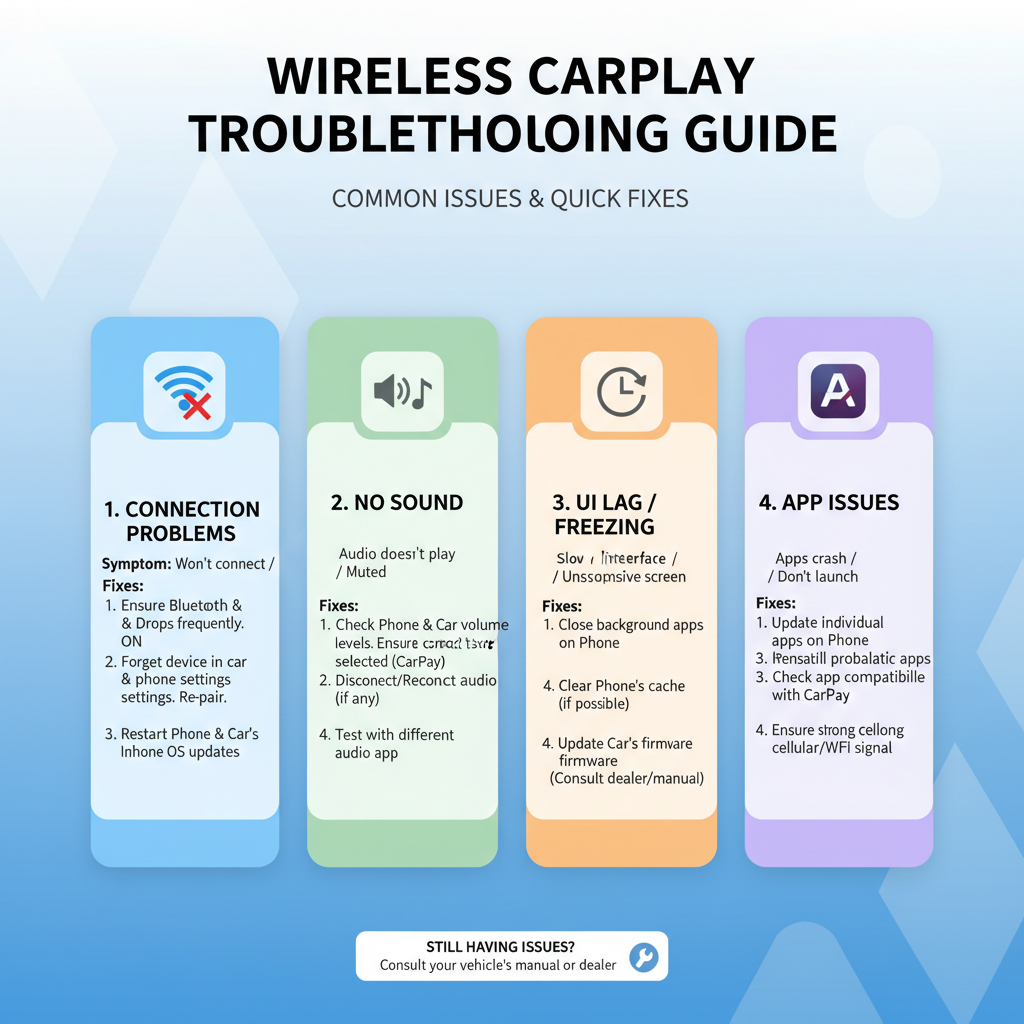
Wireless CarPlay offers convenience but introduces additional complexity that can lead to connection problems. These issues often involve Bluetooth pairing, Wi-Fi connectivity, and interference from other devices.
Bluetooth and Wi-Fi Connection Issues
Wireless CarPlay relies on both Bluetooth and Wi-Fi connections working simultaneously. Bluetooth handles the initial pairing and audio, while Wi-Fi manages data transfer and screen mirroring.
Resolve wireless connectivity problems:
1. Reset network connections
– Turn off Bluetooth and Wi-Fi on your iPhone
– Wait 30 seconds, then turn both back on
– Attempt to reconnect to CarPlay
2. Clear Bluetooth cache
– Settings > Bluetooth
– Find your car’s Bluetooth connection
– Tap the “i” icon and select “Forget This Device”
– Re-pair your iPhone with your car’s Bluetooth
3. Check for interference
– Move other Bluetooth devices away from your car
– Turn off unnecessary Wi-Fi networks
– Ensure your iPhone isn’t connected to other Wi-Fi networks
4. Update vehicle software
– Check with your dealer for infotainment system updates
– Some manufacturers release updates that improve CarPlay stability
– Follow manufacturer instructions for updating vehicle software
Network Configuration Problems
Wireless CarPlay creates a direct Wi-Fi connection between your iPhone and your car. Network configuration issues can prevent this connection from establishing properly.
Fix network configuration issues:
1. Reset iPhone network settings
– Settings > General > Transfer or Reset iPhone > Reset
– Select “Reset Network Settings”
– This will clear all Wi-Fi passwords and Bluetooth pairings
– Reconnect to CarPlay after reset
2. Check iPhone Wi-Fi settings
– Ensure Wi-Fi is enabled
– Forget any problematic Wi-Fi networks
– Reset Wi-Fi settings if necessary
3. Verify car’s wireless capabilities
– Confirm your vehicle supports wireless CarPlay
– Check if wireless CarPlay requires specific settings in your car
– Consult your vehicle’s manual for wireless setup instructions
Software-Related CarPlay Issues
Software problems on either your iPhone or your car’s infotainment system can cause CarPlay to malfunction. These issues often require systematic troubleshooting to identify and resolve.
iOS and CarPlay App Problems
Outdated iOS versions or corrupted CarPlay data can prevent proper functionality. Regular software maintenance helps prevent these issues.
Address iOS-related problems:
1. Update to latest iOS version
– Settings > General > Software Update
– Download and install available updates
– Restart iPhone after updating
2. Reset CarPlay apps
– Settings > General > CarPlay
– Select your vehicle
– Customize app layout and remove problematic apps
– Re-add apps one by one to identify issues
3. Clear app cache and data
– Close all running apps
– Restart your iPhone
– Test CarPlay with minimal apps running
4. Restore iPhone if necessary
– Back up your iPhone data
– Perform a factory reset as a last resort
– Restore from backup and test CarPlay
Vehicle Infotainment System Updates
Car manufacturers regularly release software updates for their infotainment systems. These updates often include CarPlay improvements and bug fixes.
Update vehicle software:
1. Check for available updates
– Visit your manufacturer’s website
– Look for infotainment or connectivity updates
– Note your vehicle’s VIN and current software version
2. Professional installation
– Some updates require dealer installation
– Schedule service appointment if needed
– Ask about CarPlay-specific improvements
3. Manual update process
– Download updates to USB drive if supported
– Follow manufacturer instructions carefully
– Ensure vehicle battery is fully charged during update
Advanced Troubleshooting Techniques
When basic troubleshooting doesn’t resolve your CarPlay issues, advanced techniques can help identify and fix deeper problems.
Hardware Diagnostics and Testing
Sometimes CarPlay problems stem from hardware failures in either your iPhone or your vehicle’s system. Systematic hardware testing can identify these issues.
Perform hardware diagnostics:
1. Test with multiple devices
– Try CarPlay with different iPhones
– Use various Lightning cables
– Test on different vehicles if possible
2. Check iPhone hardware
– Run Apple Diagnostics if available
– Test Lightning port with other accessories
– Verify iPhone isn’t experiencing other connectivity issues
3. Vehicle system diagnostics
– Check if other smartphone features work
– Test USB ports with other devices
– Verify Bluetooth functionality with other phones
Professional Support and Service Options
When DIY troubleshooting fails, professional help may be necessary. Both Apple and vehicle manufacturers offer support services for CarPlay issues.
Seek professional assistance:
1. Apple Support options
– Schedule Genius Bar appointment
– Contact Apple Support online or by phone
– Use Apple Support app for guided troubleshooting
2. Vehicle dealer support
– Schedule service appointment
– Ask specifically about CarPlay connectivity issues
– Request software updates and diagnostics
3. Third-party repair services
– Authorized Apple repair providers
– Car audio specialists
– Mobile device repair shops with CarPlay experience
Prevention and Maintenance Tips
Preventing CarPlay problems is often easier than fixing them. Regular maintenance and proper usage habits can keep your system running smoothly.
Regular System Maintenance
Consistent maintenance prevents many common CarPlay issues from developing. Simple routine checks can save you troubleshooting time later.
Maintain your CarPlay system:
1. Keep software updated
– Enable automatic iOS updates
– Check for vehicle software updates quarterly
– Update CarPlay-compatible apps regularly
2. Clean connections regularly
– Inspect and clean USB ports monthly
– Keep Lightning cables in good condition
– Protect connections from moisture and debris
3. Monitor system performance
– Note any connection delays or glitches
– Address minor issues before they become major problems
– Keep backup cables and solutions available
Best Practices for CarPlay Usage
Proper CarPlay usage habits can prevent many connectivity issues and extend the life of your system.
Follow CarPlay best practices:
1. Proper connection procedures
– Always connect iPhone before starting vehicle
– Allow systems to fully boot before connecting
– Use gentle insertion and removal of cables
2. Optimize iPhone performance
– Keep iPhone battery above 20% when possible
– Close unnecessary background apps
– Restart iPhone weekly for optimal performance
3. Environmental considerations
– Protect iPhone from extreme temperatures
– Avoid exposing connections to moisture
– Store cables properly to prevent damage
Conclusion
Resolving Apple CarPlay connection issues doesn’t have to be a frustrating experience when you understand the common causes and solutions. Whether you’re dealing with wired connection problems, wireless connectivity issues, or software-related glitches, systematic troubleshooting can usually restore functionality.
Remember that CarPlay problems often stem from simple issues like faulty cables, outdated software, or incorrect settings. Start with basic troubleshooting steps before moving to more advanced solutions. Regular maintenance and proper usage habits can prevent many issues from occurring in the first place.
If you continue experiencing problems after trying these solutions, don’t hesitate to seek professional help from Apple Support or your vehicle manufacturer. They have specialized tools and knowledge to diagnose and fix complex CarPlay issues that might not be apparent through standard troubleshooting.
By following this comprehensive guide, you should be able to answer the question “why can’t I get Apple CarPlay to work?” and implement effective solutions to restore your CarPlay functionality. Remember that technology evolves constantly, so staying informed about updates and new troubleshooting techniques will help you maintain a reliable CarPlay experience for years to come.