As an Amazon Associate & Influencer, we earn from qualifying purchases you might make if you click any of the links or buttons on this page at no expense to you.
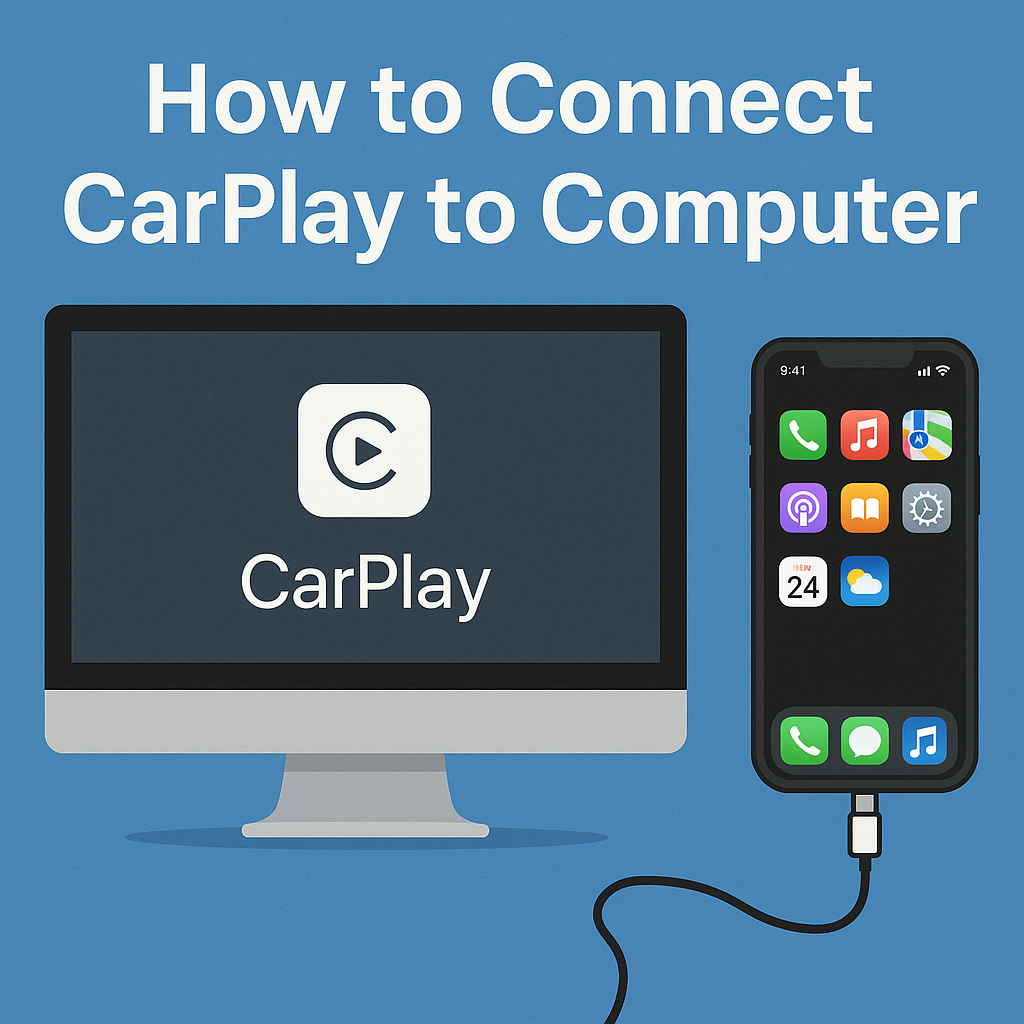
Apple CarPlay has revolutionized the way we interact with our vehicles, bringing smartphone functionality directly to our car’s dashboard. But what if you want to experience CarPlay on your computer. You might be a developer testing apps, a tech enthusiast exploring new features, or someone who wants to use CarPlay on a larger screen. Learning how to connect CarPlay to computer opens up exciting possibilities.
In this comprehensive guide, we’ll explore various methods to establish a CarPlay connection with your desktop or laptop, discuss the benefits and limitations, and provide step-by-step instructions to get you started.
Understanding CarPlay and Computer Connectivity
Before diving into the connection process, it’s essential to understand what CarPlay is and how it typically functions. Apple CarPlay is designed as an automotive interface that mirrors your iPhone’s capabilities on your car’s infotainment system. The system uses either a wired USB connection or wireless connectivity to create a seamless bridge between your mobile device and vehicle.
When connecting CarPlay to a computer, we create a similar bridge. However, we use your desktop or laptop as the display and processing unit. This CarPlay desktop integration requires specific software solutions and compatible hardware to function properly.
The process involves using CarPlay simulation software or third-party applications that can interpret and display the CarPlay interface on your computer screen. These solutions vary in complexity and functionality. They range from basic emulators to sophisticated development tools.
Method 1: Using CarPlay Simulator Software
Step-by-Step Guide for CarPlay Simulator Setup
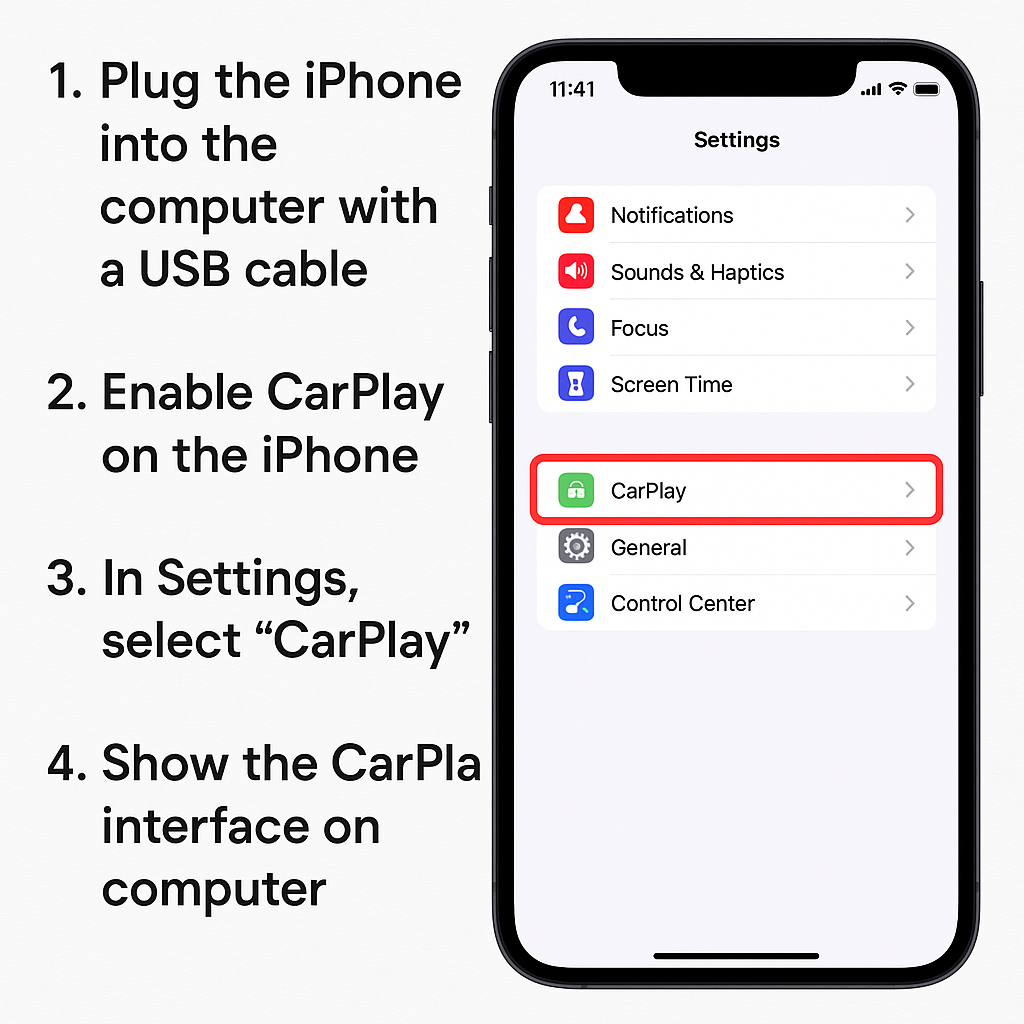
The most straightforward approach to connect CarPlay to your computer involves using dedicated simulator software. Here’s how to set up this CarPlay computer connection:
Step 1: Download Compatible Software
First, you’ll need to download a CarPlay simulator application. Popular options include CarPlay emulators and third-party CarPlay software that is designed for desktop use. Research and select a reputable program that matches your operating system requirements.
Step 2: Install the Application
Run the installer and follow the on-screen prompts. Make sure your computer meets the minimum system requirements for smooth CarPlay performance. Most simulators need at least 4GB of RAM and a modern processor.
Step 3: Configure Your iPhone Connection
Connect your iPhone to your computer using a USB cable. Ensure your device is unlocked and that you trust the computer connection when prompted. Some simulators also support wireless CarPlay connectivity if your iPhone and computer are on the same network.
Step 4: Launch the CarPlay Interface
Open the simulator software and select your connected iPhone from the device list. The CarPlay interface should appear on your computer screen, mirroring the experience you’d have in a compatible vehicle.
Step 5: Customize Display Settings
Adjust the screen resolution, orientation, and other display preferences to optimize your CarPlay computer experience. Most simulators offer various customization options to enhance usability.
Method 2: Developer Tools and Xcode Integration
For developers and advanced users, Apple’s official development tools provide another pathway for CarPlay desktop access.
Setting Up Xcode CarPlay Simulator
Step 1: Install Xcode
Download and install Xcode from the Mac App Store. This comprehensive development environment includes CarPlay simulation capabilities for app testing and development purposes.
Step 2: Access CarPlay Simulator
Within Xcode, navigate to the simulator options and select a CarPlay-compatible template. This creates a virtual CarPlay environment on your Mac.
Step 3: Connect Your Development Device
Link your iPhone to Xcode for testing purposes. This connection allows you to run CarPlay applications directly from your development environment to your computer screen.
Step 4: Test CarPlay Functionality
Use the simulator to test various CarPlay features, including navigation, music playback, and communication functions. This method is particularly useful for app developers working on CarPlay-compatible applications.
Method 3: Third-Party CarPlay Adapters and Software Solutions
Hardware-Based CarPlay Connection
Some third-party manufacturers offer hardware solutions that can connect CarPlay functionality to computer systems.
Wireless CarPlay Adapters
Certain wireless CarPlay adapters can be configured to work with computer systems through USB connections. These devices create a wireless bridge between your iPhone and the adapter, which then connects to your computer.
CarPlay Interface Boxes
Specialized interface boxes designed for aftermarket CarPlay installation can sometimes be adapted for computer use. These solutions typically require additional software configuration and may have limited functionality compared to dedicated automotive applications.
Benefits and Limitations of Computer CarPlay Connection
Advantages of CarPlay Desktop Integration
Connecting CarPlay to your computer offers several compelling benefits:
– Larger Display: Enjoy CarPlay features on a bigger screen with higher resolution
– Development Testing: Perfect for app developers who need to test CarPlay applications
– Demonstration Purposes: Ideal for showcasing CarPlay functionality without a vehicle
– Accessibility: Easier interaction for users who prefer desktop interfaces
– Multi-tasking: Ability to use CarPlay alongside other computer applications
Limitations to Consider
However, there are important limitations to keep in mind:
– Limited Functionality: Some CarPlay features may not work properly outside of a vehicle environment
– GPS Accuracy: Location services might be less accurate when using computer-based CarPlay
– Audio Integration: Sound output may require additional configuration
– Update Compatibility: Software solutions may not always support the latest CarPlay updates
– Performance Variations: Experience quality depends on your computer’s specifications and the software solution used
Troubleshooting Common CarPlay Computer Connection Issues
Resolving Connection Problems
If you encounter difficulties while trying to connect CarPlay to your computer, try these troubleshooting steps:
Check USB Cable and Ports
Ensure you’re using a high-quality Lightning to USB cable and that your computer’s USB ports are functioning correctly. Try different cables and ports if connection issues persist.
Update Software and Drivers
Keep your CarPlay simulation software, iPhone iOS, and computer operating system updated to the latest versions. Outdated software can cause compatibility issues.
Restart Devices
Sometimes a simple restart of both your iPhone and computer can resolve connection problems. Close all applications before restarting for best results.
Verify Network Settings
For wireless CarPlay connections, ensure both devices are connected to the same Wi-Fi network and that firewall settings aren’t blocking the connection.
Optimizing Your CarPlay Computer Experience
Performance Enhancement Tips
To get the best performance when using CarPlay on your computer:
– Close Unnecessary Applications: Free up system resources by closing unused programs
– Adjust Display Settings: Optimize screen resolution and refresh rate for smooth operation
– Use Wired Connections: USB connections typically provide more stable performance than wireless options
– Regular Software Updates: Keep all related software updated for optimal compatibility
– Monitor System Resources: Ensure your computer has adequate RAM and processing power
Conclusion
Learning how to connect CarPlay to computer opens up new possibilities for experiencing Apple’s automotive interface beyond the confines of your vehicle. Whether you’re using simulator software, developer tools, or third-party solutions, each method offers unique advantages for different use cases.
The key to successful CarPlay computer integration lies in choosing the right method for your needs, ensuring proper setup, and understanding the limitations involved. While the experience may not perfectly replicate in-vehicle CarPlay functionality, it provides valuable opportunities for development, demonstration, and exploration of this innovative technology.
Remember that CarPlay computer connectivity continues to evolve as both Apple and third-party developers introduce new solutions and improvements. Stay informed about the latest developments to make the most of your CarPlay desktop experience and enjoy the convenience of having your favorite iPhone features accessible on your computer screen.