As an Amazon Associate & Influencer, we earn from qualifying purchases you might make if you click any of the links or buttons on this page at no expense to you.
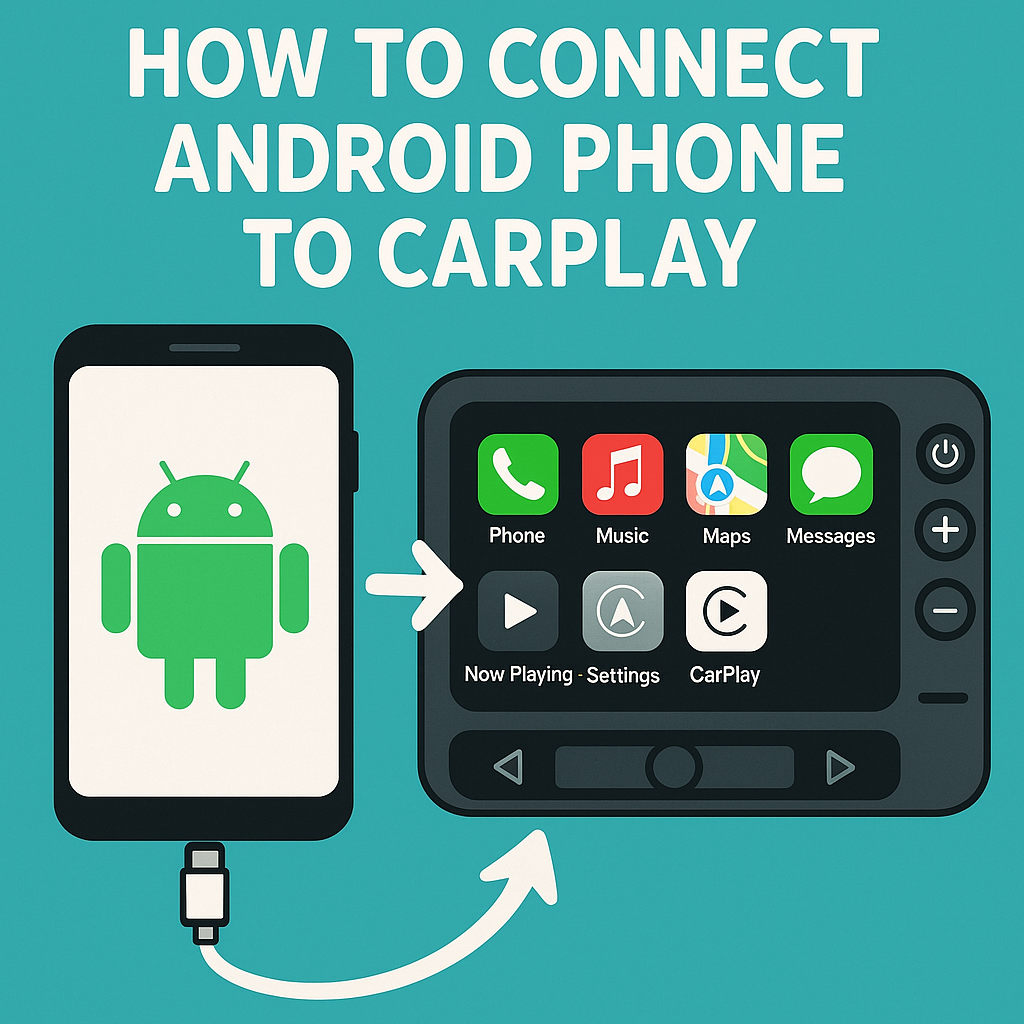
Many Android users wonder if they can access Apple’s CarPlay features in their vehicles. While CarPlay is designed exclusively for iPhones, there are several workarounds and alternatives that allow Android phone users to enjoy similar functionality. This comprehensive guide explores various methods to connect your Android device to CarPlay systems and provides alternative solutions for seamless smartphone integration in your car.
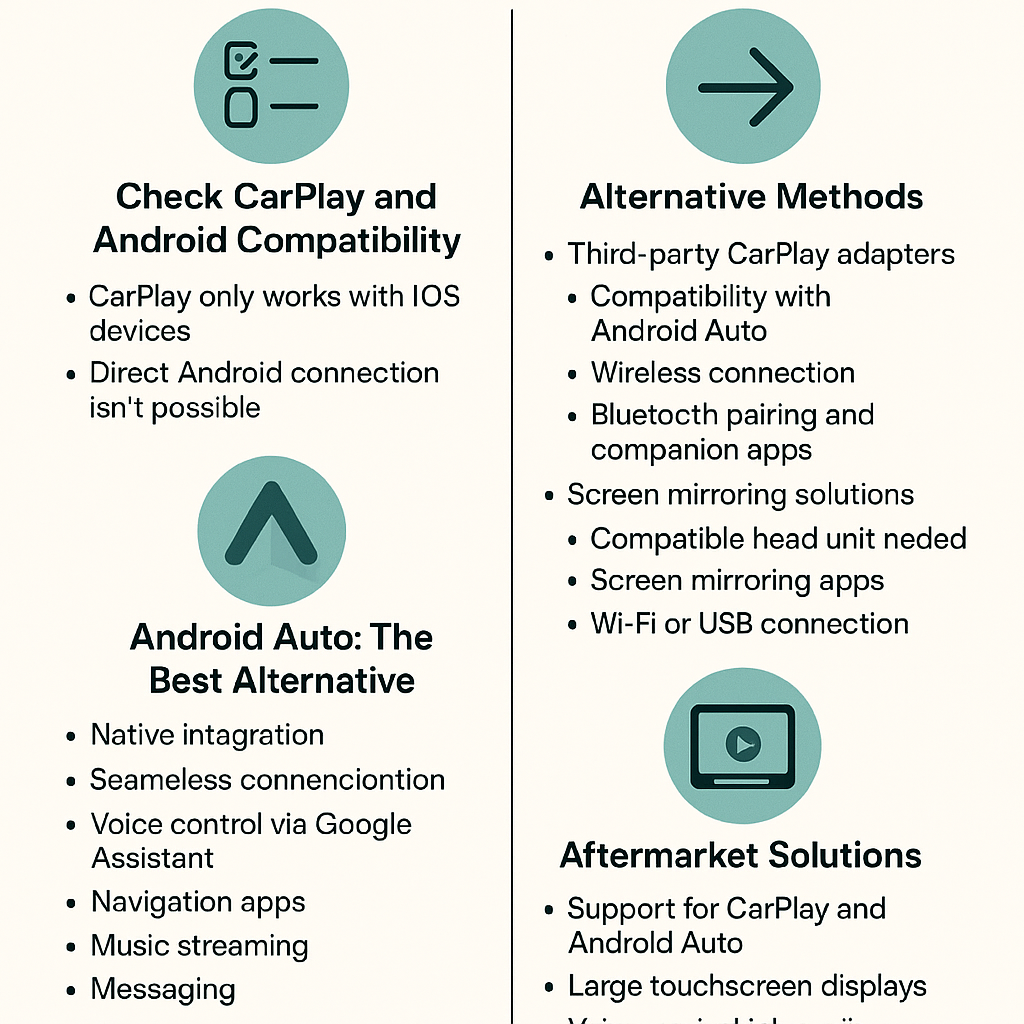
Check CarPlay and Android Compatibility
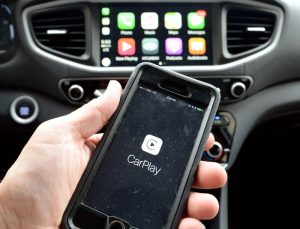
Apple CarPlay is a proprietary system designed specifically for iOS devices. The platform creates a direct connection between iPhones and compatible car infotainment systems, allowing drivers to access apps, navigation, music, and communication features safely while driving.
Unfortunately, you cannot directly connect an Android phone to CarPlay due to software restrictions. CarPlay only recognizes and communicates with iOS devices through Apple’s closed ecosystem. However, this limitation doesn’t mean Android users are completely out of luck when it comes to smartphone-car integration.
Alternative Methods to Access CarPlay Features with Android
Method 1: Using Third-Party CarPlay Adapters
Several third-party manufacturers have developed wireless CarPlay adapters that claim Android compatibility. These devices act as intermediaries between your car’s infotainment system and your smartphone.
Popular CarPlay adapter options include:
– CarlinKit adapters with Android Auto support
– OTTOCAST wireless adapters
– AAWireless dongles for Android Auto conversion
Step-by-step process:
1. Purchase a compatible wireless CarPlay adapter
2. Connect the adapter to your car’s USB port
3. Pair your Android device via Bluetooth
4. Download the manufacturer’s companion app
5. Follow the setup instructions for Android Auto mirroring
Method 2: Screen Mirroring Solutions
Screen mirroring technology allows you to display your Android phone’s interface on your car’s CarPlay-compatible screen. This method provides basic connectivity but may have limitations in functionality.
Requirements for screen mirroring:
– Compatible aftermarket head unit
– Screen mirroring app (like ApowerMirror or Miracast)
– Stable Wi-Fi connection or USB cable
– Android device with mirroring capabilities
Android Auto: The Best CarPlay Alternative
Instead of trying to force Android phone compatibility with CarPlay, the most practical solution is using Android Auto. Google’s Android Auto provides similar functionality to CarPlay and is specifically designed for Android devices.
Benefits of Android Auto over CarPlay workarounds:
– Native Android integration: Seamless connection with Android smartphones
– Voice control: Google Assistant integration for hands-free operation
– Navigation apps: Access to Google Maps, Waze, and other navigation services
– Music streaming: Support for Spotify, YouTube Music, and other audio apps
– Messaging: Safe text messaging and calling features
– Regular updates: Continuous improvements and new features
How to Set Up Android Auto in Your Vehicle
Step 1: Check compatibility
– Verify your car supports Android Auto
– Ensure your Android phone runs Android 6.0 or higher
– Download the Android Auto app from Google Play Store
Step 2: Connect your device
– Use a high-quality USB cable to connect your phone
– Allow USB debugging and file transfer permissions
– Follow the on-screen setup prompts
Step 3: Configure settings
– Select your preferred navigation app
– Set up voice commands and Google Assistant
– Choose default music and messaging apps
– Adjust display and audio preferences
Aftermarket Solutions for Enhanced Connectivity
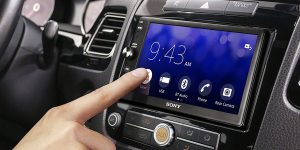
If your vehicle doesn’t support either CarPlay or Android Auto natively, aftermarket head units provide excellent smartphone integration options.
Top Aftermarket Head Unit Features:
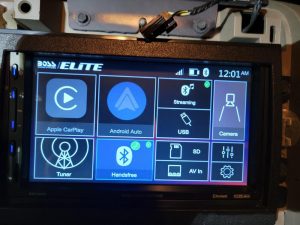
Dual compatibility systems:
– Support for both CarPlay and Android Auto
– Wireless connectivity options
– Large touchscreen displays
– Voice control integration
Popular aftermarket brands:
– Pioneer AVIC series
– Kenwood Excelon systems
– Sony XAV multimedia receivers
– Alpine iLX head units
Installation considerations:
– Professional installation recommended
– Vehicle-specific wiring harnesses required
– Steering wheel control integration
– Backup camera compatibility
Troubleshooting Common Connection Issues
Android Phone Not Recognizing CarPlay System
Common solutions:
– Restart both your phone and car’s infotainment system
– Check USB cable quality and connection
– Update your Android operating system
– Clear cache for Android Auto app
– Reset network settings on your device
Wireless Connection Problems
Troubleshooting steps:
1. Verify Bluetooth pairing between devices
2. Check Wi-Fi connectivity strength
3. Remove and re-add device pairings
4. Update adapter firmware if using third-party hardware
5. Restart your car’s infotainment system
App Compatibility Issues
Some Android apps may not work properly with CarPlay adapters or screen mirroring solutions. Focus on using apps specifically designed for automotive use, such as:
– Google Maps for navigation
– Spotify or YouTube Music for audio
– WhatsApp or Messages for communication
– Google Assistant for voice control
Safety Considerations and Best Practices
When attempting to connect your Android phone to CarPlay systems or using alternative solutions, prioritize safety:
Safe driving practices:
– Set up connections before driving
– Use voice commands whenever possible
– Keep interactions brief and simple
– Pull over safely for complex tasks
– Ensure all cables are secure and won’t interfere with driving
Legal considerations:
– Check local laws regarding smartphone use while driving
– Understand hands-free requirements in your area
– Use approved mounting solutions
– Avoid visual distractions while operating your vehicle
Future of Android and CarPlay Integration
The automotive technology landscape continues evolving rapidly. While direct Android phone to CarPlay connectivity remains unlikely due to Apple’s closed ecosystem, several trends suggest improved integration options:
Emerging technologies:
– Universal smartphone integration standards
– Improved wireless connectivity protocols
– Enhanced third-party adapter capabilities
– Cross-platform compatibility initiatives
Industry developments:
– More vehicles offering dual CarPlay/Android Auto support
– Improved aftermarket solutions
– Better wireless connectivity options
– Enhanced voice control integration
Conclusion
While you cannot directly connect an Android phone to CarPlay due to Apple’s proprietary restrictions, several viable alternatives provide excellent smartphone integration in your vehicle. Android Auto remains the best solution for Android users, offering native compatibility and comprehensive features designed specifically for Google’s mobile platform.
For those determined to access CarPlay features with an Android device, third-party adapters and aftermarket head units provide workable solutions, though with some limitations. The key is choosing the right approach based on your specific vehicle, budget, and feature requirements.
Remember that safety should always be your top priority when integrating smartphone technology into your driving experience. Whether you choose Android Auto, aftermarket solutions, or third-party adapters, ensure proper setup and use hands-free features whenever possible. As automotive technology continues advancing, we can expect even better integration options for all smartphone users in the future.