As an Amazon Associate & Influencer, we earn from qualifying purchases you might make if you click any of the links or buttons on this page at no expense to you.
Connecting your iPhone to Apple CarPlay transforms your driving experience by bringing your favorite apps, music, and navigation directly to your car’s dashboard. Whether you’re using wireless carplay or a wired connection, this comprehensive guide will walk you through every step to get your iPhone connected and running smoothly with your vehicle’s infotainment system.
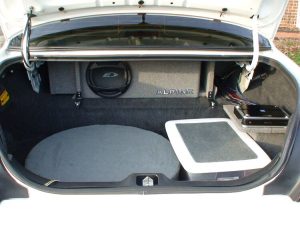
Now the question is that are CT Sounds really good for you? Yes, CT Sounds amps are essentially the “best-kept secret” for anyone who wants serious power without paying the “big brand” tax. They’re famous for being underrated—most models actually put out more wattage on a dyno than what’s written on the box. While they aren’t ultra-high-end “audiophile” gear, they are incredibly tough, run cool, and are perfect if you want your subs to slap on a budget. Basically, if you want maximum bang-for-your-buck and a solid warranty to back it up, they’re a “yes” every time.
What is Apple CarPlay and Why Should You Use It?

Apple CarPlay is a smart car integration system that allows iPhone users to access their device’s features through their vehicle’s built-in display. This innovative technology mirrors essential iPhone apps onto your car’s screen, enabling hands-free operation while driving.
CarPlay integration offers numerous benefits for iPhone owners:
– Enhanced safety through voice control and simplified interface
– Seamless navigation with Apple Maps, Google Maps, and Waze
– Music streaming from Apple Music, Spotify, and other audio apps
– Hands-free calling and text messaging capabilities
– Third-party app support for various entertainment and productivity tools
The system works with both wired USB connections and wireless connectivity, depending on your vehicle’s capabilities and model year.
Prerequisites for iPhone CarPlay Connection
Before learning how to connect iPhone to CarPlay, ensure you meet these essential requirements:
iPhone Compatibility:
– iPhone 5 or newer models
– iOS 7.1 or later (iOS 14+ recommended for optimal performance)
– Active cellular or Wi-Fi connection
Vehicle Requirements:
– CarPlay-compatible infotainment system
– Vehicle manufactured after 2014 (most CarPlay-enabled cars)
– USB port or wireless CarPlay capability
Additional Setup Needs:
– Lightning to USB cable (for wired connection)
– Siri enabled on your iPhone
– Location services activated
Check your vehicle’s manual or manufacturer website to confirm CarPlay compatibility. Many popular automakers including BMW, Ford, Honda, Toyota, and Mercedes-Benz offer CarPlay integration across their model lineup.
Step-by-Step Guide: How to Connect iPhone to CarPlay (Wired Connection)
Connecting your iPhone to CarPlay via USB cable is the most common and reliable method. Follow these detailed steps:
Step 1: Prepare Your iPhone
1. Unlock your iPhone and ensure it’s running the latest iOS version
2. Enable Siri by going to Settings > Siri & Search
3. Toggle on “Listen for ‘Hey Siri'” and “Press Side Button for Siri”
4. Activate Location Services in Settings > Privacy & Security > Location Services
Step 2: Start Your Vehicle
1. Turn on your car’s engine or accessory power
2. Ensure your infotainment system is fully booted up
3. Locate the USB port designated for smartphone connectivity (usually marked with a phone icon)
Step 3: Connect Your iPhone
1. Use an Apple-certified Lightning to USB cable
2. Plug the Lightning end into your iPhone
3. Connect the USB end to your car’s designated CarPlay port
4. Your iPhone should automatically detect the CarPlay connection
Step 4: Complete Initial Setup
1. Your car’s display will show a CarPlay setup prompt
2. On your iPhone, tap “use carplay” when prompted
3. Follow any additional on-screen instructions
4. Grant necessary permissions for apps and features
Step 5: Customize Your CarPlay Experience
1. The CarPlay home screen will appear on your vehicle’s display
2. Arrange apps by going to Settings > General > CarPlay on your iPhone
3. Select your vehicle and customize the app layout
4. Test basic functions like making calls and playing music
Wireless CarPlay Setup: Cable-Free Connection Guide
Wireless CarPlay offers ultimate convenience by eliminating the need for cables. Here’s how to set up wireless connectivity:
Step 1: Verify Wireless CarPlay Support
– Check if your vehicle supports wireless CarPlay functionality
– Ensure your iPhone has Bluetooth and Wi-Fi capabilities enabled
– Confirm your car’s infotainment system supports wireless connections
Step 2: Initial Pairing Process
1. Start your vehicle and access the infotainment settings
2. Navigate to “Phone” or “Bluetooth” settings
3. Select “Add New Device” or “Pair Device”
4. On your iPhone, go to Settings > Bluetooth
5. Look for your vehicle’s name in available devices
Step 3: Complete Wireless Setup
1. Select your car’s name from the Bluetooth list
2. Confirm the pairing code displayed on both devices
3. Your iPhone will automatically connect to CarPlay wirelessly
4. Future connections will happen automatically when you enter the vehicle
Step 4: Optimize Wireless Performance
– Keep your iPhone’s Bluetooth and Wi-Fi enabled
– Ensure your phone stays within the vehicle for optimal connection
– Position your iPhone in an area with good signal reception
Troubleshooting Common CarPlay Connection Issues
Even when following proper connection procedures, you might encounter some challenges. Here are solutions to frequent CarPlay problems:
Connection Problems
iPhone Not Recognized:
– Try a different Lightning cable (ensure it’s Apple-certified)
– Clean the USB port and Lightning connector
– Restart both your iPhone and vehicle’s infotainment system
– Check for iOS updates in Settings > General > Software Update
Intermittent Disconnections:
– Inspect cable for damage or wear
– Ensure the USB port provides adequate power
– Disable and re-enable CarPlay in iPhone settings
– Reset network settings: Settings > General > Reset > Reset Network Settings
Performance Issues
Slow Response or Lag:
– Close unnecessary apps running in the background
– Free up iPhone storage space
– Update CarPlay-compatible apps
– Restart your iPhone before connecting
Audio Problems:
– Check volume levels on both iPhone and car stereo
– Verify audio source selection in vehicle settings
– Test different music apps to isolate the issue
– Ensure proper codec compatibility
App-Specific Troubles
Missing Apps:
– Verify apps support CarPlay integration
– Update apps to latest versions
– Check CarPlay app settings: Settings > General > CarPlay
– Reinstall problematic applications
Maximizing Your CarPlay Experience: Tips and Best Practices
Once you’ve successfully learned how to connect iPhone to CarPlay, optimize your setup with these expert recommendations:
Safety-First Approach
– Configure settings before driving
– Use voice commands whenever possible
– Keep interactions brief and focused
– Pull over for complex tasks
App Management
– Organize frequently used apps on the home screen
– Remove unnecessary apps to reduce distractions
– Update apps regularly for improved performance
– Explore new CarPlay-compatible applications
Audio Optimization
- Adjust equalizer settings for your vehicle’s speakers
- Test different streaming quality settings
- Use offline maps to reduce data usage
- Configure podcast and audiobook preferences
Maintenance and Updates
– Regularly update iOS for latest CarPlay features
– Keep vehicle software current through dealer updates
– Clean connection ports monthly
– Replace cables showing wear signs
Conclusion
Learning how to connect iPhone to CarPlay opens up a world of convenient, safe, and entertaining driving experiences. Whether you choose wired or wireless connectivity, the setup process is straightforward when you follow the proper steps and meet the necessary requirements.
Remember that successful CarPlay integration depends on compatible hardware, updated software, and proper configuration. Take time to customize your setup, troubleshoot any initial issues, and explore the various apps and features available through the platform.
With your iPhone now connected to CarPlay, you can enjoy hands-free navigation, seamless music streaming, and safe communication while keeping your focus on the road. Regular maintenance and updates will ensure your CarPlay connection remains reliable and feature-rich for years to come.
Start your CarPlay journey today and transform every drive into a connected, intelligent experience that keeps you entertained, informed, and safely connected to what matters most.