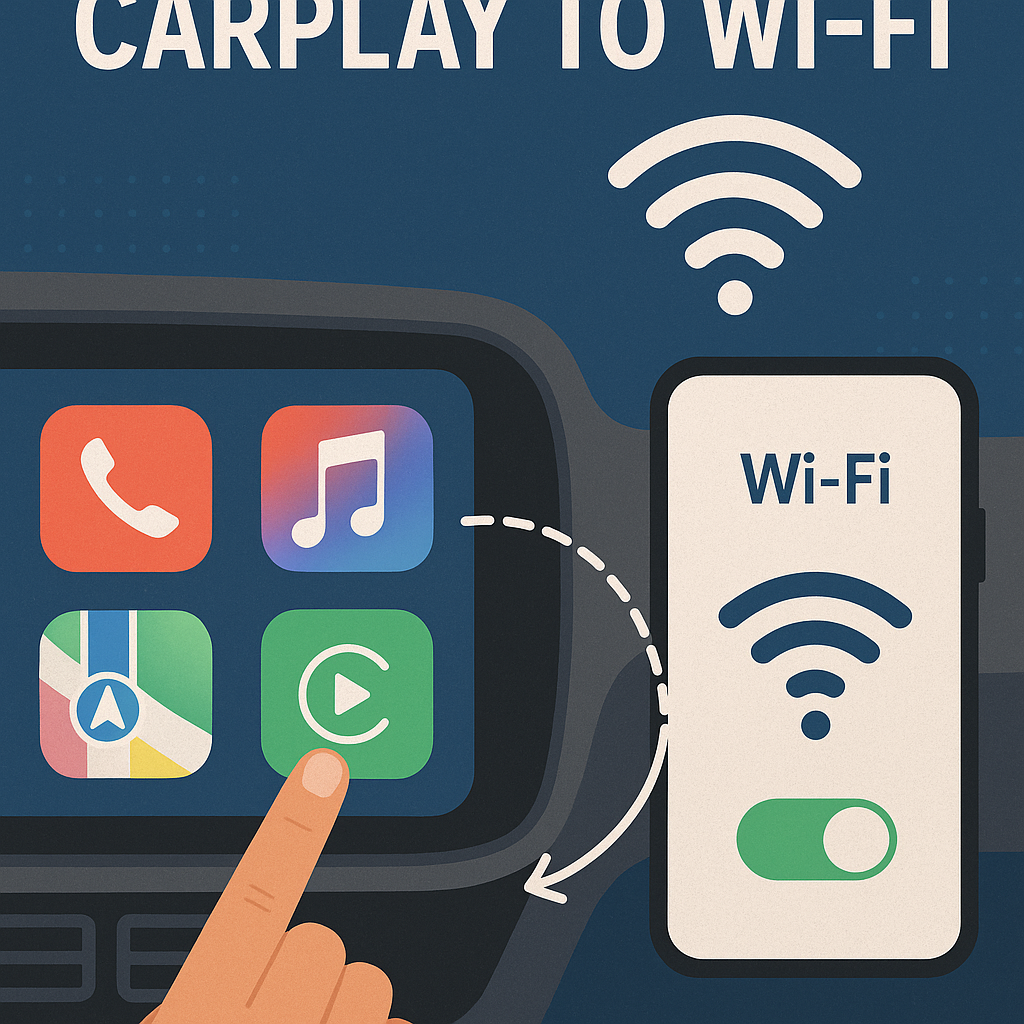
Apple CarPlay has revolutionized the way we interact with our vehicles, bringing iPhone functionality directly to your car’s dashboard. While many drivers are familiar with the traditional wired connection, wireless CarPlay offers the ultimate convenience by eliminating cables entirely. Learning how to connect CarPlay to WiFi opens up a seamless driving experience where your iPhone automatically connects to your vehicle’s infotainment system.
This comprehensive guide will walk you through everything you need to know about wireless CarPlay connectivity, from checking compatibility to troubleshooting common connection issues. Split for clarity: ‘This guide works for all skill levels. Whether you’re tech-savvy or new to automotive technology, we’ll help you master wireless CarPlay setup.’
Contents
What is Wireless CarPlay Technology
Wireless CarPlay uses both WiFi and Bluetooth technologies to create a stable connection between your iPhone and your car’s infotainment system. Unlike the traditional USB cable connection, wireless Apple CarPlay allows your device to communicate with your vehicle through radio waves, providing the same functionality without physical constraints.
The wireless connection process involves your car creating a dedicated WiFi network that your iPhone joins automatically. This network operates independently from your mobile data or home internet connection. Your vehicle’s head unit acts as both a Bluetooth beacon for initial pairing and a WiFi hotspot for data transmission.
Many drivers wonder about data usage when using wireless CarPlay. The good news is that the WiFi connection between your phone and car doesn’t consume your cellular data for basic CarPlay functions. However, apps like Maps, Spotify, or Siri still use your phone’s cellular connection for internet-based services.
Checking CarPlay WiFi Compatibility
Before attempting to set up wireless CarPlay, you need to verify that both your iPhone and vehicle support this feature. Not all cars with CarPlay capability offer wireless connectivity, and older iPhone models may have limitations.
iPhone Compatibility Requirements:
– iPhone 5 or newer for wired CarPlay
– iPhone 6 or newer for wireless CarPlay
– iOS 9.0 or later (iOS 14 or later recommended for optimal performance)
– WiFi and Bluetooth enabled
Vehicle Compatibility Factors:
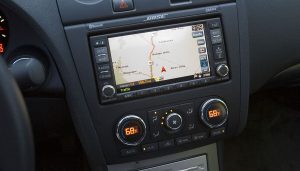
Most vehicles manufactured after 2019 include wireless CarPlay support, but this varies significantly by manufacturer and model. Premium brands like BMW, Mercedes-Benz, and Audi were early adopters. Mainstream manufacturers added wireless functionality later.
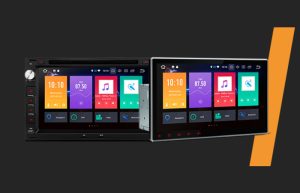
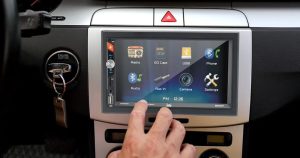
To check if your car supports wireless Apple CarPlay, consult your owner’s manual or contact your dealership or you can read our article. You can also look for wireless CarPlay indicators in your vehicle’s settings menu. Some aftermarket head units also offer wireless CarPlay capabilities, providing an upgrade path for older vehicles.
Step-by-Step Guide: how to connect CarPlay to WiFi
Setting up wireless CarPlay involves a straightforward pairing process that combines Bluetooth and WiFi connectivity. Follow these detailed steps to establish your first wireless connection:
Step 1: Prepare Your iPhone
Start by ensuring your iPhone has the latest iOS version installed. Go to Settings > General > Software Update to check for available updates. Enable both WiFi and Bluetooth in your iPhone’s Control Center or Settings menu. Make sure your device isn’t connected to any other CarPlay-enabled vehicles.
Step 2: Access Your Car’s Settings
Turn on your vehicle and navigate to the infotainment system’s main menu. Look for “Phone,” “Connectivity,” “Apple CarPlay,” or “Device Connection” options. The exact menu structure varies by manufacturer, but most systems group these features together.
Step 3: Initiate CarPlay Setup
Select “Add New Device,” “Pair Phone,” or “Connect CarPlay” from your car’s menu. Your vehicle will begin broadcasting a Bluetooth signal that your iPhone can detect. Some systems display a specific pairing code or PIN during this process.
Step 4: Connect via Bluetooth First
On your iPhone, go to Settings > Bluetooth and look for your car’s name in the available devices list. Tap your vehicle’s name to initiate pairing. If prompted, enter the pairing code displayed on your car’s screen or confirm the connection on both devices.
Step 5: Enable Wireless CarPlay
After successful Bluetooth pairing, your iPhone should automatically detect the wireless CarPlay option. You may see a prompt asking if you want to “Use CarPlay” or “Connect to [Vehicle Name].” Tap “Connect” or “Use” to proceed.
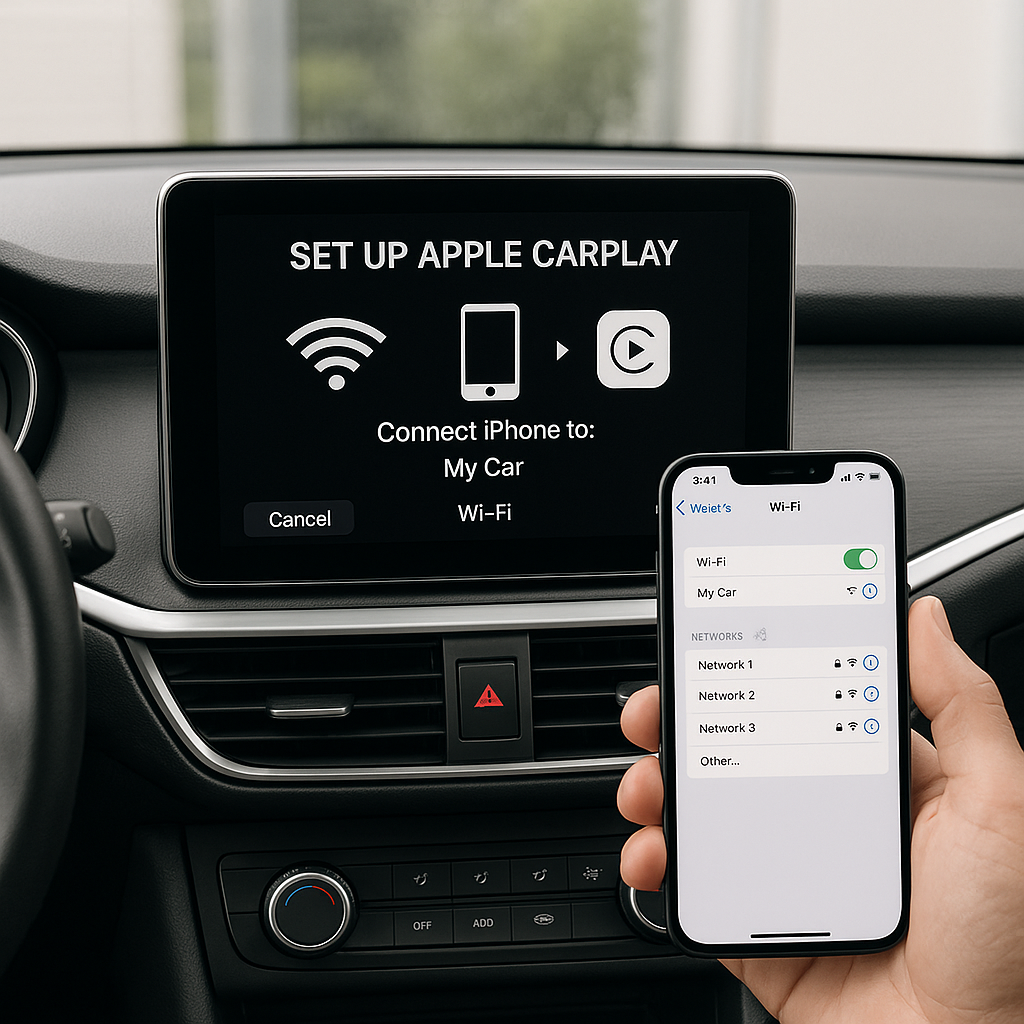
Step 6: Complete WiFi Connection
Your car will create a dedicated WiFi network, and your iPhone will join this network automatically. This process usually takes 15-30 seconds. Once you connect, the CarPlay interface will appear on your car’s display screen.
Step 7: Test the Connection
Verify that all CarPlay functions work properly by testing Siri voice commands, opening different apps, and checking audio playback. Make sure your iPhone’s screen mirrors correctly on the car’s display.
Troubleshooting Common WiFi CarPlay Connection Issues
Even with proper setup, you may encounter wireless CarPlay connection problems. Understanding common issues and their solutions helps maintain a reliable connection.
Connection Drops and Intermittent Issues:
If your wireless CarPlay connection frequently drops, start by checking the distance between your iPhone and the car’s head unit. Keep your device within 3-5 feet of the dashboard for optimal signal strength. Remove any phone cases or accessories that might interfere with wireless signals.
Restart both your iPhone and your car’s infotainment system if connections become unstable. Turn off your vehicle completely, wait 30 seconds, then restart. On your iPhone, toggle airplane mode on and off to reset wireless connections.
Initial Pairing Problems:
When your iPhone won’t pair with your car initially, ensure no other devices are connected to your vehicle’s CarPlay system. Most cars support multiple paired devices but can only maintain one active CarPlay connection at a time.
Clear your iPhone’s Bluetooth cache by going to Settings > General > Reset > Reset Network Settings. This removes all saved WiFi passwords and Bluetooth pairings, so you’ll need to reconnect to your home network afterward.
Performance and Lag Issues:
Slow response times or laggy performance often indicate interference from other wireless devices. Turn off unnecessary Bluetooth accessories like smartwatches or wireless headphones while using CarPlay. Close background apps on your iPhone to free up processing power.
Update your car’s infotainment software if manufacturers have released updates. Many manufacturers release over-the-air updates that improve CarPlay performance and compatibility.
Optimizing Your Wireless CarPlay Experience
Once you’ve successfully learned how to connect CarPlay to WiFi, several optimization techniques can enhance your daily driving experience.
Managing Multiple Devices:
If multiple family members use the same vehicle, prioritize device connections in your car’s settings menu. Most systems allow you to set a primary device that connects automatically when detected. Secondary devices can still pair but may require manual selection.
Create separate user profiles if your vehicle supports this feature. Some luxury vehicles offer personalized settings that remember seat positions, climate preferences, and CarPlay configurations for different drivers.
Battery Management Strategies:
Wireless CarPlay can drain your iPhone’s battery faster than wired connections since your device isn’t charging simultaneously. Invest in a wireless charging pad for your car or use a lightning cable for charging while maintaining the wireless CarPlay connection.
Enable Low Power Mode on your iPhone during long trips to extend battery life. This reduces background app activity while maintaining essential CarPlay functions.
App Organization and Customization:
Organize your CarPlay home screen by rearranging app icons through your iPhone’s Settings > General > CarPlay menu. You should remove unnecessary apps to reduce clutter and improve focus while driving.
Customize Siri settings for hands-free operation. Enable “Hey Siri” functionality and train voice recognition for better accuracy in noisy vehicle environments.
Conclusion
Learning how to connect CarPlay to WiFi transforms your driving experience by providing seamless smartphone integration without the hassle of cables. Wireless Apple CarPlay offers convenience, safety, and functionality that makes every journey more enjoyable and connected.
The setup process, while initially seeming complex, becomes straightforward once you understand the basic steps of Bluetooth pairing followed by automatic WiFi connection. Remember that successful wireless CarPlay implementation depends on compatible hardware, updated software, and proper troubleshooting when issues arise.
By following this guide’s step-by-step instructions and optimization tips, you’ll master wireless CarPlay connectivity and enjoy hands-free access to your iPhone’s features while keeping your focus on the road. Whether you’re navigating with Maps, streaming music, or making calls, wireless CarPlay ensures your technology works seamlessly with your vehicle’s systems.
Take time to explore