If you’re considering using Apple CarPlay in your vehicle, you might be wondering: does Apple CarPlay use data? This is a crucial question for drivers who want to stay connected while managing their mobile data consumption. The short answer is yes, Apple CarPlay uses cellular data from your iPhone’s plan, but the amount varies significantly depending on how you use it.
Understanding CarPlay’s data consumption is essential for making informed decisions about your in-car connectivity. Whether you’re streaming music, using navigation apps, or making hands-free calls, each feature impacts your monthly data allowance differently. Let’s explore exactly how much data Apple CarPlay uses and what you can do to manage it effectively.
Contents
- How Apple CarPlay Connects and Uses Data
- Which CarPlay Features Consume the Most Data?
- Step-by-Step Guide to Monitor Your CarPlay Data Usage
- Effective Strategies to Reduce CarPlay Data Consumption
- Data Usage Comparison: CarPlay vs. Regular Phone Use
- Managing Data Costs and Choosing the Right Plan
- Conclusion
How Apple CarPlay Connects and Uses Data
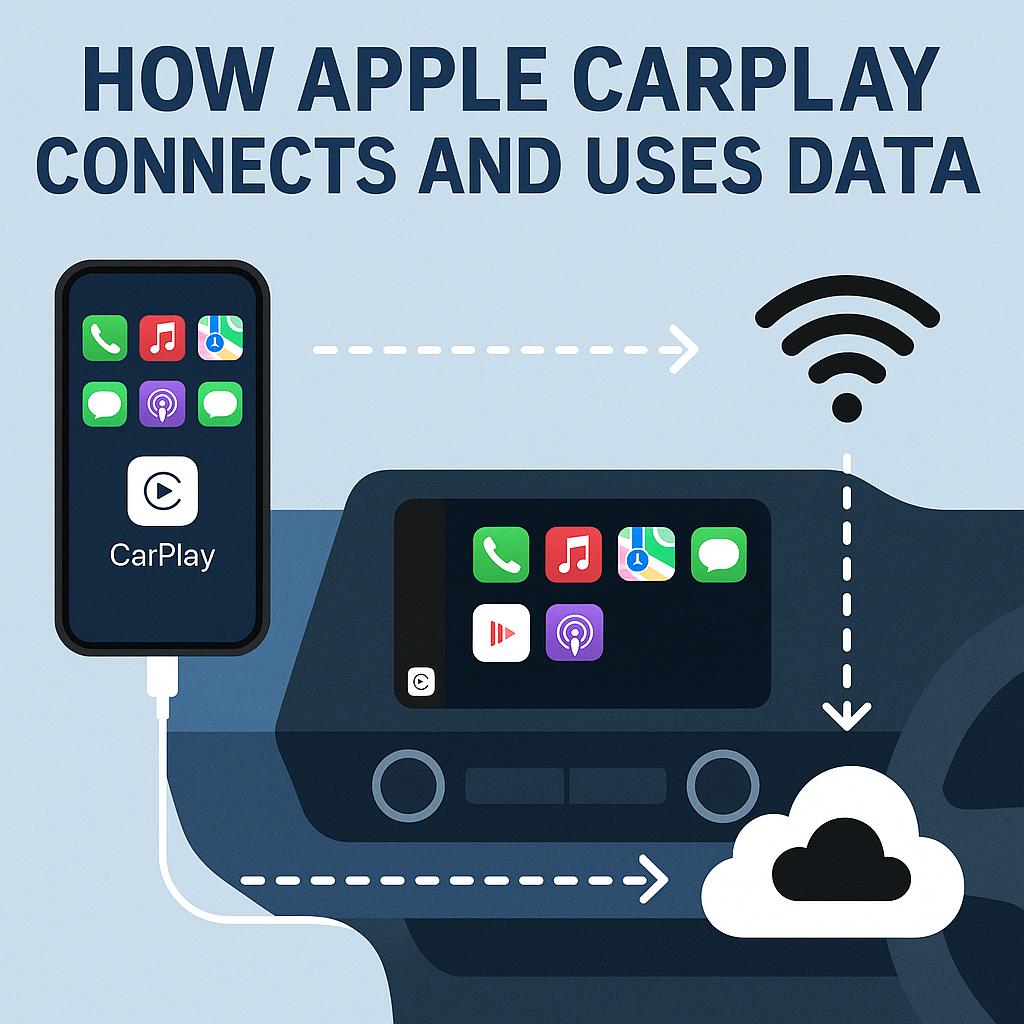
Apple CarPlay functions as a smart interface that mirrors select iPhone apps on your car’s infotainment system. The system itself doesn’t have independent internet connectivity – it relies entirely on your iPhone’s cellular data connection or Wi-Fi hotspot capabilities.
When you connect your iPhone to CarPlay via USB cable or wireless connection, the system accesses your phone’s data plan to power internet-dependent features. This means every time you use navigation, stream music, send messages through Siri, or access any online content through CarPlay, you’re consuming data from your cellular plan.
The data usage occurs because CarPlay apps need real-time information to function properly. Navigation apps require map updates and traffic data, music streaming services download audio content, and messaging apps sync with cloud services. Without an active data connection, many CarPlay features become limited or completely unavailable.
Which CarPlay Features Consume the Most Data?
Navigation and Maps Applications
Navigation apps are among the heaviest data consumers in the CarPlay ecosystem. Apple Maps, Google Maps, and Waze all require substantial data for:
– Real-time traffic updates
– Route recalculations
– Satellite imagery downloads
– Points of interest information
– Live traffic camera feeds
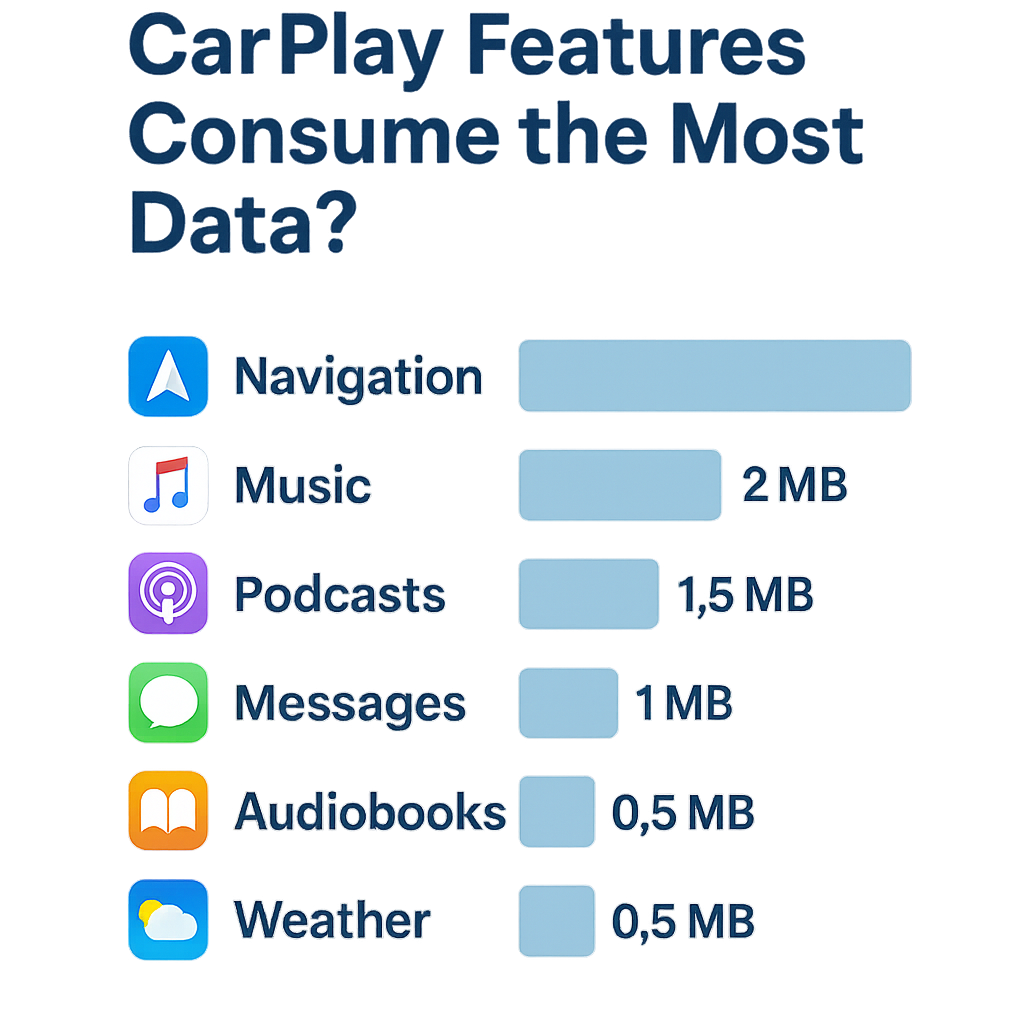
Apple Maps typically uses between 5-10 MB per hour of navigation, while Google Maps can consume 10-20 MB hourly. Waze tends to use slightly more due to its community-driven features and constant traffic updates.
Music and Audio Streaming Services
Streaming music through CarPlay can quickly consume significant amounts of data. Popular services like Apple Music, Spotify, Amazon Music, and Pandora have varying data consumption rates:
– Standard quality streaming: 40-50 MB per hour
– High quality streaming: 100-150 MB per hour
– Lossless/premium quality: 300-500 MB per hour
Podcast streaming generally uses less data than music, typically consuming 15-30 MB per hour depending on audio quality settings.
Communication and Messaging Apps
Voice calls through CarPlay using cellular networks consume minimal data, typically 1-2 MB per hour. However, VoIP services like WhatsApp calls or FaceTime audio use more data – approximately 3-5 MB per hour.
Text messaging through Siri and CarPlay uses negligible data, usually less than 1 MB per hour unless you’re sending media files or using advanced messaging features.
Step-by-Step Guide to Monitor Your CarPlay Data Usage
Step 1: Check Your iPhone’s Cellular Data Settings
1. Open the Settings app on your iPhone
2. Tap Cellular or Mobile Data
3. Scroll down to see data usage by individual apps
4. Look for CarPlay-compatible apps like Maps, Music, Spotify, etc.
5. Note the data consumption for each app
Step 2: Reset Your Data Statistics
1. In the same Cellular settings menu
2. Scroll to the bottom and tap Reset Statistics
3. This gives you a fresh start to monitor CarPlay-specific usage
4. Use CarPlay for a typical driving period
5. Return to check how much data was consumed
Step 3: Enable Low Data Mode
1. Go to Settings > Cellular
2. Tap Cellular Data Options
3. Turn on Low Data Mode
4. This reduces background app refresh and limits high-bandwidth activities
Step 4: Configure App-Specific Data Settings
1. In Settings > Cellular, scroll to individual apps
2. Toggle off cellular data for apps you don’t need while driving
3. For music apps, adjust streaming quality in their individual settings
4. Consider downloading content for offline use before driving
Effective Strategies to Reduce CarPlay Data Consumption
Download Content for Offline Use
The most effective way to minimize data usage is downloading content before your trip:
– Music: Download playlists, albums, or podcasts to your iPhone
– Maps: Download offline maps for frequently traveled routes
– Podcasts: Pre-download episodes using your home Wi-Fi
Adjust Streaming Quality Settings
Most streaming apps allow you to modify audio quality:
– Set music streaming to “Normal” or “Standard” quality instead of “High” or “Lossless”
– Choose lower bitrate options when available
– Enable data-saving modes in individual apps
Use Wi-Fi When Possible
Connect to Wi-Fi networks whenever available:
– Download updates and content at home
– Use restaurant or hotel Wi-Fi during stops
– Consider portable Wi-Fi hotspots for long trips
Optimize Navigation Settings
Reduce navigation data usage by:
– Downloading offline maps before traveling
– Disabling satellite view in favor of standard map view
– Turning off real-time traffic updates if not essential
– Using voice-only directions instead of visual maps when possible
Data Usage Comparison: CarPlay vs. Regular Phone Use
Using CarPlay doesn’t inherently increase data consumption compared to using your iPhone directly. The data usage remains essentially the same because CarPlay is simply displaying your phone’s apps through the car’s interface.
However, CarPlay might indirectly lead to higher data usage because:
– The larger screen encourages more interaction with data-heavy apps
– Longer driving sessions mean extended streaming periods
– The convenience might lead to using navigation more frequently
– Voice commands might trigger more app interactions
The key difference is usage patterns rather than the technology itself. CarPlay makes it easier and safer to access data-consuming features while driving, which can result in higher overall consumption.
Managing Data Costs and Choosing the Right Plan
Evaluate Your Current Data Plan
Consider your typical monthly usage:
– Light users (under 5GB): Basic navigation and minimal streaming
– Moderate users (5-15GB): Regular navigation with some music streaming
– Heavy users (15GB+): Frequent streaming, multiple apps, long commutes
Consider Unlimited Plans
For regular CarPlay users, unlimited data plans often provide better value and peace of mind. Most major carriers offer unlimited options that eliminate data overage concerns.
Monitor Usage Regularly
Set up data usage alerts on your iPhone:
– Enable warnings at 75% and 90% of your monthly limit
– Check usage weekly during the first month of CarPlay use
– Adjust habits based on consumption patterns
Conclusion
Does Apple CarPlay use data? Absolutely, and understanding this consumption is crucial for managing your mobile expenses effectively. While CarPlay itself doesn’t increase data usage compared to direct phone use, it makes data-consuming features more accessible during driving, potentially leading to higher monthly consumption.
The key to successful CarPlay data management lies in preparation and smart usage habits. Download content over Wi-Fi, adjust streaming quality settings, and monitor your consumption regularly. With proper planning, you can enjoy all the benefits of CarPlay connectivity without experiencing bill shock or data overages.
Remember that CarPlay data usage varies dramatically based on your specific apps and usage patterns. Navigation might use 5-20 MB per hour, while music streaming can consume 40-500 MB hourly depending on quality settings. By understanding these patterns and implementing the strategies outlined above, you can make informed decisions about your CarPlay usage and data plan needs.
Whether you’re a occasional driver or daily commuter, taking control of your CarPlay data consumption ensures you stay connected on the road while keeping costs manageable.