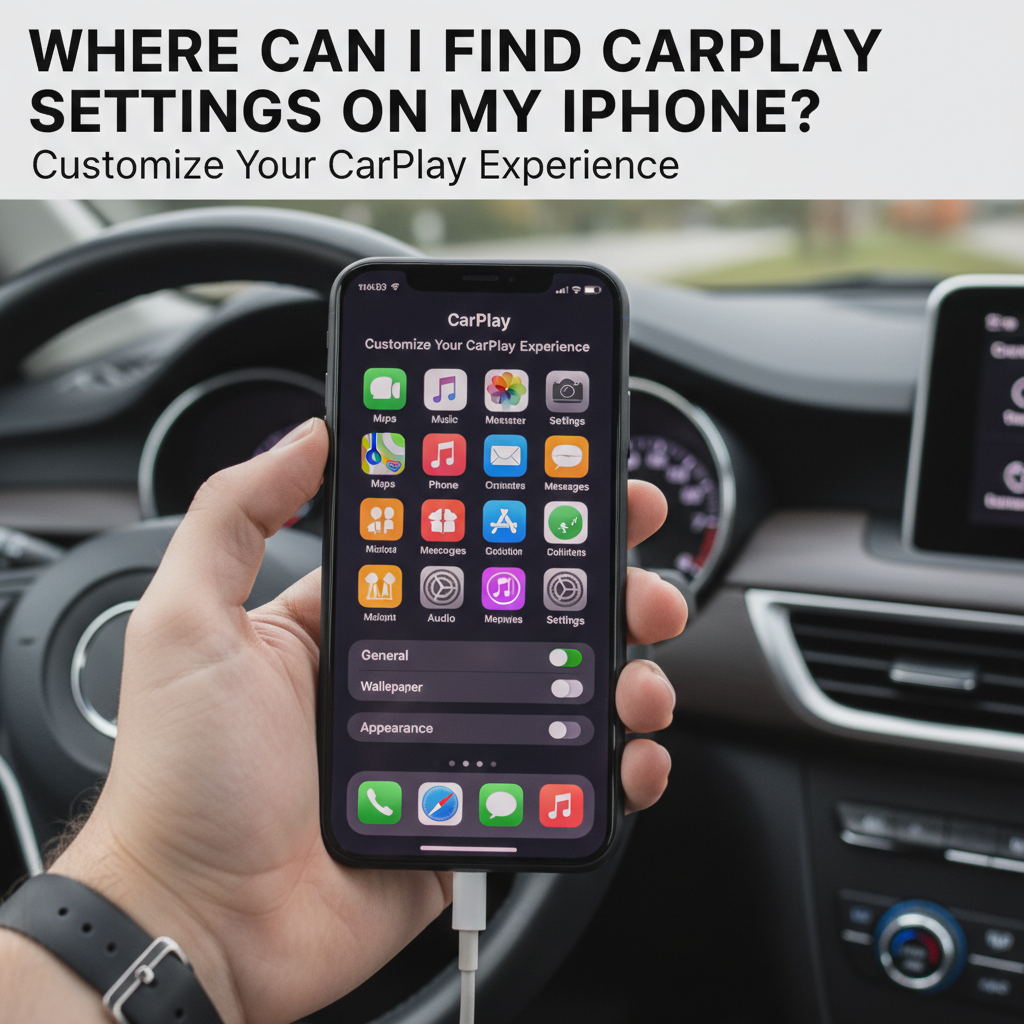
If you’re wondering where can I find CarPlay settings on my iPhone, you’re not alone. Many iPhone users struggle to locate these important settings that control how their device interacts with their vehicle’s infotainment system. CarPlay settings are essential for customizing your driving experience, managing app access, and ensuring seamless connectivity between your iPhone and your car’s display.
Apple CarPlay has revolutionized the way we interact with our vehicles, bringing familiar iPhone functionality directly to your car’s dashboard. Whether you’re driving a new Toyota Camry with built-in CarPlay support or using an aftermarket stereo system, knowing how to access and configure your CarPlay settings is crucial for optimal performance.
In this comprehensive guide, we’ll walk you through exactly where to find CarPlay settings on your iPhone, how to customize them, and troubleshoot common issues. We’ll also explore advanced configuration options and provide tips for getting the most out of your CarPlay experience.
Contents
- Understanding CarPlay Settings Location on iPhone
- Configuring Your CarPlay Settings for Optimal Performance
- Troubleshooting Common CarPlay Settings Issues
- Advanced CarPlay Configuration Options
- Optimizing CarPlay for Different Vehicle Types
- Privacy and Security Considerations in CarPlay Settings
- Maintaining and Updating CarPlay Settings
- Conclusion
Understanding CarPlay Settings Location on iPhone
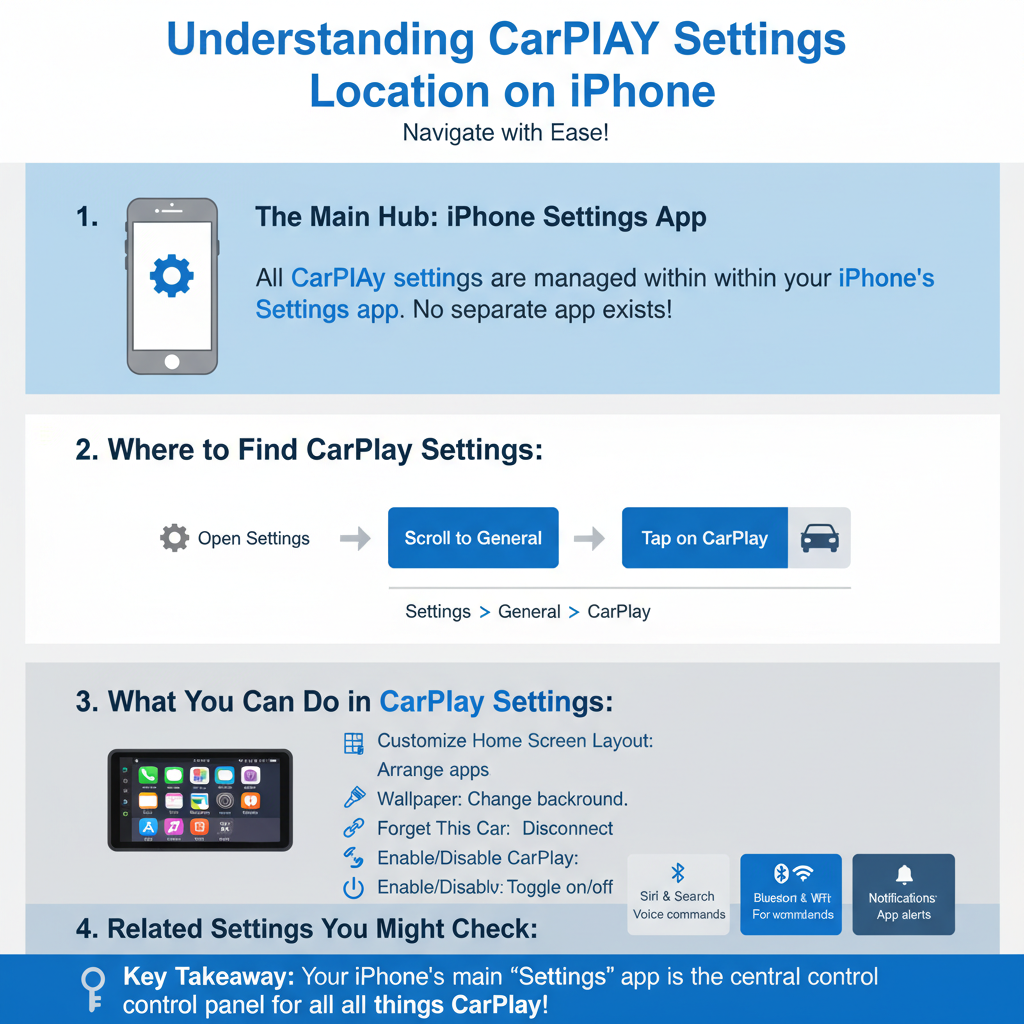
The CarPlay settings on your iPhone are located within the main Settings app, but they’re not always immediately visible. The location and availability of these settings depend on several factors, including whether you’ve previously connected to a CarPlay-enabled vehicle and your iOS version.
Step-by-Step Guide to Finding CarPlay Settings
Finding your CarPlay settings is straightforward once you know where to look. Here’s the exact process:
Step 1: Open the Settings App
Launch the Settings app on your iPhone by tapping the gray gear icon on your home screen or in your app library.
Step 2: Scroll Down to Find CarPlay
Scroll down through the Settings menu until you see “CarPlay” listed among the options. This typically appears between “Camera” and “Siri & Search” in most iOS versions.
Step 3: Access CarPlay Settings
Tap on “CarPlay” to enter the CarPlay settings menu. If you don’t see this option, it may be because you haven’t connected to a CarPlay-enabled vehicle yet.
Alternative Method Through General Settings
If you can’t locate the dedicated CarPlay section, you can also access some CarPlay-related settings through other areas:
Method 1: Through Screen Time
Navigate to Settings > Screen Time > Content & Privacy Restrictions > Allowed Apps, where you can control CarPlay access to specific applications.
Method 2: Through Individual App Settings
Many apps have their own CarPlay settings that can be accessed by going to Settings > [App Name] > CarPlay or similar options.
Configuring Your CarPlay Settings for Optimal Performance
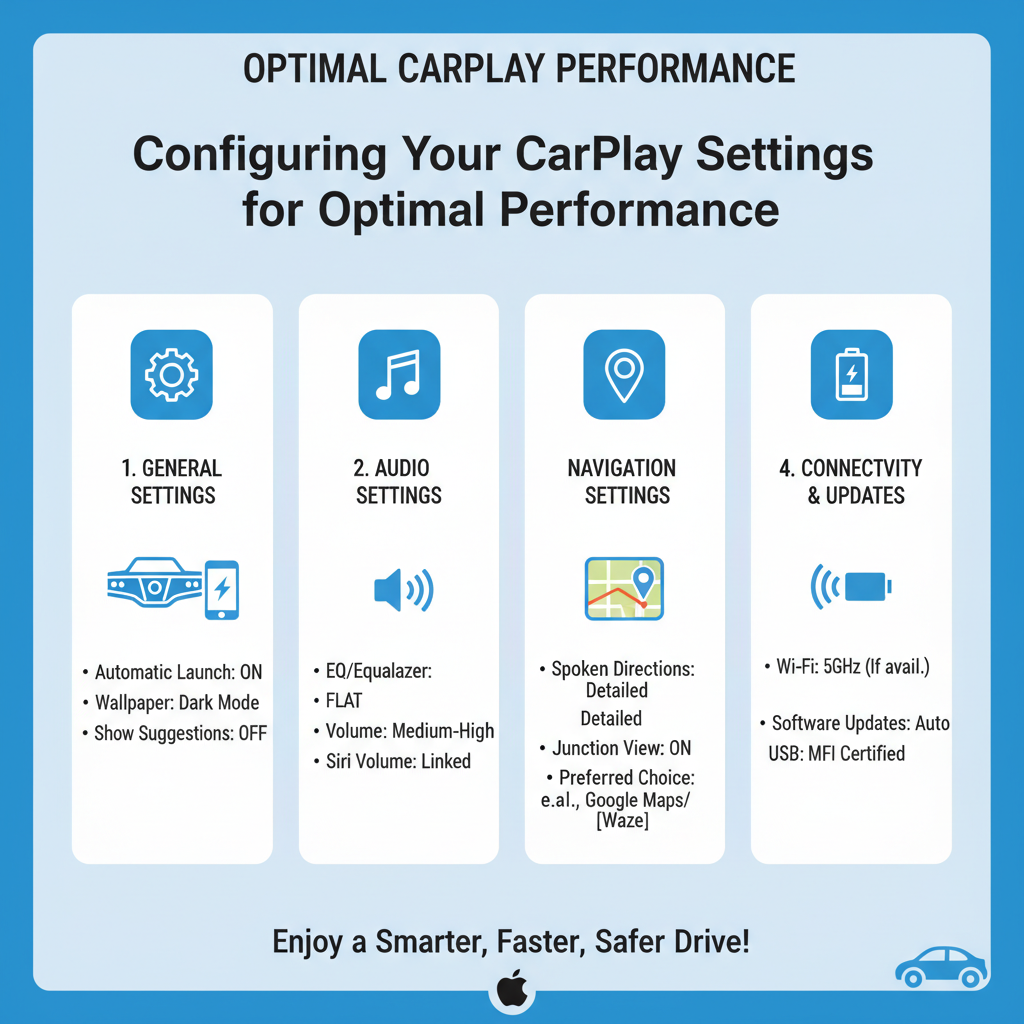
Once you’ve located your CarPlay settings, it’s time to configure them according to your preferences and needs. The CarPlay settings menu offers several customization options that can significantly improve your driving experience.
Managing Connected Vehicles
In the CarPlay settings, you’ll see a list of vehicles you’ve previously connected to. Each vehicle appears with its name and connection status. You can:
– Remove old or unwanted vehicle connections
– Rename vehicles for easier identification
– Set preferences for specific vehicles
Customizing App Access and Layout
One of the most important aspects of CarPlay configuration is controlling which apps appear on your car’s display. Not all iPhone apps are CarPlay-compatible, but among those that are, you have full control over their availability.
Allowed Apps Configuration:
– Toggle apps on or off for CarPlay access
– Organize apps in your preferred order
– Hide apps you don’t want while driving
Popular CarPlay-compatible apps include navigation apps like Apple Maps and Google Maps, music streaming services like Spotify and Apple Music, messaging apps, and podcast applications.
Setting Up Siri Integration
Siri integration is a crucial component of the CarPlay experience, allowing for hands-free operation while driving. In your CarPlay settings, you can:
– Enable or disable Siri suggestions
– Configure voice activation preferences
– Set up personalized Siri shortcuts for common driving tasks
When using a Honda Accord or other vehicles with advanced voice recognition, proper Siri configuration ensures seamless voice command functionality.
Troubleshooting Common CarPlay Settings Issues
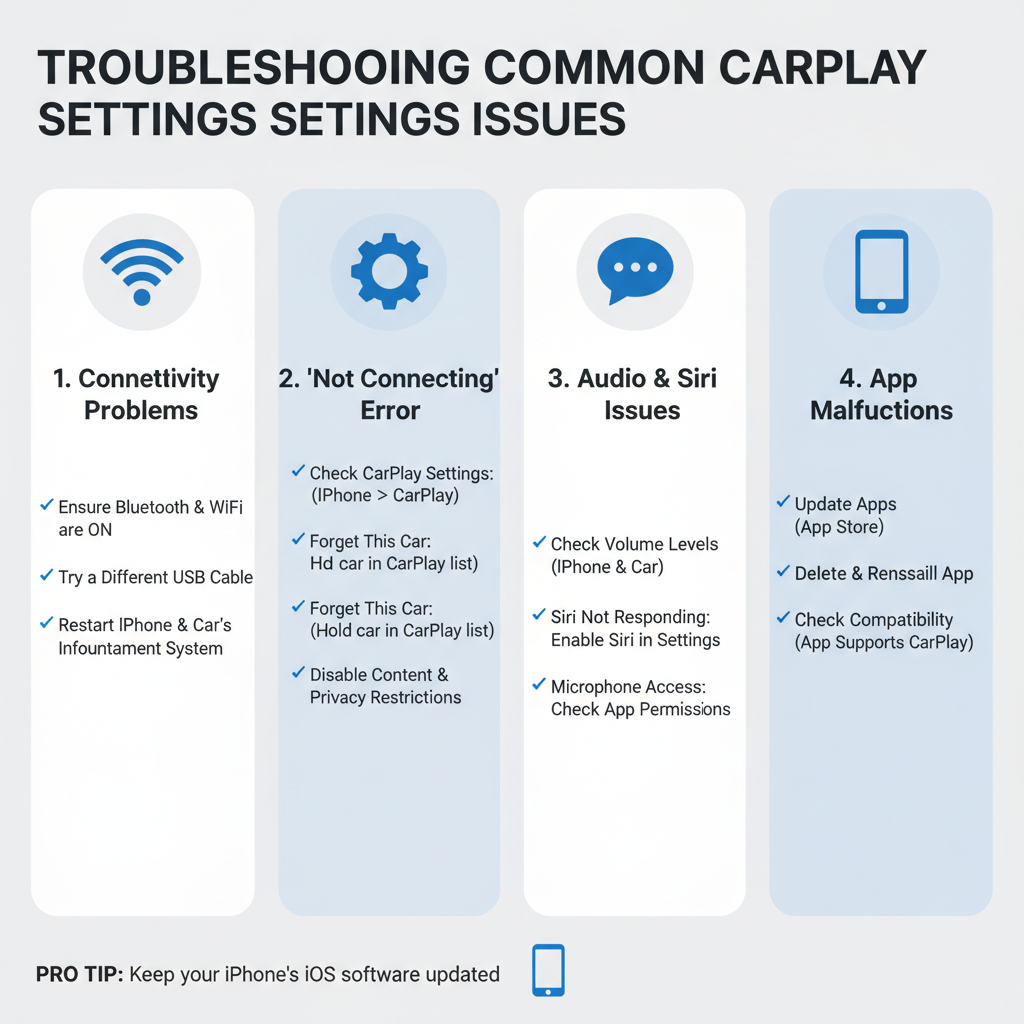
Even with proper configuration, you might encounter issues with your CarPlay settings. Understanding common problems and their solutions can save you time and frustration.
CarPlay Settings Not Appearing
If you can’t find CarPlay settings on your iPhone, several factors might be at play:
iOS Version Compatibility:
Ensure your iPhone is running iOS 7.1 or later, as earlier versions don’t support CarPlay functionality.
Device Compatibility:
CarPlay requires iPhone 5 or newer. Older iPhone models won’t display CarPlay settings because they lack the necessary hardware support.
Initial Connection Required:
CarPlay settings may not appear until you’ve made your first connection to a CarPlay-enabled vehicle or aftermarket system.
Connection and Sync Problems
When your CarPlay settings seem correct but you’re experiencing connection issues:
Check Cable Connections:
For wired CarPlay, ensure you’re using a certified Lightning to USB cable. Damaged or non-certified cables can cause intermittent connection problems.
Wireless CarPlay Troubleshooting:
If using wireless CarPlay, verify that both Bluetooth and Wi-Fi are enabled on your iPhone, even though you’re not connecting to a traditional Wi-Fi network.
Reset Network Settings:
Sometimes, resetting your network settings can resolve persistent CarPlay connection issues. Go to Settings > General > Reset > Reset Network Settings.
Advanced CarPlay Configuration Options
Beyond basic settings, there are advanced configuration options that can enhance your CarPlay experience significantly.
Restrictions and Parental Controls
CarPlay settings include options for implementing restrictions, which are particularly useful for fleet vehicles or family cars:
– Limit access to certain app categories
– Restrict messaging and calling features
– Control media content accessibility
Developer and Beta Settings
For users running beta versions of iOS or using developer profiles, additional CarPlay settings may be available:
– Beta CarPlay features
– Developer debugging options
– Advanced connectivity settings
Integration with Other iOS Features
Your CarPlay settings work in conjunction with other iOS features:
Do Not Disturb While Driving:
CarPlay automatically activates Do Not Disturb While Driving mode, but you can customize this behavior in Settings > Do Not Disturb > Do Not Disturb While Driving.
Screen Time Integration:
CarPlay usage appears in your Screen Time reports, and you can set app limits that apply to CarPlay usage.
Optimizing CarPlay for Different Vehicle Types
Different vehicles and aftermarket systems may require specific CarPlay setting adjustments for optimal performance.
OEM Integration Systems
Factory-installed CarPlay systems in vehicles often work seamlessly with default settings, but fine-tuning can improve the experience:
– Adjust display preferences for different screen sizes
– Configure steering wheel control integration
– Set up vehicle-specific Siri shortcuts
Aftermarket CarPlay Systems
Aftermarket CarPlay head units may require additional configuration:
– Compatibility mode settings
– Audio output preferences
– Display resolution adjustments
Wireless vs. Wired CarPlay Settings
The connection method affects available settings:
Wired CarPlay:
– More stable connection
– Simultaneous device charging
– Lower latency for audio and video
Wireless CarPlay:
– Convenience of automatic connection
– No cable management
– May require specific pairing procedures
Privacy and Security Considerations in CarPlay Settings
CarPlay settings include important privacy and security options that protect your personal information while using your vehicle’s infotainment system.
Data Protection Settings
Your CarPlay configuration should address data protection concerns:
– Location data sharing with vehicle systems
– Contact information access
– Message and call history privacy
Shared Vehicle Considerations
When using CarPlay in shared or rental vehicles:
– Enable automatic data clearing
– Limit personal information display
– Use guest or restricted modes when available
Maintaining and Updating CarPlay Settings
Regular maintenance of your CarPlay settings ensures continued optimal performance and access to new features.
iOS Update Considerations
When updating iOS, review your CarPlay settings as updates may:
– Add new configuration options
– Change existing setting locations
– Introduce new compatible apps
Regular Settings Review
Periodically review your CarPlay settings to:
– Remove unused vehicle connections
– Update app preferences
– Adjust privacy settings as needed
Conclusion
Understanding where can I find CarPlay settings on my iPhone is essential for maximizing your connected driving experience. The CarPlay settings, located in your iPhone’s main Settings app, provide comprehensive control over app access, vehicle connections, and integration preferences.
By following the step-by-step guide provided in this article, you can easily locate and configure your CarPlay settings to match your specific needs and preferences. Whether you’re driving a modern vehicle with built-in CarPlay support or using an aftermarket system, proper settings configuration ensures seamless connectivity and optimal functionality.
Remember that CarPlay settings may vary slightly depending on your iOS version and the specific vehicles or systems you’ve connected to. Regular review and maintenance of these settings will help you stay current with new features and maintain the best possible CarPlay experience.
Take the time to explore all available CarPlay settings options, experiment with different configurations, and don’t hesitate to reset or reconfigure settings if you encounter issues. With proper setup and maintenance, CarPlay can significantly enhance your driving experience while keeping you safely connected to your digital life on the road.