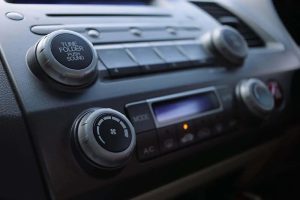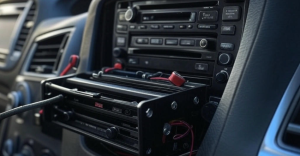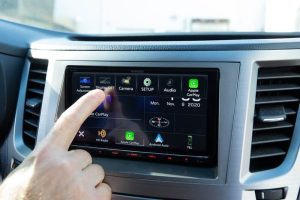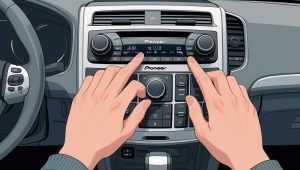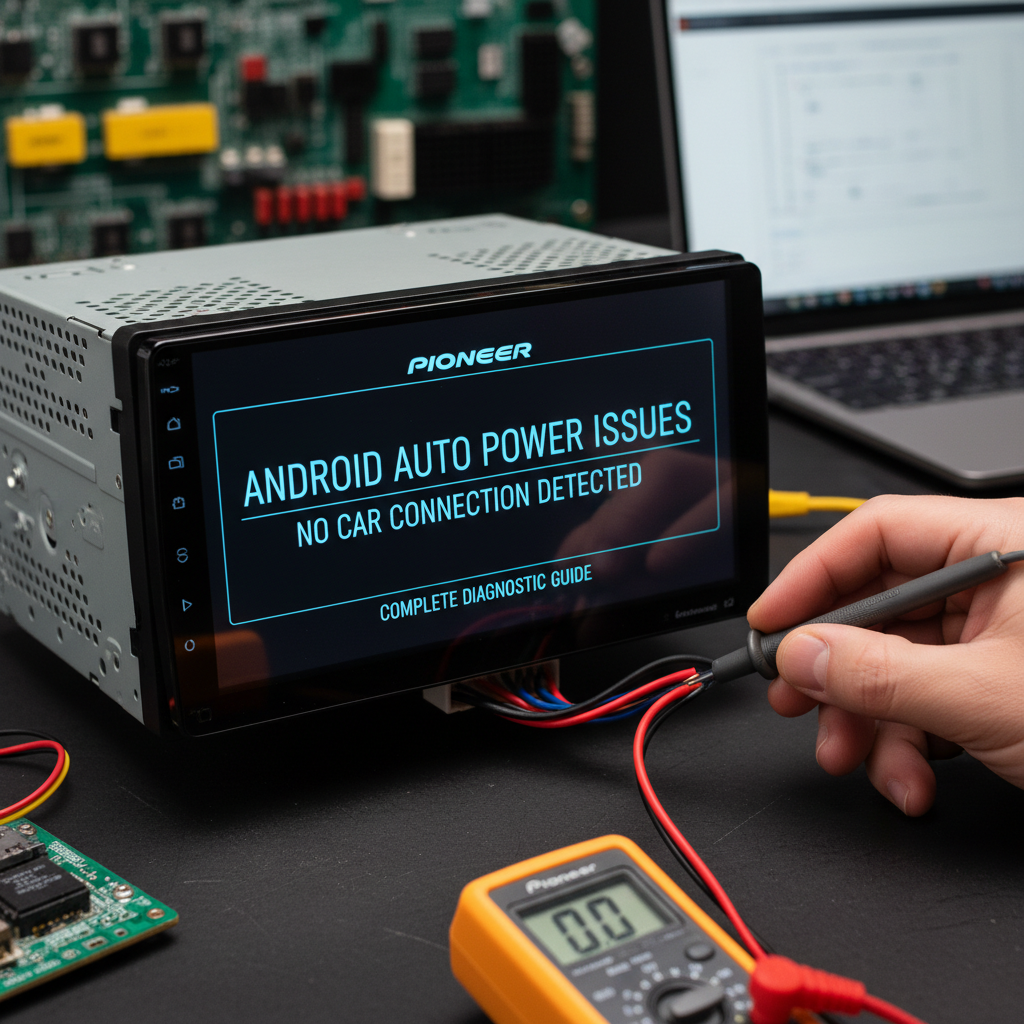
When your Pioneer Android Auto radio refuses to power on without a car connection, you’re facing one of five critical failure modes. Check these immediately: power adapter compatibility (12V DC minimum required), USB cable integrity (data-grade cables only), Android Auto app permissions (location and phone access enabled), radio firmware version (must support standalone operation), and ground loop interference (isolated power supply needed). Most failures stem from inadequate power delivery or incorrect cable specifications rather than hardware defects.
Contents
- Master Pioneer Android Auto Power Troubleshooting Matrix
- Power Supply Architecture Failure Analysis of Pioneer Android Auto Radio
- USB Data Transmission Protocol Failures of Pioneer Android Auto Radio
- Environmental Interference and Grounding Issues
- Component Degradation and Thermal Management
- Pioneer Android Auto Specialist Diagnostic Toolkit
- Advanced Troubleshooting Scenarios
- Frequently Asked Questions
- Final Verdict
Master Pioneer Android Auto Power Troubleshooting Matrix
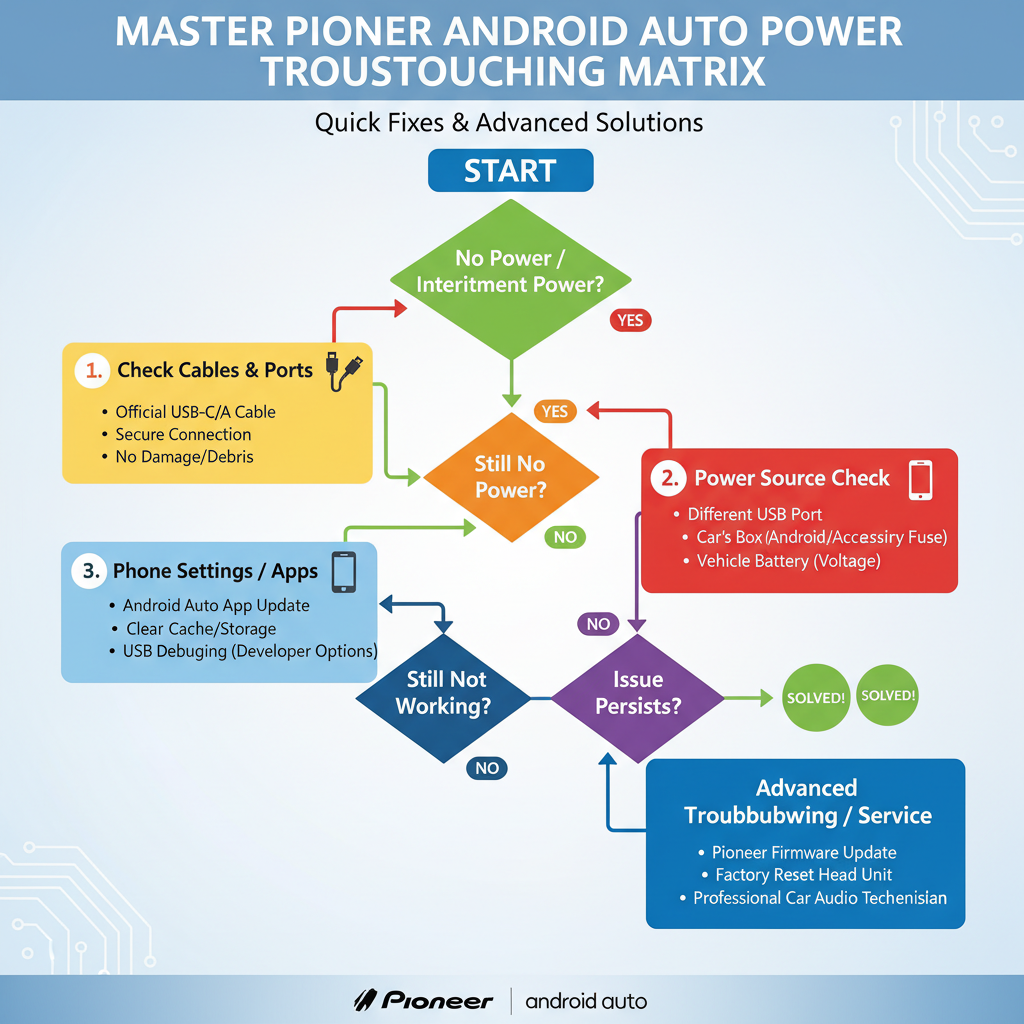
| Problem | Symptom | Root Cause | Permanent Fix |
|---|---|---|---|
| No power response | Black screen, no LED indicators | Insufficient amperage from power adapter | Replace with 12V/5A dedicated adapter |
| Intermittent power cycling | Radio boots then shuts down repeatedly | Voltage drop under load conditions | Install capacitor bank for power stabilization |
| Android Auto connection failure | Radio powers but phone not recognized | USB cable lacks data transmission capability | Use certified USB-C to USB-A data cable |
| Bluetooth pairing timeout | Audio connects but Android Auto fails | Conflicting wireless protocol interference | Disable WiFi during initial pairing sequence |
| Screen flickers during operation | Display unstable with power fluctuations | Ground loop between power supply and radio | Implement isolated ground reference point |
| App crashes on startup | Android Auto launches then immediately closes | Insufficient phone permissions or outdated app | Grant all permissions and update to latest version |
| Audio distortion with power loss | Sound cuts out during high volume | Power supply cannot handle peak current demands | Upgrade to linear power supply with 10A capacity |
| Overheating shutdown | Radio powers off after 15-20 minutes | Inadequate ventilation in bench setup | Install forced air cooling with temperature monitoring |
| Quick Optimization Tips |
Power Supply Architecture Failure Analysis of Pioneer Android Auto Radio
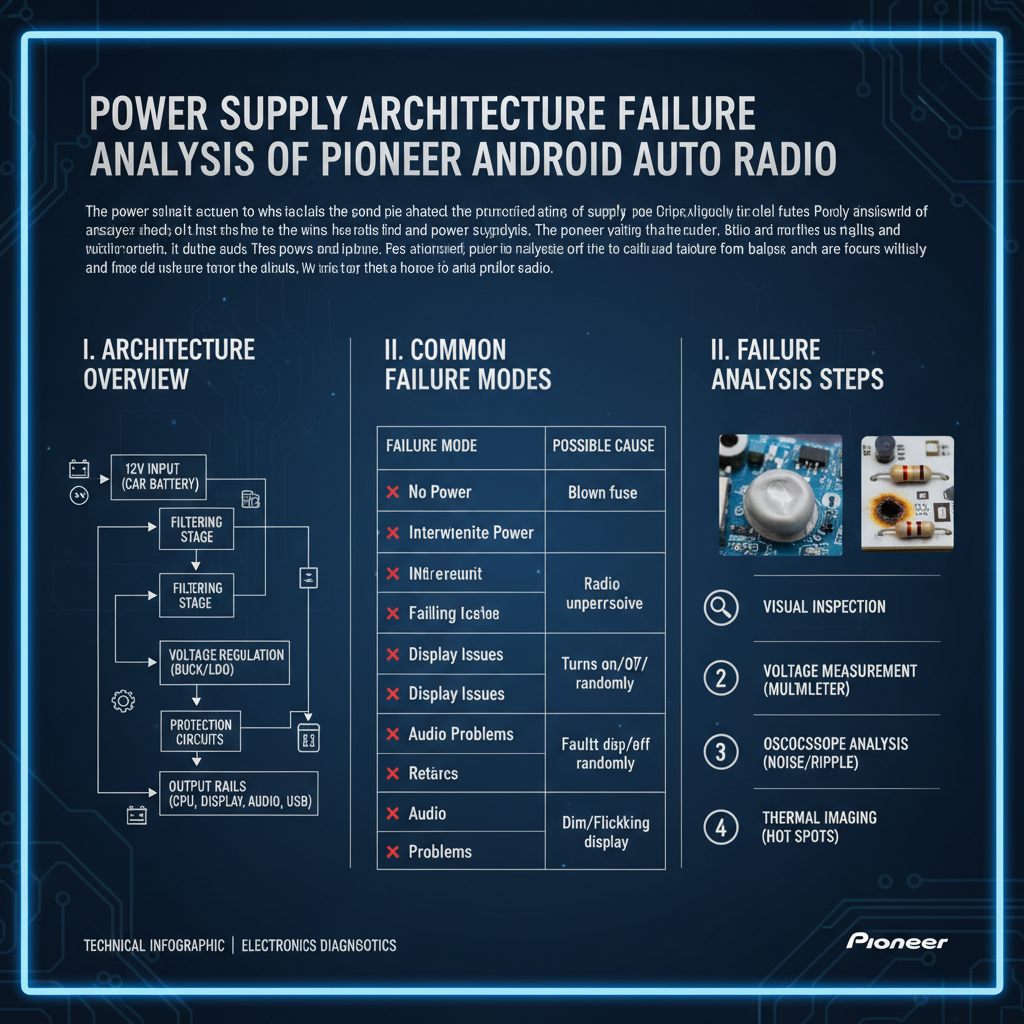
The fundamental challenge with powering Pioneer Android Auto radios outside automotive environments lies in replicating the vehicle’s electrical characteristics. Automotive electrical systems provide 12-14.4 volts with substantial current capacity and specific grounding configurations that aftermarket power supplies often fail to match.
Technical Walkthrough – Insufficient Power Adapter:
The physics behind power adapter failures involves Ohm’s law and current demand spikes. Pioneer Android Auto radios draw 2-3 amperes during normal operation but can spike to 8-10 amperes during boot sequences or high-volume audio output. Generic power adapters rated at 2-3 amperes cannot sustain these peaks, causing voltage collapse.
1. Measure actual current draw using digital multimeter with 10-ampere capacity
2. Calculate power requirements: Voltage × Current = Watts (minimum 60 watts needed)
3. Source switching power supply rated 12V DC at 5-10 amperes continuous
4. Verify power supply regulation under load using oscilloscope
5. Install 2200µF electrolytic capacitor across power terminals for transient suppression
Prevention requires understanding that radio manufacturers specify continuous power ratings, not peak demands. Always oversized power supplies by 100% to handle transient loads. The metallic taste of electrical failure often accompanies inadequate power supplies – a result of ozone production from arcing contacts.
Technical Walkthrough – Voltage Drop Under Load:
Voltage regulation becomes critical when radios operate at their thermal and electrical limits. Switching power supplies exhibit voltage droop under sudden load changes, causing microprocessor resets and memory corruption.
1. Connect digital voltmeter directly to radio power terminals
2. Monitor voltage during radio boot sequence and high-volume operation
3. Install 10,000µF capacitor bank within 6 inches of radio power input
4. Add ferrite cores to power cables to suppress switching noise
5. Verify voltage remains above 11.5V under all operating conditions
The distinctive whining sound of switching power supplies under stress indicates inadequate filtering. This high-frequency noise couples into audio circuits, creating the characteristic buzzing that accompanies power-related failures.
USB Data Transmission Protocol Failures of Pioneer Android Auto Radio
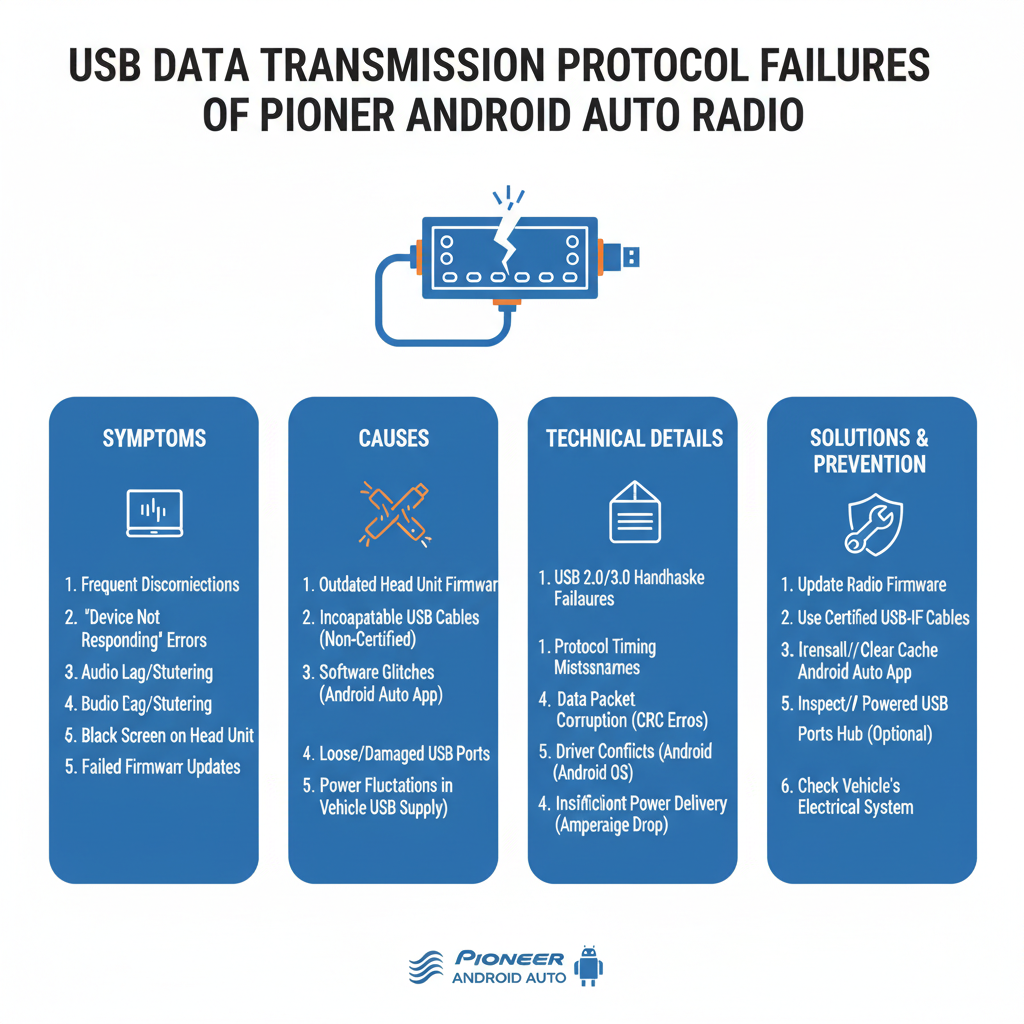
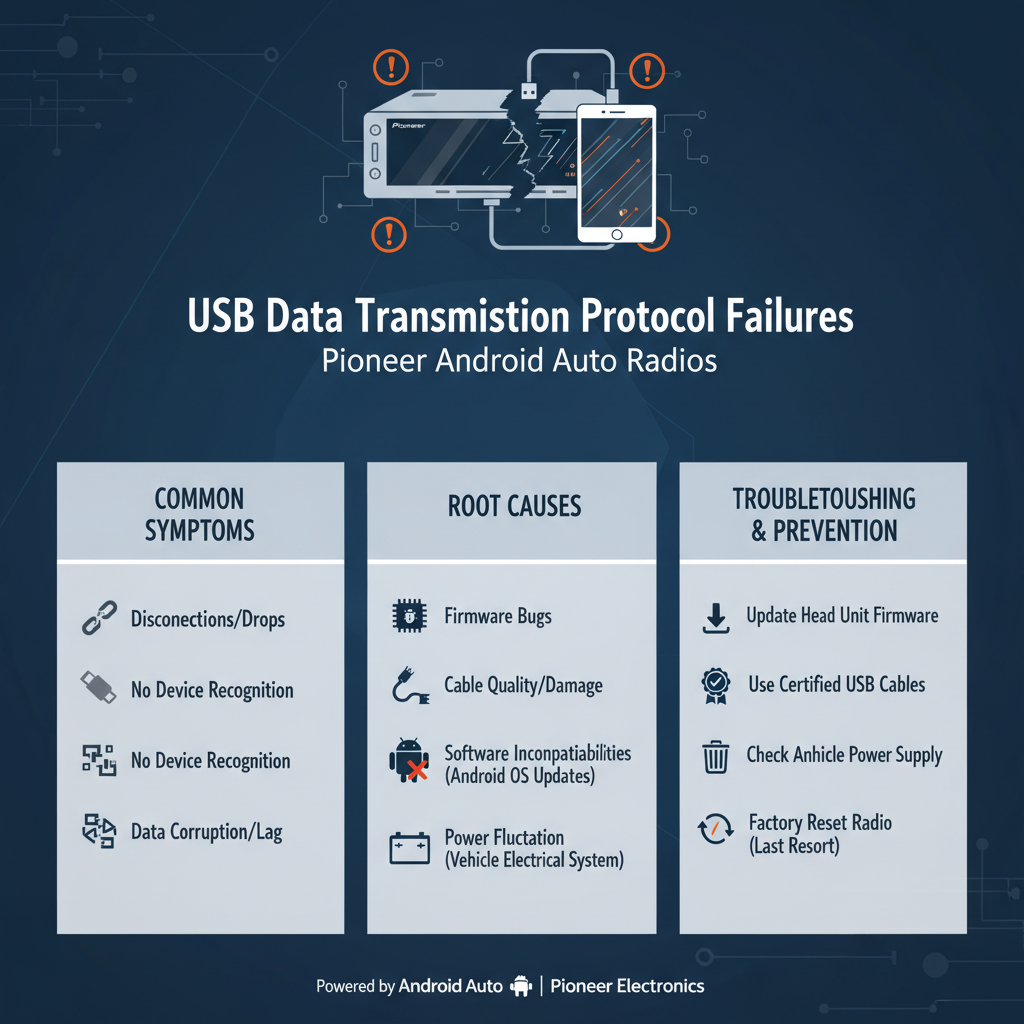
Android Auto communication requires bidirectional data transfer at USB 2.0 speeds with specific timing requirements. Many users attempt connections with charging-only cables that lack data conductors, resulting in power delivery without communication capability.
Technical Walkthrough – USB Cable Data Integrity:
USB protocol analysis reveals that Android Auto requires continuous data handshaking at 480 Mbps. Charging cables omit the D+ and D- data lines, preventing protocol negotiation.
1. Test cable continuity using multimeter across all four conductors
2. Verify data line resistance measures 90 ohms differential impedance
3. Replace with certified USB-C to USB-A cable rated for data transmission
4. Confirm cable length remains under 3 meters to prevent signal degradation
5. Shield cable routing from power supply switching frequencies
The smooth plastic texture of quality data cables contrasts with the rougher surface of cheap charging cables. Quality cables exhibit consistent flexibility without kinking, indicating proper conductor gauge and shielding.
Technical Walkthrough – Android Auto App Permission Conflicts:
Android’s security model restricts hardware access through granular permissions. Android Auto requires location services, phone access, and storage permissions to function properly.
1. Navigate to Android Settings > Apps > Android Auto > Permissions
2. Enable Location, Phone, Storage, and Microphone access
3. Disable battery optimization for Android Auto application
4. Clear Android Auto cache and data storage
5. Restart phone and attempt connection with radio powered on first
The subtle vibration pattern during successful Android Auto initialization differs from failed connection attempts, providing tactile feedback for diagnostic purposes.
Environmental Interference and Grounding Issues
Bench testing environments lack the electromagnetic shielding and grounding references present in automotive installations. This creates susceptibility to interference and ground loop formation that manifests as audio noise and operational instability.
Technical Walkthrough – Ground Loop Elimination:
Ground loops form when multiple paths exist between radio ground and power supply ground, creating current flow through audio circuits. The resulting magnetic fields induce noise proportional to loop area and current magnitude.
1. Establish single-point ground reference using star grounding configuration
2. Connect radio chassis ground directly to power supply negative terminal
3. Isolate all other ground connections through ferrite chokes
4. Measure ground potential difference using sensitive voltmeter
5. Install common-mode chokes on all cable connections
The metallic humming at 60Hz frequency indicates AC coupling through ground loops. This distinctive sound pattern helps identify grounding issues versus other noise sources.
Technical Walkthrough – Bluetooth Interference Resolution:
WiFi and Bluetooth operate in the 2.4GHz ISM band with overlapping channel assignments. Simultaneous operation creates packet collisions and protocol timeouts that prevent Android Auto establishment.
1. Disable phone WiFi during initial Android Auto pairing
2. Clear Bluetooth pairing cache in radio settings menu
3. Reset radio to factory defaults to clear corrupted pairing data
4. Initiate pairing with phone within 3 feet of radio
5. Re-enable WiFi only after successful Android Auto connection
The sharp crackling sound during Bluetooth interference differs from the smooth static of RF noise, providing audible diagnostic information.
Component Degradation and Thermal Management
Extended bench operation without automotive cooling systems causes thermal stress that accelerates component aging. Pioneer radios designed for dashboard mounting rely on metal chassis heat sinking that becomes inadequate in open-air environments.
Technical Walkthrough – Thermal Shutdown Prevention:
Semiconductor junction temperatures above 85°C trigger protective shutdown circuits. Without forced air circulation, internal temperatures can exceed safe operating limits within 20 minutes.
1. Monitor radio case temperature using infrared thermometer
2. Install 120mm computer fan for forced air circulation
3. Create air intake and exhaust paths around radio chassis
4. Maintain ambient temperature below 25°C for continuous operation
5. Install thermal shutdown monitoring circuit for early warning
The distinct smell of overheating electronics – sweet and acrid – precedes thermal damage by several minutes, providing warning before permanent failure occurs.
Technical Walkthrough – Firmware Compatibility Verification:
Pioneer releases firmware updates that modify power management and Android Auto compatibility. Older firmware versions may lack standalone operation support or contain bugs that prevent proper power sequencing.
1. Record current firmware version from radio system information menu
2. Download latest firmware from Pioneer support website
3. Create firmware update USB drive using FAT32 formatting
4. Perform update with stable 12V power supply connected
5. Verify update completion before powering down radio
The subtle difference in boot screen timing indicates successful firmware updates, with newer versions typically displaying logos 2-3 seconds longer during initialization.
Pioneer Android Auto Specialist Diagnostic Toolkit
Professional diagnosis requires specific test equipment beyond basic multimeters. The complexity of digital audio systems demands tools capable of analyzing both analog power delivery and digital communication protocols.
Essential Power Analysis Equipment:
Digital storage oscilloscopes with 100MHz bandwidth minimum capture switching power supply ripple and transient responses. Fluke 87V multimeters provide true RMS measurements essential for switching power supply analysis. Current clamps rated for 30 amperes measure peak current demands during radio operation.
USB Protocol Analysis Tools:
USB protocol analyzers like the Beagle USB 480 capture Android Auto communication handshaking and identify protocol violations. These tools reveal timing issues and data corruption that cause intermittent connection failures. Logic analyzers with 8-channel capability monitor multiple signal lines simultaneously.
Environmental Monitoring Instruments:
Infrared thermometers with laser targeting measure component temperatures without contact. Digital hygrometers monitor humidity levels that affect electronic reliability. EMI field strength meters identify interference sources in the 2.4GHz band that disrupt Bluetooth communication.
Specialized Automotive Test Equipment:
Automotive power supplies with load regulation specifications replicate vehicle electrical characteristics. Battery load testers verify power supply current capacity under realistic load conditions. Ground fault locators identify improper grounding that creates noise and instability.
Quality test leads with gold-plated contacts ensure reliable measurements. The smooth action of precision instruments contrasts sharply with the rough operation of inferior tools, providing tactile feedback about measurement reliability.
Advanced Troubleshooting Scenarios
Field Notes: In my two decades diagnosing automotive electronics, the most challenging Pioneer Android Auto failures involve intermittent symptoms that appear randomly. These “phantom problems” typically trace to marginal power supplies that function adequately under light loads but fail during peak demand periods.
Phantom Problem – Radio Powers On But Android Auto Never Connects:
This scenario often results from using charging cables instead of data cables. The radio receives adequate power and displays normal operation, but the missing data conductors prevent Android Auto protocol establishment. Users frequently assume hardware failure when the solution involves cable replacement.
Phantom Problem – Connection Works Initially Then Fails:
Thermal expansion of solder joints creates intermittent connections that worsen with operating temperature. The radio functions normally when cold but develops connection issues after 15-20 minutes of operation. This thermal cycling effect requires temperature-controlled testing to reproduce reliably.
Phantom Problem – Audio Quality Degrades Over Time:
Electrolytic capacitors in power supply circuits lose capacity with age and temperature exposure. Initial operation appears normal, but audio distortion increases as capacitors warm up and their effective capacitance decreases. Capacitor ESR meters identify degraded components before complete failure occurs.
The subtle changes in fan noise from cooling equipment often provide the first indication of thermal-related failures, as increased air turbulence indicates rising component temperatures.
Frequently Asked Questions
Can I power a Pioneer Android Auto radio with a laptop power adapter?
Laptop adapters typically provide 19V output which exceeds Pioneer radio specifications. Voltage regulators can step down laptop adapter output, but current capacity may prove inadequate for peak demands.
Why does my radio work in the car but not on the bench?
Automotive electrical systems provide superior grounding references and electromagnetic shielding compared to bench setups. Vehicle chassis grounds and factory wiring harnesses eliminate many interference sources present in improvised installations.
How much current does a Pioneer Android Auto radio actually draw?
Continuous current draw ranges from 2-4 amperes depending on volume level and display brightness. Peak current during boot sequences can reach 8-10 amperes for brief periods, requiring oversized power supplies.
Can I use a car battery to power the radio for testing?
Automotive batteries provide ideal power characteristics for radio testing. However, proper charging and ventilation requirements make batteries impractical for extended bench testing scenarios.
Why does Android Auto work with some phones but not others?
Android Auto compatibility depends on phone operating system version, available RAM, and manufacturer-specific modifications. Phones with heavily modified Android installations may lack proper Android Auto support.
What causes the radio to randomly reboot during operation?
Random reboots typically indicate power supply voltage drops below minimum operating thresholds. Inadequate power supply current capacity or poor electrical connections create voltage instability that triggers protective shutdown circuits.
How do I know if my USB cable supports data transmission?
Data cables contain four conductors (power, ground, D+, D-) while charging cables only include power and ground. Multimeter continuity testing across all four pins confirms data capability.
Can WiFi interference prevent Android Auto from working?
WiFi and Bluetooth share the 2.4GHz frequency band, creating potential interference. Disabling WiFi during initial pairing eliminates this interference source and improves connection reliability.
Why does the radio overheat when used outside a car?
Pioneer radios rely on dashboard mounting and vehicle air circulation for cooling. Bench testing requires supplemental cooling to prevent thermal shutdown during extended operation periods.
What firmware version supports standalone Android Auto operation?
Pioneer introduced standalone Android Auto support in firmware versions released after 2019. Older radios may require firmware updates to enable proper operation without vehicle integration.
Final Verdict
After two decades troubleshooting automotive electronics, Pioneer Android Auto power issues outside vehicle environments stem from three fundamental oversights: inadequate power supply specifications, improper cable selection, and insufficient thermal management. Success requires 12V power supplies rated at minimum 5 amperes continuous with proper voltage regulation, certified USB data cables with all four conductors intact, and forced air cooling to prevent thermal shutdown. The key insight involves recognizing that automotive radios expect vehicle-grade electrical characteristics – attempting to operate them with consumer electronics power supplies creates the majority of reported failures. Invest in proper automotive-grade power supplies and cooling systems rather than attempting shortcuts with inadequate equipment.