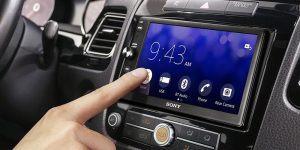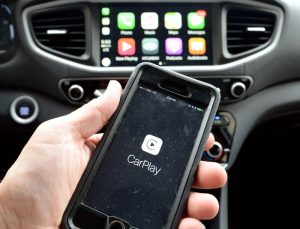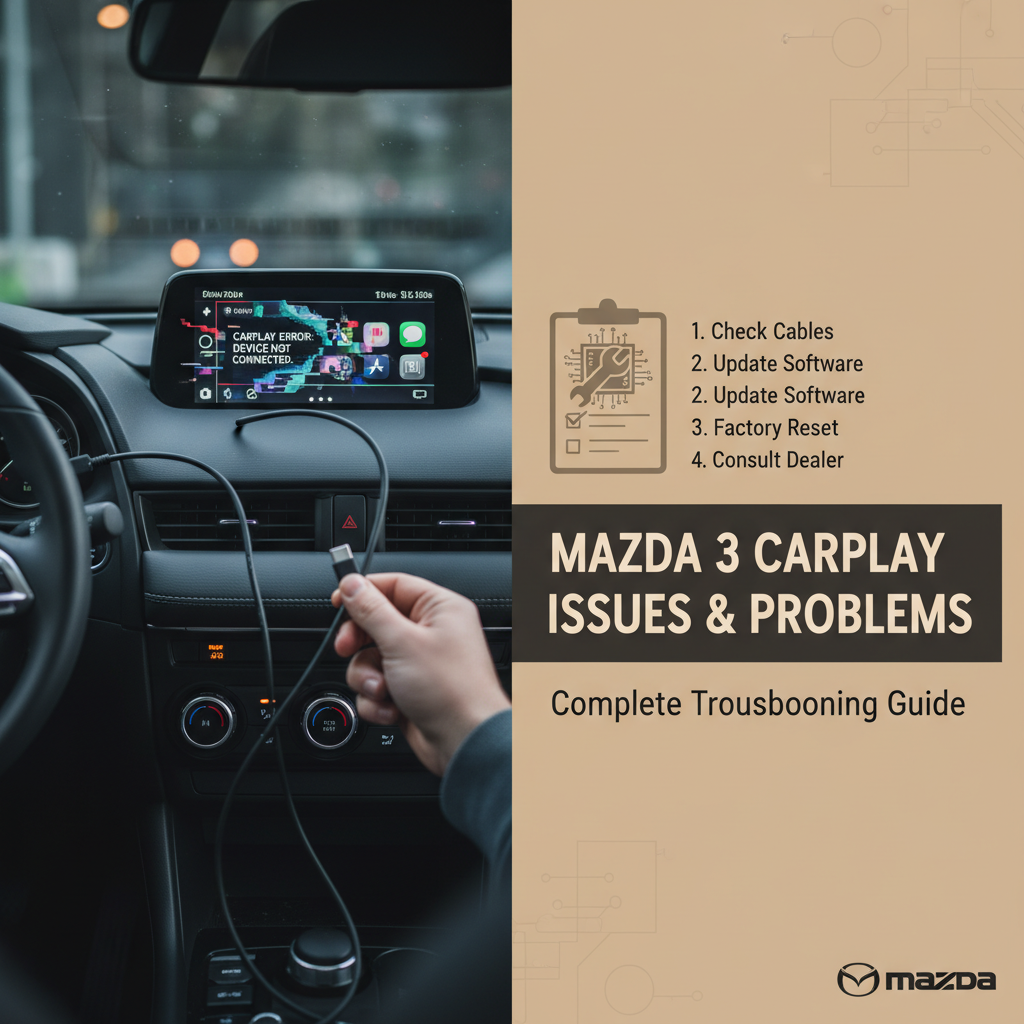
CarPlay connectivity problems in your Mazda 3 can be incredibly frustrating, especially when you rely on your smartphone for navigation, music, and hands-free communication. Whether you’re experiencing connection failures, intermittent disconnections, or complete system unresponsiveness, this comprehensive guide will help you identify and resolve the most common CarPlay issues affecting Mazda 3 vehicles.
Understanding these problems and their solutions can save you time and money while getting your infotainment system back to working properly. Let’s dive into the most effective troubleshooting methods to restore your CarPlay functionality.
Contents
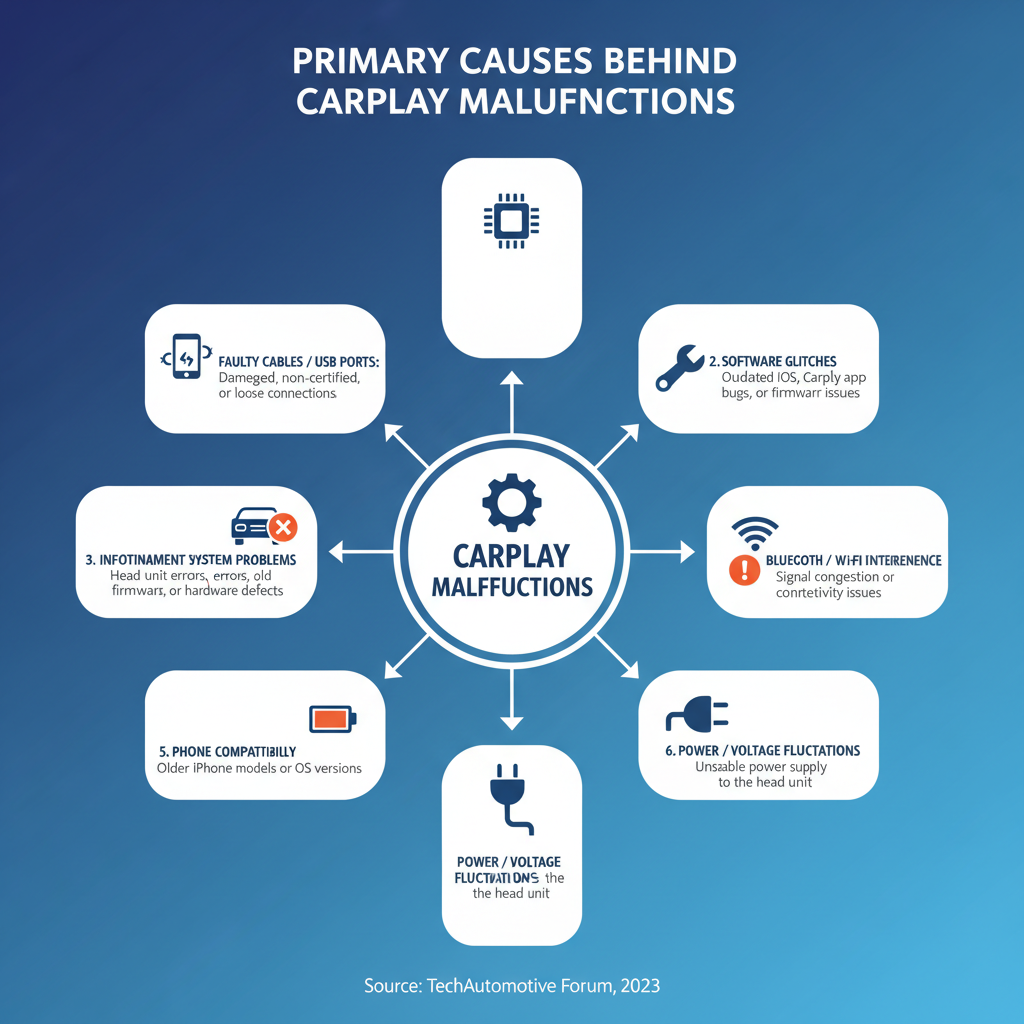
Primary Causes Behind CarPlay Malfunctions
USB Port Connection Problems
The most frequent culprit behind CarPlay issues stems from faulty USB port connections. Over time, the USB ports in your Mazda 3 can accumulate debris, dust, or experience wear from repeated cable insertions and removals.
Outdated Software Systems
Both your iPhone’s iOS version and your Mazda’s infotainment system software need regular updates to maintain compatibility. Mismatched software versions often create communication barriers between devices.
Cable Quality and Damage
Using non-certified Lightning cables or damaged cables frequently causes CarPlay connectivity problems. Even minor internal wire damage can disrupt the data transfer required for proper CarPlay operation.
iPhone Settings Configuration
Incorrect iPhone settings, including restrictions or privacy settings, can prevent CarPlay from establishing a proper connection with your Mazda 3’s infotainment system.
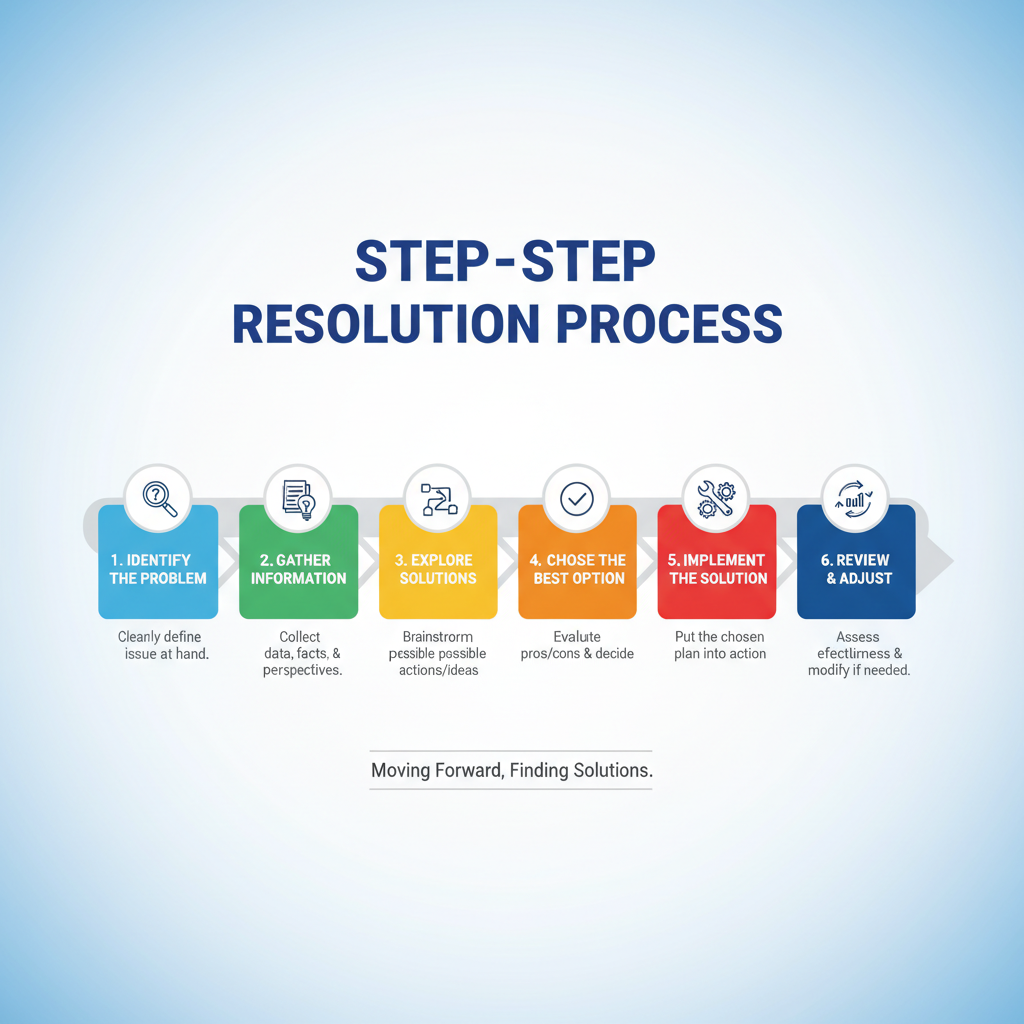
Step-by-Step Resolution Process
Initial Quick Fixes
1. Inspect and Clean USB Connections (DIY – 5 minutes)
– Turn off your vehicle completely
– Examine the USB port for visible debris or damage
– Use compressed air to blow out any dust particles
– Gently clean the port with a dry cotton swab
– Check your Lightning cable for bent connectors or fraying
2. Restart Both Devices (DIY – 3 minutes)
– Disconnect your iPhone from the USB port
– Turn off your Mazda 3’s infotainment system using the power button
– Restart your iPhone by holding the power and volume down buttons
– Wait 30 seconds before reconnecting everything
3. Verify Cable Authenticity (DIY – 2 minutes)
– Ensure you’re using an Apple-certified Lightning cable
– Look for the “Made for iPhone” certification marking
– Test with a different known-working cable if available
– Avoid using charging-only cables that don’t support data transfer
Intermediate Troubleshooting Methods
4. Reset CarPlay Settings (DIY – 10 minutes)
– Navigate to Settings > General > CarPlay on your iPhone
– Select your Mazda 3 from the available cars list
– Tap “Forget This Car” to remove the connection
– Restart both your phone and vehicle
– Reconnect and set up CarPlay from scratch
5. Update Software Systems (DIY – 30-60 minutes)
– Check for iOS updates in Settings > General > Software Update
– Install any available iPhone updates
– Contact your Mazda dealer about infotainment system updates
– Some updates may require professional installation
6. Check iPhone Compatibility (DIY – 5 minutes)
– Verify your iPhone model supports CarPlay (iPhone 5 and newer)
– Ensure your iOS version is 7.1 or later
– Confirm your Mazda 3 model year includes CarPlay support
– Check Mazda’s official compatibility list for your specific vehicle year
Advanced Diagnostic Procedures
7. Test Alternative USB Ports (DIY – 5 minutes)
– Try different USB ports in your Mazda 3 if multiple are available
– Some vehicles have dedicated CarPlay ports versus charging-only ports
– Consult your owner’s manual to identify the correct port
– Note any differences in connection behavior between ports
8. Examine Fuse Box Components (Intermediate – 15 minutes)
– Locate your Mazda 3’s fuse box (usually under dashboard or hood)
– Find the fuse labeled for infotainment or USB systems
– Visually inspect the fuse for breaks or damage
– Replace with identical amperage fuse if necessary
– Safety Warning: Always disconnect battery before handling fuses
9. Reset Infotainment System (DIY – 10 minutes)
– Press and hold the infotainment system’s power button for 10-15 seconds
– Wait for complete system shutdown
– Restart the vehicle and test CarPlay connection
– Some Mazda models may require specific button combinations for reset
Professional Service Requirements

When to Seek Expert Help
🧰 Professional Diagnosis Needed For:
– Internal USB port hardware failures
– Infotainment system module replacement
– Complex wiring harness issues
– Software corruption requiring dealer-level tools
– Warranty-covered repairs on newer vehicles
Advanced Electrical Testing
Professional technicians can perform voltage testing on USB ports, diagnose communication protocol errors, and access manufacturer-specific diagnostic tools unavailable to consumers.
Software Reflashing
Some CarPlay issues require complete infotainment system software reinstallation using dealer equipment and official Mazda software packages.
Owner-Friendly Solutions vs Professional Work
✅ DIY-Friendly Tasks
– Cable replacement and testing
– iPhone settings adjustments
– Basic cleaning and maintenance
– Software updates (iPhone side)
– Fuse inspection and replacement
– System resets and reconnection procedures
🧰 Professional Service Required
– USB port hardware replacement
– Infotainment module programming
– Wiring harness repair or replacement
– Warranty claim processing
– Complex electrical diagnostics
– Dealer-only software updates
Essential Safety Precautions
Electrical Safety Measures
Always disconnect your vehicle’s battery before performing any electrical work. Even simple fuse replacement can cause electrical shorts if proper precautions aren’t followed.
Vehicle Operation Safety
Never attempt troubleshooting while driving or with the vehicle in gear. Park safely and engage the parking brake before beginning any diagnostic procedures.
Tool Safety Guidelines
Use only appropriate tools for electrical work. Avoid metal objects near electrical connections, and ensure your hands are dry when handling electronic components.
Prevention and Maintenance Tips
Regular Maintenance Practices
– Clean USB ports monthly with compressed air
– Inspect cables regularly for wear or damage
– Keep iPhone software updated
– Avoid forcing connections or using excessive pressure
Environmental Considerations
Extreme temperatures can affect both your iPhone’s performance and your vehicle’s electronic systems. Allow devices to reach normal operating temperature before expecting optimal CarPlay performance.
Long-term Care Strategies
Invest in high-quality, certified cables and replace them annually if you’re a heavy user. Consider keeping a backup cable in your vehicle for emergency situations.
Conclusion
Most Mazda 3 CarPlay issues stem from simple connection problems, outdated software, or cable quality issues that you can resolve yourself. Start with the basic troubleshooting steps outlined above, progressing to more advanced solutions only if necessary.
Remember that safety should always be your top priority when working with vehicle electrical systems. When in doubt, consult with a qualified automotive technician or your Mazda dealer to ensure proper diagnosis and repair.
By following this systematic approach, you’ll likely restore your CarPlay functionality quickly and avoid unnecessary repair costs while maintaining the convenience and safety features that make CarPlay such a valuable addition to your driving experience.