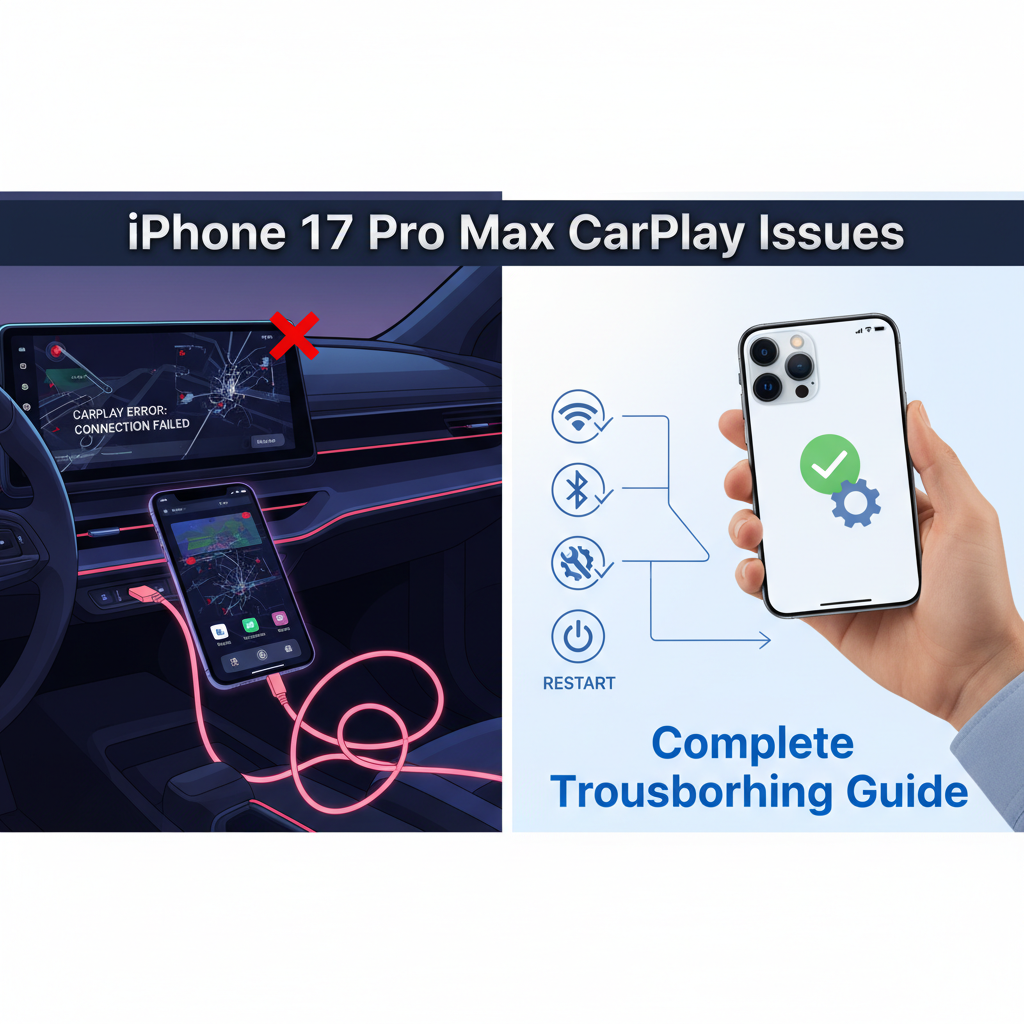
CarPlay connectivity problems can be incredibly frustrating, especially when you’re trying to navigate or take important calls while driving. If you’re experiencing issues with your iPhone 17 Pro Max connecting to your vehicle’s CarPlay system, you’re not alone. This comprehensive guide will walk you through the most common causes and provide step-by-step solutions to get your CarPlay working smoothly again.
Contents
Understanding CarPlay Connection Problems
CarPlay technology relies on a seamless connection between your iPhone and your vehicle’s infotainment system. When this connection fails, it can manifest in various ways: complete failure to connect, intermittent disconnections, audio issues, or display problems. The iPhone 17 Pro Max, despite being Apple’s latest flagship device, can still experience compatibility issues with certain vehicle systems.
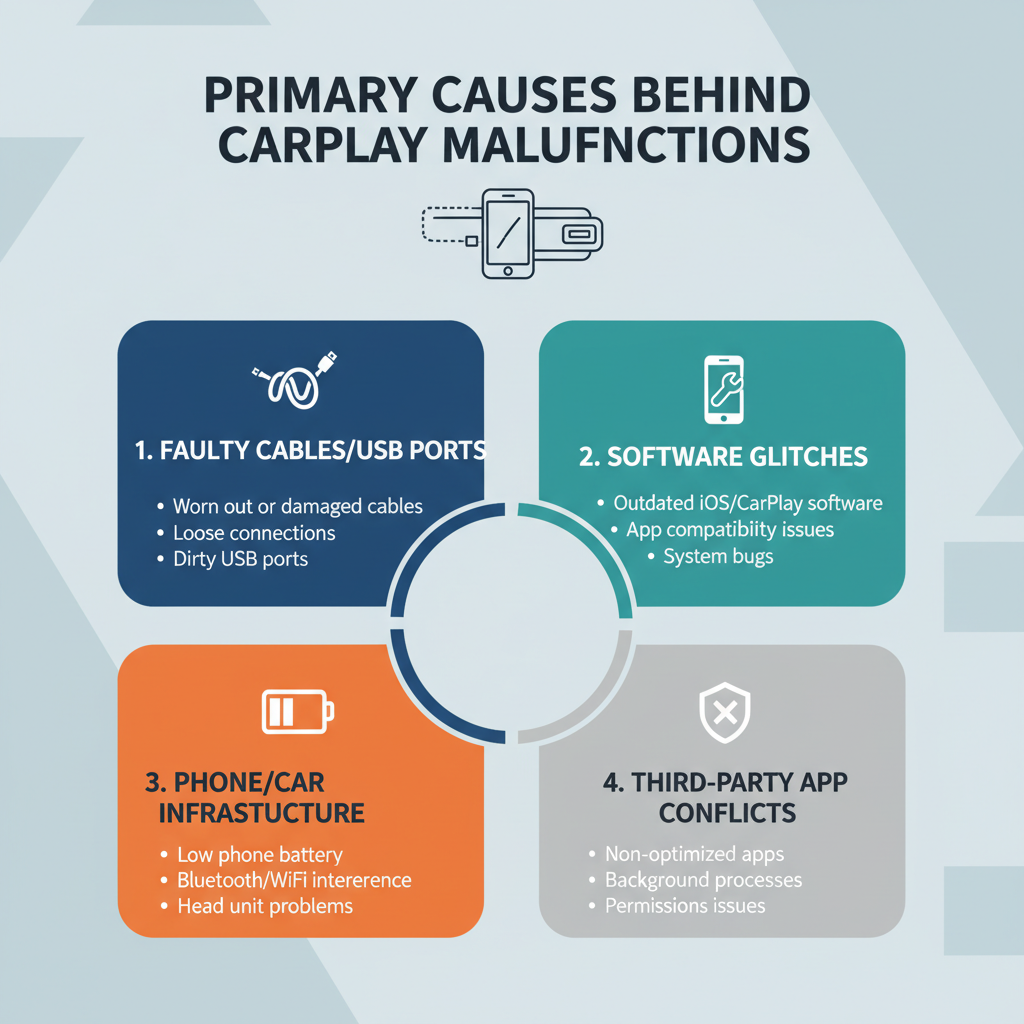
Primary Causes Behind CarPlay Malfunctions
Software Compatibility Conflicts
The most frequent culprit behind CarPlay issues is software incompatibility. Your iPhone 17 Pro Max runs the latest iOS version, which might not be fully compatible with older vehicle infotainment systems. Some car manufacturers take time to update their systems to support new iOS features and protocols.
USB Connection Problems
Physical connection issues rank as the second most common cause. Faulty USB cables, damaged ports, or debris in charging connections can prevent proper CarPlay initialization. The iPhone 17 Pro Max uses USB-C connectivity, which some older vehicles might not fully support.
Wireless Interference Issues
For wireless CarPlay users, interference from other Bluetooth devices, Wi-Fi networks, or electronic components can disrupt the connection. The iPhone 17 Pro Max’s advanced wireless capabilities sometimes conflict with older vehicle wireless systems.
Vehicle System Glitches
Your car’s infotainment system can develop temporary glitches or require updates. These issues often manifest as CarPlay recognition problems or sudden disconnections during use.
Step-by-Step Resolution Process
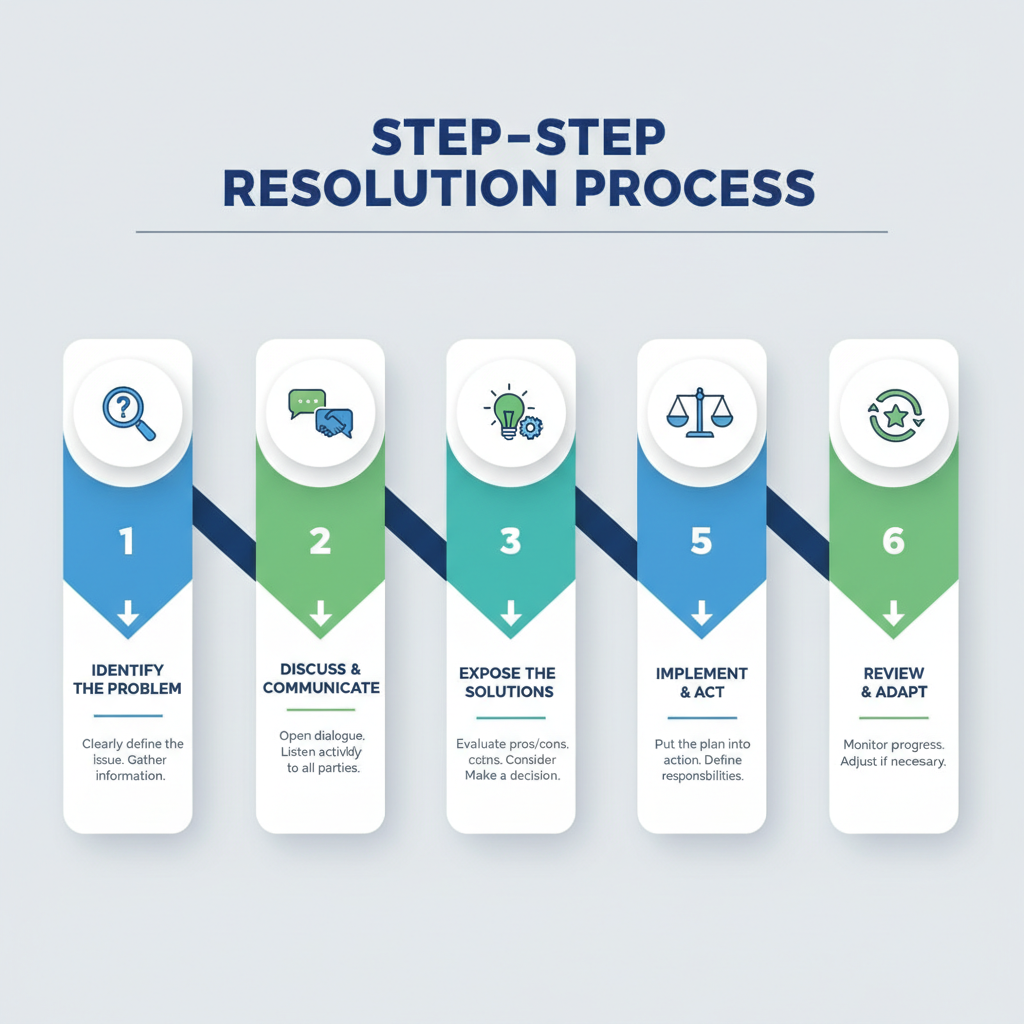
Initial Quick Fixes
1. Restart Your iPhone 17 Pro Max
Hold the volume up button and side button simultaneously until the power slider appears. Slide to power off, wait 30 seconds, then restart. This simple step resolves many temporary software glitches.
2. Check Cable Connections
Inspect your USB-C cable for visible damage, bent connectors, or debris. Try a different Apple-certified cable if available. Ensure the cable is firmly connected to both your phone and the vehicle’s USB port.
3. Clean Connection Points
Use a soft, dry brush or compressed air to remove dust and debris from your iPhone’s charging port and the vehicle’s USB port. Accumulated debris can prevent proper electrical contact.
Intermediate Troubleshooting Methods
4. Reset CarPlay Settings
Navigate to Settings > General > CarPlay on your iPhone. Select your vehicle and tap “Forget This Car.” Restart both your iPhone and vehicle, then re-establish the CarPlay connection from scratch.
5. Update iOS Software
Go to Settings > General > Software Update. Install any available updates, as Apple frequently releases CarPlay compatibility improvements. The iPhone 17 Pro Max benefits from the latest iOS optimizations.
6. Check Vehicle Compatibility
Verify that your vehicle officially supports the iPhone 17 Pro Max. Visit your car manufacturer’s website or contact their customer support to confirm compatibility and check for available infotainment system updates.
7. Test Different USB Ports
If your vehicle has multiple USB ports, try connecting to different ones. Some ports might be designed only for charging, while others support data transfer required for CarPlay functionality.
Advanced Diagnostic Steps
8. Reset Network Settings
Go to Settings > General > Transfer or Reset iPhone > Reset > Reset Network Settings. This action clears all Wi-Fi passwords, Bluetooth connections, and network configurations. You’ll need to reconnect to Wi-Fi networks afterward.
9. Disable Restrictions
Check Settings > Screen Time > Content & Privacy Restrictions. Ensure CarPlay isn’t restricted under “Allowed Apps.” Some users accidentally disable CarPlay through parental controls or corporate device management.
10. Try Safe Mode Connection
Temporarily disable all third-party apps and try connecting CarPlay. If successful, gradually re-enable apps to identify potential conflicts with CarPlay functionality.
Professional vs. DIY Solutions
Tasks You Can Handle Yourself
✅ Software Updates and Resets: All iOS updates, settings resets, and app management can be performed safely at home without technical expertise.
✅ Cable and Port Inspection: Visual inspection and cleaning of connections requires no special tools beyond a soft brush or compressed air.
✅ Basic Troubleshooting: Restarting devices, testing different cables, and checking compatibility information are straightforward DIY tasks.
When to Seek Professional Help
🧰 Vehicle Software Updates: Many car manufacturers require dealership visits for infotainment system updates. These updates often involve specialized diagnostic equipment and proprietary software.
🧰 Hardware Replacement: If your vehicle’s USB ports or infotainment system hardware has failed, professional installation and programming are necessary.
🧰 Complex Electrical Issues: Problems involving the vehicle’s electrical system, such as power supply issues or internal wiring problems, require automotive electrical expertise.
Important Safety Considerations
Electrical Safety Precautions
Always turn off your vehicle’s ignition before disconnecting or reconnecting USB cables. This prevents potential electrical surges that could damage your iPhone 17 Pro Max or the vehicle’s electronic systems.
Never attempt to disassemble your vehicle’s dashboard or infotainment system without proper training. Modern vehicles contain sensitive electronic components that can be easily damaged.
Driving Safety Guidelines
Avoid troubleshooting CarPlay issues while driving. Pull over safely and engage the parking brake before attempting any connection procedures or settings changes.
Keep your focus on the road when CarPlay is functioning. While convenient, CarPlay features should never distract from safe driving practices.
Prevention and Maintenance Tips
Regular Software Maintenance
Keep both your iPhone 17 Pro Max and your vehicle’s infotainment system updated with the latest software versions. Enable automatic updates on your iPhone to ensure you receive CarPlay improvements promptly.
Physical Connection Care
Inspect your USB-C cables regularly for wear and replace them at the first sign of damage. Store cables properly to prevent kinking or connector damage.
Clean your iPhone’s charging port monthly using compressed air to prevent debris accumulation that can interfere with CarPlay connections.
Long-term Solutions
If you continue experiencing persistent CarPlay issues with your iPhone 17 Pro Max, consider contacting both Apple Support and your vehicle manufacturer’s customer service. Document specific error messages, connection patterns, and troubleshooting steps you’ve already attempted.
Some users find success with third-party CarPlay adapters that can bridge compatibility gaps between newer iPhones and older vehicle systems. Research thoroughly and choose reputable brands if considering this option.
Conclusion
CarPlay connectivity issues with the iPhone 17 Pro Max are typically resolvable through systematic troubleshooting. Start with simple solutions like restarting devices and checking cables before progressing to more complex steps. Remember that safety should always be your priority when working with vehicle electronics or troubleshooting while driving.
Most CarPlay problems stem from software conflicts or connection issues that you can resolve yourself. However, don’t hesitate to seek professional help for complex vehicle system problems or when safety concerns arise. With patience and the right approach, you’ll have your iPhone 17 Pro Max working seamlessly with your vehicle’s CarPlay system.