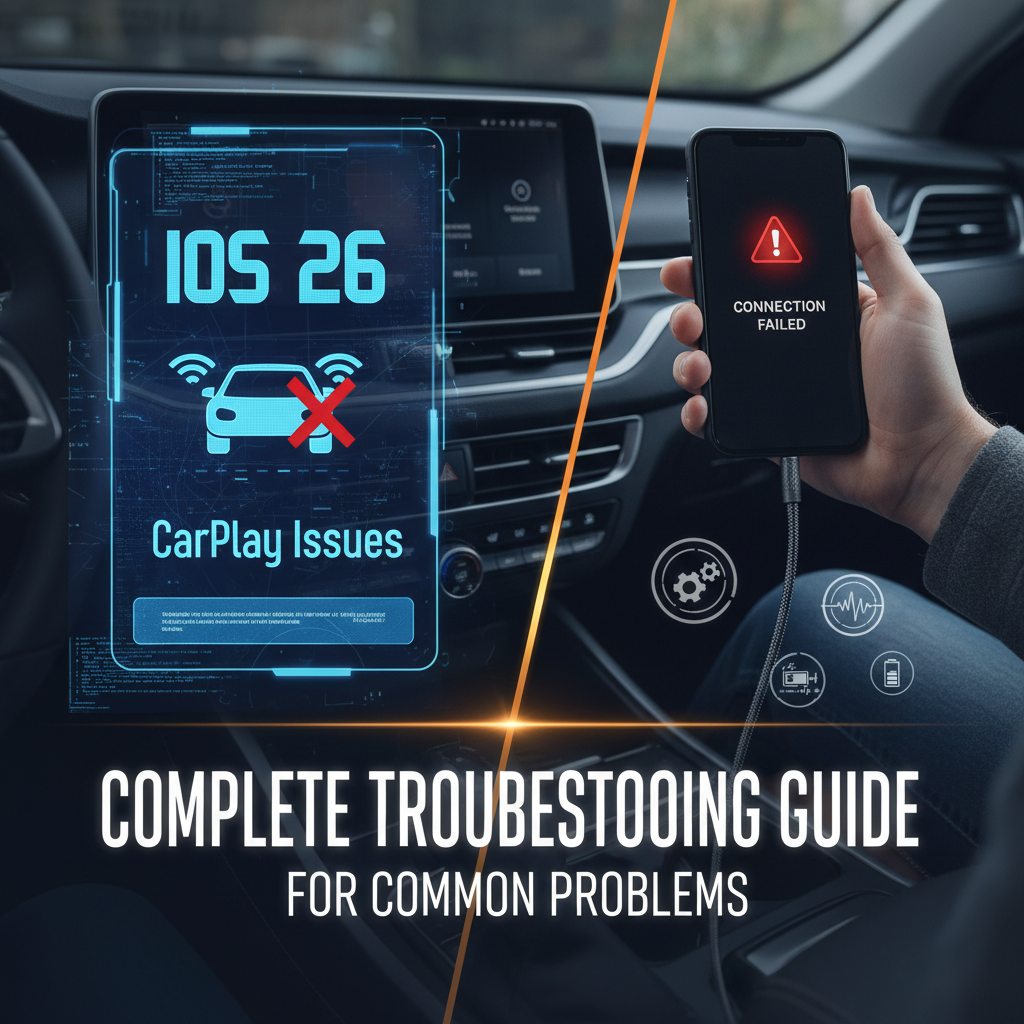
CarPlay has revolutionized how we interact with our vehicles, seamlessly integrating our iPhones with car infotainment systems. However, with the release of iOS 26, many users are experiencing unexpected connectivity and functionality issues. This comprehensive guide will help you diagnose and resolve the most common iOS 26 CarPlay problems.
Contents
- Understanding iOS 26 CarPlay Compatibility Challenges
- Primary Causes Behind iOS 26 CarPlay Malfunctions
- Step-by-Step CarPlay Troubleshooting Process
- Wireless vs. Wired CarPlay Troubleshooting Differences
- What You Can Handle vs. Professional Assistance
- Essential Safety Considerations
- Preventing Future iOS 26 CarPlay Issues
Understanding iOS 26 CarPlay Compatibility Challenges
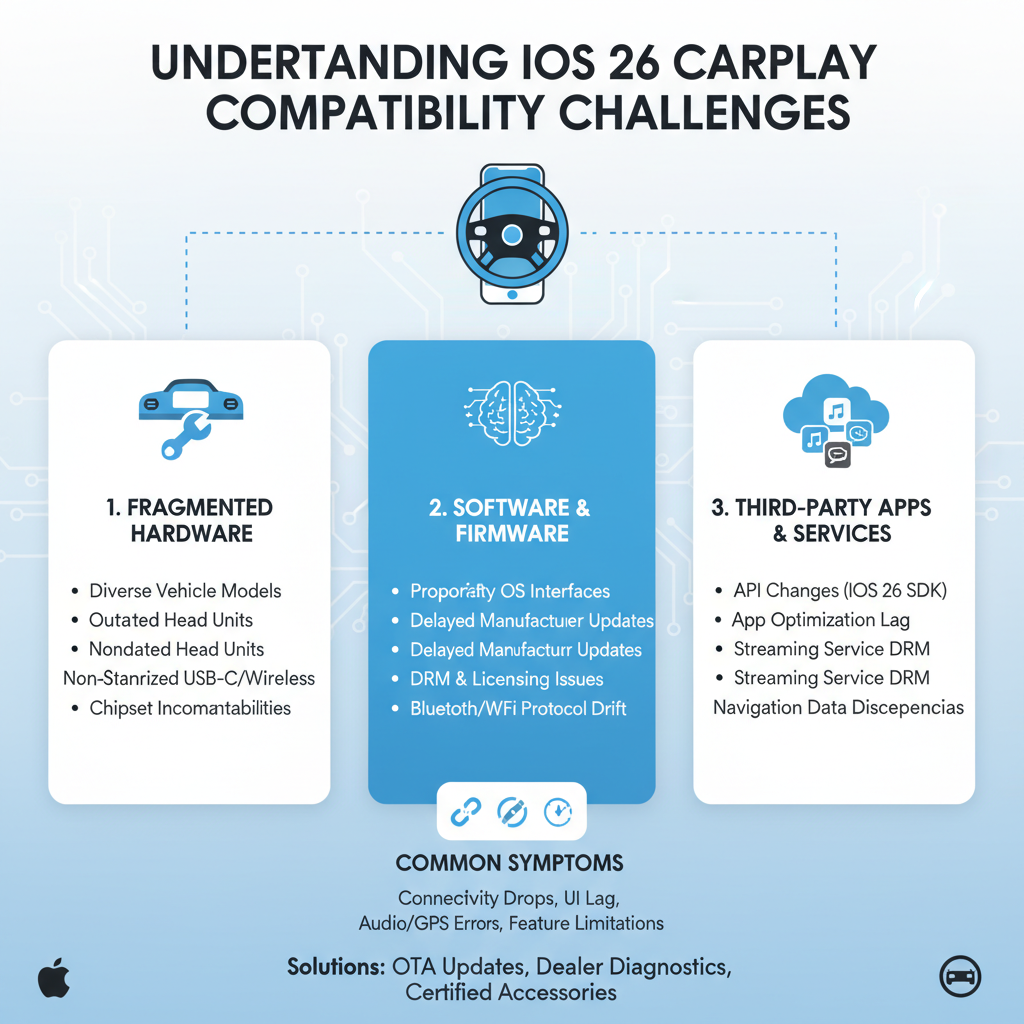
iOS 26 introduced significant changes to CarPlay’s underlying architecture. These updates, while improving security and performance, have created compatibility issues with certain vehicle models and aftermarket head units. The new operating system uses enhanced encryption protocols and modified communication methods that some older CarPlay systems struggle to interpret correctly.
Many drivers report that their previously reliable CarPlay connections have become unstable or completely non-functional after updating to iOS 26. Understanding these compatibility challenges is the first step toward resolving your CarPlay issues.
Primary Causes Behind iOS 26 CarPlay Malfunctions
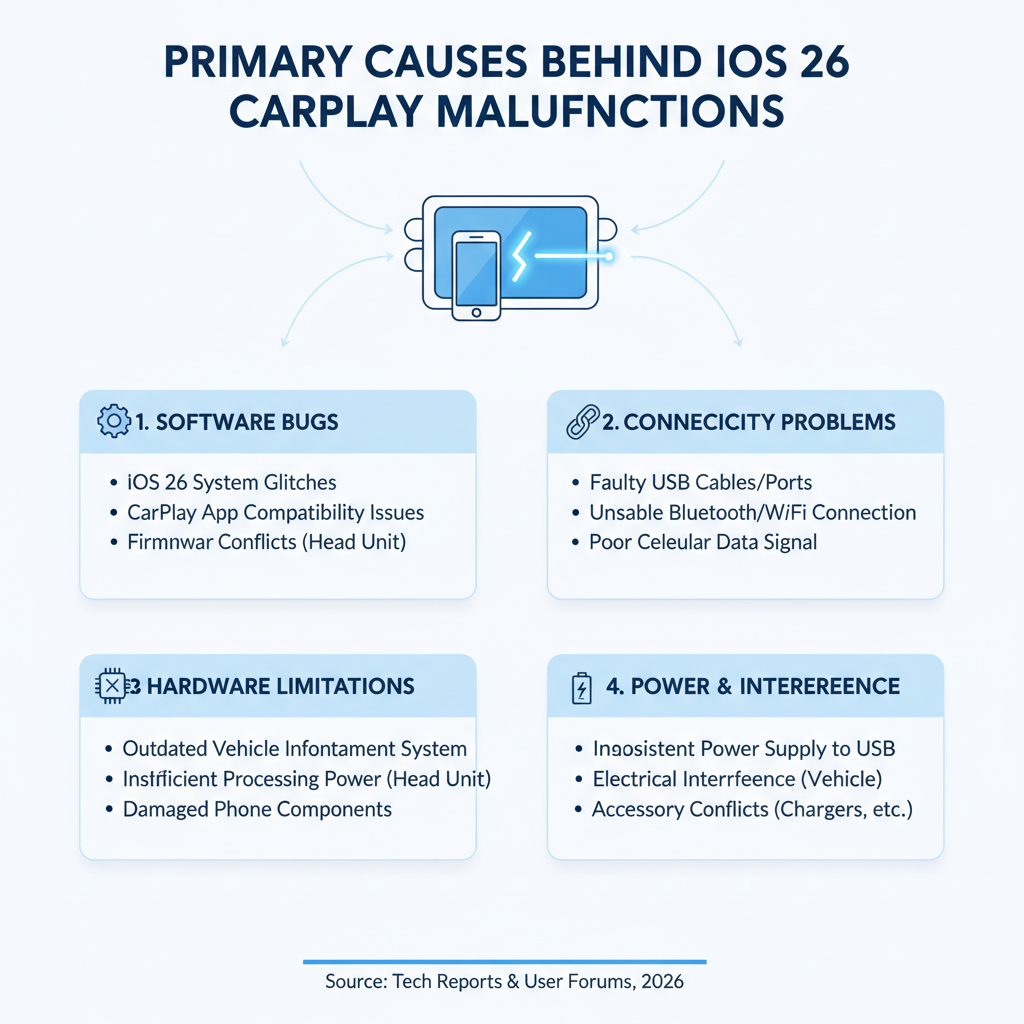
Software Protocol Conflicts
iOS 26 implements updated communication protocols that may not align with your vehicle’s CarPlay firmware. This mismatch creates handshake failures between your iPhone and the car’s infotainment system.
Cable Authentication Problems
Apple tightened cable authentication requirements in iOS 26. Non-certified or damaged Lightning/USB-C cables that previously worked may now fail authentication checks, preventing CarPlay from establishing a connection.
Wireless CarPlay Signal Interference
The new iOS version modified wireless CarPlay’s frequency management. This change can cause interference with other wireless devices in your vehicle, leading to dropped connections or poor performance.
Head Unit Firmware Incompatibility
Older vehicle infotainment systems may lack the firmware updates necessary to communicate effectively with iOS 26’s enhanced CarPlay features.
Step-by-Step CarPlay Troubleshooting Process
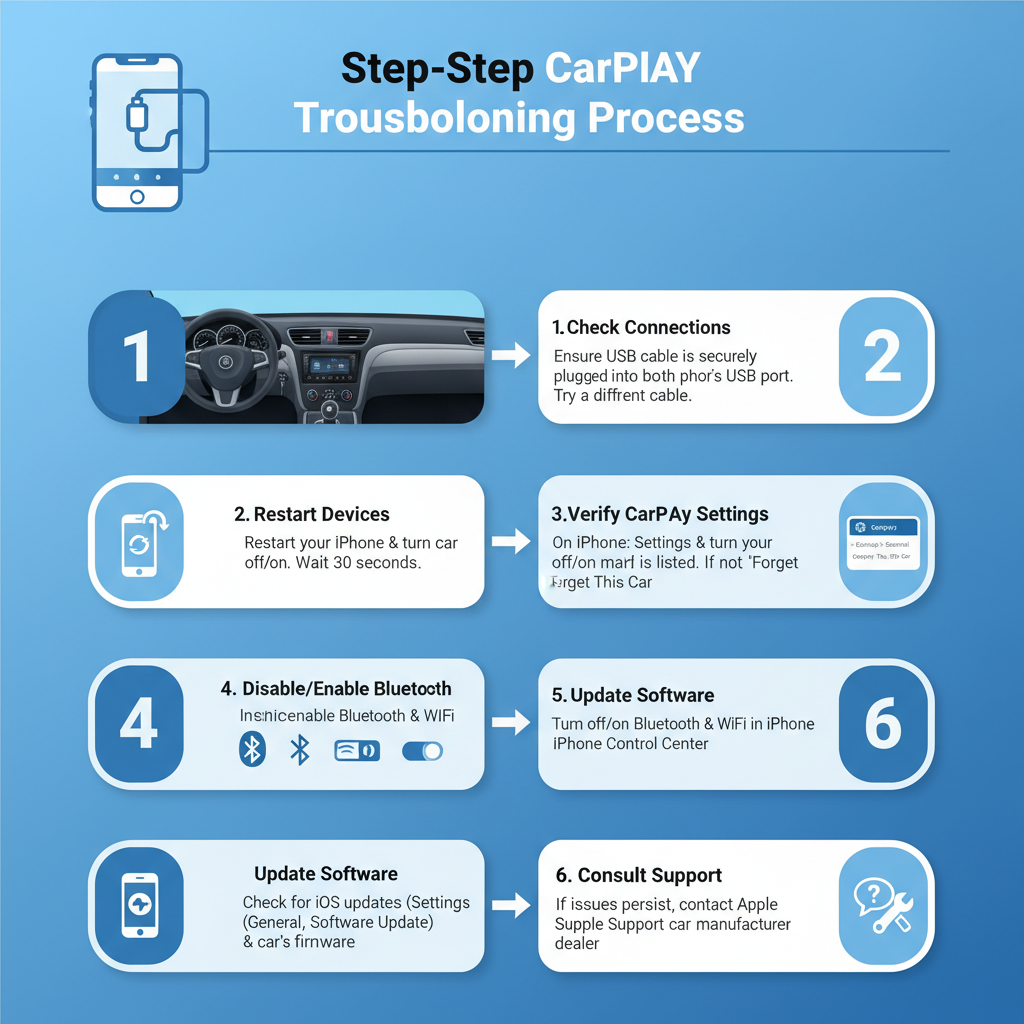
Initial Quick Fixes You Can Try Immediately
1. Force Restart Your iPhone
Press and hold the power button and volume down button simultaneously until the Apple logo appears. This clears temporary software glitches that might interfere with CarPlay connectivity.
2. Check Your Lightning or USB-C Cable
Inspect your cable for physical damage, bent connectors, or debris in the ports. Try a different Apple-certified cable to eliminate cable-related issues.
3. Verify CarPlay Settings on Your iPhone
Navigate to Settings > General > CarPlay. Ensure your vehicle appears in the list and is properly configured. If not listed, tap “Available Cars” to re-establish the connection.
4. Toggle CarPlay On and Off
In your iPhone’s CarPlay settings, remove your vehicle from the list, then reconnect it. This forces a fresh pairing process that often resolves minor connectivity issues.
Intermediate Troubleshooting Methods
5. Reset Network Settings
Go to Settings > General > Transfer or Reset iPhone > Reset > Reset Network Settings. This clears all saved Wi-Fi passwords, Bluetooth pairings, and CarPlay connections, requiring you to set them up again.
6. Update Your Vehicle’s Infotainment System
Check your vehicle manufacturer’s website for available software updates. Many brands have released patches specifically addressing iOS 26 compatibility issues.
7. Clear CarPlay Cache Through iTunes
Connect your iPhone to a computer with iTunes or Finder. Create a backup, then restore your device from that backup. This process clears corrupted CarPlay cache files.
8. Disable and Re-enable Siri
CarPlay heavily relies on Siri functionality. Go to Settings > Siri & Search, turn off Siri, restart your phone, then re-enable it with fresh voice training.
Advanced Resolution Techniques
9. Modify CarPlay Restrictions
In Settings > Screen Time > Content & Privacy Restrictions > Allowed Apps, ensure CarPlay is enabled. Some iOS 26 updates inadvertently modify these settings.
10. Check for Conflicting Apps
Certain third-party navigation or music apps can interfere with CarPlay. Temporarily uninstall recently downloaded apps to identify potential conflicts.
11. Reset All Settings
As a last resort before professional help, go to Settings > General > Transfer or Reset iPhone > Reset > Reset All Settings. This maintains your data while resetting all system preferences to defaults.
Wireless vs. Wired CarPlay Troubleshooting Differences
Resolving Wireless CarPlay Issues
Wireless CarPlay problems in iOS 26 often stem from Bluetooth and Wi-Fi interference. Start by forgetting your vehicle’s Bluetooth connection in Settings > Bluetooth, then re-pair your devices. Ensure your car’s Wi-Fi hotspot feature is disabled, as it can interfere with CarPlay’s wireless communication.
Check that your iPhone’s Wi-Fi is enabled even when not connected to a network. Wireless CarPlay uses Wi-Fi for data transmission and Bluetooth for initial pairing.
Fixing Wired CarPlay Problems
Wired connections typically fail due to cable authentication issues or USB port problems. Try different USB ports in your vehicle if available. Clean both your iPhone’s port and the car’s USB connector with compressed air to remove debris.
Test your cable with other devices to confirm it’s functioning properly. Remember that iOS 26 is stricter about cable certification than previous versions.
What You Can Handle vs. Professional Assistance
✅ DIY Solutions You Can Safely Attempt
• Software updates and iPhone restarts
• Cable replacement and port cleaning
• Settings adjustments and network resets
• App management and Siri reconfiguration
• Basic vehicle infotainment system updates
These tasks require no technical expertise and carry minimal risk of causing additional problems.
🧰 When to Seek Professional Help
Professional assistance becomes necessary for:
• Vehicle infotainment system hardware repairs
• Complex firmware installations requiring dealer equipment
• Electrical system diagnostics and wiring issues
• Integration problems with aftermarket head units
• Persistent issues after exhausting all DIY options
Automotive technicians have specialized diagnostic tools and access to manufacturer-specific updates that aren’t available to consumers.
Essential Safety Considerations
Electrical System Precautions
Always turn off your vehicle’s ignition before disconnecting or reconnecting any cables. This prevents potential electrical surges that could damage your iPhone or the car’s systems.
Never attempt to disassemble your vehicle’s dashboard or infotainment system without proper training. Modern cars contain sensitive electronic components that can be easily damaged.
Data Protection Measures
Before performing any reset procedures, ensure your iPhone is backed up to iCloud or iTunes. Network resets will erase saved passwords and require you to reconnect to all Wi-Fi networks.
Consider documenting your current CarPlay settings before making changes, so you can restore them if needed.
Preventing Future iOS 26 CarPlay Issues
Proactive Maintenance Steps
Regularly clean your iPhone’s charging port and your vehicle’s USB connections. Keep your iOS software updated, but research known CarPlay issues before installing major updates immediately upon release.
Invest in high-quality, Apple-certified cables and replace them periodically, as they experience significant wear from repeated connection and disconnection.
Long-term Compatibility Planning
Stay informed about your vehicle manufacturer’s software update schedule. Many automakers release CarPlay compatibility updates several weeks after new iOS versions launch.
Consider joining online forums specific to your vehicle model, where other owners share their CarPlay experiences and solutions.
By following this comprehensive troubleshooting guide, most iOS 26 CarPlay issues can be resolved without professional intervention. Remember that patience is key – some solutions may require multiple attempts or combinations of different approaches to achieve success.