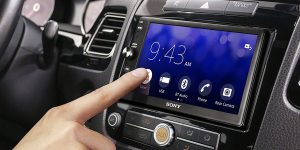
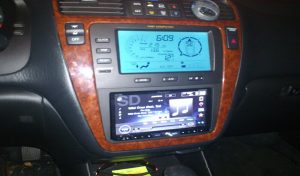
Connecting your iPhone to your car doesn’t require the latest CarPlay technology. Whether you’re driving an older vehicle or simply want alternative connection methods, there are several reliable ways to link your iPhone to your car’s audio system. This comprehensive guide will show you exactly how to connect iPhone to car without CarPlay using proven techniques that work with most vehicles.
Contents
- Why Connect Your iPhone to Your Car?
- Method 1: Bluetooth Connection for Wireless Audio
- Method 2: USB Cable Connection for Direct Audio
- Method 3: Auxiliary (AUX) Input for Universal Compatibility
- Method 4: FM Transmitter for Older Vehicles
- Method 5: Professional Installation Options
- Optimizing Your iPhone Car Connection
- Conclusion
Why Connect Your iPhone to Your Car?
Before diving into the connection methods, it’s important to understand the benefits of linking your iPhone to your vehicle’s audio system. When you connect your phone to your car, you can:
– Stream music from your favorite apps like Spotify, Apple Music, or Pandora
– Make hands-free phone calls for safer driving
– Access GPS navigation audio through your car speakers
– Charge your device while driving
– Control audio playback through your steering wheel controls
Many drivers assume they need a modern car with built-in CarPlay functionality, but that’s simply not true. Even older vehicles from the early 2000s often have connection options available.
Method 1: Bluetooth Connection for Wireless Audio
The most popular way to connect iPhone to car without CarPlay is through Bluetooth wireless technology. Most cars manufactured after 2010 include Bluetooth capability, making this the easiest wireless solution.
Step-by-Step Bluetooth Setup:
1. Start your car and ensure the audio system is powered on
2. Access your car’s Bluetooth settings (usually found in the audio or phone menu)
3. Enable pairing mode on your car’s system (often called “Add Device” or “Pair New Device”)
4. Open iPhone Settings and tap “Bluetooth”
5. Make sure Bluetooth is turned on (the toggle should be green)
6. Look for your car’s name in the available devices list
7. Tap your car’s name to initiate pairing
8. Enter the PIN code if prompted (commonly 0000 or 1234)
9. Confirm the connection on both your iPhone and car system
Once paired, your iPhone will automatically connect to your car’s Bluetooth system when you start the vehicle. This wireless connection allows you to stream audio and make hands-free calls without any cables.
Troubleshooting Bluetooth Issues:
If you’re having trouble with the Bluetooth connection:
– Delete the pairing from both devices and start over
– Ensure your iPhone is within 30 feet of the car
– Check if your car’s Bluetooth system needs a software update
– Restart both your iPhone and car’s infotainment system
Method 2: USB Cable Connection for Direct Audio
A USB connection provides a reliable wired alternative for those wondering how to connect iPhone to car without CarPlay. This method often delivers better audio quality than Bluetooth and charges your phone simultaneously.
USB Connection Process:
1. Locate your car’s USB port (usually in the center console or glove compartment)
2. Use a Lightning to USB cable (the same cable you use to charge your iPhone)
3. Connect your iPhone to the car’s USB port
4. Select “Trust This Computer” when prompted on your iPhone
5. Switch your car’s audio source to USB or iPod mode
6. Navigate through your music using your car’s controls
Many vehicles will display your iPhone’s music library on the car’s screen, allowing you to browse playlists, artists, and albums directly through the car’s interface. This integration provides a CarPlay-like experience without requiring the actual CarPlay system.
Benefits of USB Connection:
– Superior audio quality compared to Bluetooth
– Charges your iPhone while connected
– Often provides access to music metadata (song titles, artist names)
– More stable connection than wireless options
– Works with virtually all iPhone models
Method 3: Auxiliary (AUX) Input for Universal Compatibility
The auxiliary input method is the most universal solution for connecting any iPhone to any car with an AUX port. This analog connection works with vehicles dating back to the early 2000s and even some older models.
AUX Connection Steps:
1. Find your car’s AUX input (typically a 3.5mm jack labeled “AUX”)
2. Get a 3.5mm to Lightning adapter (since newer iPhones don’t have headphone jacks)
3. Connect the adapter to your iPhone’s Lightning port
4. Plug the AUX cable into both your iPhone adapter and car’s AUX port
5. Set your car’s audio source to AUX or auxiliary mode
6. Control playback directly from your iPhone
While this method requires manual control through your phone, it provides reliable audio streaming for any vehicle equipped with an auxiliary input.
Method 4: FM Transmitter for Older Vehicles
For older cars without Bluetooth, USB, or AUX capabilities, an FM transmitter offers an excellent solution. These affordable devices broadcast your iPhone’s audio over an unused FM radio frequency.
FM Transmitter Setup:
1. Purchase a quality FM transmitter with Lightning connector or Bluetooth capability
2. Plug the transmitter into your car’s 12V power outlet (cigarette lighter)
3. Connect your iPhone to the transmitter (via cable or Bluetooth)
4. Choose an unused FM frequency on the transmitter
5. Tune your car radio to the same frequency
6. Adjust the volume on both your iPhone and car stereo
Modern FM transmitters often include additional features like USB charging ports, hands-free calling capability, and digital displays showing song information.
Choosing the Right FM Transmitter:
– Look for models with noise reduction technology
– Choose transmitters with multiple frequency options
– Consider units with both wired and wireless connectivity
– Select devices with fast charging capabilities
Method 5: Professional Installation Options
For drivers seeking a more permanent solution, professional installation of aftermarket systems provides advanced connectivity options without factory CarPlay.
Aftermarket Head Unit Installation:
Professional car audio installers can replace your factory stereo with modern units that include:
– Bluetooth connectivity
– Multiple USB ports
– Smartphone integration features
– Touchscreen interfaces
– Backup camera compatibility
Bluetooth Adapter Installation:
For those wanting to keep their original stereo, technicians can install Bluetooth adapters that integrate with existing systems. These adapters typically connect to your car’s CD changer port or auxiliary input, adding wireless connectivity without changing the dashboard appearance.
Optimizing Your iPhone Car Connection
Regardless of which connection method you choose, several tips can improve your experience:
Audio Quality Tips:
– Keep your iPhone’s volume at 80-90% when using AUX connections
– Use high-quality cables to minimize audio interference
– Position FM transmitters away from other electronic devices
– Regularly clean connection ports to maintain signal quality
Battery Management:
– Use charging cables when possible during long drives
– Enable Low Power Mode if you’re not charging
– Close unnecessary apps to preserve battery life
– Consider a car charger for non-USB connection methods
Safety Considerations:
– Set up playlists before driving
– Use voice commands when available
– Keep your iPhone within easy reach
– Never adjust settings while driving
Conclusion
Learning how to connect iPhone to car without CarPlay opens up numerous possibilities for enjoying your mobile content while driving safely. Whether you choose Bluetooth for wireless convenience, USB for superior audio quality, AUX for universal compatibility, FM transmission for older vehicles, or professional installation for advanced features, each method offers unique advantages.
The key is selecting the connection method that best matches your vehicle’s capabilities and your personal preferences. Bluetooth provides the most seamless experience for compatible cars, while auxiliary connections offer the widest compatibility. USB connections deliver the best audio quality and device charging, making them ideal for longer trips.
Remember that connecting your iPhone to your car enhances both entertainment and safety by enabling hands-free operation. Whichever method you choose, you’ll enjoy better audio quality, convenient device charging, and safer communication while driving. Start with the simplest option available in your vehicle and upgrade to more advanced solutions as needed.