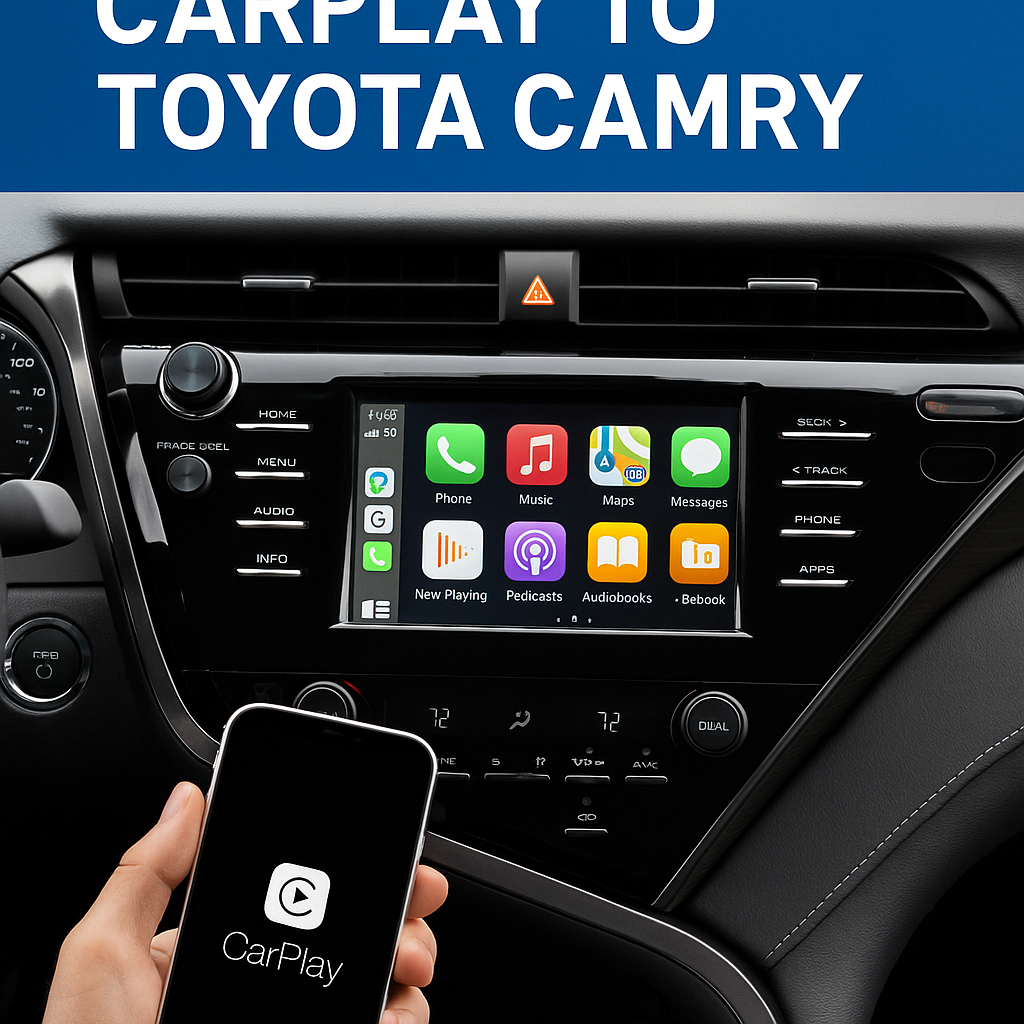
Connecting your iPhone to your Toyota Camry through Apple CarPlay transforms your driving experience by bringing your favorite apps, navigation, and communication tools directly to your dashboard. Whether you’re driving a 2018 model or the latest Camry, this comprehensive guide will walk you through everything you need to know about setting up and using CarPlay in your Toyota vehicle.
Contents
Understanding CarPlay Compatibility in Toyota Camry Models
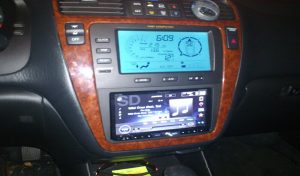
Before learning how to connect CarPlay to Toyota Camry, it’s essential to understand which model years support this technology. Toyota began integrating Apple CarPlay into the Camry lineup starting with the 2018 model year. If you own a 2018 or newer Camry, your vehicle likely comes equipped with Toyota’s multimedia system that supports CarPlay connectivity.
The Toyota Camry’s infotainment system varies by trim level, but most models feature either a 7-inch or 8-inch touchscreen display. Higher trim levels typically include the larger screen with enhanced audio systems. Both screen sizes support CarPlay functionality, though the larger display provides a more immersive experience when using navigation apps or viewing content.
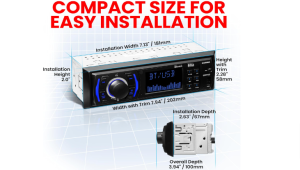
For older Camry models (2017 and earlier), factory CarPlay integration isn’t available. However, aftermarket solutions exist that can add this functionality to your vehicle’s entertainment system.
What You Need for CarPlay Setup
Setting up Apple CarPlay in your Toyota Camry requires minimal equipment. Here’s what you’ll need:
Essential Requirements:
– iPhone 5 or newer running iOS 7.1 or later
– Lightning to USB cable (preferably Apple-certified)
– Toyota Camry with CarPlay-compatible infotainment system
– Active Siri functionality on your iPhone
Optional Items:
– Wireless CarPlay adapter (for models without built-in wireless capability)
– High-quality USB cable for reliable connection
– Phone mount for easy access when not using CarPlay
Most Toyota Camry models require a wired connection for CarPlay functionality. While some luxury vehicles offer wireless CarPlay, the majority of Camry models use USB connectivity for the most stable connection.
Step-by-Step Guide: How to Connect CarPlay to Toyota Camry
Initial Setup Process
Step 1: Prepare Your iPhone
Start by ensuring your iPhone has the latest iOS version installed. Go to Settings > General > Software Update to check for available updates. Enable Siri by navigating to Settings > Siri & Search, then toggle on “Listen for ‘Hey Siri'” and “Press Side Button for Siri.”
Step 2: Start Your Vehicle
Turn on your Toyota Camry and ensure the infotainment system has fully loaded. The Toyota multimedia display should show the main menu with various app icons.
Step 3: Locate the USB Port
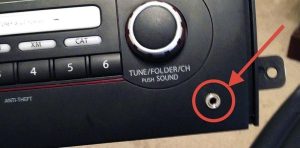
Find the USB port in your Camry’s center console or dashboard area. Most models have the USB connection near the gear shifter or in the center storage compartment. Look for the port labeled with a smartphone icon or “CarPlay” designation.
Step 4: Connect Your iPhone
Using a Lightning to USB cable, connect your iPhone to the designated CarPlay USB port. Avoid using the charging-only USB ports, as these won’t establish the data connection needed for CarPlay functionality.
Activation and Pairing
Step 5: Accept the CarPlay Prompt
Once connected, your iPhone should display a CarPlay setup prompt. Tap “Use CarPlay” to begin the pairing process. Your Toyota’s display will simultaneously show a CarPlay connection notification.
Step 6: Configure Display Settings
The infotainment screen will transition to the CarPlay interface, displaying your compatible apps in a grid layout. You can customize which apps appear by going to Settings > Screen Time > Content & Privacy Restrictions > Allowed Apps on your iPhone.
Step 7: Test Core Functions
Verify that essential features work correctly by testing phone calls, text messages, and navigation. Try activating Siri by pressing and holding the voice command button on your steering wheel or saying “Hey Siri.”
Troubleshooting Common CarPlay Connection Issues
Connection Problems
If your iPhone doesn’t connect automatically, try these solutions:
Cable Issues: Test with a different Lightning cable, preferably an Apple-certified one. Damaged or low-quality cables often cause connection failures.
Port Problems: Clean the USB port in your Camry and the Lightning port on your iPhone. Debris can prevent proper connection.
Software Conflicts: Restart both your iPhone and your vehicle’s infotainment system. Turn off your Camry completely, wait 30 seconds, then restart.
Performance Issues
Slow Response: Close unnecessary apps on your iPhone to free up processing power. CarPlay performance depends on your phone’s available resources.
Audio Problems: Check your iPhone’s volume settings and ensure Bluetooth isn’t interfering with the wired CarPlay connection.
App Crashes: Update problematic apps through the App Store. Outdated apps may not function properly with CarPlay.
Display and Interface Issues
If CarPlay appears but doesn’t function correctly, verify your iPhone’s CarPlay settings. Go to Settings > General > CarPlay, select your Toyota Camry, and ensure all desired apps are enabled.
For persistent issues, try forgetting the CarPlay connection and setting it up again. This process resets the pairing and often resolves stubborn connectivity problems.
Maximizing Your CarPlay Experience in Toyota Camry
Essential Apps for Driving
Navigation Apps: Apple Maps comes pre-installed, but consider downloading Google Maps or Waze for alternative routing options and real-time traffic updates.
Music and Podcasts: Spotify, Apple Music, and podcast apps integrate seamlessly with CarPlay, allowing voice control and steering wheel operation.
Communication: Messages and Phone apps enable hands-free communication while maintaining focus on driving.
Voice Control Optimization
Siri integration is CarPlay’s most powerful feature. Learn these voice commands to enhance your driving experience:
– “Hey Siri, navigate to [destination]”
– “Hey Siri, play [song/artist/playlist]”
– “Hey Siri, read my messages”
– “Hey Siri, call [contact name]”
Safety Features
CarPlay includes built-in safety features that limit certain functions while driving. Text messages are read aloud rather than displayed, and many apps restrict visual content when the vehicle is in motion. These features help maintain driver attention on the road.
Wireless CarPlay Options for Toyota Camry
While most Camry models require wired connections, wireless CarPlay adapters are available as aftermarket solutions. These devices plug into your USB port and create a wireless bridge between your iPhone and the vehicle’s system.
Popular wireless CarPlay adapters include the CarlinKit and AAWireless devices. These adapters maintain the same functionality as wired connections while eliminating cable management.
Conclusion
Learning how to connect CarPlay to Toyota Camry enhances your driving experience by integrating your iPhone’s capabilities with your vehicle’s infotainment system. The setup process is straightforward, requiring only a compatible iPhone, proper cable, and a few minutes for initial configuration.
Remember that CarPlay functionality depends on maintaining your iPhone’s software updates and using quality connection cables. With proper setup and regular maintenance, CarPlay transforms your Toyota Camry into a connected, intelligent driving environment that keeps you safely connected while on the road.
Whether you’re using navigation for daily commutes, streaming music for road trips, or staying connected with hands-free communication, CarPlay integration makes your Toyota Camry more functional and enjoyable to drive.