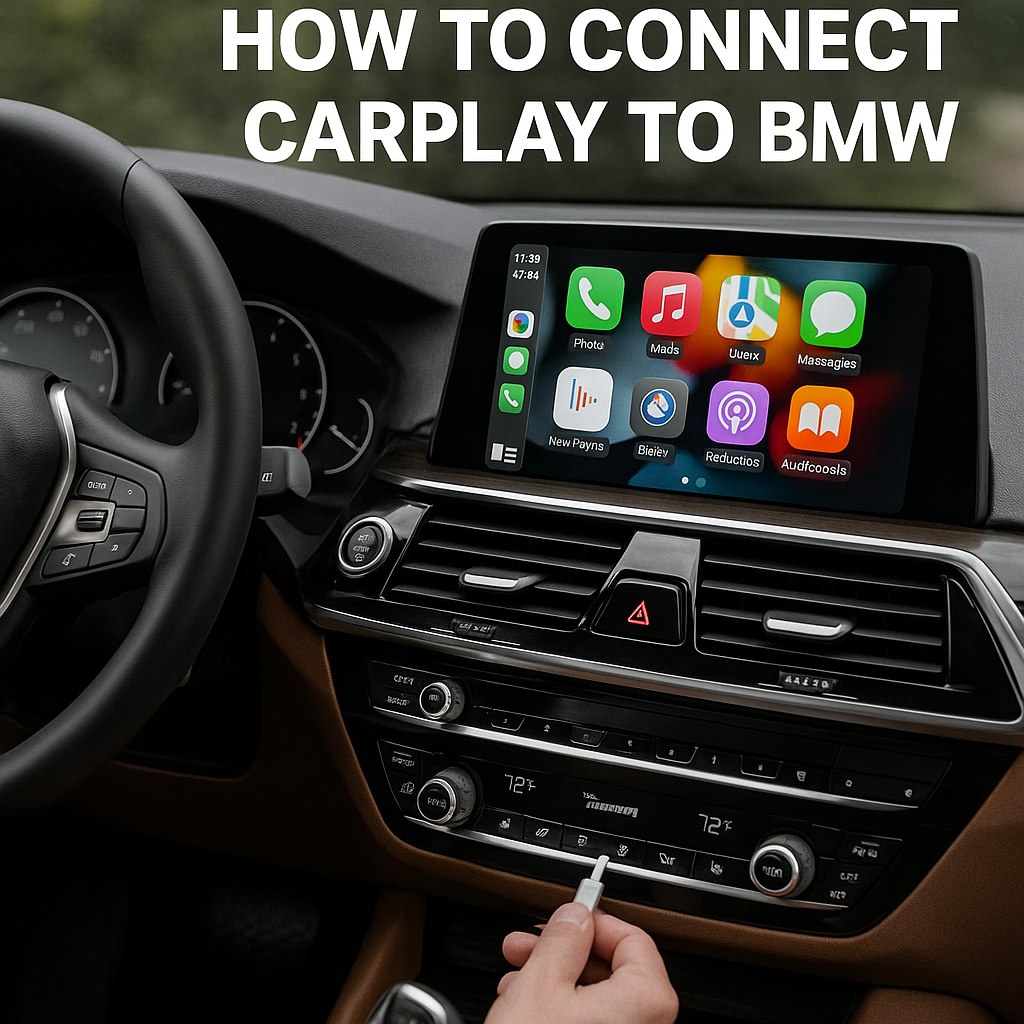
Connecting Apple CarPlay to your BMW transforms your driving experience. It seamlessly integrates your iPhone with your vehicle’s infotainment system. Whether you’re looking to access navigation, music, or hands-free calling, learning how to connect CarPlay to BMW is essential for modern drivers who want to stay connected safely on the road.
BMW has been supporting apple carplay integration since 2016, making it easier than ever to sync your iPhone with your luxury vehicle. This comprehensive guide covers BMW CarPlay setup and compatibility requirements. We’ll also help you troubleshoot common connection issues.’
Contents
BMW CarPlay Compatibility and Requirements
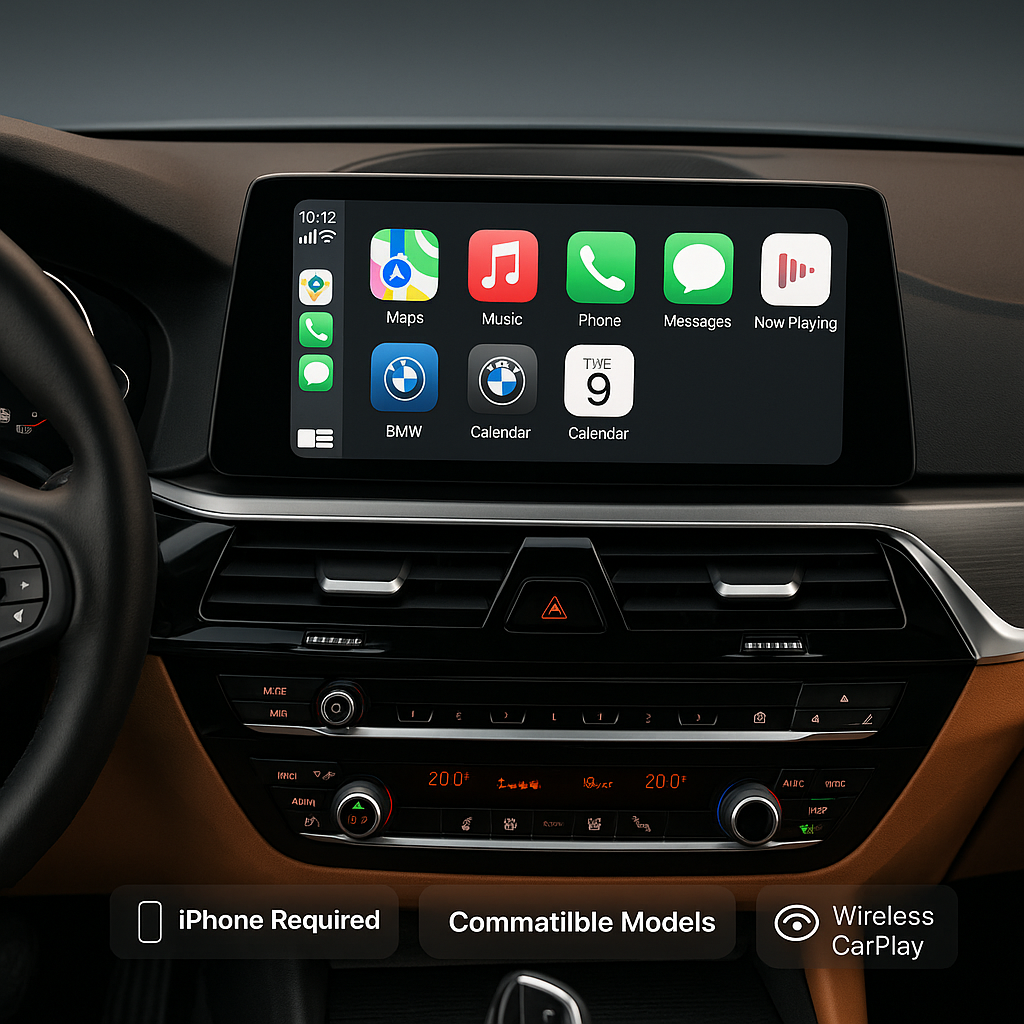
Before diving into the connection process, it’s important to understand which BMW models support Apple CarPlay and what you’ll need for a successful setup.
Compatible BMW Models
Most BMW vehicles from 2016 onwards include CarPlay compatibility. This includes popular models such as:
– BMW 3 Series (2016+)
– BMW 5 Series (2017+)
– BMW X3 and X5 (2018+)
– BMW 7 Series (2016+)
– BMW i3 and i8 electric vehicles
– Most recent BMW models with iDrive 6.0 or newer
System Requirements
To connect CarPlay to your BMW successfully, ensure you have:
– iPhone 5 or newer running iOS 7.1 or later
– BMW with iDrive system version 6.0 or higher
– Active BMW ConnectedDrive account
– Lightning to USB cable (for wired connection)
– Bluetooth enabled on your iPhone
How to Connect CarPlay to BMW: Wired Connection Method
The wired connection method is the most reliable way to establish a CarPlay connection with your BMW. Follow these step-by-step instructions for a seamless setup.
Step 1: Prepare Your iPhone
Start by ensuring your iPhone is ready for the BMW CarPlay connection:
1. Update your iPhone to the latest iOS version
2. Enable Siri by going to Settings > Siri & Search
3. Turn on “Listen for Hey Siri” and “Press Side Button for Siri”
4. Make sure Bluetooth is enabled in your iPhone settings
Step 2: Connect Your iPhone to BMW
Now you’re ready to physically connect your device:
1. Locate the USB port in your BMW (usually in the center console or armrest)
2. Use a Lightning to USB cable to connect your iPhone to the USB port
3. Your BMW’s iDrive system should automatically detect your iPhone
4. Your vehicle’s display will show a CarPlay setup prompt
Step 3: Complete the BMW CarPlay Setup
Follow the on-screen prompts to finalize your connection:
1. Select “Apple CarPlay” from the media menu
2. Accept the terms and conditions when prompted
3. Allow CarPlay to access your iPhone data
4. Your iPhone screen may display a “CarPlay Connected” message
5. The CarPlay interface should now appear on your BMW’s display
Wireless CarPlay Connection for BMW Vehicles
Many newer BMW models support wireless CarPlay, eliminating the need for cables. Here’s how to set up wireless Apple CarPlay in your BMW.
Initial Wireless Setup Process
Setting up wireless CarPlay requires a slightly different approach:
1. Ensure your BMW supports wireless CarPlay (typically 2019+ models)
2. Go to your BMW’s Settings menu on the iDrive display
3. Navigate to “Mobile Devices” or “Smartphone Integration”
4. Select “Add New Device” or “Connect New Device”
5. Choose “Apple CarPlay” from the available options
Pairing Your iPhone Wirelessly
Complete the wireless pairing process with these steps:
1. On your iPhone, go to Settings > General > CarPlay
2. Select “Available Cars” and look for your BMW
3. Press and hold the voice control button on your BMW steering wheel
4. Follow the pairing instructions on both your iPhone and BMW display
5. Enter any required PIN codes when prompted
6. Confirm the connection on both devices
Troubleshooting Common BMW CarPlay Connection Issues
Even with proper setup, you might encounter some BMW CarPlay problems. Here are solutions to the most common issues.
CarPlay Not Showing Up in BMW
If CarPlay isn’t appearing in your BMW’s menu:
– Check if your BMW model supports CarPlay integration
– Verify your iPhone iOS version is compatible
– Restart both your iPhone and BMW infotainment system
– Try a different Lightning cable if using wired connection
– Ensure your BMW software is updated to the latest version
Connection Drops or Intermittent Issues
For unstable CarPlay connections:
– Reset your iPhone’s network settings
– Delete and re-add your BMW from iPhone CarPlay settings
– Check for interference from other Bluetooth devices that might be connected.
– Ensure your iPhone has sufficient battery power
– Try forgetting and re-pairing your BMW in Bluetooth settings
Audio or Display Problems
If you’re experiencing audio or visual issues:
– Adjust volume levels on both iPhone and BMW
– Check CarPlay restrictions in iPhone Settings
– Restart Siri and re-enable voice control
– Verify app permissions for CarPlay access
– Update problematic apps to their latest versions
Maximizing Your BMW CarPlay Experience
Once you’ve successfully connected CarPlay to your BMW, optimize your experience with these helpful tips.
Essential CarPlay Apps for BMW Drivers
Make the most of your BMW Apple CarPlay integration with these recommended apps:
– Navigation: Apple Maps, Google Maps, Waze
– Music: Apple Music, Spotify, Pandora
– Communication: Messages, WhatsApp, Telegram
– Podcasts: Apple Podcasts, Overcast
– Audio: Audible, SiriusXM
Voice Control and Siri Integration
Maximize safety and convenience by using voice commands:
– Activate Siri by pressing the voice control button on your steering wheel
– Use natural language for navigation: “Hey Siri, navigate to the nearest gas station”
– Control music playback: “Play my driving playlist”
– Send messages hands-free: “Send a message to John saying I’m running late”
Customizing Your CarPlay Interface
Personalize your BMW CarPlay experience:
1. Rearrange app icons on your iPhone CarPlay settings
2. Hide apps you don’t use while driving
3. Set up shortcuts for frequently used functions
4. Customize Siri responses and voice feedback
5. Adjust display brightness and contrast settings
Conclusion
learning how to connect CarPlay to BMW opens up a world of convenient, safe smartphone integration while driving. Whether you choose wired or wireless connection methods, the setup process is straightforward when you follow the proper steps. Remember to keep your iPhone and BMW software updated for the best CarPlay experience.
By successfully connecting Apple CarPlay to your BMW, you’ll enjoy seamless access to navigation, entertainment, and communication features without taking your hands off the wheel. If you encounter any connection issues, refer back to our troubleshooting section or consult your BMW dealer for additional support.
With CarPlay properly configured in your BMW, every drive becomes more connected, entertaining, and efficient. Take advantage of voice control features and customize your app layout to create the perfect driving companion for your BMW vehicle.