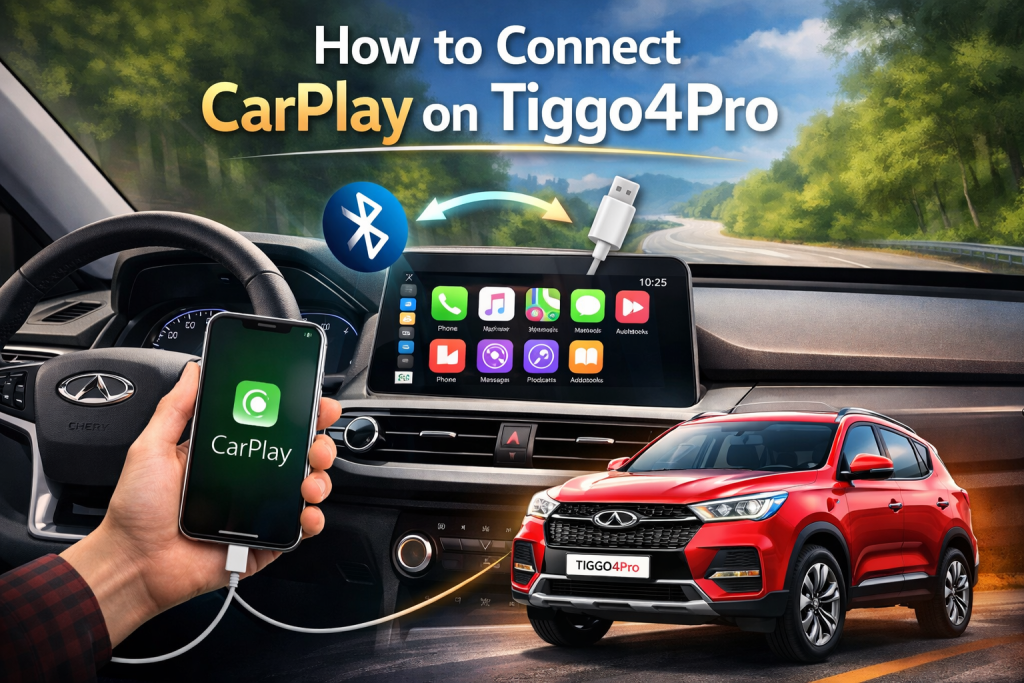
Connecting your iPhone to your Chery Tiggo4Pro’s infotainment system through Apple CarPlay transforms your driving experience. This comprehensive guide will walk you through how to connect CarPlay on Tiggo4Pro vehicles, ensuring you can access your favorite apps, navigation, and music seamlessly while on the road.
The Tiggo4Pro comes equipped with modern connectivity features, including wireless and wired CarPlay compatibility. Whether you’re a tech-savvy driver or new to smartphone integration, this step-by-step tutorial will help you establish a reliable connection between your iPhone and your vehicle’s multimedia system.
Contents
Understanding CarPlay Compatibility in Tiggo4Pro
Before diving into the connection process, it’s essential to understand your Tiggo4Pro’s CarPlay capabilities. The Chery Tiggo4Pro supports both wired and wireless Apple CarPlay connections, depending on your vehicle’s model year and infotainment system version.
System Requirements
Your iPhone must run iOS 7.1 or later to work with CarPlay. Most Tiggo4Pro models from 2020 onwards feature CarPlay integration as standard equipment. The vehicle’s infotainment display should show CarPlay as an available option in the connectivity menu.
The Tiggo4Pro’s touchscreen interface supports CarPlay’s intuitive controls, allowing you to navigate through apps using familiar gestures. Voice commands through Siri also work seamlessly once the connection is established.
Step-by-Step Guide: Wired CarPlay Connection
Connecting your iPhone via USB cable is the most reliable method for CarPlay setup on Tiggo4Pro. This wired connection ensures stable performance and charges your device simultaneously.
What You’ll Need
– Compatible iPhone (iOS 7.1 or later)
– Lightning to USB cable (preferably Apple-certified)
– Tiggo4Pro with CarPlay-enabled infotainment system
Connection Process
Step 1: Start Your Vehicle
Turn on your Tiggo4Pro and ensure the infotainment system is fully loaded. The main screen should display the home interface with various connectivity options.
Step 2: Locate the USB Port
Find the USB port in your Tiggo4Pro’s center console or dashboard. Most models feature multiple USB ports, but look for the one labeled for data transfer, not just charging.
Step 3: Connect Your iPhone
Plug your Lightning cable into your iPhone and connect the USB end to the vehicle’s data port. Use a high-quality cable to avoid connection issues.
Step 4: Accept the Connection
Your iPhone will display a prompt asking if you trust this computer. Tap “Trust” and enter your passcode if required. This step is crucial for establishing the CarPlay link.
Step 5: Access CarPlay Interface
The Tiggo4Pro’s screen should automatically switch to the CarPlay interface. If it doesn’t appear automatically, look for the CarPlay icon on your infotainment system’s home screen and tap it.
Step 6: Customize Your Experience
Once connected, you can rearrange app icons on the CarPlay display by pressing and holding them, similar to organizing apps on your iPhone’s home screen.
Wireless CarPlay Setup for Tiggo4Pro
Wireless CarPlay offers the convenience of automatic connection without cables. However, not all Tiggo4Pro models support this feature, so check your vehicle’s specifications first.
Enabling Wireless CarPlay
Step 1: Verify Wireless Capability
Check your Tiggo4Pro’s infotainment system settings for wireless CarPlay options. Look in the connectivity or Bluetooth settings menu.
Step 2: Activate Vehicle’s Wireless Mode
Navigate to the CarPlay settings on your Tiggo4Pro’s display. Select “Enable Wireless CarPlay” or similar option to make your vehicle discoverable.
Step 3: Prepare Your iPhone
On your iPhone, go to Settings > General > CarPlay. Your Tiggo4Pro should appear in the list of available vehicles when wireless mode is active.
Step 4: Pair the Devices
Select your Tiggo4Pro from the iPhone’s CarPlay menu. Follow any on-screen prompts to complete the pairing process. This may involve confirming a code on both devices.
Step 5: Test the Connection
Once paired, your iPhone should automatically connect to CarPlay when you start your vehicle and your phone is nearby. The connection typically activates within 30 seconds of starting the car.
Troubleshooting Common CarPlay Issues
Even with proper setup, you might encounter connectivity problems. Here are solutions for the most frequent Tiggo4Pro CarPlay connection problems.
Connection Failures
If CarPlay doesn’t activate after connecting your iPhone, try these solutions:
– Restart both your iPhone and the vehicle’s infotainment system
– Check that your Lightning cable is functioning properly
– Ensure your iPhone’s software is updated to the latest iOS version
– Verify that CarPlay isn’t restricted in your iPhone’s Screen Time settings
Intermittent Disconnections
Frequent disconnections often stem from cable issues or software conflicts:
– Replace your Lightning cable with an Apple-certified alternative
– Close unnecessary apps running in the background on your iPhone
– Reset your iPhone’s network settings (Settings > General > Reset > Reset Network Settings)
– Update your Tiggo4Pro’s infotainment system firmware if available
Audio Problems
If CarPlay connects but audio doesn’t work properly:
– Check the volume levels on both your iPhone and the vehicle’s system
– Ensure the correct audio source is selected on your Tiggo4Pro
– Try disconnecting and reconnecting your iPhone
– Test with different music apps to isolate the issue
Maximizing Your CarPlay Experience
Once you’ve successfully connected CarPlay to your Tiggo4Pro, optimize your setup for the best driving experience.
Essential CarPlay Apps
Popular navigation apps like Apple Maps, Google Maps, and Waze work excellently with the Tiggo4Pro’s display. Music streaming services including Apple Music, Spotify, and Pandora integrate seamlessly for entertainment during your commute.
Communication apps such as Messages and Phone allow hands-free operation through Siri voice commands, keeping you connected while maintaining focus on the road.
Voice Control Optimization
Activate Siri by pressing and holding the voice control button on your Tiggo4Pro’s steering wheel. This hands-free approach lets you send messages, make calls, and control navigation without taking your hands off the wheel.
Display Customization
Arrange your most-used apps on the CarPlay home screen for quick access. The Tiggo4Pro’s touchscreen responds well to CarPlay’s interface, making app switching smooth and intuitive.
Maintaining Your CarPlay Connection
Regular maintenance ensures your Tiggo4Pro Apple CarPlay integration continues working smoothly over time.
Keep your iPhone’s iOS updated, as Apple frequently releases improvements for CarPlay functionality. Similarly, check with your Chery dealer about infotainment system updates that might enhance CarPlay performance.
Clean your USB ports regularly to prevent connection issues, and inspect your Lightning cables for wear or damage. Replace cables showing signs of fraying or bent connectors.
Conclusion
Learning how to connect CarPlay on Tiggo4Pro enhances your driving experience by bringing your iPhone’s functionality to your vehicle’s dashboard. Whether you choose wired or wireless connection, following these detailed steps ensures a successful setup.
The Tiggo4Pro’s CarPlay integration offers reliable smartphone connectivity, making your daily commute more enjoyable and productive. With proper setup and maintenance, you’ll enjoy seamless access to navigation, music, and communication apps while keeping your focus on safe driving.
Remember that successful CarPlay connection depends on using quality cables, keeping software updated, and following the correct pairing procedures. Once established, your Tiggo4Pro’s CarPlay system will provide years of convenient, hands-free smartphone integration for all your driving adventures.