Modern Hyundai vehicles offer seamless smartphone integration through Apple CarPlay, transforming your driving experience with easy access to apps, navigation, and entertainment. Learning how to connect CarPlay in Hyundai vehicles is essential for maximizing your infotainment system’s potential and staying connected safely while driving.
This comprehensive guide walks you through the entire CarPlay setup process, troubleshooting common connection issues, and optimizing your Hyundai’s infotainment experience. Whether you’re driving a new Sonata, Tucson, or any compatible Hyundai model, you’ll discover everything needed for successful iPhone integration.
Contents
Understanding Hyundai CarPlay Compatibility
Before diving into the connection process, it’s crucial to verify your vehicle’s CarPlay compatibility. Most Hyundai models from 2016 onwards feature Apple CarPlay support, though specific trim levels and infotainment systems may vary.
Compatible Hyundai Models
Hyundai CarPlay integration is available across numerous vehicle lines including:
– Sonata (2016+)
– Elantra (2017+)
– Tucson (2016+)
– Santa Fe (2017+)
– Kona (2018+)
– Palisade (2020+)
– Venue (2020+)
Your iPhone must run iOS 7.1 or later for CarPlay functionality. Additionally, ensure your Hyundai’s infotainment system displays the CarPlay icon or mentions Apple CarPlay in the settings menu.
Checking Your Infotainment System
Locate your vehicle’s infotainment display and navigate to the connection or phone settings. Compatible systems typically show “Apple CarPlay” as a menu option. If you don’t see this feature, consult your owner’s manual or contact your Hyundai dealer for clarification.
Step-by-Step Guide: How to Connect CarPlay in Hyundai
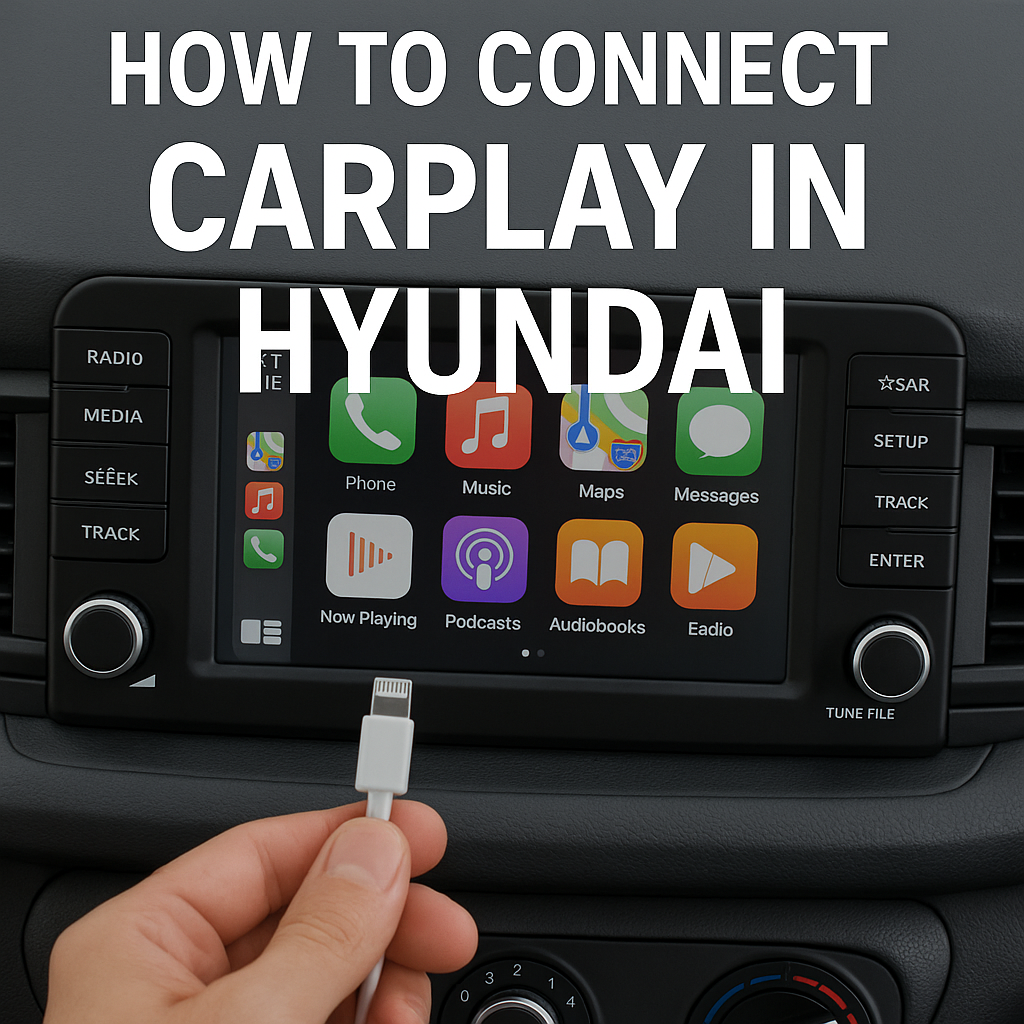
Connecting your iPhone to your Hyundai’s CarPlay system involves several straightforward steps. This process works for both wired and wireless CarPlay connections, depending on your vehicle’s capabilities.
Wired CarPlay Connection Method
Step 1: Prepare Your iPhone
– Ensure your iPhone is unlocked and running iOS 7.1 or newer
– Close any unnecessary apps running in the background
– Have your original Apple Lightning cable ready
Step 2: Start Your Vehicle
– Turn on your Hyundai’s ignition
– Wait for the infotainment system to fully boot up
– Ensure the system displays the home screen
Step 3: Connect the USB Cable
– Locate the USB port in your Hyundai (usually in the center console)
– Connect your iPhone using the original Apple Lightning cable
– Avoid using third-party cables as they may cause connection issues
Step 4: Enable CarPlay on Your iPhone
– When prompted, tap “Use CarPlay” on your iPhone screen
– If this is your first connection, you may need to unlock your phone
– Accept any permission requests for location services and Siri access
Step 5: Access CarPlay Interface
– Your Hyundai’s display should automatically switch to the CarPlay interface
– If not, look for the CarPlay icon on your infotainment screen and tap it
– You’ll now see your familiar iPhone apps displayed on the vehicle’s screen
Wireless CarPlay Setup (Select Models)
Some newer Hyundai models support wireless CarPlay connectivity, eliminating the need for cables.
Step 1: Enable Bluetooth and Wi-Fi
– Turn on Bluetooth and Wi-Fi on your iPhone
– Ensure your phone is discoverable
Step 2: Access Vehicle Settings
– Navigate to your Hyundai’s Bluetooth or connection settings
– Look for “Add New Device” or “Pair Device” options
Step 3: Pair Your iPhone
– Select your iPhone from the available devices list
– Follow the pairing prompts on both devices
– Enter any required PIN codes
Step 4: Activate Wireless CarPlay
– Once paired, select “Use CarPlay” when prompted
– Your iPhone will automatically connect to CarPlay when you start your vehicle
Troubleshooting Common CarPlay Connection Issues
Even with proper setup, you might encounter CarPlay connectivity problems. Here are solutions for the most frequent issues Hyundai owners experience.
iPhone Not Recognized
If your Hyundai doesn’t recognize your connected iPhone:
– Try a different USB port if your vehicle has multiple options
– Test with a different Lightning cable
– Restart your iPhone by holding the power and volume buttons
– Update your iPhone to the latest iOS version
– Reset your vehicle’s infotainment system by holding the power button for 10 seconds
CarPlay Icon Missing
When the CarPlay option doesn’t appear in your infotainment menu:
– Verify your vehicle’s CarPlay compatibility
– Check if CarPlay is enabled in your iPhone’s Settings > General > CarPlay
– Ensure you’re using a data-capable USB cable, not just a charging cable
– Try connecting with the vehicle in park and the parking brake engaged
Intermittent Connection Problems
For unstable CarPlay connections:
– Clean the USB port and Lightning connector
– Remove and re-add your vehicle in iPhone Settings > General > CarPlay
– Update your vehicle’s infotainment software if available
– Reset network settings on your iPhone (Settings > General > Reset)
Audio Issues
If CarPlay connects but audio doesn’t work properly:
– Check your vehicle’s audio source settings
– Adjust volume levels on both your iPhone and vehicle
– Ensure no other Bluetooth devices are interfering
– Test different audio apps to isolate the issue
Optimizing Your Hyundai CarPlay Experience
Once you’ve successfully connected CarPlay to your Hyundai, several optimization steps can enhance your daily driving experience.
Customizing Your CarPlay Interface
Organize your CarPlay apps for maximum convenience:
– Rearrange app icons through your iPhone’s Settings > General > CarPlay
– Select your vehicle and tap “Customize” to modify the app layout
– Prioritize frequently used apps like Maps, Music, and Phone
– Remove unused apps to reduce screen clutter
Essential CarPlay Apps for Hyundai Owners
Maximize your infotainment system with these recommended applications:
Navigation Apps:
– Apple Maps (built-in integration)
– Google Maps
– Waze (for real-time traffic updates)
Music and Entertainment:
– Apple Music
– Spotify
– Pandora
– Audible for audiobooks
Communication Apps:
– Phone (native calling)
– Messages (with Siri integration)
– WhatsApp (voice messages only)
Voice Control and Siri Integration
Leverage Siri for hands-free operation:
– Press and hold your steering wheel’s voice button to activate Siri
– Use voice commands for navigation: “Hey Siri, navigate to the nearest gas station”
– Send messages safely: “Hey Siri, text my wife I’m on my way home”
– Control music playback: “Hey Siri, play my driving playlist”
Advanced CarPlay Features and Tips
Understanding advanced CarPlay functionality helps you get the most from your Hyundai’s infotainment integration.
Split-Screen Functionality
Many Hyundai models support split-screen CarPlay views:
– Display navigation on one side and music controls on the other
– Access climate controls while maintaining CarPlay visibility
– Switch between CarPlay and vehicle settings seamlessly
Multiple iPhone Management
If multiple family members use the same vehicle:
– Each iPhone can be paired individually
– The system remembers preferences for different users
– Switch between connected devices through the infotainment menu
Software Updates and Maintenance
Keep your CarPlay connection running smoothly:
– Regularly update your iPhone’s iOS software
– Check for Hyundai infotainment system updates through your dealer
– Clean USB ports and cables periodically
– Monitor for CarPlay-related recalls or service bulletins
Conclusion
Learning how to connect CarPlay in Hyundai vehicles opens up a world of convenient, safe smartphone integration while driving. From the initial setup process to advanced optimization techniques, this guide provides everything needed for successful iPhone connectivity with your Hyundai’s infotainment system.
Remember that successful CarPlay integration depends on using quality cables, maintaining updated software, and following proper connection procedures