Apple’s iOS 16 brought exciting new features to iPhone users, but it also introduced several compatibility challenges with CarPlay systems. Many drivers have experienced frustrating connectivity problems, display glitches, and functionality issues after updating their devices. Understanding these problems and knowing how to fix them can save you time, money, and the headache of dealing with a malfunctioning infotainment system.
Contents
- Understanding the Root of CarPlay Problems with IOS 16
- Primary Causes Behind CarPlay Malfunctions with IOS 16
- Step-by-Step Troubleshooting Solutions of Carplay Problems with IOS 16
- DIY Solutions vs Professional Assistance
- Essential Safety Considerations
- Prevention and Maintenance Tips
- Long-term Solutions and Alternatives
Understanding the Root of CarPlay Problems with IOS 16
Software Compatibility Conflicts
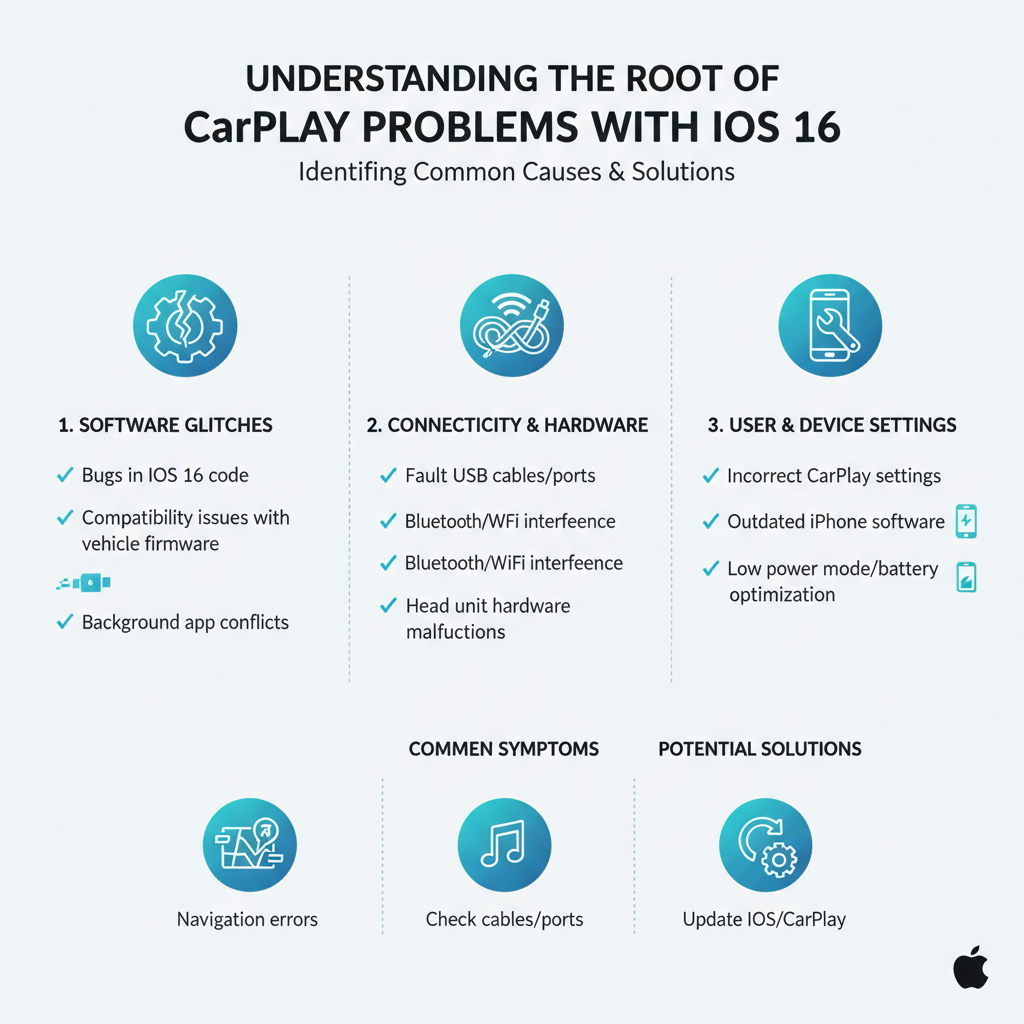
The most common issue stems from compatibility conflicts between iOS 16 and older CarPlay systems. Apple’s latest operating system includes updated protocols and security features that some automotive manufacturers haven’t fully integrated into their systems. This mismatch creates communication errors between your iPhone and your vehicle’s infotainment system.
Bluetooth and USB Connection Disruptions
iOS 16 modified how iPhones handle Bluetooth and USB connections. These changes affect the handshake process between your device and your car’s system. The result is often failed connections, dropped audio, or complete system freezes during the pairing process.
Memory and Processing Limitations
Newer iOS versions require more processing power and memory allocation. Older CarPlay head units may struggle to handle these increased demands, leading to slow response times, app crashes, or system reboots during operation.
Primary Causes Behind CarPlay Malfunctions with IOS 16
Outdated Vehicle Software
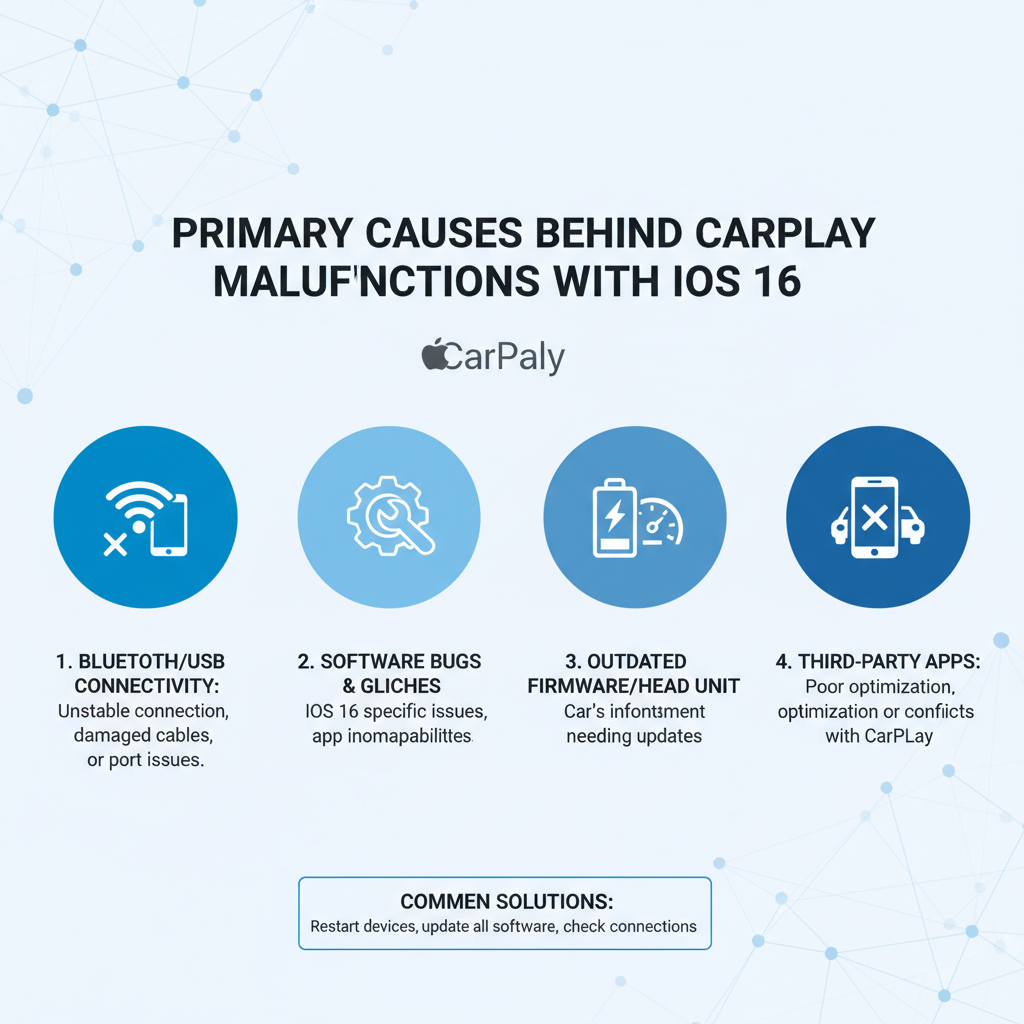
Your car’s infotainment system runs on firmware that needs regular updates. Manufacturers release patches to maintain compatibility with newer iOS versions. Without these updates, your system becomes increasingly incompatible with current iPhone software.
Corrupted CarPlay Cache Data
iOS 16 stores CarPlay preferences and connection data in cache files. When these files become corrupted during the update process, they can prevent proper system communication. This corruption often manifests as repeated connection failures or partial functionality.
Lightning Cable and Port Issues
Physical connection problems become more apparent with iOS 16’s stricter authentication protocols. Worn cables, dirty ports, or damaged connectors that previously worked may now fail to establish stable connections with the updated operating system.
Network Configuration Changes
iOS 16 altered how iPhones manage network priorities and data routing. These changes can interfere with CarPlay’s ability to access internet-dependent features like maps, music streaming, and voice commands.
Step-by-Step Troubleshooting Solutions of Carplay Problems with IOS 16
Basic Connection Reset Procedures
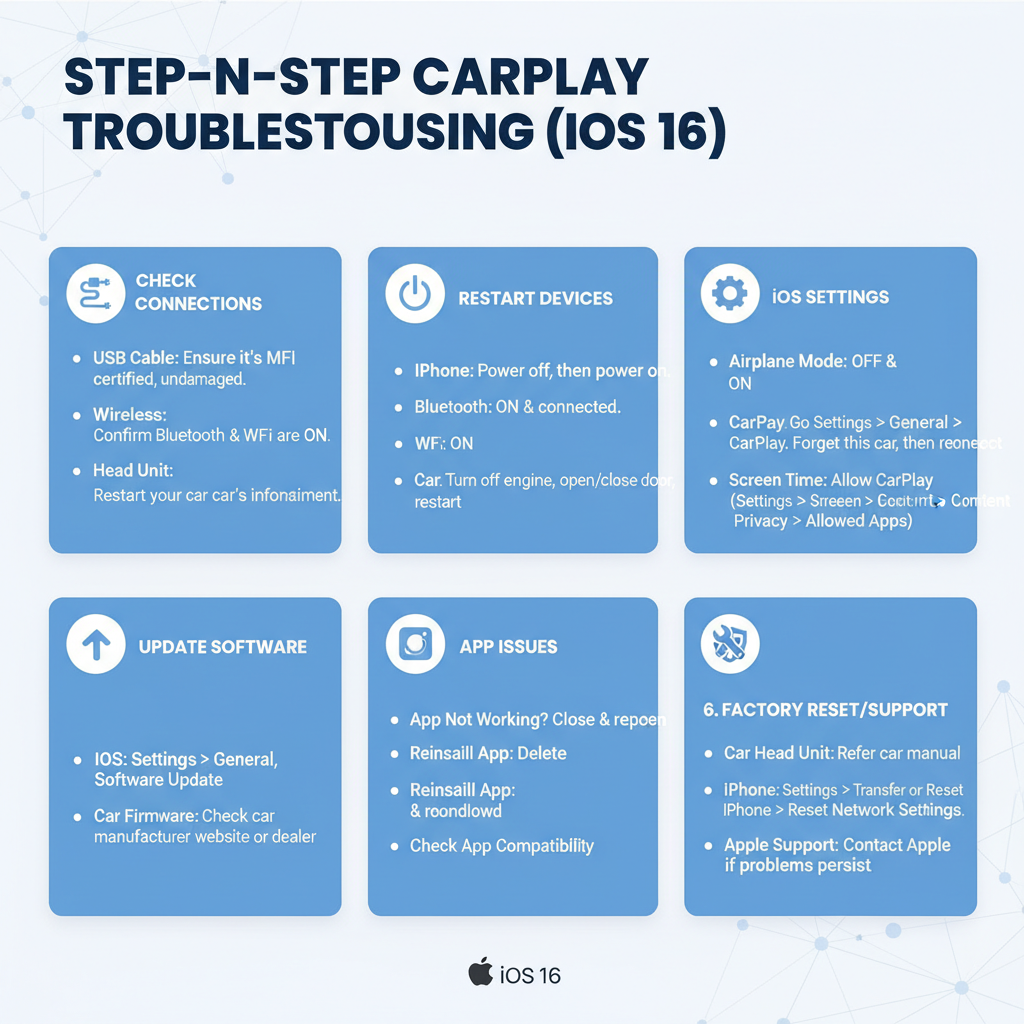
Start by completely forgetting your CarPlay connection on both devices. On your iPhone, navigate to Settings > General > CarPlay, select your vehicle, and choose “Forget This Car.” In your vehicle’s system, delete the iPhone from paired devices. This clean slate approach eliminates corrupted pairing data that often causes persistent problems.
Restart both your iPhone and your vehicle’s infotainment system. For your phone, perform a complete power cycle by holding the power and volume buttons until the Apple logo appears. For your car, turn off the engine, wait two minutes, then restart to allow the system to fully reset.
Cable and Port Maintenance
Inspect your Lightning cable for physical damage, including bent connectors, frayed wires, or loose connections. Even minor damage can cause intermittent failures with iOS 16’s enhanced authentication requirements. Clean both your iPhone’s Lightning port and your vehicle’s USB port using compressed air to remove debris that might interfere with data transmission.
Try multiple certified Lightning cables to isolate cable-related issues. Non-certified or damaged cables often work inconsistently with newer iOS versions due to stricter authentication protocols.
iOS Settings Optimization
Disable and re-enable CarPlay in your iPhone settings. Go to Settings > Screen Time > Content & Privacy Restrictions > Allowed Apps and ensure CarPlay is enabled. Sometimes iOS updates reset these permissions without notification.
Check your iPhone’s USB accessories settings under Settings > Face ID & Passcode > USB Accessories. Enable “USB Accessories” to allow CarPlay connections when your phone is locked. iOS 16 made this setting more restrictive by default.
Advanced Software Solutions
Reset your iPhone’s network settings by going to Settings > General > Transfer or Reset iPhone > Reset > Reset Network Settings. This action clears all WiFi passwords, Bluetooth pairings, and network configurations, often resolving deep-seated connectivity issues introduced by iOS 16.
Update your iPhone to the latest iOS 16 point release. Apple frequently releases minor updates that address CarPlay compatibility issues discovered after major releases. These updates often include specific fixes for automotive integration problems.
Vehicle System Updates
Contact your vehicle manufacturer or visit their website to check for available infotainment system updates. Many manufacturers released CarPlay compatibility patches specifically for iOS 16 issues. These updates typically require a USB drive and specific installation procedures outlined in your owner’s manual.
Some vehicles support over-the-air updates that can be initiated through the infotainment system’s settings menu. Look for “System Update,” “Software Update,” or similar options in your vehicle’s main settings.
DIY Solutions vs Professional Assistance
Owner-Manageable Tasks
✅ Simple troubleshooting steps include resetting connections, cleaning ports, trying different cables, and updating iPhone software. These tasks require no special tools and can be completed safely in your driveway.
✅ Settings adjustments on both your iPhone and vehicle system fall within typical user capabilities. Most infotainment systems provide clear menu navigation for pairing and connection management.
✅ Basic maintenance like port cleaning and cable inspection requires only common household items like compressed air and good lighting.
Professional Service Requirements
🧰 Vehicle software updates may require dealer-specific diagnostic tools and software access. Some manufacturers restrict firmware updates to authorized service centers to prevent system damage from incorrect installation procedures.
🧰 Hardware diagnostics become necessary when basic troubleshooting fails to resolve connection issues. Professional technicians can test USB port functionality, wiring integrity, and system communication protocols.
🧰 Complex integration problems involving multiple vehicle systems may require specialized automotive electronics knowledge and diagnostic equipment beyond typical consumer access.
Essential Safety Considerations
Electrical System Precautions
Always turn off your vehicle’s ignition before attempting any physical connection work. Modern vehicles maintain power to USB ports even when turned off, but shutting down reduces the risk of electrical surges during troubleshooting procedures.
Avoid forcing Lightning cables into ports or applying excessive pressure to connection points. iOS 16’s authentication process is more sensitive to physical connection quality, making gentle, proper insertion crucial for successful pairing.
Driving Safety Protocols
Never attempt CarPlay troubleshooting while driving. Pull over safely and engage the parking brake before making any system changes or connection adjustments. Distracted driving risks far outweigh the inconvenience of a non-functioning CarPlay system.
Ensure your vehicle’s basic functions remain unaffected by CarPlay issues. Some integration problems can interfere with essential vehicle systems, so verify that climate control, radio, and other critical functions operate normally.
Prevention and Maintenance Tips
Regular System Maintenance
Establish a routine for checking CarPlay functionality after iOS updates. Apple typically releases major iOS updates in September, with point releases throughout the year. Test your CarPlay connection within a few days of updating to identify issues early.
Keep multiple certified Lightning cables available and rotate their use to prevent wear-related failures. Store backup cables in your vehicle to avoid being stranded with a non-functional connection.
Proactive Update Management
Monitor both Apple’s iOS release notes and your vehicle manufacturer’s service bulletins for CarPlay-related information. This proactive approach helps you anticipate potential issues and plan accordingly.
Consider delaying iOS updates for a few weeks after release to allow other users to identify and report CarPlay compatibility issues. This strategy helps you avoid being an early adopter of problematic software combinations.
Long-term Solutions and Alternatives
If persistent issues continue despite thorough troubleshooting, consider wireless CarPlay adapters as an alternative connection method. These devices can bypass USB-related problems while maintaining full CarPlay functionality.
For vehicles with severely outdated infotainment systems, aftermarket CarPlay head units provide a permanent solution with guaranteed iOS 16 compatibility and ongoing update support.
Understanding CarPlay issues with iOS 16 empowers you to maintain reliable smartphone integration in your vehicle. Most problems respond well to systematic troubleshooting, while persistent issues may require professional diagnosis to ensure optimal system performance.